
Record a meeting
Available onBuilder
-
Open Meeting Notes. On a job with no meetings yet, choose the kind: Pre-start, Client meeting, Site meeting, or Another kind to type your own (for example “Handover walk-through”). On a job that has some, choose New meeting.
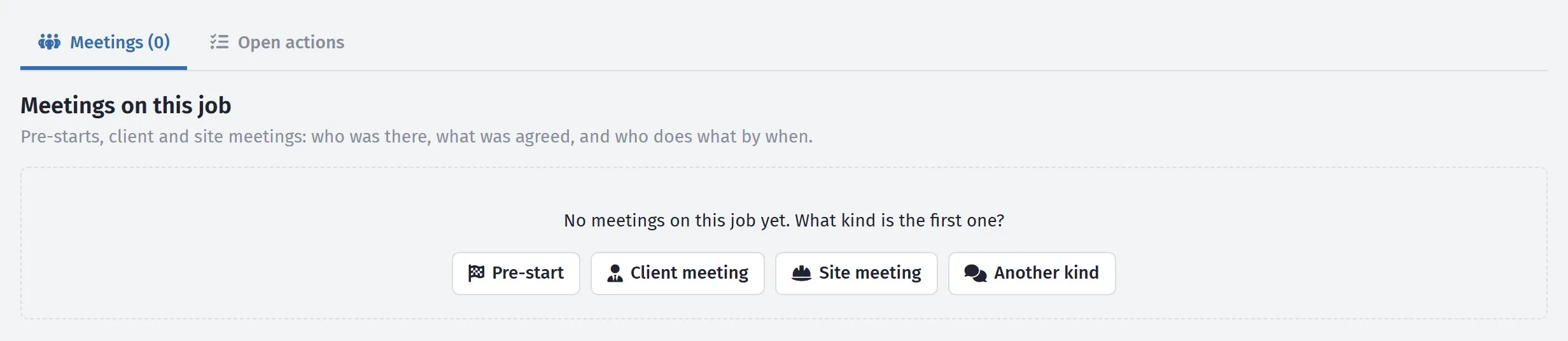
On a job with no meetings, the kinds are offered straight away.
-
The window says what the meeting starts with: the people on the list and the open items of the meeting before. Check the Date and time and Place, then choose Create meeting.
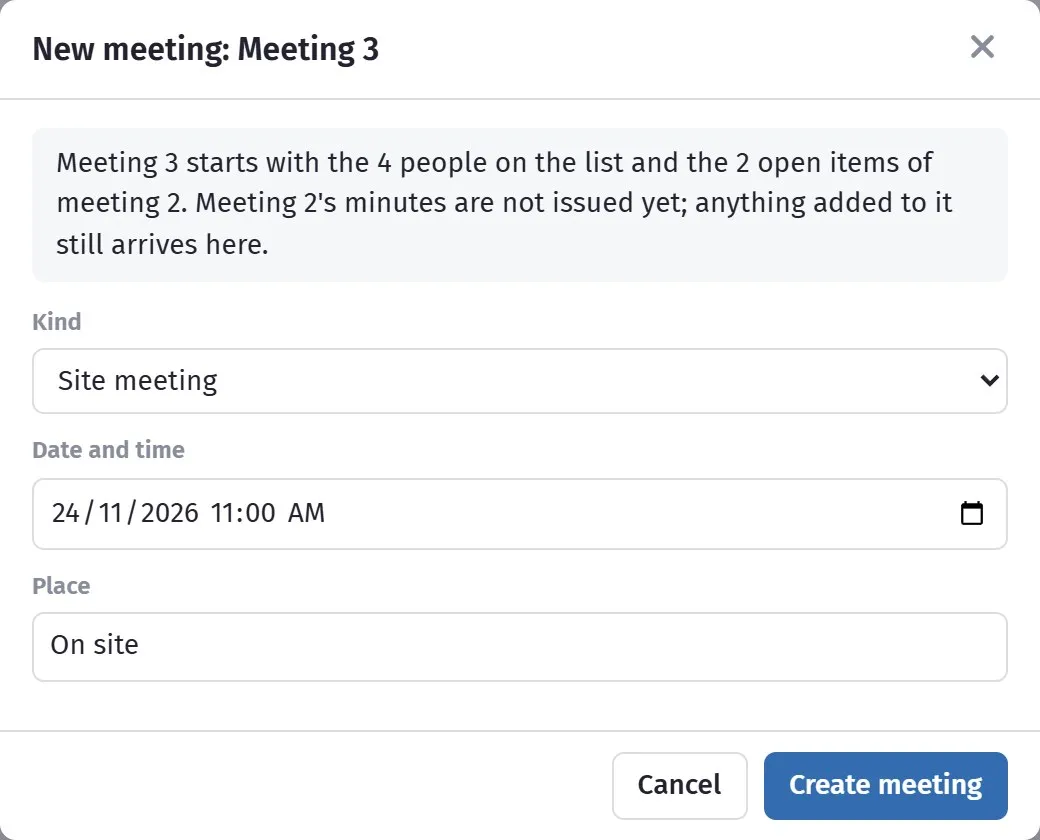
The window says who and what the new meeting starts with. Here meeting 2’s minutes are not issued yet, and it says so.
-
Under Who was there, start typing a name. The job’s client, the trades and suppliers on its orders and schedule, and your staff who can open the job are offered. Anyone else: type their name and organisation and choose Add. Mark each person Attended, Apology or Absent.
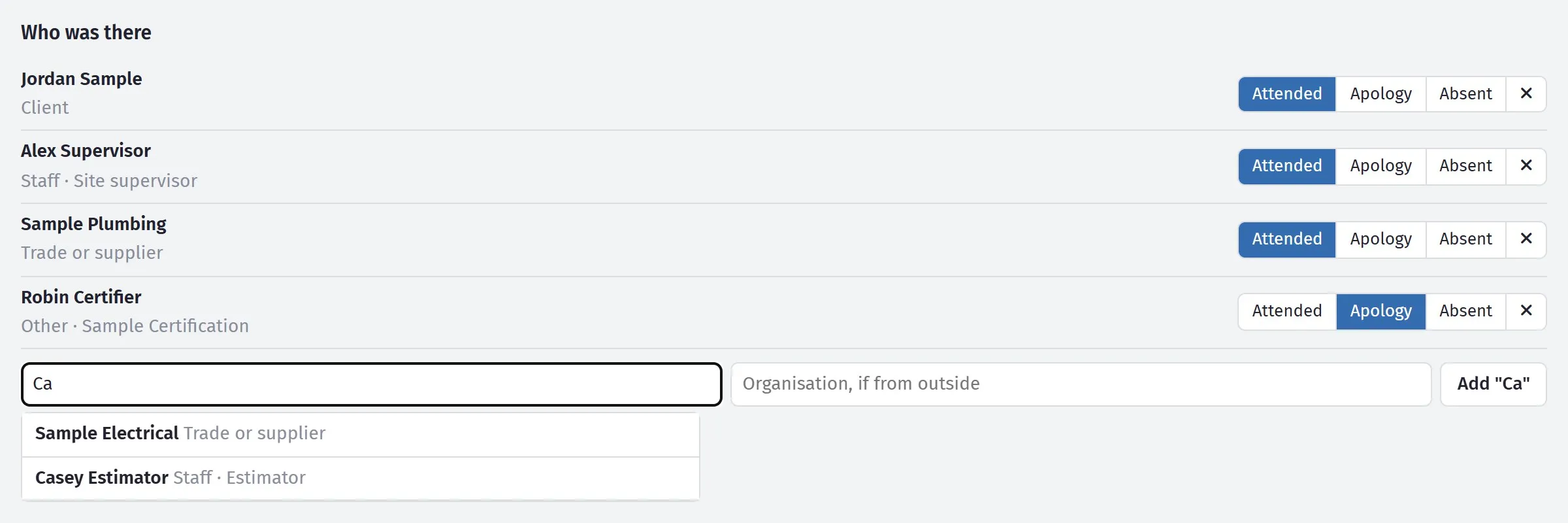
Type part of a name and the people on the job are offered. Someone from outside is added with the Add button beside the boxes.
-
Choose Add item for each point. Type a Heading and What was said, then choose:
- Open - fill in Action by (a staff member, a trade or supplier, the client, or a typed name such as “Council”) and Due.
- Closed - done.
- Note - for the record.
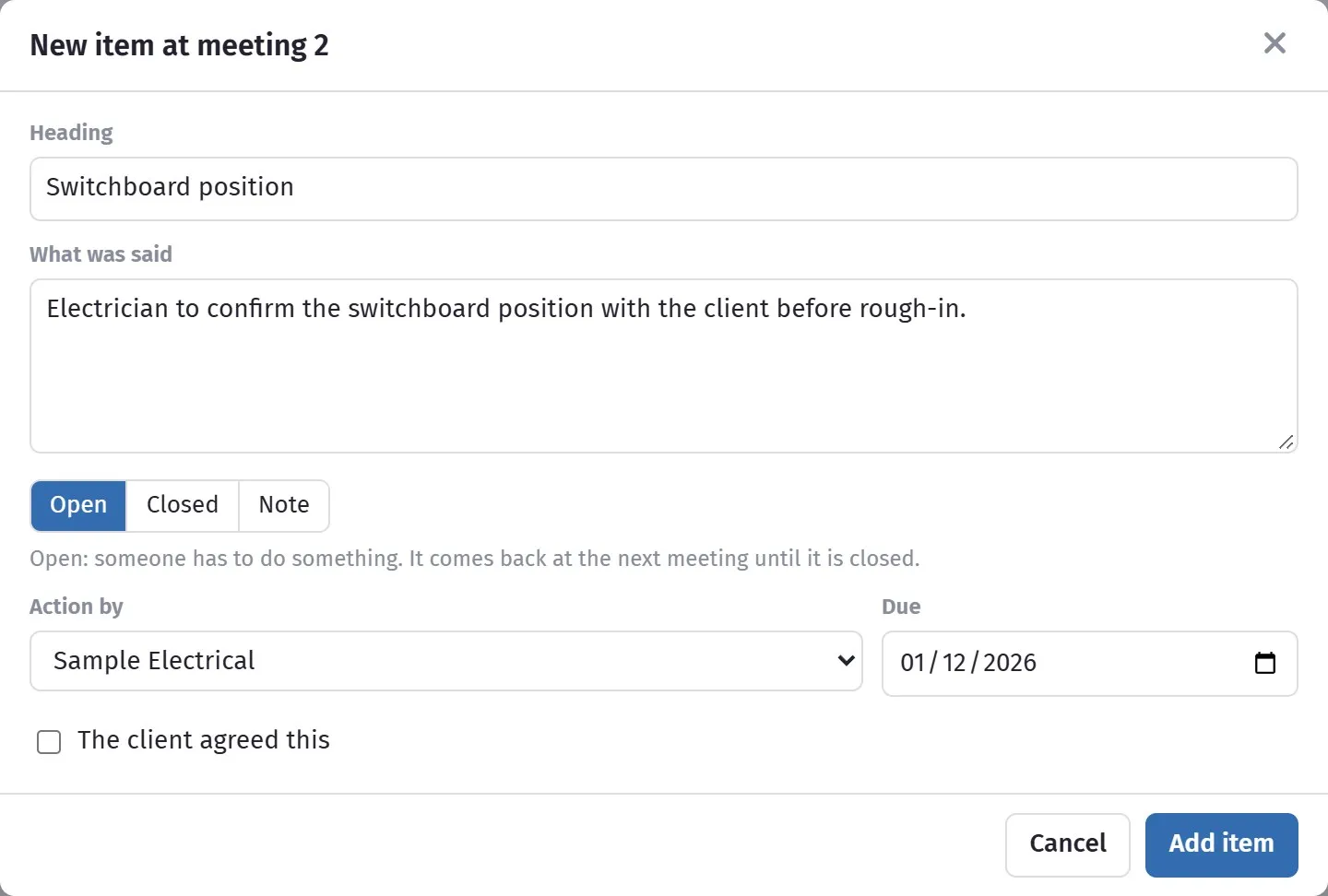
An open item needs someone to action it. Pick them from the list, or leave the list on “Type a name below” and type one.
-
Items from earlier meetings are listed first, under From earlier meetings, with what each meeting said. Click one, type what was said at this meeting, and change it to Closed when it is done.
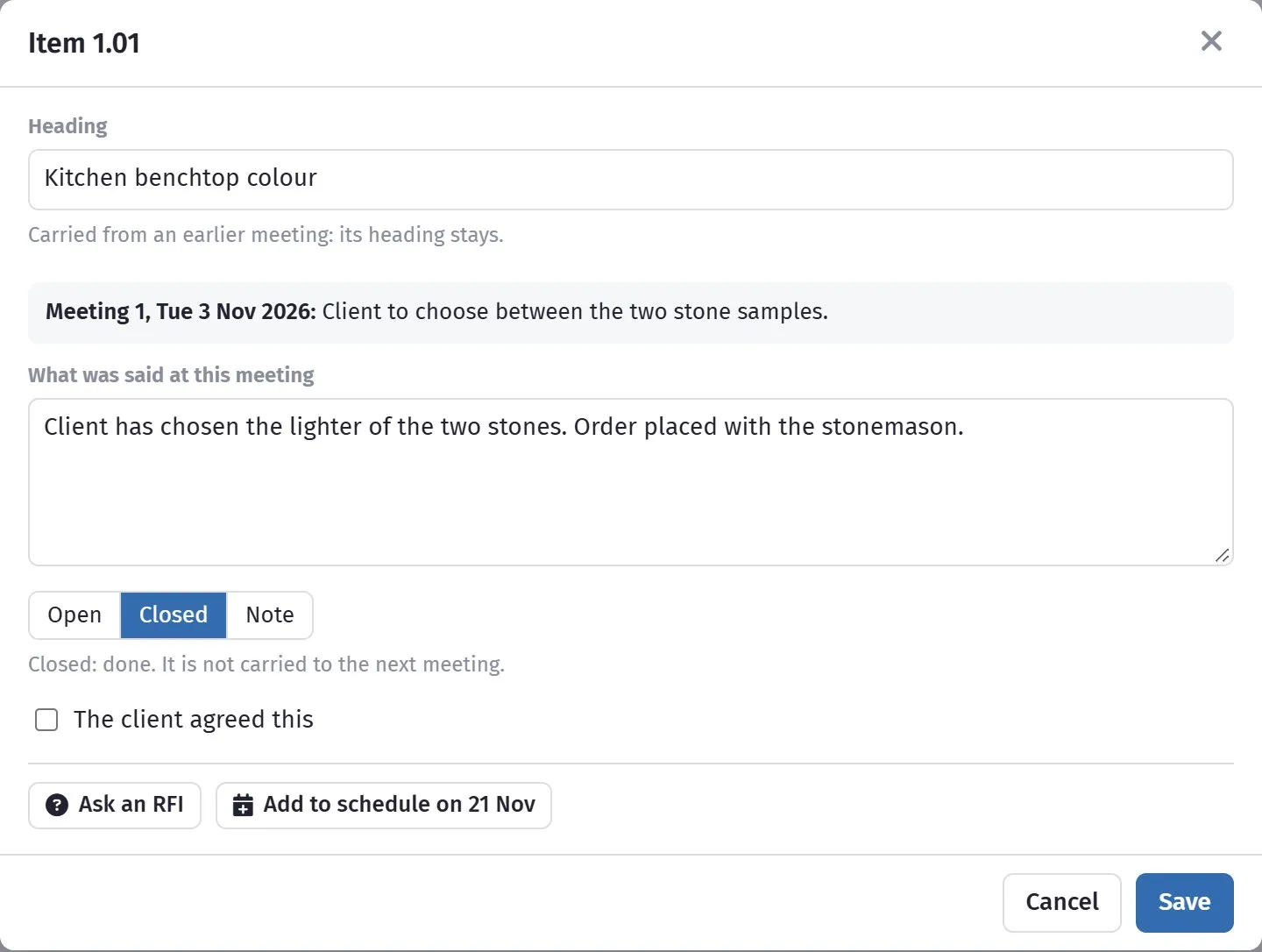
A carried item keeps its heading and shows what earlier meetings said. Type what was said today and close it when it is done.
Extras on an item
Section titled “Extras on an item”- The client agreed this - tick it when the client agreed something at the meeting, and pick the variation it is for if there is one. It is printed on the minutes.
- Ask an RFI - asks colleagues a question about the item, the same as anywhere else in SmarteBuild. The RFI remembers it came from this item and opens it from My RFIs.
- Add to schedule - puts a one-day task on the job’s schedule on the item’s due date (needs the Schedule and permission to edit tasks).
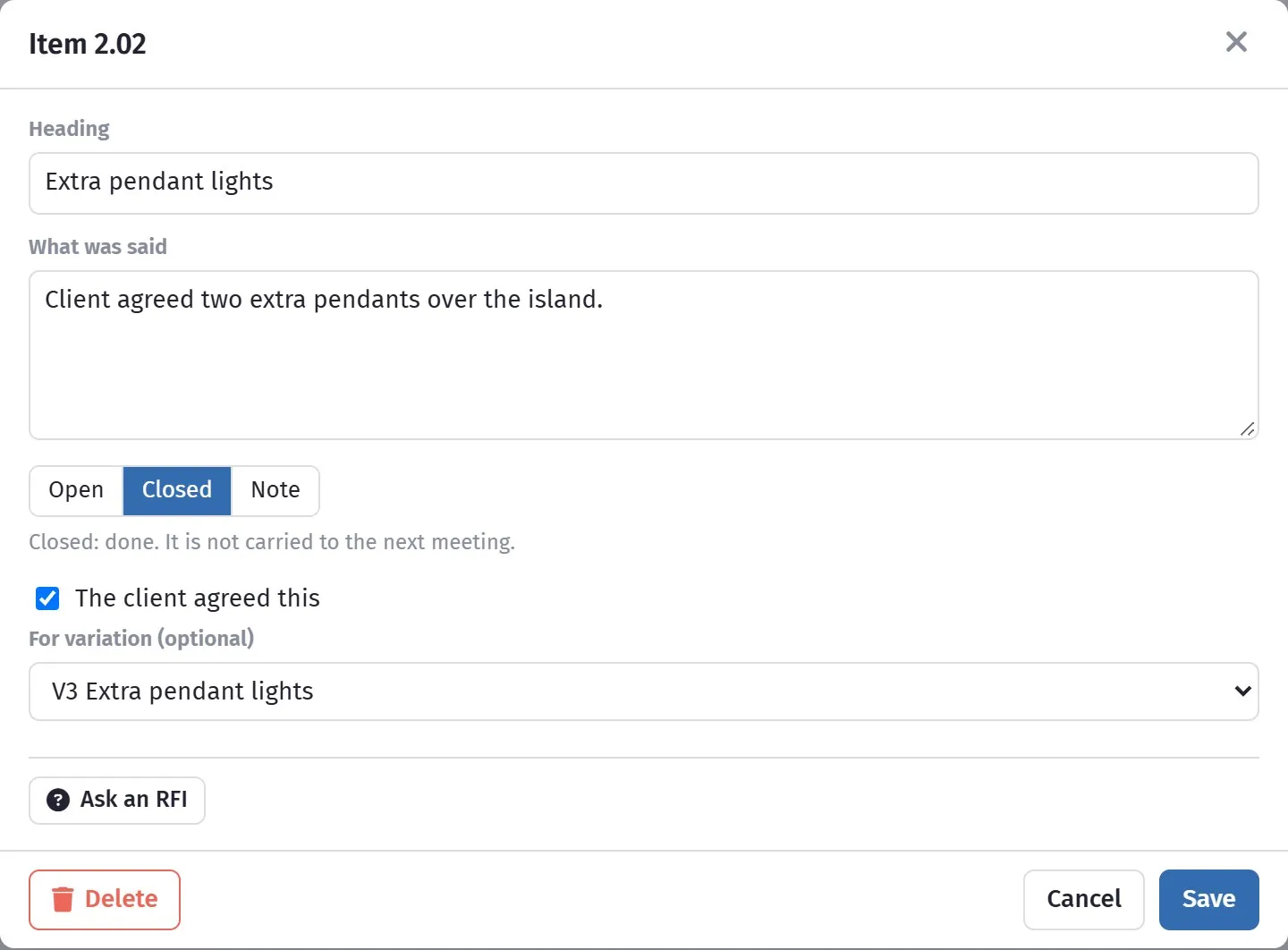
The client agreed the extra pendants, so the item names the variation. Add to schedule shows only on an open item, as on item 1.01 above.
What happens next
Section titled “What happens next”- Open items carry to the next meeting under their own numbers until they are closed.
- When Action by is a staff member, they get a notice on the bell: “Meeting action for you”. It opens Meeting notes at their actions. Nobody else is told. If the action is still open the morning after its due date, they also get an email: see Open actions.
Good to know
Section titled “Good to know”- A carried item cannot be deleted or renamed. Close it, with what was said.
- Only the latest meeting can be deleted, and only if its minutes were never issued.