
How the site register works
Available onBuilder
Everyone who comes onto a site should be on a register: who they are, who they work for, when they arrived and left, and that they were inducted. A paper sheet on a clipboard does that badly - it gets wet, it gets forgotten, and nobody can read it from the office.
The Site Register replaces the clipboard with a QR code. You print a poster for each job and put it up at the gate. Workers and visitors point their phone’s camera at it to sign in, and scan it again to sign out. There is no app to install and no account to make.
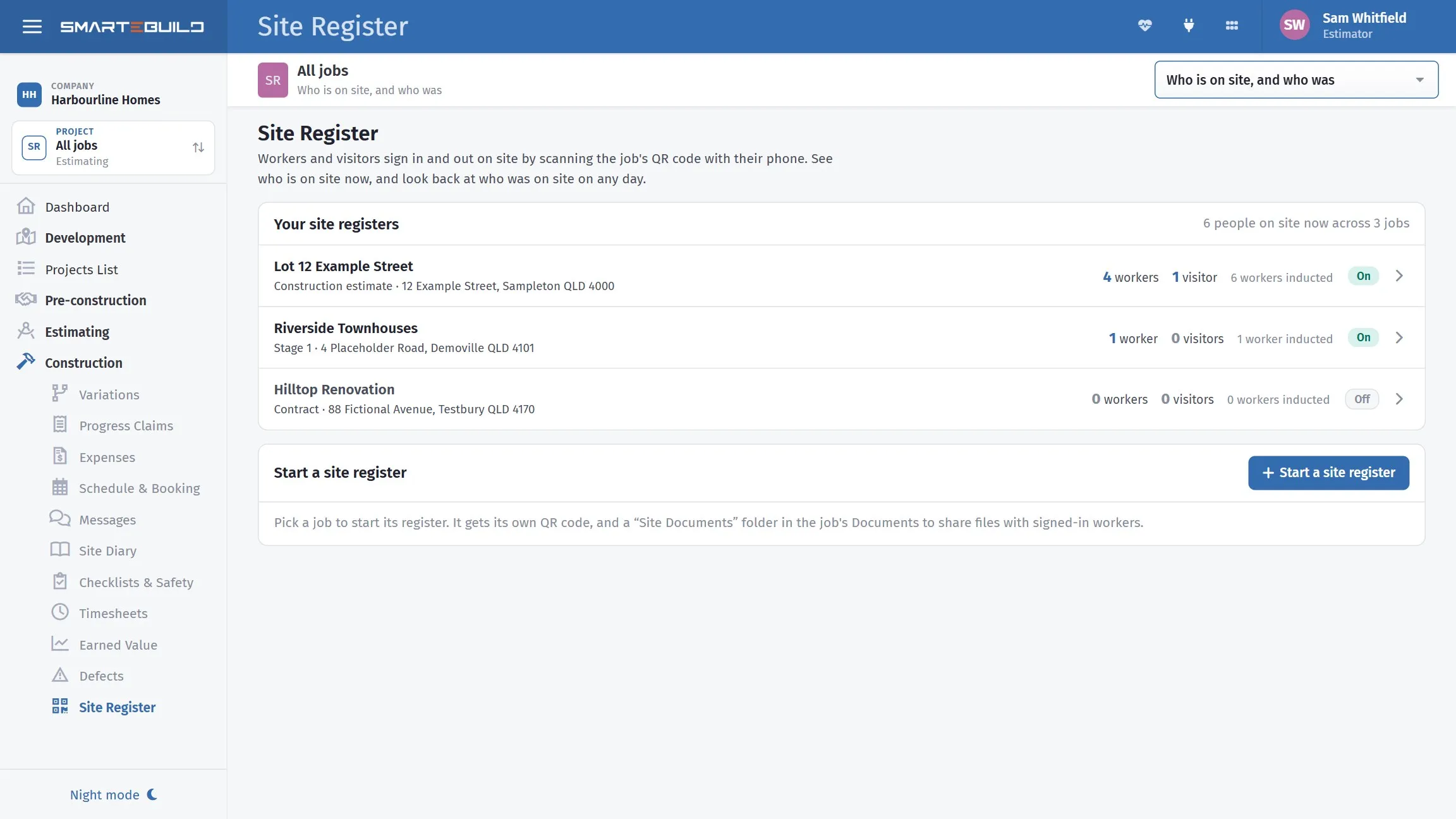
Every job’s register, with who is on site now and how many workers are inducted.
What happens on site
Section titled “What happens on site”- The first time a worker scans the code on one of your sites, they do the site induction on their phone: their details, a photo of their White Card and driver’s licence, and they read and sign your safety expectations and site requirements. It takes about five minutes.
- After that, they sign in with one tap. If there is a toolbox talk for the day, they read and accept it, and sign with their finger, before they are signed in.
- While signed in, they can open the site documents you share - the site plan, SWMS, emergency plan.
- Visitors choose Visitor, type their name and phone number, read your visitor note and sign in. They do no induction and see no documents.
- Anyone who forgets to sign out is signed out for them at the end of the day.
What you see
Section titled “What you see”| Tab | What it is for |
|---|---|
| On site now | Who is on site right now, by company, with their phone number |
| History | Who was on site on any day, when they arrived and left - and a CSV to download |
| Workers | Everyone inducted on the site, their ID photos and induction record |
| Toolbox talk | The day’s talk workers must accept before signing in, and who accepted it |
| Site documents | The files signed-in workers can open on their phone |
| QR poster | The A4 poster to print and put up on site |
| Settings | Switching the register on or off, the end-of-day time, the site’s location and the induction wording |
On your phone
Section titled “On your phone”Site managers can run the register from the SmarteBuild phone app too (version 1.2.7 and later). Tap Site Register on the Home screen and pick the job:
- On site, History, Workers, Toolbox talk and QR code work as they do on the web page. Share the link sends the sign-in link to someone who cannot scan the poster.
- The settings gear switches the register on or off, sets the end-of-day sign-out time, and marks where the site is: stand on site and tap I’m standing on site - use my location.
- Open a worker to see their details. With the ID permission you also see their White Card number, next of kin, the two ID photos and the signed induction, and can tap The licence name matches the White Card or Take the induction away.
- Write the day’s toolbox talk by talking: say it, and the phone writes it.
When a worker is inducted, the bell comes to the phone as well. It has its own switch under Site register in the app’s notification settings.
Who can use it
Section titled “Who can use it”- The Site Register is in the Construction group of the menu, on the Builder plan and above. Anyone who has Checklists & Safety is given it.
- Anyone with Site Register who can open a job can run that job’s register.
- ID photos and full induction records need the separate permission Site register: inductions and ID photos. Nobody has it until an administrator gives it - see Workers and inductions.
- It is meant for the workers and visitors who come onto your sites - subcontractors, suppliers, inspectors, clients - not for your own staff, who already use SmarteBuild.
In this section
Section titled “In this section”- Starting a register - for a job, the QR poster, and the register’s settings
- On site now and history
- Workers and inductions - ID photos, checking names, taking an induction away
- Toolbox talks
- Site documents
- Signing in on site - what workers and visitors see on their phone; a good page to send your subcontractors