
Columns and printing
Available onBuilder
The same schedule serves three audiences, and each needs a different version of it.
Choosing columns
Section titled “Choosing columns”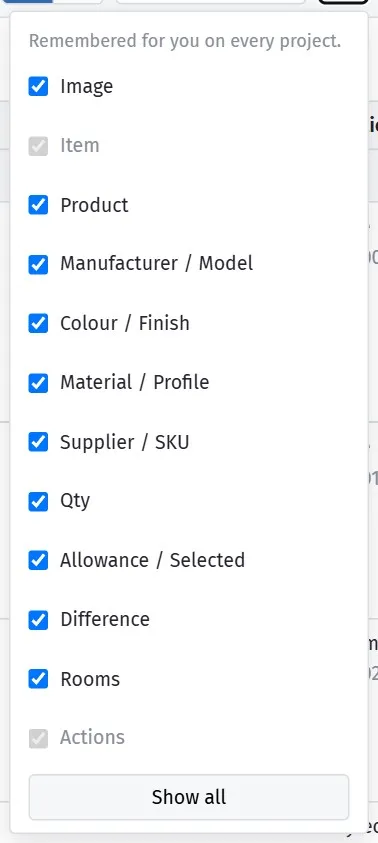
Show the client what they need and keep your margins to yourself.
The columns button at the right of the grid’s toolbar lists every column with a tick box. Item and Actions are always shown; everything else is yours to turn off. Show all puts them back.
Your choice is remembered against your login, so it follows you between sessions and between projects without affecting colleagues. Column widths can be dragged from the edge of a heading, and those are remembered on the device you set them on.
Turning off the columns you do not use gives the ones you read more width — worth doing on a laptop, where the schedule is wide. On a phone or tablet every column you have ticked is still shown: the row simply stacks into a card.
Finding things
Section titled “Finding things”- The filter box narrows the schedule as you type — item, product, supplier, SKU, colour, notes.
- The status dropdown shows only what is not yet approved, approved, over allowance, or ordered.
- The room dropdown shows one room’s items.
- The three view icons lay the schedule out three ways. By category puts a heading over each category with its own allowance, selected total and variance. By room puts a heading over each room instead — the order you walk the house with the client — and lists an item under every room it belongs to, with anything not yet assigned to a room at the end. List is one flat list. The grid remembers which you used last.
- The two layout icons beside them choose how the items themselves are drawn. Table is the columned grid — every field, best for checking numbers. Gallery draws each item as a card with its product picture, the product and colour under it, and the allowance, selection and difference along the bottom, with the approved, ordered and over-allowance tags on the picture itself. Grouping and layout are independent, so By room plus Gallery gives you the pictures room by room — the view to walk a site or sit with a client on. Both are remembered per person.
- Click a column heading to sort by it; click again to reverse; a third click returns to the schedule’s own order.
The summary
Section titled “The summary”Above the grid: the total allowance, the total selected (the chosen products at their quantities), the variance between the two, and how many items are approved. It covers the category you are looking at — the whole schedule when All Items is selected — and does not change as you type in the filter box, so the number the client signs against stays put.
Printing
Section titled “Printing”Print, Print Size and Download produce the schedule as a document.
Print Size controls the layout. A schedule with product images needs more room per row than one without.
The picture sheet
Section titled “The picture sheet”Picture sheet in the Actions menu makes the visual version: each item as its product photo, with the details you choose underneath. It opens in a new tab with a Print or save as PDF button.
This is the document to hand a client, and the one an installer can work from on site. The columned schedule below is the one for checking numbers; this is the one people actually look at.
Before it opens, a window asks how you want it laid out:
| Choice | What it does |
|---|---|
| Pictures per row | 1 to 6 across the page. 1 puts each picture beside its details instead — the clearest for an installer. 5 or 6 fits a whole room on a page, with smaller text. |
| Paper | Portrait or Landscape. The sheet tells the printer which, so you don’t have to change it in the print window. |
| Group items | By room, By category, or Not grouped for one continuous run of pictures. |
| Start each room on a new page | Each room (or category) begins on a fresh sheet — handy when each one goes to a different trade. Untick it to save paper. |
| Show under each picture | Tick the details to print: item code and name, product name, description, manufacturer and code, colour and finish, material and profile, SKU, supplier, quantity, price, rooms, the note for the client, and whether it is approved. |
A small sketch of the page beside the choices shows the layout as you change it. The window remembers what you picked last time, on that computer.
How the sheet is presented
Section titled “How the sheet is presented”It prints as your company’s own document:
- At the top — your company logo and name, with Colour Selection Schedule and the date opposite.
- Under that — a block with the project (its name, site address, job number and estimate) and the client (name, phone and email; up to three clients if the project has more than one). Untick Project and site address or Client name and contact details under At the top of the sheet to leave either out — useful when the sheet is going to an installer or a supplier rather than the client.
- At the bottom of every page — your company name, ABN, phone and website, and Page 2 of 5 on the right.
- At the end — a Client approval block: “We confirm the selections shown in this schedule (23 items)”, followed by “Changes after approval may incur a variation.”, then a line for each client to sign, with their name already printed and a line for the date. If the project has no client recorded, two blank lines are left so a couple can both sign. Untick Client approval and signature lines under At the end of the sheet when the sheet is going to an installer or supplier.
The logo is the one uploaded on the Settings page in the Admin panel — see Company details, logo and bank accounts. If there isn’t one yet, the window tells you, and the sheet prints with your company name on its own. The footer uses the ABN, phone and website saved there too, and leaves out any that are blank.
The sheet holds the items the schedule is showing now — so filter first if you want fewer. Every picture is shown whole, scaled to fit its frame, whatever shape it is; nothing is cropped.
What each audience needs
Section titled “What each audience needs”The client
Section titled “The client”| Include | Leave out |
|---|---|
| Room, category, item | Your cost |
| The chosen product, with image | Your margin |
| The allowance | Internal notes |
| The variation, where one applies | Supplier names |
Their version is a record of what they chose and what it costs them. It should be readable by someone who does not build for a living.
The site
Section titled “The site”| Include | Leave out |
|---|---|
| Room, category, item | Prices |
| Product name, SKU, finish, colour | Allowances |
| Quantities | Variations |
| Any installation note |
The supervisor needs to know what goes where. They do not need the money, and they work alongside the subcontractors who would be interested in it.
Your office
Section titled “Your office”Everything. Cost, allowance, chosen price, variation status, internal notes.
Include the images
Section titled “Include the images”For the client’s copy, images are worth the extra pages.
A schedule listing “Methven Kiri basin mixer, brushed nickel” is precise and means nothing to most clients. The same row with a picture is a record they can actually check, which is the point — the schedule is only useful as a dispute-preventer if the client can verify it.
Send it after every change
Section titled “Send it after every change”A selections schedule is a living document until every choice is made. Send an updated copy whenever it changes materially, and keep the sent copies.
Two things follow. The client always has the current version, and you have a dated record of what they were told and when.
Export
Section titled “Export”Download exports the schedule for filing or for sending.
Attach the signed-off version to the project in Documents. It belongs with the contract documents, and it is one of the first things anyone looks for at handover.