
The drawing register
Available onEstimatorBuilder
On a commercial job the consultants issue dozens of drawings, each with a number and a revision, and the head contract usually asks you to keep a drawing register - a list of every current drawing, its revision and what it is issued for. The Register view is that list, kept by SmarteBuild as you upload.
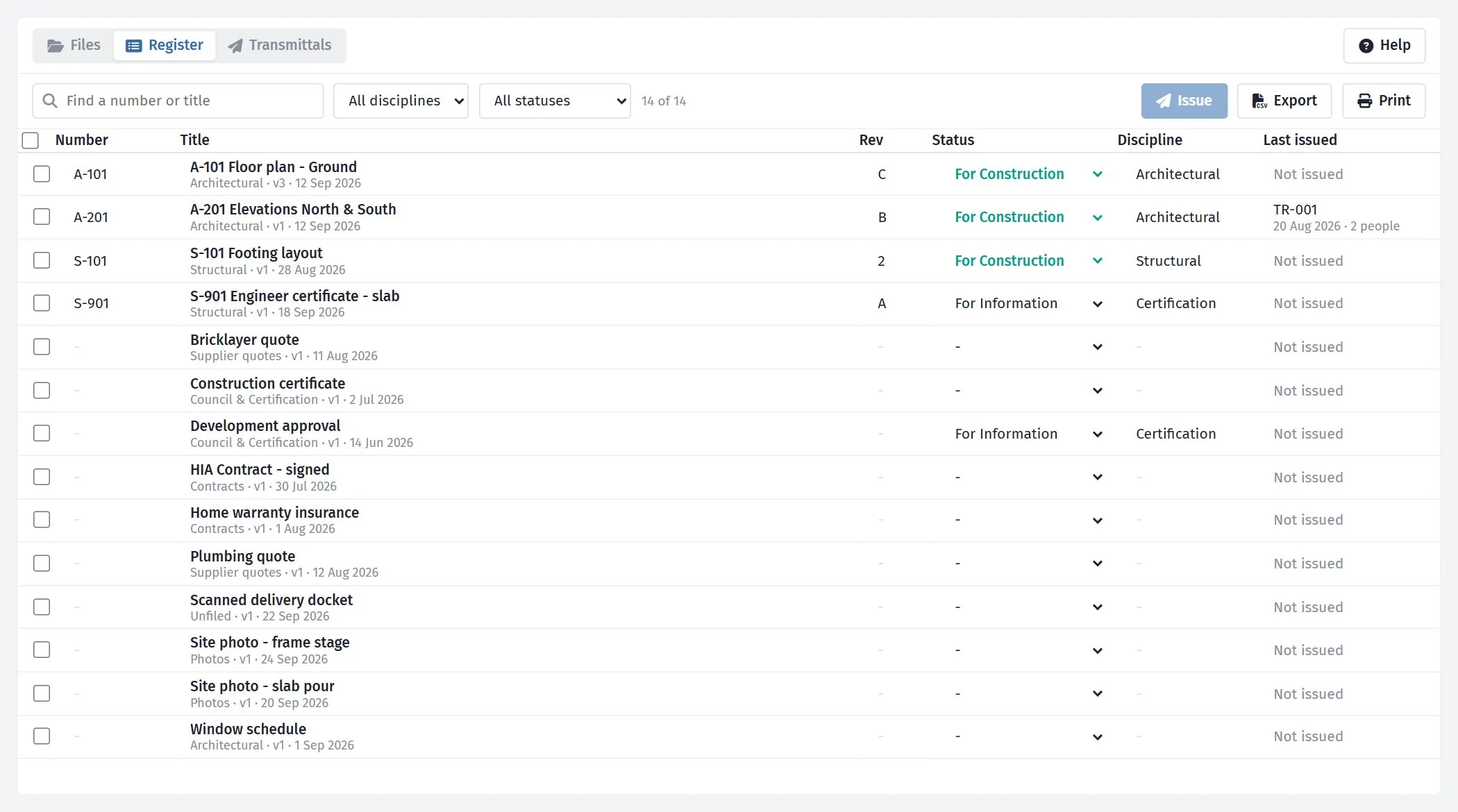
Every current document on the job, numbered ones first, with when each was last issued.
The four details
Section titled “The four details”Every document can carry:
| Detail | Example | Notes |
|---|---|---|
| Drawing number | A-101 |
The consultant’s number, exactly as on the title block. |
| Revision | C, P2, 03 |
The consultant’s revision mark. |
| Status | For Construction | Preliminary, For Information, For Tender, For Construction or As Built. |
| Discipline | Structural | Architectural, Structural, Civil, Hydraulic, Electrical, Mechanical, Fire… or type your own. |
Set them on a file’s Details tab, or straight in the Register.
Filled in from the file name
Section titled “Filled in from the file name”Consultants name their files with the number and revision, and SmarteBuild reads them on upload. Drop a whole drawing set and most of the register fills itself in:
| File name | Number | Revision | Title |
|---|---|---|---|
A-101_RevC_Floor Plan.pdf |
A-101 | C | A-101 Floor Plan |
S201 - Slab Layout - Rev P2.pdf |
S201 | P2 | S201 Slab Layout |
A-101 [C] Floor plan.pdf |
A-101 | C | A-101 Floor plan |
DA-02 Revision 3 Site Plan.pdf |
DA-02 | 3 | DA-02 Site Plan |
Soil report.pdf |
- | - | Soil report |
Status and discipline are yours to set - nothing in a file name says reliably whether a drawing is for construction.
Editing in the Register
Section titled “Editing in the Register”Click Register at the top of Documents. Click into any Number, Rev or Discipline cell and type - it saves when you press Enter or click away (Escape puts it back). Status is a drop-down.
Filters narrow the list to one discipline or status; the search box finds a number or title. Click a title to open the document.
New revisions
Section titled “New revisions”New version on a document now asks for the Revision, already filled in with the next one - C becomes D, P2 becomes P3, 03 becomes 04. The number, status and discipline carry forward. The old version stays on the Versions tab and drops out of the register (the register only lists what is current).
If anyone was sent the old revision, the document says so straight away - see Transmittals.
Printing and exporting
Section titled “Printing and exporting”- Print opens the register as a sheet - print it, or choose Save as PDF in the print window. It prints what the filters show, so you can print just the structural drawings.
- Export downloads the same list as a spreadsheet that opens in Excel.
Both include when each drawing was last issued and on which transmittal.