
Reports
Available onEstimatorBuilder
The Reports menu turns the bill into documents. The useful skill is knowing which one answers which question, and — just as important — which ones must never leave your office.
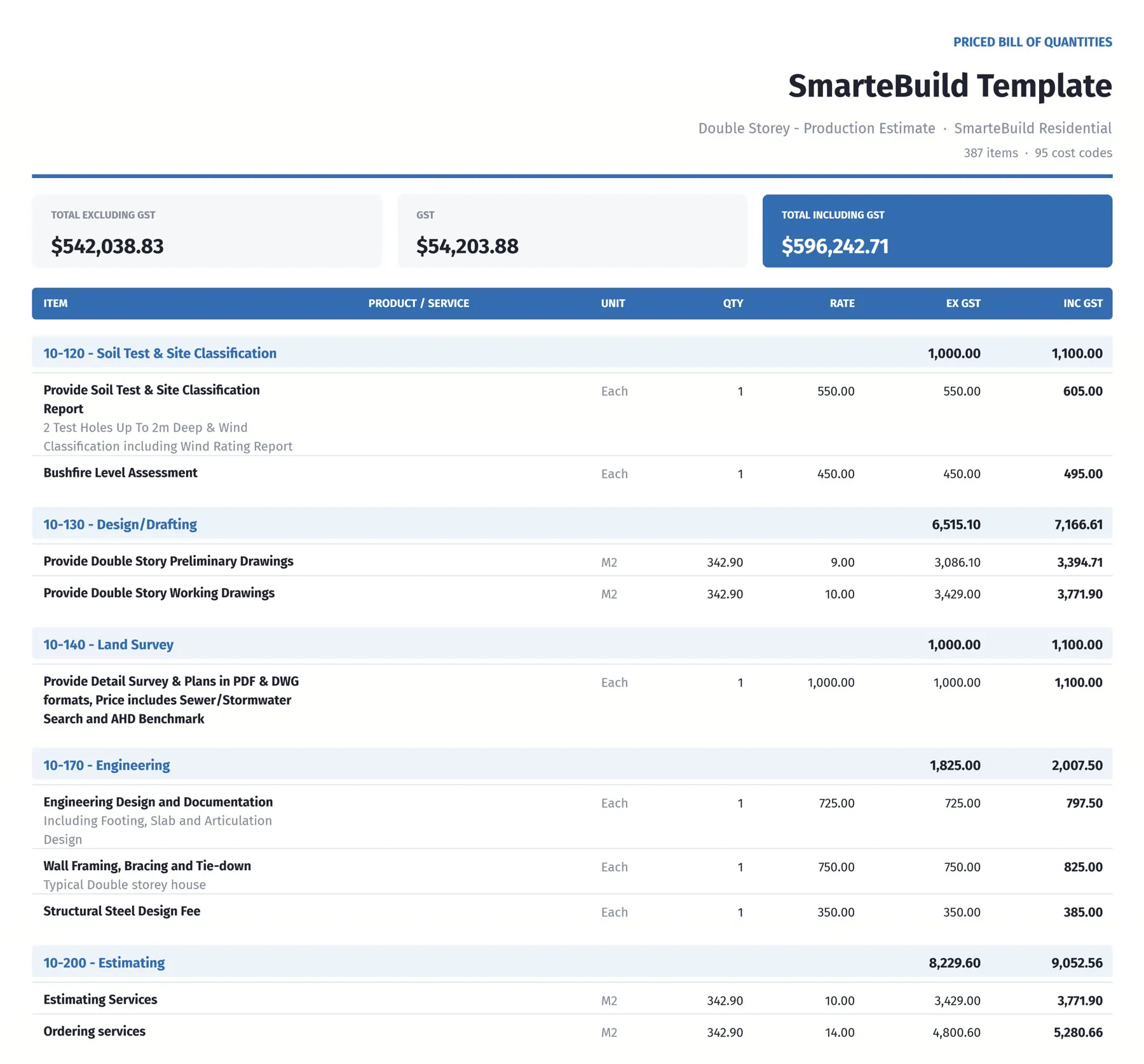
The priced bill as a document, ready to print or send - here SmarteBuild’s own template estimate.
Choosing by audience
Section titled “Choosing by audience”| Audience | They should see | They must not see |
|---|---|---|
| Client | The price, the specification, what is included | Your cost, your markup, your suppliers |
| Subcontractor | The scope and quantities for their trade | Everything else |
| Your office | Cost, markup, margin, committed vs actual | — |
The three reports on the BOQ
Section titled “The three reports on the BOQ”The Reports menu carries three:
Budget Report
Section titled “Budget Report”The trade totals and the job total — the cost side of the estimate, laid out by cost code.
This is the fastest check that nothing has been missed. Read it in build sequence: a trade with a suspiciously small total is usually a trade with items missing.
Summary Profit and Loss Report
Section titled “Summary Profit and Loss Report”Cost, markup and margin at trade level. One page, and the report to read before you commit to a price.
This shows your margin. It is not a client document.
Detailed Profit and Loss Report
Section titled “Detailed Profit and Loss Report”The same thing item by item — every line with its cost, markup and resulting value.
This is the working document for checking an estimate line by line, and for finding which item is dragging a trade’s margin down. Also strictly internal.
Other outputs
Section titled “Other outputs”Specification — what you are providing, in the client’s language. Attach it to the quote. See Specification.
Client tender — the whole document for the client in one: cover, letter, scope of work, price by stage, PS and PC allowances, pictures and an acceptance block. See Client tender.
Cost against budget — with Show Actual Costs Columns turned on, the BOQ itself shows allowed versus committed versus spent per item. That is the view that tells you whether the job is going the way you priced it. See Cost to date against budget.
Rate per square metre — the job total over the floor areas set in Total House Area. Blank if you never filled those in.
Before you produce a report
Section titled “Before you produce a report”The report reflects the state of the bill, so tidy the bill first:
- Clear your Flags — anything still flagged is unresolved.
- Run Show Orphan Items — an orphan is in the total but not in any trade.
- Check the trade subtotals add up to the job total.
- Confirm the right options are switched on.
- Check Only Included Items matches what you intend to quote.
Step three is the one that catches real errors. If the trades do not add to the total, something is coded outside the structure.
Worked example: submitting the Hendricks tender
Section titled “Worked example: submitting the Hendricks tender”What goes in the envelope, in order:
- Your quotation, at the marked-up contract sum.
- Specification — what is included, in plain language.
- A covering letter noting the PC and PS allowances explicitly.
The Client tender puts all three in one document.
What stays in the office:
- the Summary and Detailed Profit and Loss reports — both show your margin
- the Budget Report, which shows your cost
- anything naming your suppliers
Then, when the job is won, the Detailed Profit and Loss Report becomes the working document, and the BOQ with actual cost columns takes over as the view you actually watch.
Exporting
Section titled “Exporting”Reports export for sending and for further work. Where a report is going to a client, PDF is the right choice — a spreadsheet invites the client to take it apart, and it carries whatever columns you had on screen.
Reserve the spreadsheet exports for your own use and for subcontractors who have asked for something they can price into.