
Sending an order
Available onBuilder
Once an order is approved, it goes to the supplier by email from within SmarteBuild — which means the sent order is recorded against the job rather than sitting in someone’s mailbox.
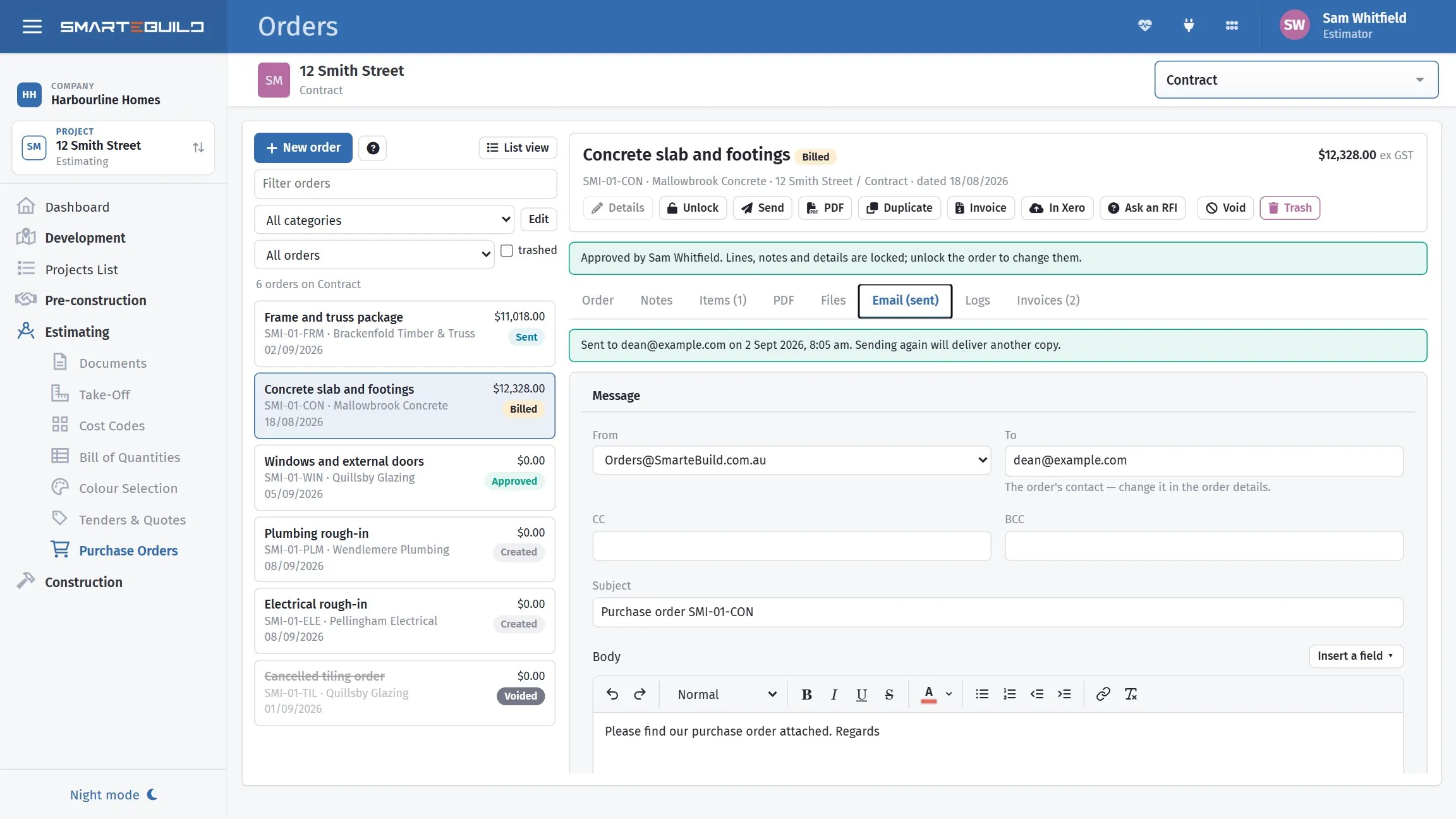
The order goes from here, so the sent copy stays with the job.
An order must be approved before it can be sent
Section titled “An order must be approved before it can be sent”SmarteBuild will not email an unapproved order. If you try, you get:
Approve this order before sending it to the supplier.
This applies everywhere — the orders page, the orders list, and re-sending from the mobile app. A purchase order is a commitment, and approval is the step that records that somebody accepted it.
If you are looking at an order you cannot send, check the Approved line under About on the order’s details. Approving is one button on the toolbar, and you need the Approve Orders permission to use it.
Unlock puts it back
Section titled “Unlock puts it back”Unlock on the toolbar reverses an approval, and is how you edit an approved order — its details are read-only until you do.
An unlocked order cannot be sent. If you unlock one to correct a quantity, approve it again before sending, or the send is refused with the message above.
Sending
Section titled “Sending”Send from the Send button at the top of the order, or from Send to supplier on the Email tab. Both do the same thing: the Email tab opens so you can see what is going out, and you are asked to confirm before anything reaches the supplier.
The send dialog carries:
| Field | Notes |
|---|---|
| From | The address the order is sent from |
| To | The supplier contact |
| CC | Separate multiple addresses with ; |
| BCC | Same, and see below |
| Attach Files | Anything attached to the order |
CC and BCC
Section titled “CC and BCC”Use ; between addresses, not commas.
CC is the right choice for the site supervisor, so they know what has been ordered and when it is due.
BCC to your own office address is worth doing as a habit. It gives you a copy in your normal mail system, which is occasionally what you need when a supplier claims they never received something.
Attachments
Section titled “Attachments”Attach Files sends the documents attached to the order alongside it — drawings, details, colour schedules, site access notes.
Attach the drawing the order refers to. A subcontractor with the order but not the detail rings the office; one with both starts work.
Shortcodes
Section titled “Shortcodes”The subject and body understand $Token$ placeholders, replaced with the
real values as the email goes out. The menu beside the body lists every one it
knows.
Use them in a saved template and one wording serves every order — “Hi
$RepFirstName$, please find order $OrderCode$ for $ProjectName$” comes out
addressed properly each time.
| Group | Tokens |
|---|---|
| This order | $OrderName$, $OrderCode$ |
| Supplier | $RepFirstName$, $RepLastName$, $RepFulName$ |
| Project | $ProjectName$, $CostingName$, $ProjectAddress$, $ProjectAddress1$, $ProjectAddress2$ |
| Supervisor | $SupervisorFullName$, $SupervisorFirstName$, $SupervisorLastName$, $SupervisorEmail$, $SupervisorPhone$ |
| You | $UserFullName$, $UserFirstName$, $UserLastName$, $Signature$ |
| Your company | $CompanyName$, $CompanyAddress$, $CompanyAddress1$ |
A token that is not recognised is left exactly as you typed it, so a misspelling
reaches the supplier as $OrderNumber$ in the middle of a sentence. Insert from the
menu and that cannot happen.
While it sends
Section titled “While it sends”Sending runs in the background. The page watches for it to finish, but you can leave the tab or move to another order and the send carries on.
An order that has already gone shows when it was sent, and the button becomes Send again — which delivers another copy rather than doing nothing.
Check before you send
Section titled “Check before you send”Six things, in about twenty seconds:
- It is approved. Otherwise the send is refused — see above.
- The contact. Addressed to a person, not just a company.
- Hide Prices. Correct for this supplier — see Order details.
- The dates. Particularly if the order was duplicated from an earlier one.
- Invoicing requirements. If you need this supplier to invoice a particular way, it prints on the order — see Order details.
- The site address. It comes from the project, and a blank one produces a phone call.
Exporting instead
Section titled “Exporting instead”Export produces the order as a document without sending it.
Use it when a supplier wants orders through their own portal, when you need a copy for a file, or when the order is going out with a batch of other paperwork.
Exporting does not mark the order as sent, so if your process relies on that status, note it somewhere. An exported-but-not-sent order looks identical to one nobody has actioned yet.
Export order to Xero pushes the order into Xero, if the connection is set up under Integrations.
This is separate from sending it to the supplier. Sending tells the supplier what you want; exporting to Xero tells your accounting system what you have committed. Most builders do both.
If your company uses QuickBooks, the button on the order says QuickBooks and the order arrives there as a purchase order (In QuickBooks once it has gone). See QuickBooks.
Re-sending a changed order
Section titled “Re-sending a changed order”If an order changes after it has gone out — a quantity revised, an item added — send it again, and say so in the covering email.
A supplier who receives a second order with the same number and no explanation usually assumes it is a duplicate and ignores it. One who is told “revised — the mesh quantity has increased” acts on it.
For work that is no longer going ahead at all, void the order rather than sending a revision. See Voiding, trashing and deleting.