
Extra to Schedule (ETS)
Available onBuilder
A purchase order is the amount someone agreed to spend. When the supplier’s invoices come to more than the order, the difference is Extra to Schedule - ETS for short: money nobody approved.
SmarteBuild spots it for you, asks why it went over, has someone approve it, and keeps every one for the ETS report - so at the end of a month, a quarter or a year you can see how much went over, on which jobs, with which suppliers, and for what reasons.
When an invoice is over its order
Section titled “When an invoice is over its order”SmarteBuild compares the invoices on each order with the order’s value, ex GST:
- An invoice that is more than its order on its own is over by the difference.
- Several invoices on one order count together. The one that takes the order past its value is over by the part past the line; any after it are over by all of themselves.
- A credit note on the order counts against it. If it brings the order back under, the ETS clears.
- An order with no prices on it (a scope of work only) is not compared.
It is worked out from the invoices and the order as they are now, so it is always right - change a line, add an invoice or a credit, and it follows.
When an invoice is over, a pink box at the top of the expense says so:
$1,250.00 over order PO-0142 (ex GST) - it can’t be marked paid or sent to Xero until someone says why it went over and it is approved.
The same shows on the expenses list as Over PO, and the over the order - need approving warning counts them.
Saying why it went over
Section titled “Saying why it went over”Press Say why it went over, choose a reason and, if it helps, write what happened:
Framing redone after the slab was set out 200 mm short.
The reasons every company starts with:
- Theft and vandalism
- Site error
- Drafting error
- Estimating error
- Supplier error
- Supplier price increase
- Client change
- Site conditions
- Other (needs a note)
Your company can change the list - see Changing the reasons.
Saved, the box turns yellow: waiting for approval.
Approving it
Section titled “Approving it”When you save the reason, you choose who should approve it. The list only shows people who can approve that amount - each with their limit beside their name (“up to $5,000”, “any amount”) - and who can see the job. You are not on it yourself. That person gets a notice in their bell at the top of SmarteBuild, and on their phone if they use the SmarteBuild app; it names the invoice, the supplier, how much it is over and the reason, and clicking it opens the invoice. The expense then says who it is waiting for.
If you can approve it yourself and nobody else who can see the job can, SmarteBuild says it is yours: tick Approve it now as well, or save it and approve it later. If nobody at all can approve that much, it says so - an administrator can give someone a higher limit in the Admin panel (see Who can approve).
Someone with the Approve ETS (over the order) permission opens the expense (or clicks the row in the expenses list) and presses Approve, with a note if they want one. The box turns green and the invoice can be paid and sent to Xero. The bell notice is then struck through, so nobody goes to approve it a second time. The same happens when it is not approved, or removed.
Anyone else with the permission and a high enough limit can still approve it - if the person chosen is away, say. An approval above your own limit is refused, and the expense tells you it is over your limit.
If an approver saves the reason with Approve it now as well ticked, it is approved straight away and nobody is notified - as long as the amount is within their own limit. Over their limit, it waits for approval and everyone who can approve that amount is notified instead.
If they press Don’t approve, they must say why - supplier to credit the difference, say. The invoice stays held back until it is corrected (a credit note from the supplier) or explained again. The person who wrote the reason gets a notice in their bell (and on their phone) saying it was not approved, by whom and why. Once they explain it again - or it is approved after all - that notice is struck through.
When the supplier overcharged, leave The supplier will credit the difference ticked (it is ticked to start with for an invoice over its order). The amount then appears in the ETS report under Credits owed by suppliers until their credit note arrives. When a credit note on that order brings it back under, it comes off the list by itself - a part credit leaves only what is still owed.
Who can approve
Section titled “Who can approve”Nobody, until an administrator gives them the permission - it is never given along with the Expenses module, or by “all permissions”. In the Admin panel, go to Users, pick the person, open the Modules tab, make sure Expenses is ticked, click permissions beside it, and tick Approve ETS (over the order). Administrators can approve without the tick, as long as they have the Expenses module in that company.
Underneath the ticks, set how much they can approve: Can approve extra-to-schedule invoices up to $____ ex GST - leave it blank for any amount. It saves when you click away. The same place lists everyone in the company who can approve, with their limits. Limits are set only in the Admin panel, and separately for each company.
Who can open the ETS report
Section titled “Who can open the ETS report”Nobody, until an administrator gives them the permission: in the same place, tick Open the ETS report. It is never given along with the Expenses module. Without it the ETS report link does not show on the expenses list, on an expense, or on the Dashboard card, and the page itself cannot be opened. Approving an ETS is a separate permission - someone can approve without being able to open the report, and the other way round. Administrators can always open it.
What is held back until it is approved
Section titled “What is held back until it is approved”| Over the order, not approved | Approved | |
|---|---|---|
| Enter it, code its lines, attach the document | ✓ | ✓ |
| Mark as paid | ✗ | ✓ |
| Send to Xero | ✗ | ✓ |
Everything else carries on as normal - the cost is on the job either way, because the money has been spent. What waits is paying it.
When several expenses are ticked and marked paid together, any still waiting on an ETS are left as they are, and the message says how many.
Small overruns are accepted automatically
Section titled “Small overruns are accepted automatically”A few dollars over an order - freight rounding, a price that moved a little - is not worth anyone’s approval. An overrun that is both under $50 and under 2% of the order is accepted automatically: it shows as Small over PO on the expenses list and accepted automatically on the expense, it is not held back, and nobody is asked to approve it. It still counts in the ETS report, inside Approved.
Both have to be true so that a big order cannot wave a big overrun through: $1,500 on a $100,000 order is only 1.5%, but it is not under $50, so it still needs approving.
Your company can change the limit - see Settings. Set both to 0 to have every overrun approved. You can still say why a small one went over; it is saved as approved straight away.
Marking an invoice extra by hand
Section titled “Marking an invoice extra by hand”Not every unapproved spend has an order. A call-out with no purchase order, say. On any expense, Mark as extra to schedule… records it as ETS: choose a reason, and type how much of it is extra (the whole invoice unless you change it). It then needs approving like any other, and appears in the report as marked by hand.
To take one off, use Remove. One that is still over its order cannot be removed - change the reason, or correct the invoice or the order instead.
On the Dashboard
Section titled “On the Dashboard”The Extra to Schedule card is for the people who can approve ETS. It lists every invoice over its purchase order that is not approved yet, on the jobs you can see:
- Waiting for your approval - chosen for you, or nobody was chosen and it is within your limit. Includes any that have gone further over since they were approved.
- Waiting for someone else - chosen for another approver, or over your limit.
- Not approved - with who said no and why.
- Not explained yet - over the order, and nobody has said why.
Each line shows the invoice, the supplier, the job, how much is extra and how many days it has been waiting; click it to open the invoice. The card only appears for people who can approve ETS, and like every card it can be moved, resized or switched off under Customise.
The ETS report
Section titled “The ETS report”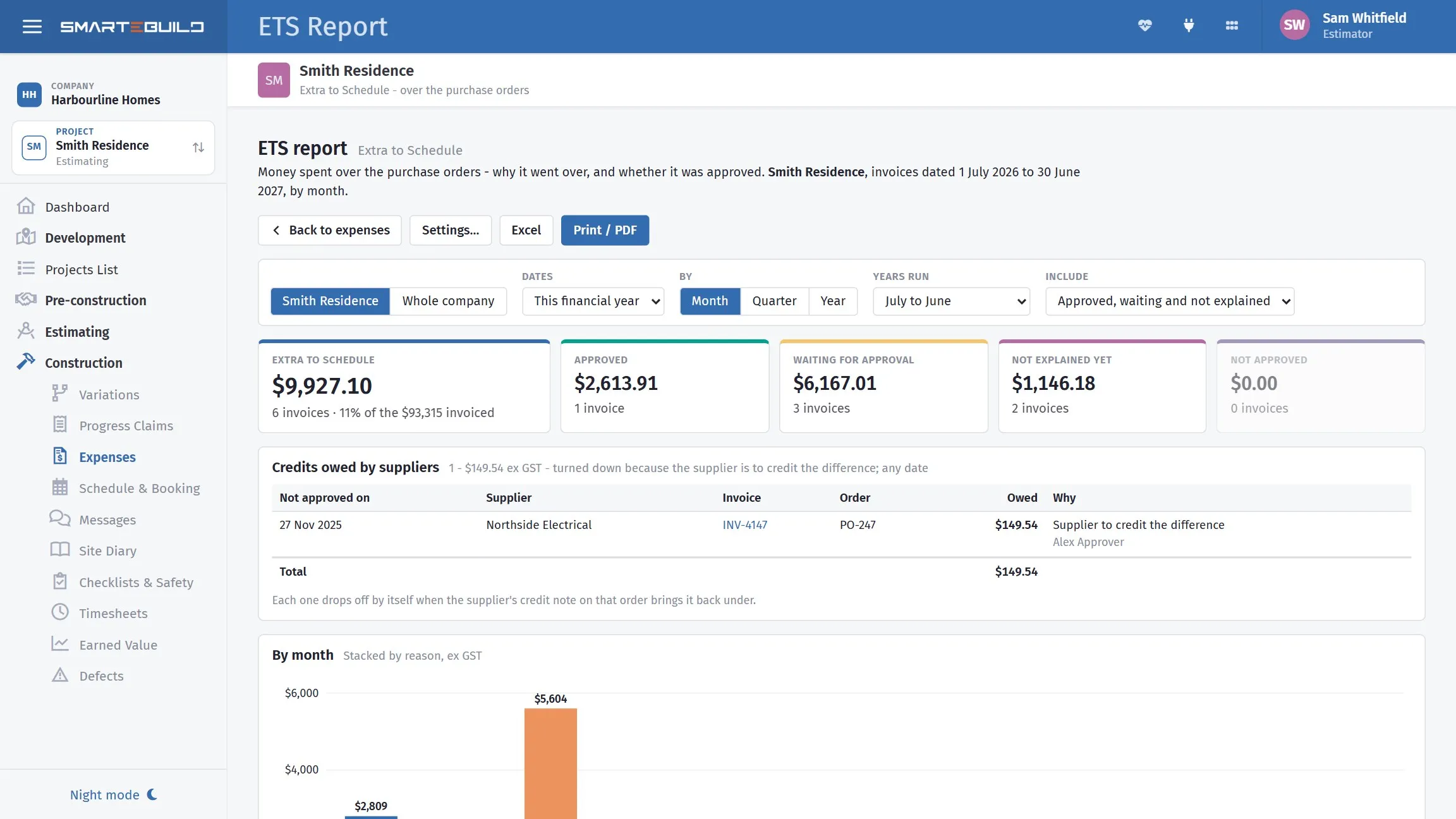
The five tiles answer the first question — how much went over, and how much of it anybody has actually agreed to. Here $9,927 is extra to schedule, 11% of everything invoiced, and only $2,613 of it is approved. The bars are split by reason, so a month that is mostly one colour is telling you something.
Open it from ETS report at the top of the expenses list, or the link in any ETS box.
Choose what it covers:
- This job or Whole company - the whole company covers every job you have access to.
- Dates - this or last financial year, this or last calendar year, the last 12 months, everything, or dates you choose. Invoices are counted by their invoice date.
- By - Month, Quarter or Year.
- Years run - July to June (the financial year) or January to December.
- Include - normally the approved ones, the ones waiting, and the ones not explained yet. You can show only one of those, or add the ones not approved too.
What it shows:
- The total extra to schedule, how many invoices, and what share it is of everything invoiced in the same dates.
- The split: approved, waiting, not explained yet, not approved.
- A bar chart by month, quarter or year, each bar split by reason.
- Circle charts by reason and by status.
- Bars by project (whole company) and by supplier.
- Credits owed by suppliers - every ETS turned down because the supplier is to credit the difference and not yet credited, whatever the dates, with the total owed.
- A table of each month (or quarter, or year) by reason, and a list of every ETS - click an invoice to open it.
Amounts are ex GST, like the orders they are measured against. An approved ETS reports the amount that was approved, so a report run next year says what it said this year.
Print or save as PDF
Section titled “Print or save as PDF”Print / PDF prints the report on its own, without SmarteBuild’s menus - landscape, charts and tables included. To keep a PDF, choose Save as PDF as the printer.
Excel downloads the same figures as a workbook: a summary, one sheet by month (or quarter, or year) with a column per reason, one each by reason, status, project and supplier, and every ETS with its notes. The money is in numbers, so it adds up in Excel.
Settings
Section titled “Settings”Whoever has Approve ETS looks after these: on the ETS report, press Settings….
- Small overruns - the dollar amount and the percentage of the order below which an overrun is accepted automatically. Both must be true; 0 switches a part off.
- Reasons - rename a reason, move it up or down, add one, or untick Offered to stop it being offered. A reason is never deleted - an ETS already recorded under it keeps it, so the reports do not change.
A monthly routine
Section titled “A monthly routine”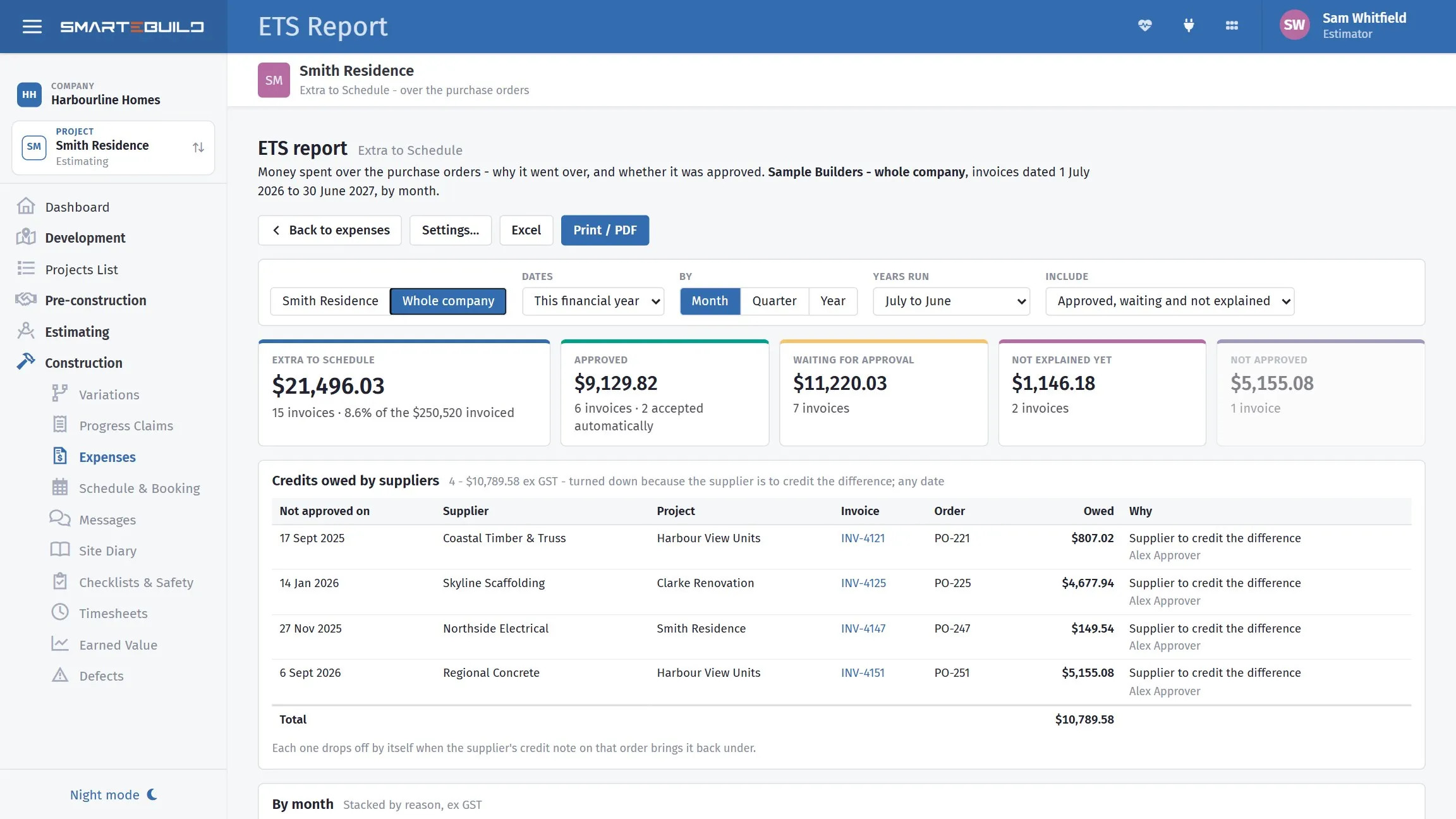
Whole company covers every job you can see, and adds bars by project and by supplier. That is the view for the end of the month: which jobs are running over, and whether it is always the same trade.
- On the expenses list, click over the order - need approving and deal with each one: explain it, or chase the supplier.
- Approvers: work through the ones waiting for approval - each one is also a notice in your bell.
- Run the ETS report for the month, Whole company, and look at the biggest reasons and the biggest suppliers - that is where the next job’s estimate, drawings or orders need tightening.