
Approving hours and labour cost
Available onBuilder
Only an approver sees these tabs. An approver is a user whose SmarteBuild account has Admin ticked (Project Details, Users). Everyone else sees their own week and nothing about money.
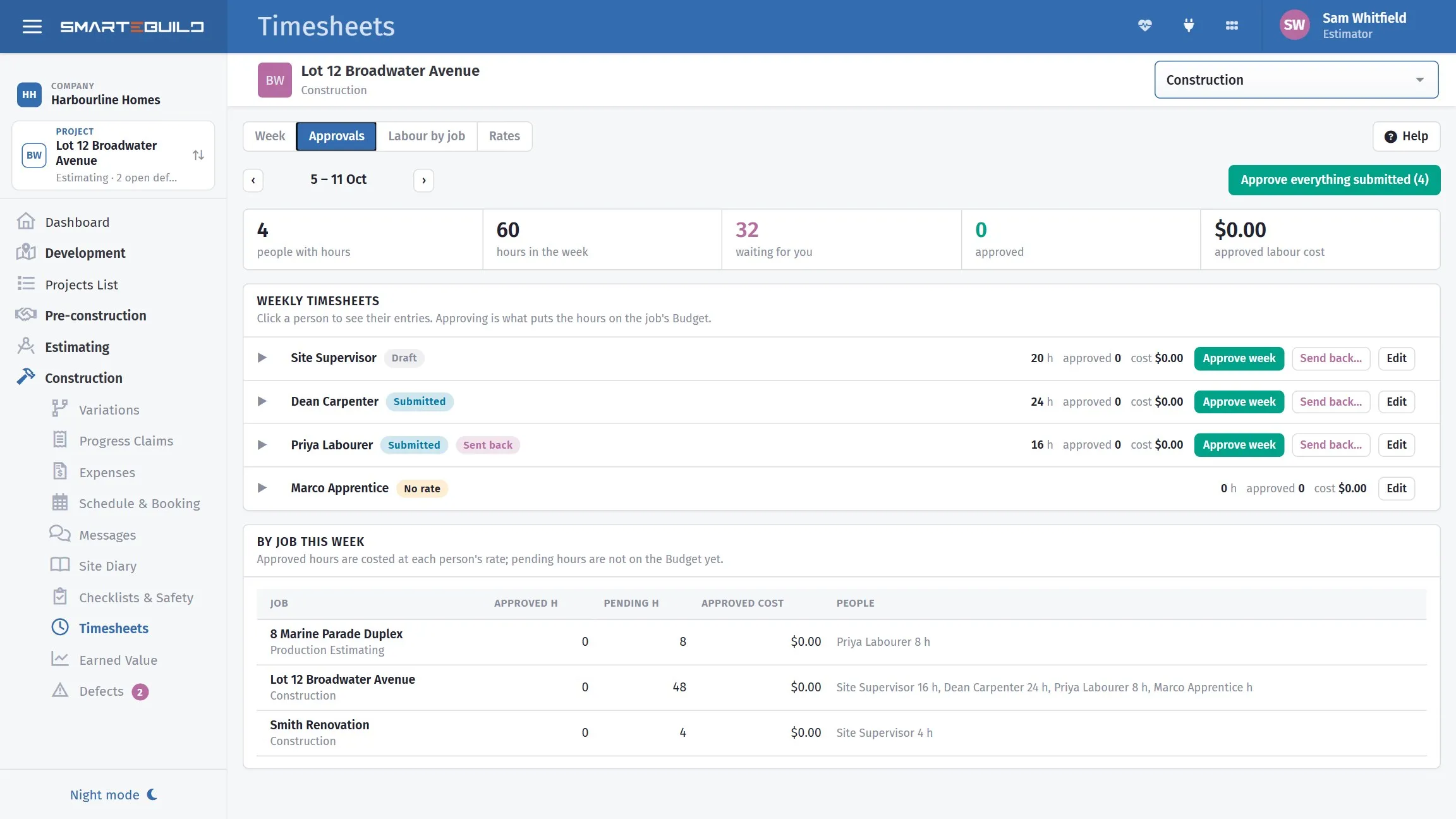
Nothing reaches the job cost until somebody approves it.
Rates first
Section titled “Rates first”Nothing costs anything until each person has an hourly cost. On the Rates tab, enter what an hour of that person costs the business - wage plus super, leave loading, workers compensation, allowances - ex GST. This is a cost, not a charge-out rate.
Rates are dated. Enter a new rate from a date and earlier weeks keep the rate they had; approval always uses the rate in force on the day worked. The history under each name shows every rate and who set it.
A person with no rate shows a No rate tag on the Approvals tab. Their hours can still be approved, but they go onto the job at $0 until a rate is set and the week is unapproved and approved again.
The Approvals tab
Section titled “The Approvals tab”Pick the week. Everyone in the company who entered hours is listed with their total, what is still waiting, and the labour cost of what has been approved. Open a person to see each entry: day, job, task or code, times, hours, rate, cost, notes, and where it came from (typed on the desktop, typed on the phone, or a clock-in, marked with a pin when the phone recorded a location).
- Approve week approves everything of that person’s that is not already approved - Submitted entries, and Draft ones too, for the worker who never presses Submit.
- Send back… rejects them with a reason. The worker reads the reason on their week, fixes the entries, and submits again.
- Tick individual entries to approve, reject or unapprove just those, across people.
- Approve everything submitted at the top does the whole week in one click when it all looks right.
Unapprove takes an approved entry back to Submitted, and takes its cost off the job. Use it when a rate was wrong or a week was approved too soon.
What to actually check
Section titled “What to actually check”Approving is not a formality, and it is not about doubting people. Four things catch almost everything:
Missing clock-outs. A shift showing fourteen hours is nearly always somebody who forgot to clock out, not somebody who worked fourteen hours.
The job. The most common genuine error — a phone left on yesterday’s job when somebody moved sites at lunchtime. It is also the error that quietly corrupts job estimate, because the hours land on the wrong budget.
Breaks. Recorded, and realistic.
Days that look odd. Weekend work, unusually long or short days, someone on a job they were not scheduled for. Usually explicable; occasionally the first sign the programme is not going the way you think.
Correct entries — do not tidy them. If a job overran, the timesheet showing it overran is the useful artefact. Trimming hours to fit the allowance produces a job that looks fine and an estimate that stays wrong.
Where the cost goes
Section titled “Where the cost goes”Approving is the moment the money moves. Each approved entry’s hours × rate is added to the job’s actual cost, alongside supplier invoices:
- On the WBS and Budget pages, the actual cost of the cost code the entry was coded to goes up (a task’s hours go to the task’s cost code). Hours with no code count in the job’s total but sit on no line.
- On the Projects List and the Dashboard, the job’s actual cost and variance include it.
- The Budget page’s Invoices drill-down stays invoices only; the labour behind a number is on the Labour by job tab here.
The rate is copied onto the entry at approval, so changing a person’s rate later never rewrites a week that has already been approved.
What does not happen: no invoice, bill or expense is created, nothing goes to Xero, and the cashflow does not change. Labour is not a supplier bill; payroll is paid whatever the timesheets say.
Labour by job
Section titled “Labour by job”The Labour by job tab totals approved hours and cost per job over any date range, with the people on each job underneath, and shows how many hours are still waiting for approval. It is the figure to compare against the labour allowance in the estimate.
Timesheets as a PDF
Section titled “Timesheets as a PDF”- One person’s week - PDF on their week in Approvals, to print or sign.
- All the hours on a job - on the Labour by job tab, choose the dates and press PDF beside the job: hours by person and cost code, then every entry. Save to Documents files it in the job’s Documents, in the Timesheets folder.
Dollar amounts only print for people who can See pay rates and labour cost; everyone else gets hours only. Saving to Documents needs See everyone’s timesheets.