
Raising an order
Available onBuilder
Orders are built from BOQ items. Choose New on the Orders screen, pick the estimate, and select the items the order covers.
Items priced with a supplier attached split into one order each.
The process
Section titled “The process”- Choose the estimate. Orders belong to one priced version of the job.
- Choose the supplier. Type in the Supplier box to filter, rather than scrolling a long list; it holds every supplier on the chosen Supplier list. Items already carrying that supplier are offered first.
- Select the items. Each brings its description, quantity, rate and part number with it.
- Adjust quantities if you are ordering part of an item — a first pour rather than all the concrete, say.
- Add the order-level details — dates, contact, notes. See Order details.
- Approve and send.
Raising orders from the BOQ
Section titled “Raising orders from the BOQ”Select items on the BOQ and choose Order. If the items come from more than one supplier, SmarteBuild raises one order per supplier, each carrying only that supplier’s items, instead of one mixed order you would have to split by hand.
- Whose item is it? The supplier of the product the order will use: the product on the latest accepted variation for that item, otherwise the item’s selected product.
- Items with no supplier product go together on one order of their own, with no supplier set, so you can choose one before sending.
- Names and numbers. Each order is named after what you typed plus the supplier -
Slab - Barwon Concrete - and numbered from the number you typed:
SMI-01-SLB,SMI-01-SLB.1,SMI-01-SLB.2. - Switched-off items are ordered only if you tick them. An item that is not included is carried in the estimate without being counted, but that is an estimating choice, not a bar on buying it: tick it and it goes on the order. With nothing ticked - where Order takes everything on screen - switched-off items are left off, and the message says how many.
- Choosing a supplier in the dialog keeps everything on one order for that supplier. Leave the supplier blank to split.
When several orders are raised, the page lists them all and opens the first.
Finding items by cost code
Section titled “Finding items by cost code”In Add an item, the Cost code box narrows the list of items. Type to search the tree — “kitchen tap” finds Fitout › Kitchen › Tapware. Choose a heading (shown in bold) to see every item under it, or a single cost code to see just its items.
Whatever you choose there, the line is filed under the item’s own cost code, so an order line is never costed against a heading. A one-off line with no item behind it takes the cost code you chose, or none if you chose a heading.
Import items from a cost code adds every included item under one cost code in a single step. It needs a cost code rather than a heading: if you pick a heading, it asks you to choose a cost code under it.
Ordering part of an item
Section titled “Ordering part of an item”You do not have to order the whole quantity at once. Order 12 m³ of the 18.64 m³ of concrete now and the rest later, and both orders count toward the same item’s committed cost.
The Allowance and % Cost figures show how much of the item you have committed, so you can see at a glance whether an item is fully ordered.
Worked example: ordering the slab
Section titled “Worked example: ordering the slab”The Hendricks slab was priced with suppliers attached, so it splits into two orders.
Order 1 — Barwon Concrete
| Item | Qty | Rate | Value |
|---|---|---|---|
| Concrete N32 supply and place | 18.64 m³ | $228.00 | $4,249.92 |
| Concrete pump | 1 item | $850.00 | $850.00 |
| $5,099.92 |
Order 2 — Surf Coast Steel
| Item | Qty | Rate | Value |
|---|---|---|---|
| SL72 mesh | 195.72 m² | $9.40 | $1,839.77 |
| Vapour barrier | 205.04 m² | $3.10 | $635.62 |
| $2,475.39 |
Both come to $7,575.31 against an allowance of $8,154 — so the slab is committed at 93% of what was allowed, with the bedding sand still to order.
Neither order needed anything typed except the delivery date. The descriptions, quantities, rates and part numbers all came from the bill.
Templates
Section titled “Templates”Create new template saves an order’s shape for reuse.
Useful for orders you raise on every job with the same structure — a standard scaffold hire, a standard site-establishment order, a recurring monthly charge. The template carries the items and layout; you set the quantities and dates each time.
Text templates
Section titled “Text templates”Separately from the order template, each block of text on the Notes tab keeps its own set of saved wordings — the order note, the terms, the invoicing requirements, and the covering email.
Write it once, Save as template, and load it on the next order.
Beside each block is a Default box. Pick a template there and every new order
starts with it already filled in; pick Default: none to go back to starting
blank. That is the point of it: terms that are on every order by default are terms
your suppliers have actually agreed to, rather than ones somebody remembered to
paste. The default is for the whole company, and the template it uses stays marked
· default in the list. SmarteBuild’s own templates cannot be the default - save
your own copy of one first.
The internal comment has no templates, because it is different every time.
Duplicating
Section titled “Duplicating”Duplicate copies an existing order. Faster than a template for a one-off repeat — the second concrete pour on the same job, or the same order on the next job in an estate where every house is identical.
Check the dates and quantities after duplicating. A duplicated order carries the original’s delivery date, and an order asking for concrete last month gets noticed by the supplier rather than by you.
Approve
Section titled “Approve”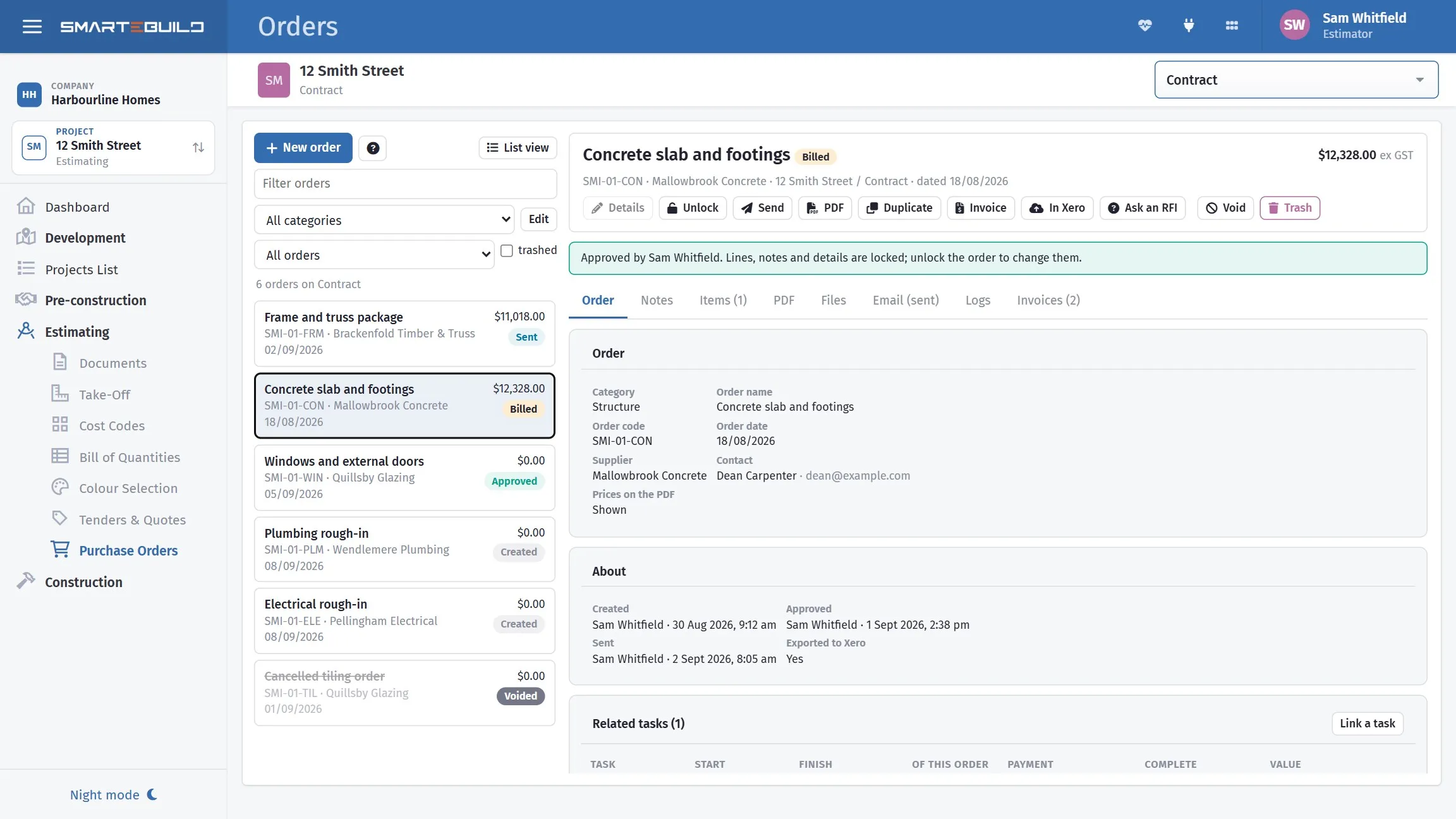
Once approved, the lines and details lock and the green bar says who approved it — Unlock on the toolbar is how you get back in. About keeps the history: who created, approved and sent it, and when. Useful months later when nobody remembers whether an order went out.
Approve marks the order as authorised. Whether this matters depends on your process — some builders require a second person to approve anything over a threshold; others approve their own as a formality.
Either way, approval is what distinguishes a draft you are still assembling from an order that is ready to go out.
Attaching files
Section titled “Attaching files”Attach Files adds documents to the order — a drawing extract, an engineer’s detail, a colour schedule, a site access plan. It opens the file picker: tick the files to attach, or drop a new one in - see Attaching files.
Attaching the relevant drawing to the order is worth the few seconds. It removes the most common reason a subcontractor rings the office, which is that they have the order but not the detail it refers to.