
Organising your projects
Available onEstimatorBuilder
After a year or two the Projects list is long. Three tools keep it usable: the EPS, the filters, and job numbers.
The EPS
Section titled “The EPS”EPS stands for Enterprise Project Structure. It is a folder tree for your projects — a way of grouping jobs so the list is browsable rather than flat.
Each node has an EPS Code and an EPS Name, and a project is placed in one via This project belongs to.
What to organise by
Section titled “What to organise by”The right structure is whatever you would naturally use to answer “which jobs?”. Common ones:
| By | Looks like |
|---|---|
| Division | Residential → New Build, Renovation |
| Region | Geelong, Surf Coast, Melbourne West |
| Estate or developer | Aspen Estate, Torquay Property Holdings |
| Year | 2025, 2026 |
Pick one and stay with it. A tree that mixes region at one level and year at another gets hard to navigate quickly.
Filter EPS narrows the tree when it gets large, and Select a Node is how you place a project into it.
Finding a project quickly
Section titled “Finding a project quickly”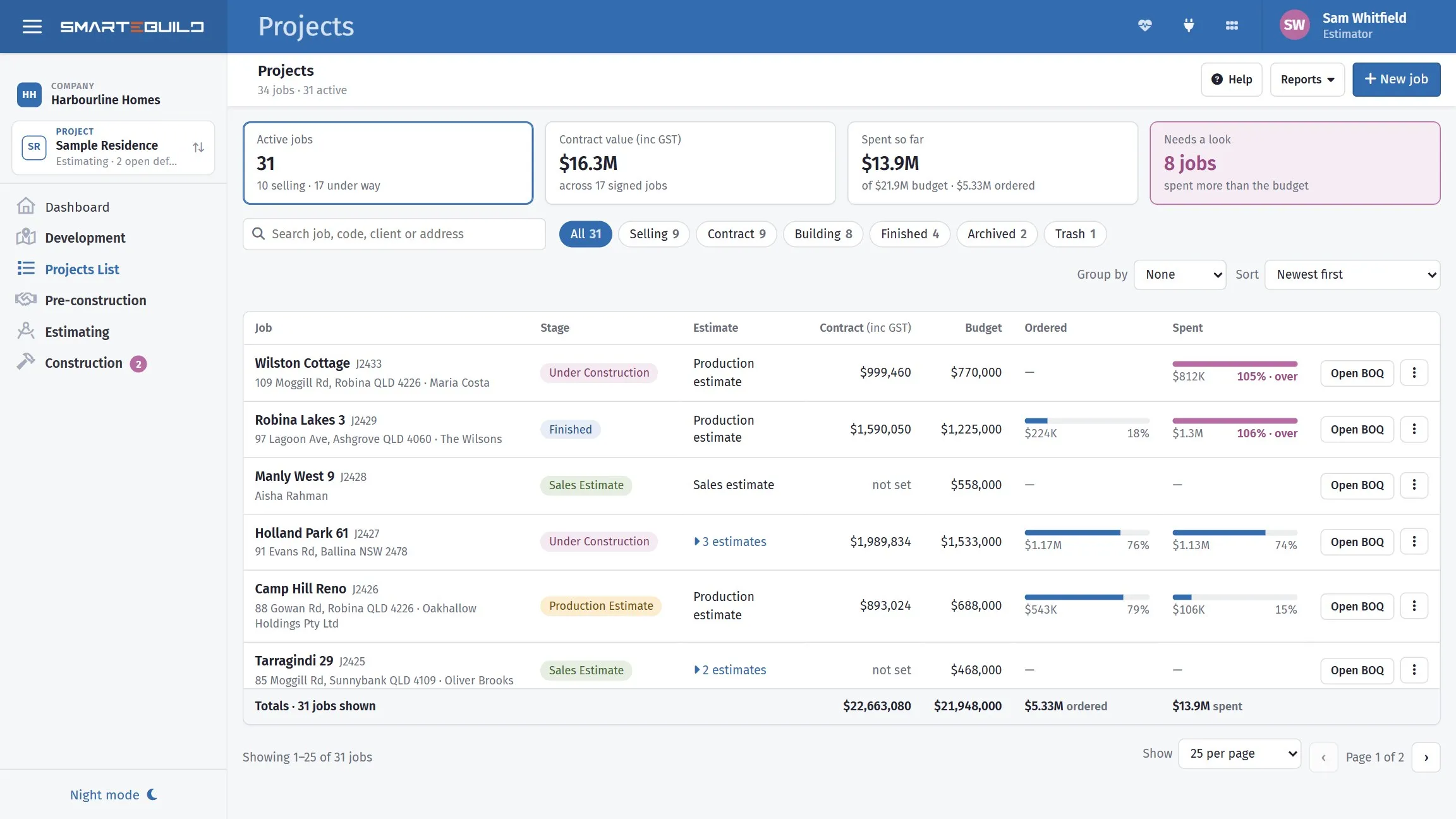
The search box matches a job name, code, client or address. The chips beside it cut the list to one stage, and the count on each tells you how many you would be looking at before you click.
Find a project, at the top of the projects list in the left menu, narrows that list as you type. It matches the names already on screen, so it answers on every keystroke without reloading the page, and Escape clears it.
This is the fast way to reach a job you can name. The filters below are for narrowing the list to part of your EPS and leaving it that way.
Project filters
Section titled “Project filters”The funnel beside Projects in the left menu opens the Project Filters panel. It holds four things:
| Setting | What it does |
|---|---|
| Show Archived | Includes archived projects in the list. |
| Show Job Number on the jobs list | Puts the project Code in front of each name. |
| Filter EPS | Which EPS heading to filter by. |
| Select a Node | Which node within that heading to narrow to. |
These apply everywhere the projects list appears, not just on this page — so setting one follows you into every module.
While an EPS filter is on, a chip under the find box names it, so a short list reads as filtered rather than as a permissions problem. Click the chip to change or clear it.
If a job you know exists is not showing, the filter is the first thing to check, followed by Show Archived.
Job numbers
Section titled “Job numbers”The project Code is your job number. It is always shown beside the name on the Projects list, and Sort → Job code puts the list in job-number order, which is usually chronological.
Show Job Number on the jobs list, in the filters panel, is about the left menu: it puts the code in front of each name there too. Turn it on if your team refers to jobs by number — on site, in the office, and on supplier orders, the number is often what people actually say.
Sorting and grouping
Section titled “Sorting and grouping”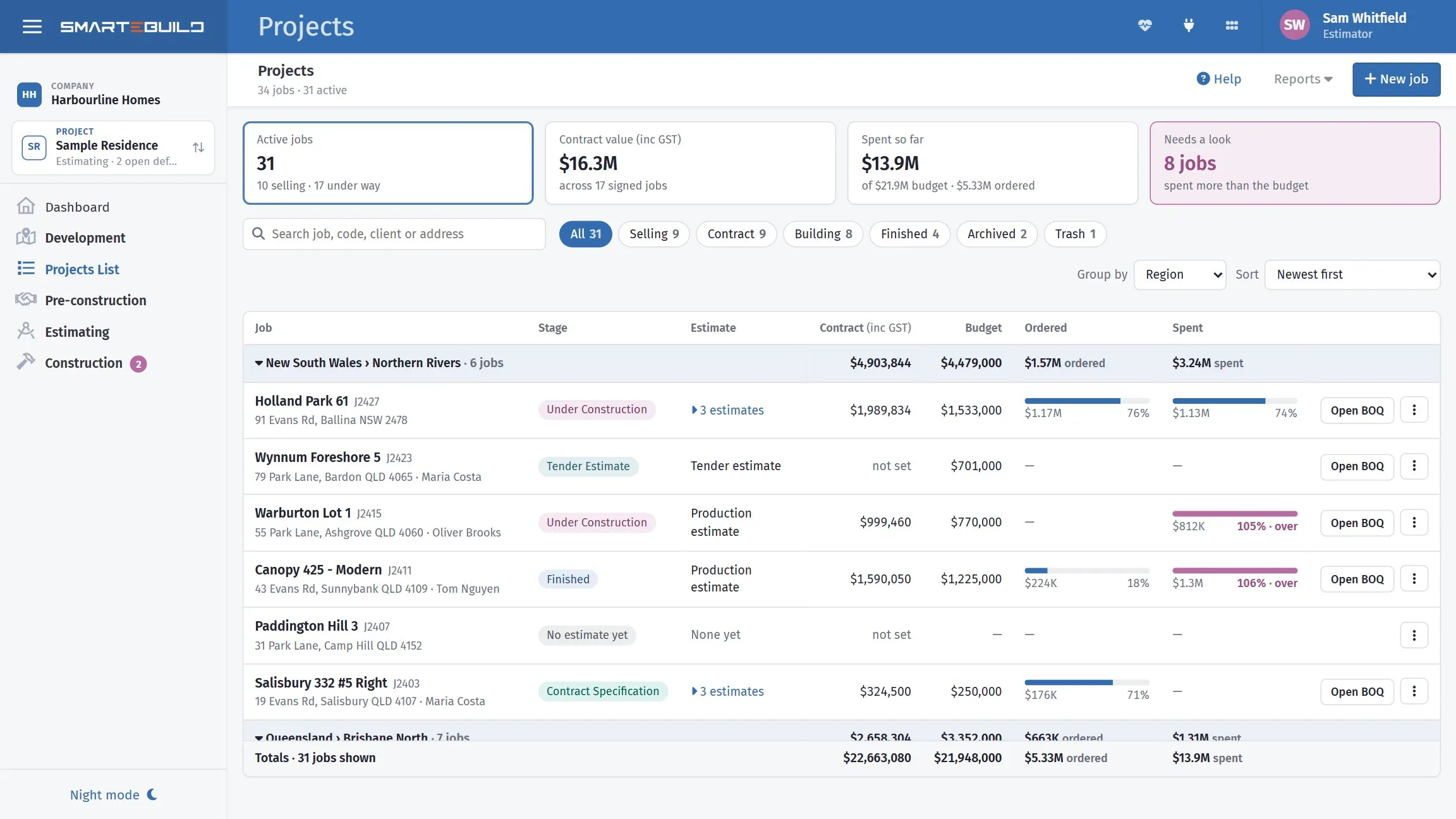
Grouped by Region. Each heading carries its own contract, budget, ordered and spent subtotal, so a region can be read without adding anything up.
On the Projects list itself, Sort offers newest first, oldest first, name A–Z, job code, biggest budget, and most spent as a percentage of budget.
That last one is the one worth knowing. It puts the jobs closest to eating their budget at the top, which is a different and more useful question than which job is biggest.
Group by puts the jobs under headings with a subtotal on each, using the EPS headings described above — pick the heading, say Region, and every job files itself under its node. Jobs not filed anywhere appear under Not filed at the end, which is the quickest way to find the ones nobody has placed. None puts the list back flat.
Grouping by a region or a division gives each part of the business its own block with its own subtotal. Which grouping is useful depends on how you actually divide the work — see What to organise by above.
A practical setup
Section titled “A practical setup”For a builder carrying twenty to thirty live jobs:
- Build an EPS two levels deep by division and region.
- Turn on job numbers.
- Set the default project filter to exclude finished statuses.
- Group by supervisor.
- Archive jobs as they complete rather than leaving them in the list.
The last point does most of the work. See Archiving and deleting.