
Formula fields
Available onEstimatorBuilder
A formula derives a quantity from other quantities. It is what turns a bill from a list of numbers into something that responds to a change.
Measure the slab once. Let the mesh, the membrane, the sand bed and the concrete all derive from it. Change the slab and all four follow.
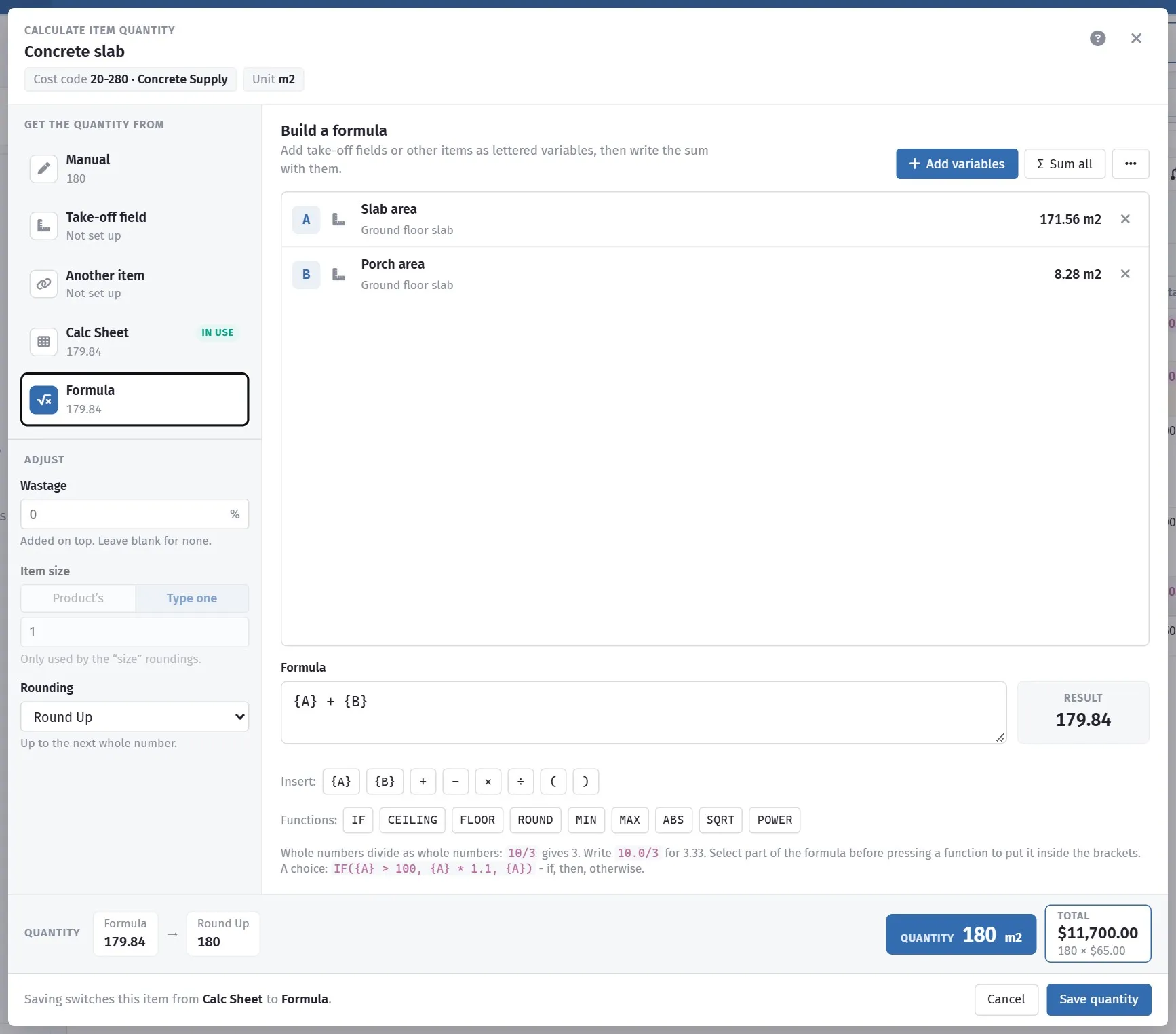
A formula works the quantity out from the fields you measured.
Variables
Section titled “Variables”A formula refers to formula variables — named values you define on the estimate. Add Formula Variable creates one, and Assembly Values groups the ones belonging to an assembly.
A variable is a value with a name: SlabArea, WallHeight, ExternalPerimeter,
RoofPitch. Set it once and use it in as many formulas as you like.
Take-off fields can supply variables too, so a measured value becomes available to every formula in the estimate.
Writing a formula
Section titled “Writing a formula”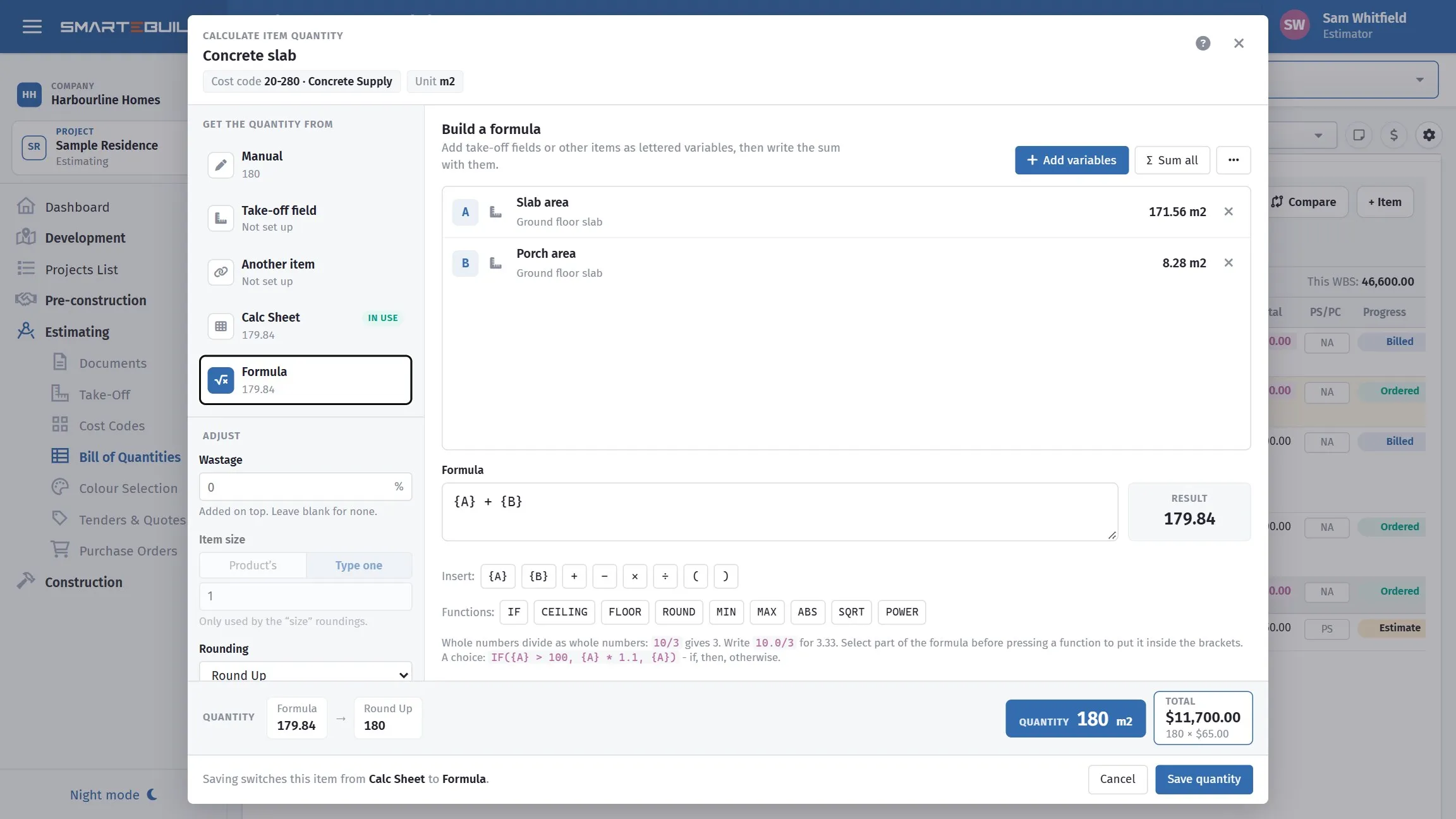
Add the fields you want as variables, then write the sum with their letters. The functions along the bottom go round whatever you have selected.
Formulas use ordinary arithmetic: +, −, ×, ÷, brackets, and the variables
you have defined.
| Item | Formula | Reads as |
|---|---|---|
| Slab mesh | SlabArea * 1.05 |
Slab area plus 5% laps |
| Vapour barrier | SlabArea * 1.1 |
Slab area plus laps and turn-ups |
| Slab concrete | SlabArea * SlabDepth |
Area × depth |
| Edge formwork | SlabPerimeter |
Straight from the perimeter |
| Wall paint | WallLength * WallHeight * 2 |
Both faces |
| Skirting | WallLength - DoorOpenings |
Wall run less the doors |
Worked example: a slab that looks after itself
Section titled “Worked example: a slab that looks after itself”Set up two variables on the estimate:
| Variable | Source | Value |
|---|---|---|
SlabArea |
Take-off field Slab area |
186.40 |
SlabDepth |
Typed | 0.10 |
Then price five items off them:
| Item | Unit | Formula | Quantity |
|---|---|---|---|
| Concrete N32 supply and place | m³ | SlabArea * SlabDepth |
18.64 |
| SL72 mesh | m² | SlabArea * 1.05 |
195.72 |
| Vapour barrier | m² | SlabArea * 1.1 |
205.04 |
| Bedding sand | m³ | SlabArea * 0.05 |
9.32 |
| Concrete pump | item | — (typed 1) | 1 |
Now the client adds a metre to the alfresco. You drag one corner in Take-Off, the field goes to 194.80, and four of those five quantities update themselves. The pump stays at one, correctly, because it was typed.
That is the entire argument for formulas in one example.
Where formulas take priority
Section titled “Where formulas take priority”A field that gets its quantity from a formula is read-only in Take-Off. The formula is the source of truth, so Take-Off shows it and refuses to measure into it.
If you want to measure the field off a drawing instead, clear the formula first.
When not to use a formula
Section titled “When not to use a formula”- When the relationship is not real. If the mesh area only usually follows the slab, a formula will be silently wrong on the job where it does not.
- For one-offs. A formula for a single item you will never revisit is more work than typing the number.
- When the working is the point. If you want the derivation visible as a set of dimensions, use the calc sheet instead.
Checking your formulas
Section titled “Checking your formulas”Two habits worth having:
- Sanity-check the first result. A formula that produces 1,864 m³ of concrete instead of 18.64 has a decimal in the wrong place, and it will look plausible in a total.
- Change a variable and watch. Nudge
SlabAreaand confirm every dependent item moves. If one does not, it was typed rather than derived.
Keeping formula results current
Section titled “Keeping formula results current”A formula’s answer is worked out once and stored, so it has to be recalculated when something it refers to changes. The BOQ now does that for you.
Change a quantity and, once you stop typing for a moment, the grid quietly recalculates every formula in the estimate. You will see Updating formulas… appear briefly next to the toolbar’s circular-arrows button. There is nothing to click and no message when it finishes — the figures are simply right.
It waits for a pause rather than recalculating on every keystroke, so keying quantities down a whole trade is one recalculation at the end, not one per row.
What triggers it, and what does not
Section titled “What triggers it, and what does not”A formula can only ever refer to three things: a take-off field’s quantity, another item’s quantity, or an item’s productivity rate. So:
| Change | Recalculates? |
|---|---|
| A quantity | Yes |
| Saving the Calculate Quantity screen | Yes — the method, wastage, size and rounding all change the quantity |
| Switching an item on or off | Yes — a switched-off item counts as zero in a formula |
| Changing an item’s rounding | Yes — it changes the quantity the formula reads |
| Deleting an item | Yes |
| A cost or a price | No — no formula can read a rate |
| Adding or importing an item | No — nothing refers to it yet |
That is why editing a rate never sets anything off: it genuinely cannot change a formula result. If an estimate has no formula-driven items, none of this ever runs.
Refresh Formulas is still there on the toolbar for forcing a recalculation yourself.