
Selling upgrades to a client
Available onEstimatorBuilder
The Upgrades page is for the salesperson. Sit with the client, click through the upgrade options your estimator set up, and the price is there a moment later. The page shows prices including GST and never shows a cost or a margin, so it is safe to turn the screen around.
Opening it
Section titled “Opening it”- From the job’s Client tender: Upgrades on the toolbar.
- Copy sales team link on the Client tender copies the page’s address to send to a salesperson.
To open it, someone needs Offer upgrades to clients (sales) or Sign off upgrade proposals on the Bill of Quantities. See module permissions.
Salespeople who do not use SmarteBuild
Section titled “Salespeople who do not use SmarteBuild”A salesperson can work from a link and a password instead of a SmarteBuild login.
- On the Upgrades page, press Sales team links, then New link.
- Type their name and email, tick the jobs they sell, and choose how long the link works (30 days unless you change it).
- Press Create and email the link. SmarteBuild emails them the link and a password together. The password is also shown once on screen, in case the email does not arrive.
With the link they price upgrades, save proposals and send them to the client portal for signing, for the jobs on the link only. They never see costs or margins, and cannot sign on paper, apply upgrades, reopen a signed proposal or make variations: those stay with the office.
- Five wrong passwords lock the link for 15 minutes.
- New password emails a fresh one; the old one stops working straight away.
- Edit changes their jobs or extends the link. Cancel link ends it at once.
- Activity shows when they signed in and what they saved or sent.
- What they save is recorded in the name of the staff member who made the link.
Anyone with both the link and the password can open those jobs’ upgrade prices, so cancel a link when a salesperson leaves.
Picking upgrades
Section titled “Picking upgrades”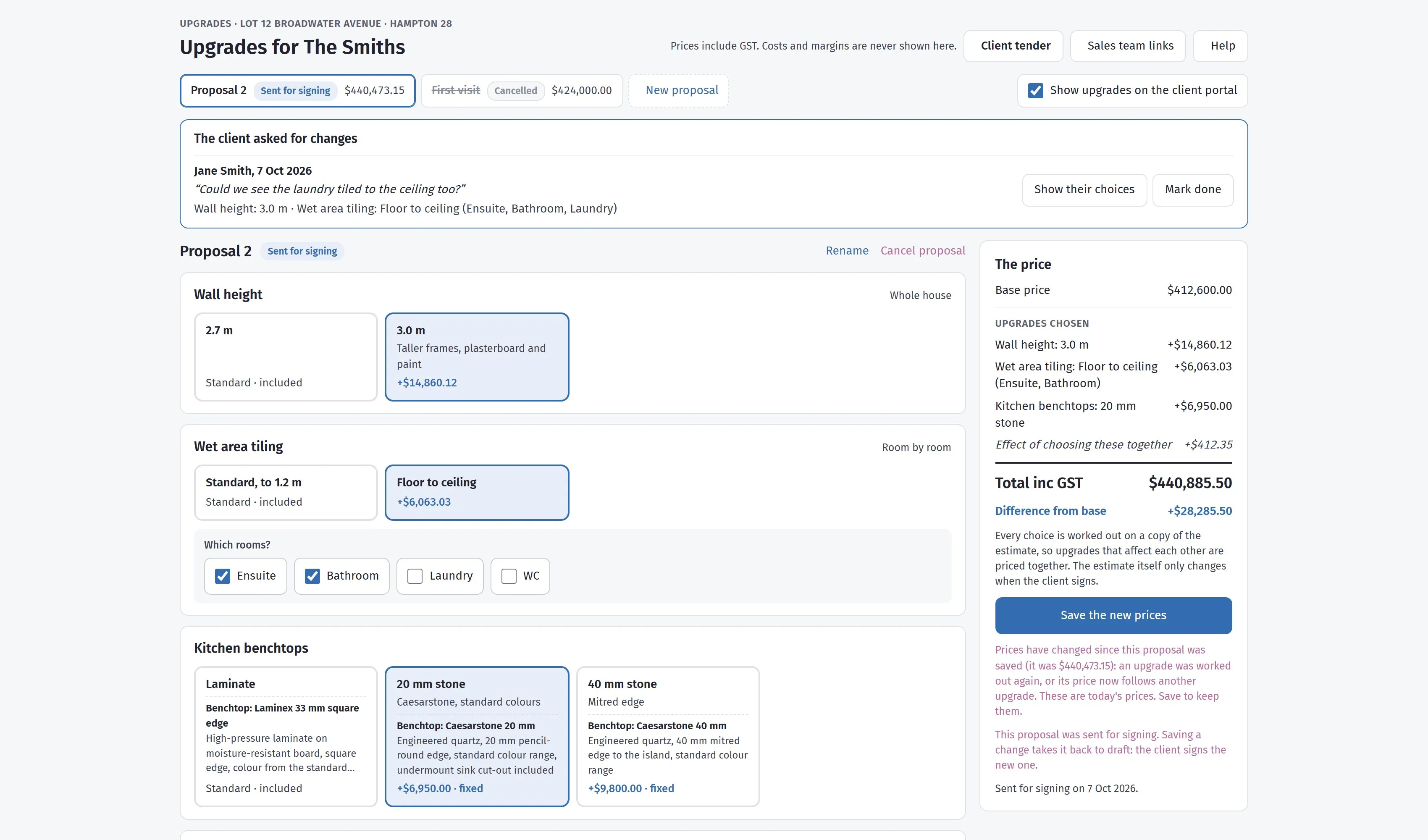
Costs and margins never appear here. Room by room shows as ticks — the ensuite and bathroom tiled to the ceiling, the laundry and WC not. Effect of choosing these together is the adjustment when upgrades overlap, and the pink note is the page saying today’s prices no longer match the saved ones.
- Each box is one decision. Click a choice to pick it. The first choice is always the standard: what the price already includes. A choice that changes a product shows the product’s name and description, so the client knows exactly what they are getting. The client sees the same on the portal.
- Which rooms? appears for upgrades done room by room. Picking the upgrade ticks every room; untick the ones the client does not want.
- The price on the right shows the base price, each upgrade picked, the total and the difference from the base.
Each upgrade’s price was worked out once by the estimator and saved, so the total adds up as you click. A second or two later the page checks the total with all the picks worked out together on the estimate. If some upgrades change each other (taller walls make floor-to-ceiling tiles dearer), a line Effect of choosing these together appears, and the total includes it. The client sees the same line on the portal and in the Client tender. If the estimate changed since, the page says so; the prices are worked out again before the proposal is signed.
Proposals
Section titled “Proposals”A proposal is one set of choices for this client, with its price.
- New proposal starts one from the choices of the last proposal, so a second option for the client is a couple of clicks.
- Save the proposal keeps the choices and their prices. The Client tender shows the saved proposal in its price.
- A proposal you can still change always opens with today’s prices. If an upgrade was worked out again since it was saved, or its price now follows another upgrade, the page says so and shows the saved total; press Save the new prices to keep them. A signed or cancelled proposal keeps the prices it was saved with.
- Rename and Cancel proposal are next to its name.
Getting it signed
Section titled “Getting it signed”Press Get it signed. The window works through four steps:
- Is the price still right? The proposal is priced again on today’s estimate. If an upgrade’s saved price is out of date, press Work these prices out again. If the estimate has changed since the proposal was saved, press Update the proposal. The client always signs the price shown.
- Orders and tenders already sent. Any sent order or tender holding an item these upgrades change is listed. SmarteBuild never changes a sent order, because the supplier has seen it. Raise an extra order or ask for a new quote.
- How the client signs:
- In the client portal. Turn on Show upgrades on the client portal for the job, then press Send for signing. The client reads it and signs in their portal. You get a notification when they do.
- On paper. Attach the signed proposal (PDF or photo), type the name of the person who signed, and press Mark as signed. The file goes into the job’s Documents, under Signed proposals.
- What happens when it is signed.
Changing a proposal after it was sent takes it back to draft, so the client has to sign the new one.
When it is signed
Section titled “When it is signed”Signing updates the estimate by itself, so nothing is copied by hand:
- every upgrade goes into the estimate;
- the contract price becomes the signed total;
- the estimate as it was before is kept, read-only, as (before upgrades). Compare with opens the two side by side;
- every item that moved is recorded under What changed in the estimate;
- the estimate is locked, so its price cannot change quietly.
If the upgrades could not be put into the estimate, the page says why. The signature stands. Someone allowed to sign off presses Apply again. Someone allowed to unlock estimates can Reopen a signed proposal. The upgrades already in the estimate stay there.
After the contract
Section titled “After the contract”Once a proposal is signed (or the job is under construction), more upgrades become a variation.
- Press Offer upgrades as a variation. The choices start from what the client has already agreed.
- Change the choices. The price panel shows The variation: the difference from what was agreed.
- Save, then press Make it a variation. This makes a draft variation with one line. The line carries the real cost of every item change and the price the client was shown.
- Send the variation to the client as usual. Once approved, someone allowed to apply variations applies it to the estimate. The client’s approval never changes the estimate on its own.
This needs Create and edit variations as well as Offer upgrades to clients.
Requests from the client
Section titled “Requests from the client”When upgrades are shown on the portal, the client can try the options and press Ask my builder to update my proposal. The request appears at the top of the Upgrades page with their note. Show their choices loads them into the proposal you are on, ready to save. Mark done clears it.