
Site documents
Available onBuilder
Workers signed in on a site can open the site’s documents on their phone - the site plan, SWMS, emergency plan, site rules. They only see them while they are signed in on that site.
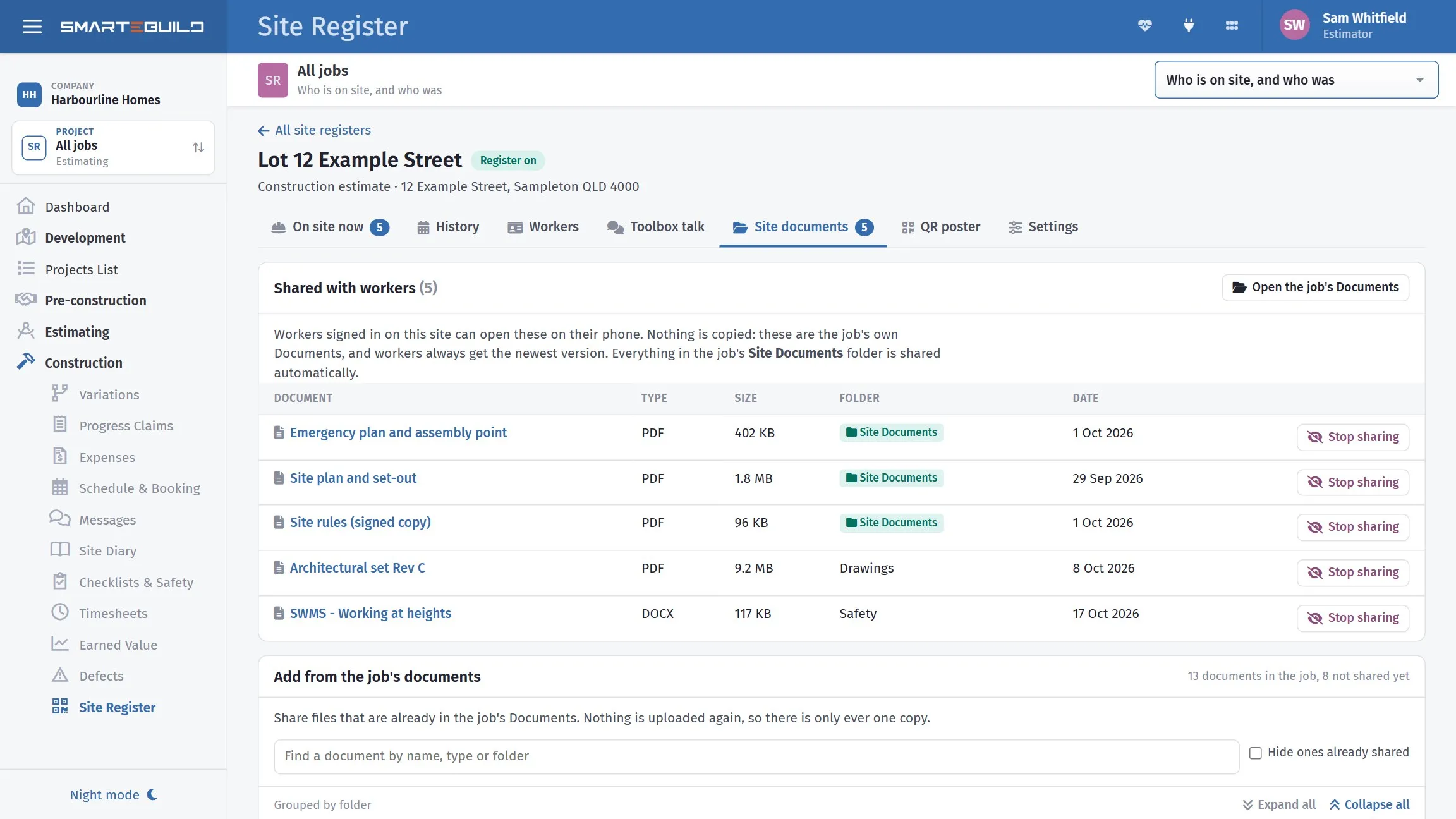
Nothing is copied. These are the job’s own Documents, and workers always get the newest version: put up revision D of a drawing and the next worker who opens it sees D.
Three ways to share
Section titled “Three ways to share”- The Site Documents folder. Starting a register makes a Site Documents folder in the job’s Documents, and everything in it is shared automatically. This is the easiest way: put the file in the folder and you are done.
- Add from the job’s documents. On the Site documents tab, tick files that are already in the job - any folder - and press Share. Nothing is uploaded again, so there is only ever one copy. Files that are private to someone else are not listed.
- Upload new. Drag files onto the tab (up to 20 at a time) and press Upload and share. Each file is checked first: if the same file is already in the job’s Documents, that copy is shared instead of uploading it twice. New files go into the Site Documents folder. Uploading needs permission to edit Documents.
Stop sharing
Section titled “Stop sharing”Stop sharing takes a file off workers’ phones on this site. The file stays in the job’s Documents - if it was in the Site Documents folder, it is just hidden for this site. You can share it again at any time.