
Building a schedule
Available onBuilder
A list of tasks with dates typed on them is a wall planner. A schedule with dependencies is something that answers questions — and reschedules itself when the weather closes in.
The difference is predecessors.
Duration
Section titled “Duration”Duration is how long a task takes, in working days.
Use the duration the trade actually takes on site, not the duration you hope for. The schedule is only useful if it is honest, and an optimistic schedule produces call-ups that are wrong every time.
Predecessors
Section titled “Predecessors”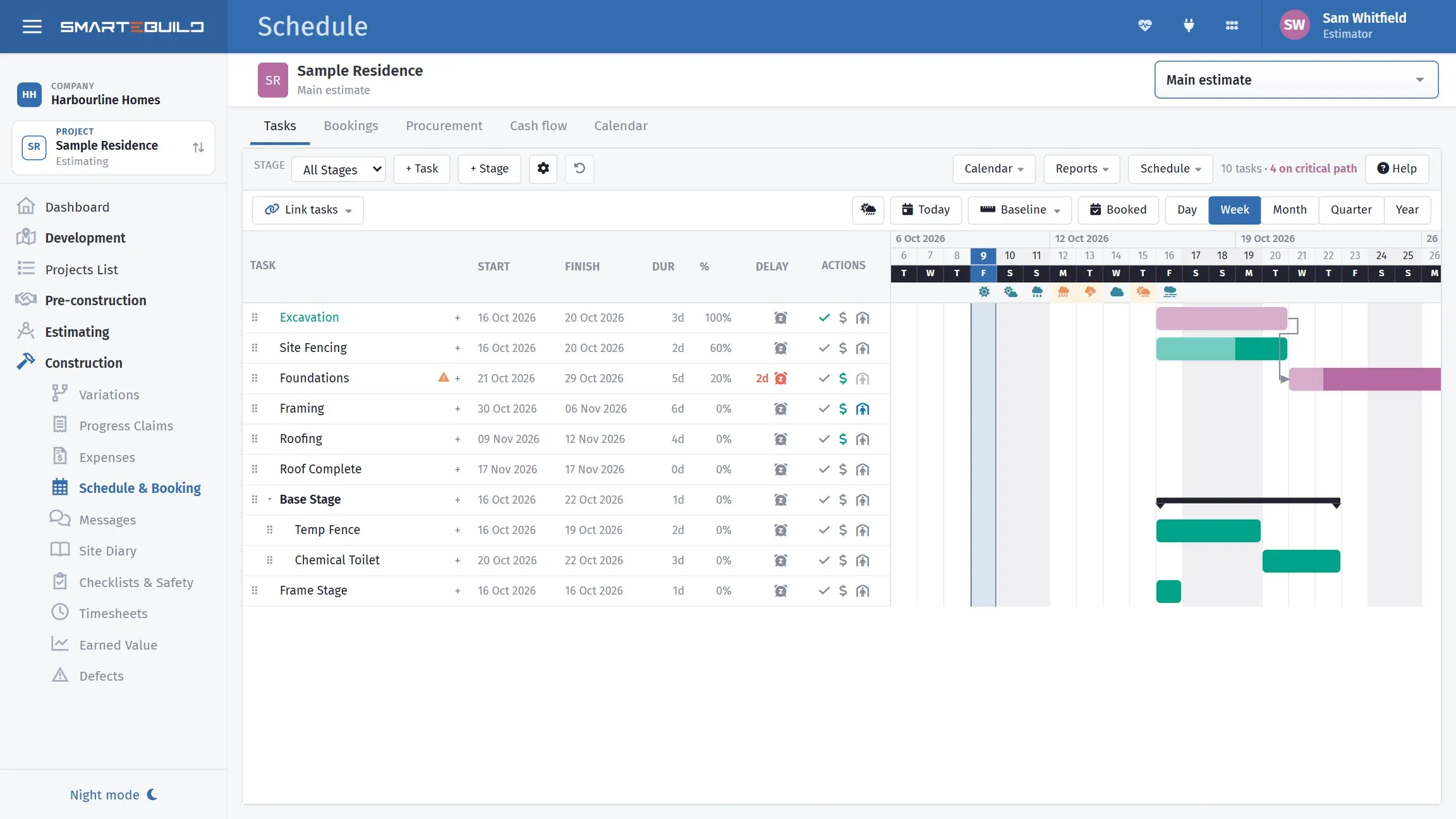
The arrows are the links: framing cannot start until the foundations finish. Foundations is flagged 2d in red and carries a warning, and because the tasks after it are linked, that two days has already moved everything downstream rather than quietly eating the float.
Predecessor and Predecessor Task say what has to happen before this task can start.
This is what makes the schedule dynamic. Set the frame to follow the slab, and if the slab slips a week the frame moves with it — and so does everything after the frame.
The task panel
Section titled “The task panel”Click a task’s name to open its panel on the right. The top shows the task’s dates and working days, and a tag if it is on the critical path. Otherwise the tag shows how many days of float it has. Below that are two tabs:
- Details:
- General: the name and the stage.
- Notes: anything that does not fit a field. It saves when you click away.
- Timing & progress: duration, percent complete (with a bar), and two switches. Milestone makes it a zero-day diamond. Auto-schedule off pins the task to a start date you type, and the panel’s top then shows Fixed start.
- Links: what the task waits for and what waits for it (see below). The number on the tab is how many links the task has. The panel stays on the tab you chose when you click another task, so you can work through links task by task.
Changes save as you leave each box. Done saves and closes the panel, and Delete task is at the bottom left. It asks first — see Deleting a task.
Link types
Section titled “Link types”Most links say “this starts when that finishes”. Not every trade works that way, so a link can be any of the four types MS Project uses:
| Type | Means | Typical use |
|---|---|---|
| FS Finish to start | This starts after that one finishes | Frame after slab. The usual one |
| SS Start to start | This starts when that one starts | Plumbing starts two days after the frame starts, not after it finishes |
| FF Finish to finish | This finishes when that one finishes | Clean-up finishes with the painting |
| SF Start to finish | This finishes when that one starts | Temporary fencing stays up until the landscaper starts |
To pick the type:
- When linking: open Link tasks above the chart and pick the type. Each one has a small picture of what it does. Then click the first task on the chart, then the one linked to it. You can keep linking pairs in the same type; press Done (or Esc) when finished.
- From a task: open the task and pick the Links tab. Under Add a link, choose Predecessor (this task waits for it) or Successor (it waits for this task), pick the other task from the dropdown (or type a few letters to filter it), then pick the type and the lag. A line underneath reads the link out before you commit, for example “This task starts 1 working day after Slab pour starts”. Press Link: the link is added and the dates move straight away. If the link would make two tasks wait for each other in a loop, it is not added, and the box says why.
- Changing a link: on the same Links tab. It lists what it waits for (Predecessors) and what waits for it (Successors). Each linked task has a type box and a lag box, and a line underneath reads the link out, for example “This task starts 2 working days after Slab pour finishes”. Change either box and the dates move straight away.
The arrows on the Gantt show the type: they leave from the start or the finish of one bar and arrive at the start or the finish of the other. Hover over an arrow to read it, for example “Frame → Plumbing: Start to start, +2 days”.
Lag is waiting time added to a link. On a finish-to-start link it is the wait after the predecessor finishes, before this task can start. On a start-to-start link it is the wait after the predecessor starts.
It is how you model curing, drying, delivery lead times and inspections:
| Between | Lag | Why |
|---|---|---|
| Slab pour → frame | 3 days | Concrete cure |
| Render → paint | 5 days | Drying |
| Order windows → install | 30 days | Lead time |
| Frame → frame inspection | 1 day | Booking the inspector |
Lag is where most real schedules go wrong. A schedule with no lag has the frame starting the morning after the pour, which nobody does, and the whole programme is optimistic by the sum of the missing waits.
Scheduling
Section titled “Scheduling”Scheduling controls how a task is placed — driven by its predecessors, or fixed to a date.
Most tasks should be driven by predecessors. Fix a task to a date only when it truly is fixed — a council inspection with a booked slot, a crane hired for a specific day, a client walkthrough.
Too many fixed dates and the schedule stops rescheduling itself, which was the point.
Worked example: the Hendricks extension
Section titled “Worked example: the Hendricks extension”| Task | Duration | Predecessor | Lag |
|---|---|---|---|
| Site set-up | 1 d | — | — |
| Excavate | 2 d | Site set-up | — |
| Formwork and reo | 3 d | Excavate | — |
| Slab pour | 1 d | Formwork and reo | — |
| Frame | 6 d | Slab pour | 3 d |
| Frame inspection | 1 d | Frame | 1 d |
| Roof trusses | 2 d | Frame inspection | — |
| Roof tiles | 3 d | Roof trusses | 1 d |
| Windows | 2 d | Roof tiles | — |
| External cladding | 5 d | Windows | — |
| Plumbing rough-in | 3 d | Frame inspection | — |
| Electrical rough-in | 3 d | Frame inspection | — |
| Insulation | 1 d | Plumbing rough-in, Electrical rough-in | — |
| Plasterboard | 5 d | Insulation | — |
Two things worth noticing.
The 3-day lag after the slab pour is the concrete curing. Without it the frame starts the next morning, and the whole programme reads three days optimistic.
Plumbing and electrical both follow frame inspection, and insulation follows both. They run in parallel, and insulation waits for whichever finishes last. That is a dependency you cannot express by typing dates.
Three ways to start
Section titled “Three ways to start”You do not have to type the first schedule out. The Schedule menu on the toolbar of the Tasks tab has these starting points, and all of them replace whatever schedule the job already has, so they are for starting, not for adding to. Each one asks first.
They live on Tasks only. You will not find them on Bookings or Cash flow, because what those pages hold — resources, lead times, call-up status, actual dates — is exactly what these throw away.
| Start with | What you get |
|---|---|
| Import a template | A ready-made programme: tasks, durations and links. The list holds your own template jobs and the ones that come with SmarteBuild |
| Build from cost codes | One task per cost code on this job, in cost-code order, each one after the last |
| Import from MS Project | A programme someone built in Microsoft Project: tasks, summary tasks, every link with its type and lag, the calendar and the people. See MS Project below |
| Building one from scratch | An empty chart you fill in yourself — see below |
Clear schedule, at the bottom of the same menu, is the way to get back to an empty chart on a job that already has one. It deletes every task, along with their links, resource bookings and recorded delays. Your stages are kept — delete those with the ⚙ beside the Stage filter if you want them gone too. It asks first, tells you how many tasks are about to go. Undo straight afterwards brings the tasks back, as new copies — see Undo.
The same menu also holds Copy schedule and Paste schedule, for reusing one job’s programme on another.
Import a template
Section titled “Import a template”Pick a template under Import a template and its tasks, durations, links and stages are copied in. Nothing personal to that template comes with it: no suppliers, no bookings, no costs, no notes — you set those for this job.
Your own jobs appear here when the estimate is ticked as a Template and has a schedule on it, so a programme you have refined on one house can be the starting point for the next.
Build from cost codes
Section titled “Build from cost codes”This one starts from the estimate rather than from a template, which is the fastest way to get a first programme on a job you have already priced.
- Every cost code on the job becomes one task, named after the cost code.
- They run in cost-code order, each starting when the one before it finishes.
- You say how long each task takes; 3 days is offered.
- Cost codes set to Not Required are left out.
- Each task is linked to its cost code, so the task’s cost is the money in that part of the estimate, and Cash Flow works straight away.
It is a starting point, not a programme: a strict one-after-another chain is never how a job really runs. Go through it afterwards and set the real durations, let the trades that overlap overlap, and add lag for cures and lead times.
MS Project
Section titled “MS Project”The Schedule menu has an MS Project section with two commands. Export gives MS Project an XML file, which it opens itself. Import reads MS Project’s own .mpp file directly (or an older .mpx, or an XML file saved from MS Project), so you don’t need to convert anything first.
Export to MS Project
Section titled “Export to MS Project”Export to MS Project downloads the schedule as an .xml file. In MS Project, use File › Open, choose the file and open it.
What goes across:
- Every task, with parent tasks as MS Project summary tasks, in the same order.
- Every link, with its type (FS, SS, FF or SF) and its lag.
- Durations in working days. Recorded delays are added to the duration, so the bars land on the same dates.
- Tasks fixed to a date come across as manually scheduled on that date.
- Percent complete and actual start and finish dates.
- The job’s working days and holidays, as the project calendar.
- The person on each task, as a resource with their supplier as the resource group.
- Stages, in a custom column called Stage.
Costs, bookings, call-up status and weather do not go across. MS Project has nowhere to put them.
Import from MS Project
Section titled “Import from MS Project”- Have the MS Project file to hand - the .mpp itself is fine. (A file saved with File › Save As › XML Format (*.xml) works too.)
- In SmarteBuild, open the job’s Tasks tab, then Schedule › Import from MS Project…, and pick the file. An .mpp takes a second or two longer to read.
- If the job has no schedule yet, the file simply becomes its schedule. If it already
has one, choose:
- Update this schedule (the default) - for a revised programme. Dates, durations, progress and links come from the file. Bookings, recorded delays, costs, call-ups, lead times and procurement items stay on their tasks. New tasks in the file are added. Tasks that are not in the file stay, unless you tick Remove the tasks that are not in the file; a procurement item on a removed task keeps its on-site date as a fixed date.
- Replace the whole schedule - start again from the file. Everything on the old tasks goes.
- Read the summary. For an update it shows how many tasks matched, which are new and which are not in the file. Untick Use the file’s working days and holidays to keep this job’s own calendar.
- Press Update the schedule (or Replace and import).
How tasks are matched. A programme you exported from SmarteBuild carries each task’s own SmarteBuild ID (a hidden custom field called “SmarteBuild ID”), so it matches task for task even if a task was renamed in MS Project. Any other file is matched by the task’s place in the outline, then by its name. A name that appears more than once cannot be matched safely, so it comes in as a new task, and the summary says so.
Delays. Export puts recorded delays inside each task’s duration, so MS Project shows the same dates. When that file comes back, the delays are taken off again. A task matched only by name keeps the file’s duration as it is, and the summary lists any such task with delays so you can check it.
Undo puts the schedule back as it was before the update. A procurement item that was given a fixed date because its task was removed keeps that date; tie it to the task again.
People are matched by name against your suppliers’ contacts. Anyone not found is listed, and their tasks come in without a person. Add them under Suppliers and assign them afterwards.
Worth knowing lists anything that could not come across exactly:
| MS Project has | SmarteBuild does |
|---|---|
| Part-day durations (4 hours, 1.5 days) | Rounds up to whole working days. A half day still takes a day on site |
| Links on summary tasks | Moves each link onto the tasks inside the summary that it drives, so the dates stay the same |
| Lag in calendar days (“2 edays”) | Converts it to working days |
| Lag as a percentage | Converts it to days from the predecessor’s duration |
| A “start no earlier than” date | Keeps it as the task’s start date when the task has no links. When it also has links, SmarteBuild follows the links, so check that task |
| “Must start on” and manually scheduled tasks | Fixes the task to that date |
| “As late as possible” and other constraints | Schedules the task as soon as possible |
Building one from scratch
Section titled “Building one from scratch”- List the tasks in the Tasks view, in rough build order.
- Set durations, honestly.
- Link predecessors down the chain.
- Add lag for cures, drying, lead times and inspections.
- Look at the finish date. If it is wrong, the schedule is telling you something — usually that a duration or a lag is unrealistic.
- Fix only the genuinely fixed dates.
Step five is the point of the exercise. A schedule that produces a finish date you do not believe is more useful than no schedule, because you can go and find the assumption you disagree with.
When something slips
Section titled “When something slips”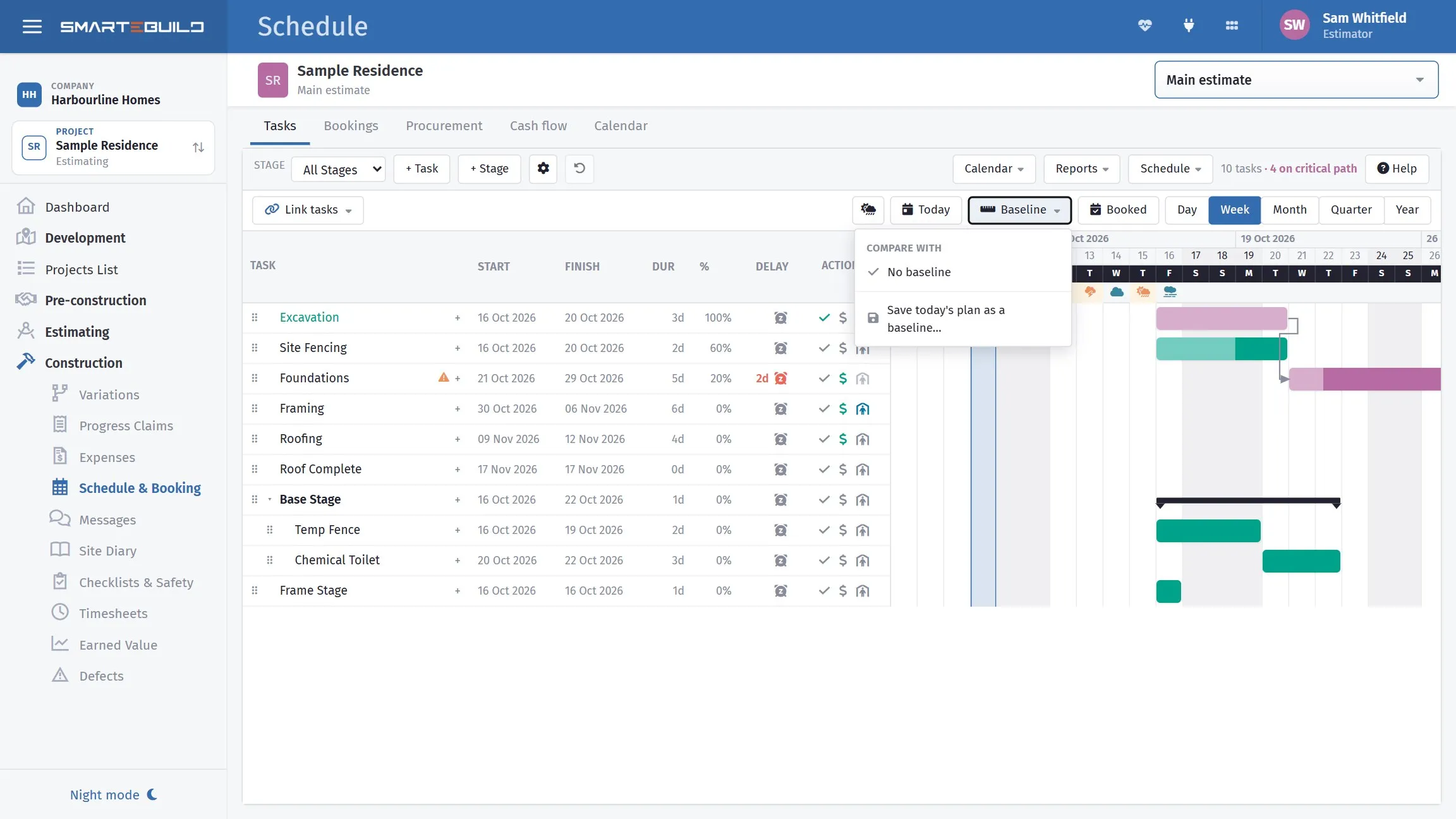
Save the plan as a baseline while you still believe it. Once a job has moved twice, nobody can remember what was originally promised, and a baseline is the only honest answer to “are we behind?”.
Change the task that slipped — its actual dates, or its duration — and let everything downstream move.
Resist adjusting later tasks by hand to protect the finish date. That hides the slip, and the schedule stops being a forecast. If the finish date has moved, that is information you and the client both need.