
What subcontractors see
Available onEstimatorBuilder
Every invitation email carries the subcontractor’s own link to a quote page. They do not need a SmarteBuild login, and they do not see your other bidders or your prices.
Knowing what they see makes it much easier to help them when they ring.
The link
Section titled “The link”The link sits at the end of your invitation, under Price this tender online - no login needed. Each subcontractor’s link is their own: it opens their invitation and nobody else’s, so forwarding it never shows anyone your other bids.
To put the link somewhere else in your message, type $QuoteLink$ where you want it. If
your message already has it, it is not added a second time.
The same link works on a phone: the page is built to be priced on site if that is where they are.
What the page shows them
Section titled “What the page shows them”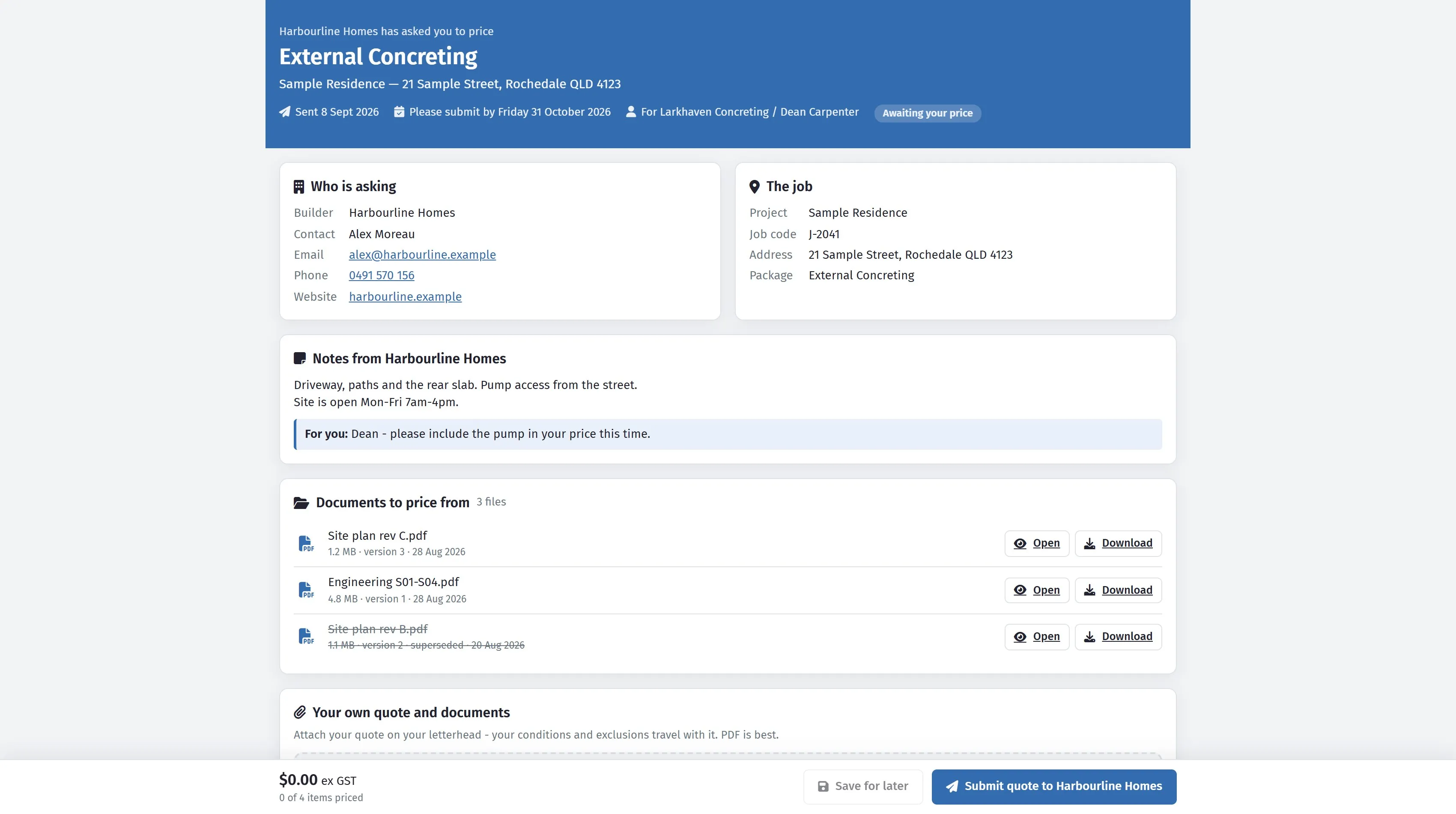
No sign-in, no account. Who is asking, how to reach them, the job, your own note to that subcontractor, and the drawings — with a superseded revision struck through so nobody prices from the old one.
It reads like a letter from you, top to bottom:
| They see | Which is |
|---|---|
| The heading | Your company name, the tender’s name, the project and its address, when it was sent, the date quotes are due (Please submit by, or Was due once it has passed), and where they are up to — Awaiting your price, Saved, not sent, Quote sent, Not pricing, Accepted |
| Who is asking | Your company and the name, email and phone of whoever sent the tender — as links they can tap |
| The job | Project name, job code, site address and the package name |
| Notes from you | The tender’s notes, and anything you wrote on their invitation, marked For you |
| Documents to price from | Every file attached to the tender, to open in the browser or download. A superseded version is shown struck through |
| Your own quote and documents | Where they attach their quote on their letterhead. Attaching a file keeps whatever they have already typed below it |
| Your price | Every item on the tender — name, description, product and your note on the line — with a quantity and a price box each, and the totals ex GST, GST and inc GST |
They do not see who else was invited, what anyone else has quoted, your budget, or anything about the rest of your job.
What they fill in
Section titled “What they fill in”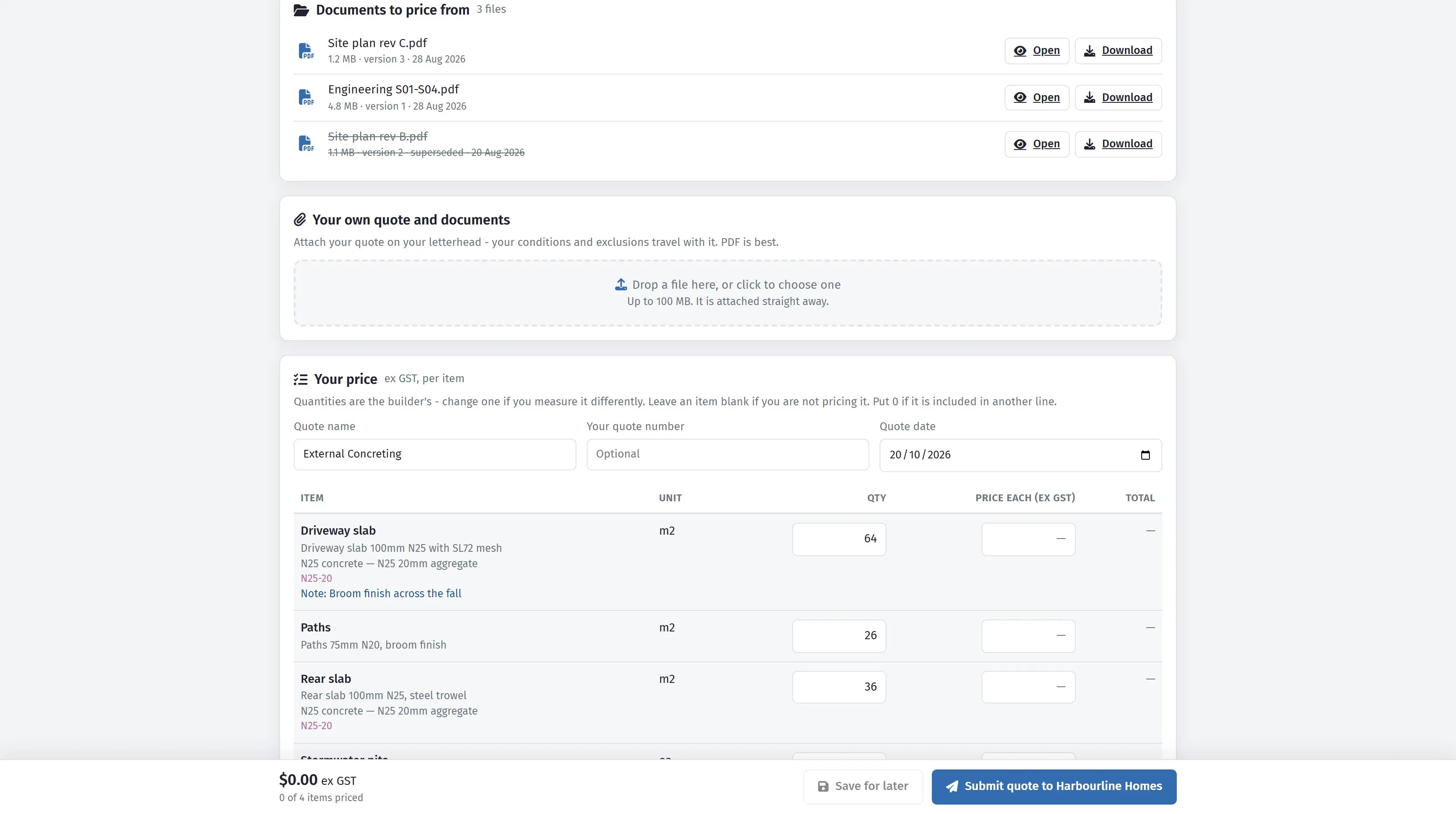
A rate against each item, with the quantities pre-filled from your package and editable if they measure it differently. The bar along the bottom counts what is still blank — 0 of 4 items priced here — which is the thing that stops a half-finished quote being sent.
| Field | What it is |
|---|---|
| Quote name | Starts as your tender’s name; they can change it |
| Your quote number | Their own reference, optional |
| Quote date | The date of their price - today unless they change it |
| Qty | Filled in with your quantity (when the tender shows quantities). If they change it, your figure stays beside it as Builder’s qty so both of you can see the difference |
| Price each (ex GST) | Their unit price. A blank box means not pricing this item; 0 means included in another line. Simple sums are allowed — 26*88 becomes 2,288 |
The bar at the bottom keeps a running total and counts the items priced. Save for later keeps their prices on the page without sending them — you cannot see them yet. Submit quote sends them: the price arrives against your tender straight away, and a note Quote submitted online appears on their row in the tender list.
After they submit
Section titled “After they submit”The page tells them the quote was sent, and when. Their prices lock. From there they can:
- Change my quote — unlock the prices and change them. Submitting again updates the same quote; it never creates a second one.
- Attach a file at any time, before or after submitting. The first file becomes their quote document (the PDF button on their row); This is my quote moves that to another file. A subcontractor who only wants to send you a document can: attach it and submit with the items blank.
Once you accept their quote (award it), the page says so and locks for good — their prices are now part of your estimate, so a change would have to come through you. It tells them to contact you.
If you put the tender in the trash, their link shows This tender has been withdrawn and takes nothing.
Not interested
Section titled “Not interested”Not pricing this one? at the bottom of the page lets them decline, with an optional reason — too busy this month, not our type of work. You see it on their row as a note, Declined online: …, and they drop out of the counts. They can change their mind with I’ll price it after all; the items reopen.
Two ways they can price
Section titled “Two ways they can price”Against your items. This is the one you want - it comes back line by line against your bill, and comparison is mechanical.
As their own document. Perfectly valid, and what many subcontractors do regardless. They attach it and submit with the items blank; you will see the empty lines flagged when you compare, and Read quote on their row can read the document into lines for you.
Most will do both if you ask - price your items and attach their own quote as well. That is the ideal outcome: comparable numbers, plus their conditions.
Helping them through it
Section titled “Helping them through it”The calls you will get, and the answers:
“I cannot find the link.” It is at the bottom of the invitation email. Press Link on their row in the tender list to copy it and text it to them, or Follow up to send it again.
“Can I just email you a price?” Yes, and record it in Quotes Received - but ask them to use the page if they can, because it keeps the trail on the job.
“There is an item I do not do.” Tell them to leave it blank and note it in their own quote. Better an honest gap you can see than a guessed price you cannot.
“Your quantities look wrong.” Ask which item and check it. Either you have found an error in your bill before it went into a tender price, or they have misread the drawing - both are worth knowing now.
“The link says it is no longer valid.” The invitation was removed or the tender is in the trash. Restore it, or invite them again.
When it arrives
Section titled “When it arrives”The bid lands against your tender with their prices, their document and their details attached - ready to compare. Whoever sent that invitation gets a bell notification (and a push on the phone app) and an email from the tenders mailbox saying who quoted, how many lines and the total, with a link to the quote; replying to that email reaches the subcontractor. See Comparing bids and awarding.