
The Dashboard
The Dashboard is the first thing you see after signing in, and the first entry in the module menu. It is the one page in SmarteBuild that is not about a single project: it reads every job you have access to and puts the week ahead, the money coming in and the money going out on one screen.
Everything on it is a link. Click a project to open it, a claim date to go to that job’s Progress Claims, a task to open the Calendar, an invoice to open it in Expenses.
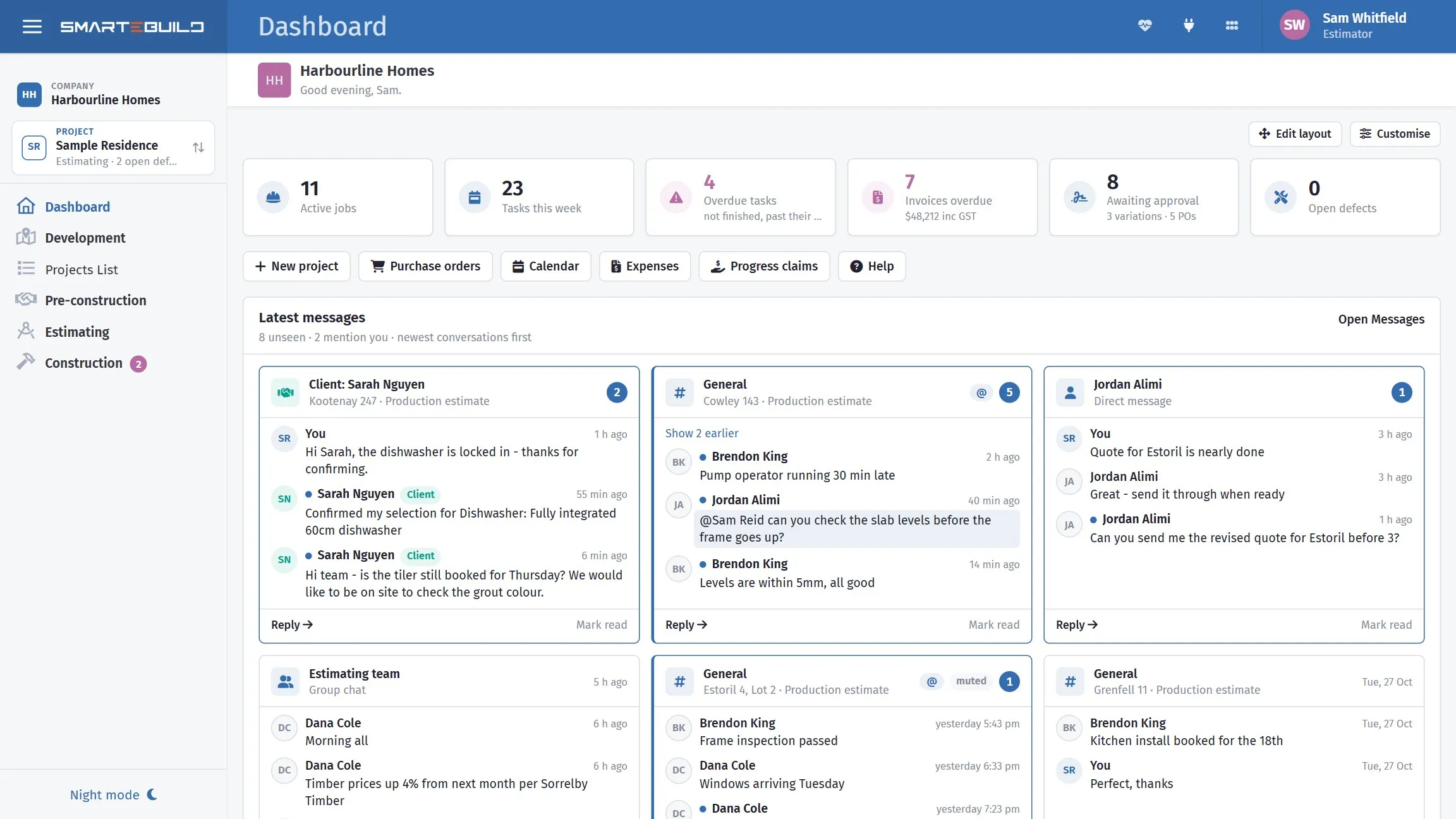
The counters across the top, every job’s conversations in one place, then what you have to choose or order.
Safety incidents still to finish
Section titled “Safety incidents still to finish”A red strip across the top means a safety incident has a legal step still open, such as telling the regulator or the insurer. It is shown to administrators and the people who sign off incidents. Because a legal duty with a clock on it should not be easy to miss, it cannot be hidden or moved. It goes when the steps are recorded.
What each part shows
Section titled “What each part shows”The figures across the top
Section titled “The figures across the top”Six counters, each of which takes you to the page where the number gets dealt with.
- Active jobs — estimates you can see that are not archived and not marked Finished.
- Tasks this week — schedule tasks running on any day of the current week, on every job. The same count the Calendar shows.
- Overdue tasks — tasks past their finish date that are not marked complete.
- Invoices overdue — supplier invoices past their due date, with the total including GST. An invoice that Xero reports as paid is not counted.
- Awaiting approval — variations the client has not accepted, plus purchase orders that have not been approved. Click it to open the Variations Board (or the orders list, when no variation is waiting).
- Open defects — defects not yet marked fixed.
A pink figure is one worth acting on. A quiet week shows six ordinary ones.
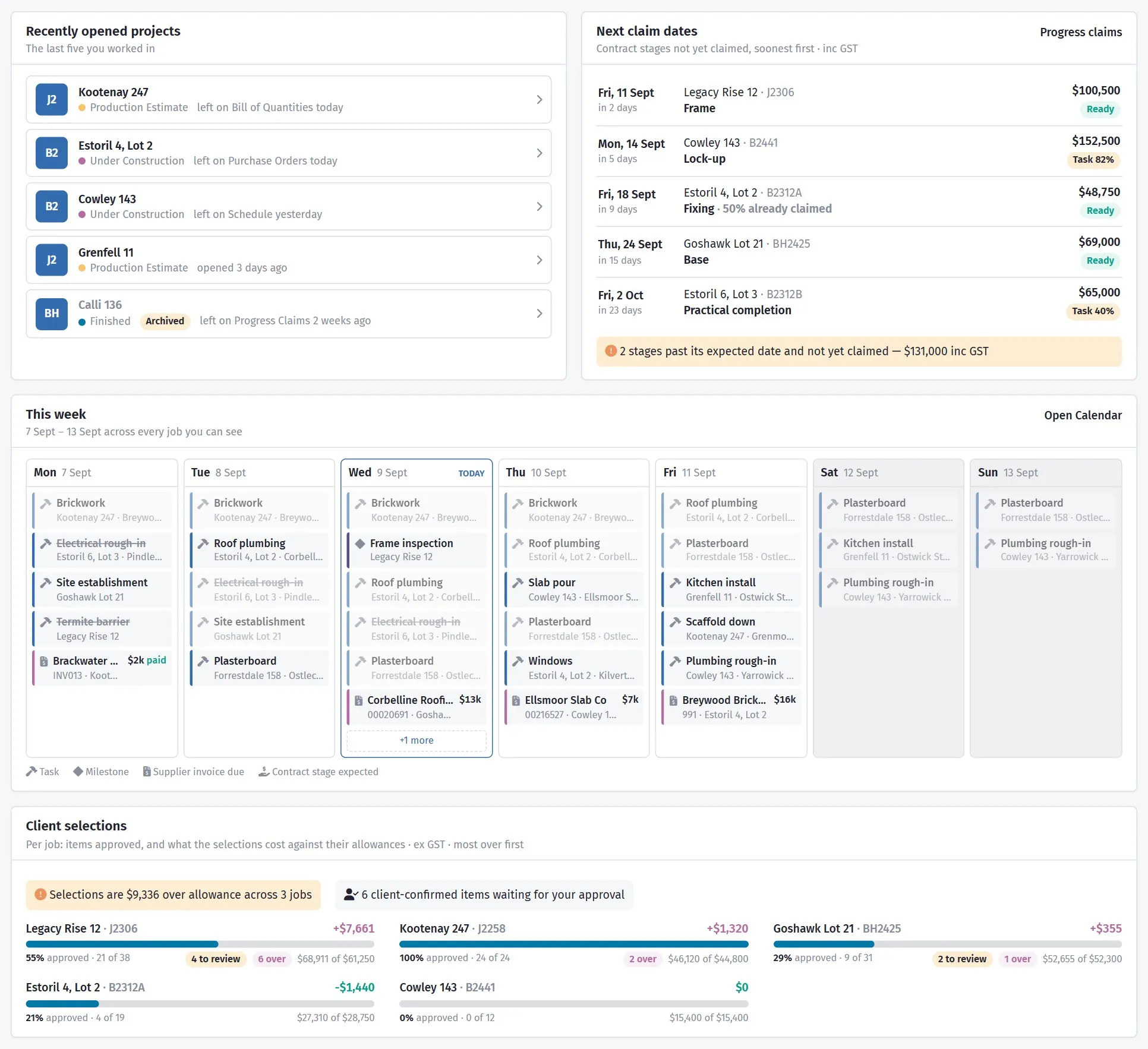
Lower down: where you left off, what is claimable, the week across every job, and which selections are over their allowance.
Latest messages
Section titled “Latest messages”Your most recent conversations from every job and every chat you are part of — job chats, client chats from the client portal, group chats and direct messages — with their latest messages, so you can see what is going on without opening Messages.
Conversations are listed with the most recent activity first, whether you have read them or not, so the panel always shows what has been said lately. Each card shows which job the chat belongs to and its newest few messages in the order they were sent; Show earlier opens the rest. Messages from a client carry a Client tag, your own show as You, and anything that @mentions you is highlighted.
What you have not seen stands out. A conversation with unseen messages is outlined, shows how many are waiting, and marks each unseen message with a dot; one you have read says Seen. Any conversation with something unseen is always on the list, however long ago it arrived — it cannot drop off the bottom behind newer, already-read chats.
- Reply (or Open chat) opens the conversation in Messages, where it is marked as read in the usual way.
- Mark read marks a conversation as read without leaving the dashboard. It stays on the panel — it just stops being highlighted.
Nothing is marked as read just by appearing here. The unseen number in the heading is the same one Messages shows, and chats you have muted are left out of it. A muted chat still appears among your latest conversations; an older one is kept on the list only if someone @mentions you in it — the same rule as notifications on your phone.
The panel keeps itself up to date while the dashboard is open, and refreshes as soon as you come back to it from another tab or page. If you do not have access to Messages, the panel is not shown.
My procurement
Section titled “My procurement”Everything you look after on the procurement lists of every job you can open, that has to be chosen or ordered by the end of next week - grouped Overdue, This week and Next week, soonest first. You are “looking after” an item when you are its Who is looking after it on the job’s Procurement tab.
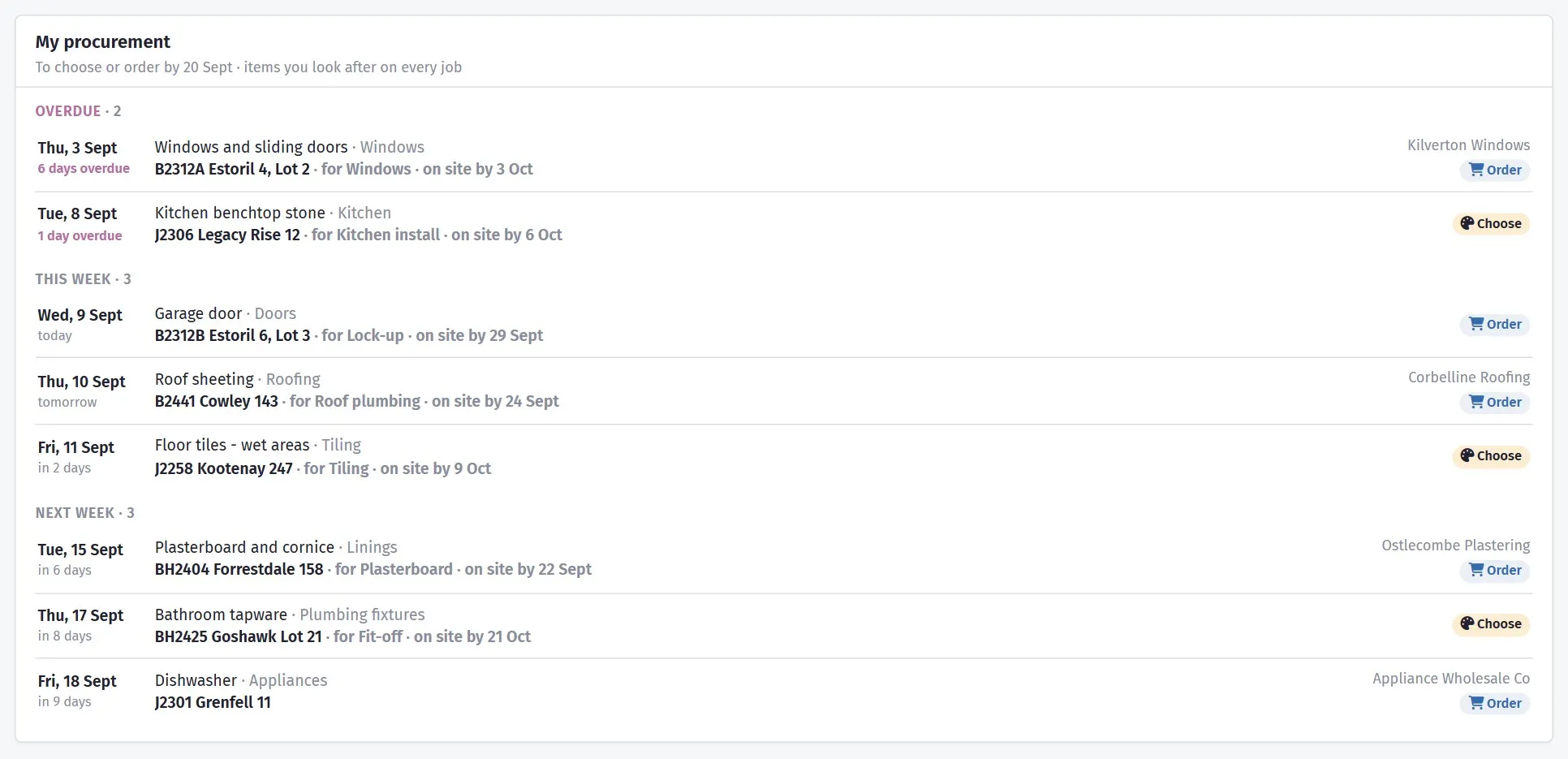
Each line shows the date, what to do (Choose when a choice is still to be made, otherwise Order), the item, the job, the task it is needed for and the date it has to be on site. Click it to open that item on its job’s Procurement tab.
The dates come from each job’s schedule, so when a task moves, its items move in or out of this list by themselves. Once an item is ordered - by hand, or because its linked purchase order has been sent - it drops off: there is nothing left for you to do.
My RFIs
Section titled “My RFIs”The questions colleagues are waiting on you to answer, with the late ones in pink, then the ones you asked. Open My RFIs (top right) opens the full list. See My RFIs.
Development
Section titled “Development”Only on the Developer plan, and only for people who have the Development section — on any other plan the card is not there, and Customise shows it as not available.
Approvals, consents and buyers’ sunset dates on your developments, in two groups with a count each: Needs action and Coming up. Every line gives the date with how near it is — 8 days overdue, in 6 days, lapses in 85 days — then what it is and whose it is:
| Shown as | What it means |
|---|---|
| Approval overdue | Past the date a decision was expected, with nothing back |
| Decision due | A decision expected in the next two weeks |
| Consent lapsing | Approved, and running out |
| Buyer’s sunset date | An exchanged lot whose sunset date is coming |
Click a line to open that development’s Approvals or Sales register tab. Open Development goes to the list.
When there is nothing to do it says so plainly: no approvals overdue or due in the next two weeks, no consents lapsing within 90 days and no sunset dates within 60 days.
Recently opened projects
Section titled “Recently opened projects”The last five projects you opened, most recent first, with each job’s status and the page you were last on in it. Clicking a project takes you back to that page — the Bill of Quantities, the Purchase Orders, the Schedule — with the estimate you had selected, not to Project Details. This list is yours: two people in the same company see their own. Archived projects are marked but still listed, because you were working in them.
Next claim dates
Section titled “Next claim dates”The five contract stages coming up soonest across all your jobs that have not yet been claimed in full, with the amount still to claim (including GST).
The date is the stage’s expected date. Where a stage is linked to a schedule task, the task’s finish date is used instead, so the list moves with the programme. The badge tells you whether the linked task is complete (Ready) or how far along it is; a stage with no linked task is always Ready, because there is nothing to wait for.
Below the list, a note counts stages whose expected date has passed without a full claim — money sitting on the table.
This week
Section titled “This week”Monday to Sunday, every job at once. Each day lists:
- Tasks from the schedule — on every day they run, with the days after the first shown faintly. Milestones carry a diamond. Completed tasks are struck through.
- Supplier invoices falling due that day, with the amount.
- Contract stages expected that day.
Weekends and company non-working days are shaded. When a day has more than six items it shows the first six and a + more button.
Cash forecast
Section titled “Cash forecast”Twelve weeks ahead, laid out like a cash-flow chart in a spreadsheet: dollars up the left, weeks along the bottom, the legend underneath.
The bars are each week on its own: green is cash in (unclaimed contract stages by their expected date), red is cash out (supplier invoices by their due date). Both include GST, so they are comparable.
The line is your forecast cash position — the running total of all those weeks added up, so it answers “where do I end up”. The closing figure is printed at the end of the line, and turns red if the position ends below zero. The bars and the line share the one scale on the left, so every point can be read straight off it.
Hovering any week shows cash in, cash out, that week’s net, and the position at that point.
This is a forecast from what is recorded, not a prediction: a stage with no expected date and an invoice not yet entered are both invisible to it. If no supplier invoices are due in the window, the chart says so rather than leaving you to wonder where the red bars went.
Claimed vs contract
Section titled “Claimed vs contract”For each job, how much of the contract price plus approved variations has been claimed so far, with the balance still to claim. Ordered so the job with the most left to bill is at the top. Jobs without a contract price are not shown.
Client selections
Section titled “Client selections”One row per job that has a selections schedule. The bar is how many items you have approved. The figure on the right is the selections so far against their allowances — pink when the client’s choices are estimate more than the estimate allowed for, which is a variation waiting to be raised. A to review badge counts items the client has confirmed through their link that you have not yet approved.
Jobs are ordered most-over-allowance first, so a blown allowance is the first thing on the page rather than something you find on the schedule. Click a row to open that schedule. Figures here are ex GST, the same basis as the schedule itself.
Every chart has a table
Section titled “Every chart has a table”The Table button in the corner of each chart swaps the drawing for the numbers, including the jobs that did not fit in the chart. Sales estimates are left out of both charts — they are not jobs yet.
Make it your own
Section titled “Make it your own”Move cards by dragging them
Section titled “Move cards by dragging them”Click Edit layout at the top right of the Dashboard. Every card gets a dashed blue frame with its name across the top.
- Drag a card to where you want it. A blue bar shows where it will land — beside a card, or above or below a full-row card. Let go to drop it there.
- Change a card’s width with the drop-down on its name bar.
- Using the keyboard? Tab to a card and press the arrow keys to move it one place at a time.
While you are editing, the cards cannot be clicked, so nothing opens by accident. Click Done to save your layout, or Cancel (or press Esc) to put everything back as it was. On a tablet or phone, drag a card by the grip (⋮⋮) at the left of its name.
Show, hide and reorder from a list
Section titled “Show, hide and reorder from a list”Click Customise (or Show / hide cards while in Edit layout). A panel opens down the right-hand side listing every card, and the page moves over so you can see it change as you go.
- Tick or untick a card to show or hide it.
- Choose a width for each card: a full row, three quarters, two thirds, half, a third or a quarter. Key figures and Quick actions always take a full row.
- Move cards up or down with the arrows to change the order.
Cards fill each row from left to right, so pair widths that add up to a full row: half + half, three quarters + a quarter, or two thirds + a third. The small preview at the top of the panel shows exactly how your cards will sit, gaps included.
Click Save to keep your layout, or Cancel to put the page back as it was. Reset to default brings back the original layout.
Your layout is saved to your account, not to the computer, so it follows you to any device — and it is yours alone: nobody else’s Dashboard changes. On a narrower screen, part-width cards become halves, and on a tablet or phone every card takes the full width.
Who sees what
Section titled “Who sees what”The Dashboard only ever shows jobs you have access to, exactly as the Calendar and the Projects List do. Two people in the same company can see different dashboards, and a counter here will never include a job you cannot open.
Not yet on the Dashboard
Section titled “Not yet on the Dashboard”- Cash going out on purchase-order-linked schedule tasks (the Cashflow page’s projection). The forecast here uses entered invoices only.
- A “my jobs only” switch by site manager.
A Monday routine
Section titled “A Monday routine”Five minutes before anything else:
- Latest messages — is anyone waiting on an answer from you, especially a client?
- Next claim dates — has any job passed a stage without a claim being raised? That is money you have earned and not invoiced, and it is invisible everywhere else.
- Client selections — is anyone drifting over allowance without a variation? A client $9,000 over with no variations raised is a difficult conversation being deferred.
- This week — what is on, and is anything still unconfirmed?
- Cash forecast — is the shape still what you expected?
Everything on that list is cheaper to deal with on Monday than at month end.