
Scope of works
Available onEstimatorBuilder
A scope of works tells a subcontractor exactly what their price has to cover: what they supply, what they install, what they allow for, and what is somebody else’s job. Writing one from scratch for every tender is slow, and the one that was written in a hurry is the one that costs money later.
SmarteBuild keeps it in two layers. Templates are the company’s standard scope for each trade, written once. On each job, the template is copied, ticked for what applies, and issued as a numbered PDF that goes out with the tender or the purchase order.
Templates
Section titled “Templates”Scope of works templates is in the grid menu at the top of every page, next to Suppliers, Documents and Price Lists. Anyone in Tenders & Quotes can read the templates; changing them needs the Edit scope of works templates permission.
The list on the left has two groups:
- Your templates - the company’s own. Edit them, copy them, mark one inactive when it is out of date.
- SmarteBuild starters - ready-made scopes for the common trades (concreter, framing, plumbing, electrical, roofing, plastering, tiling and more) plus a General conditions document. Starters cannot be changed. Open one, press Copy to my templates, and the copy is yours.
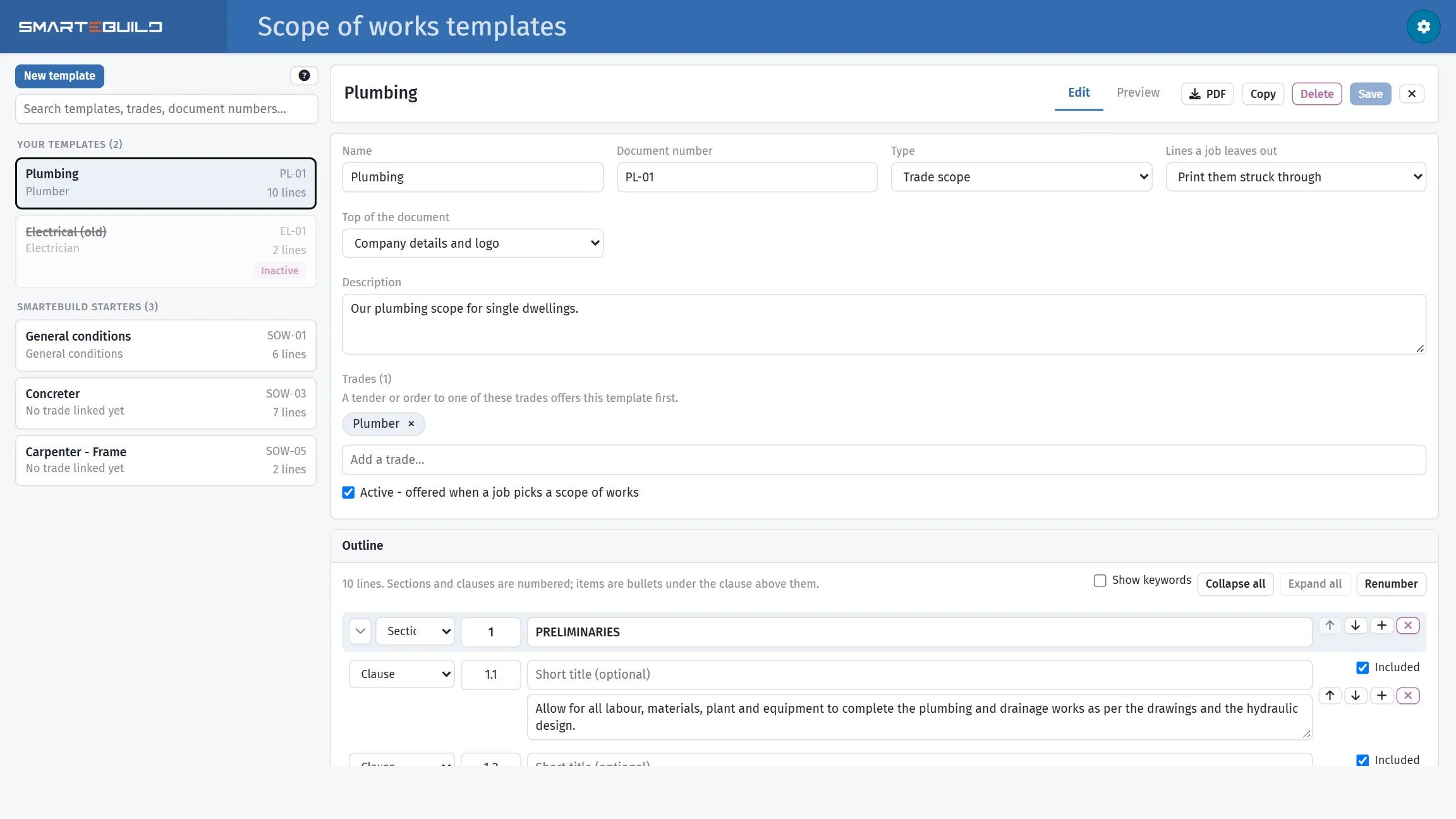
Your templates and the SmarteBuild starters on the left; the open template on the right.
Open a template and the right-hand side shows it two ways. Edit is the outline; Preview is how it prints: a numbered table with a reference column, the description, and an Excludes column. PDF in the header downloads it as it prints.
Top of the document chooses what heads the page: your company details and logo, or the title only.
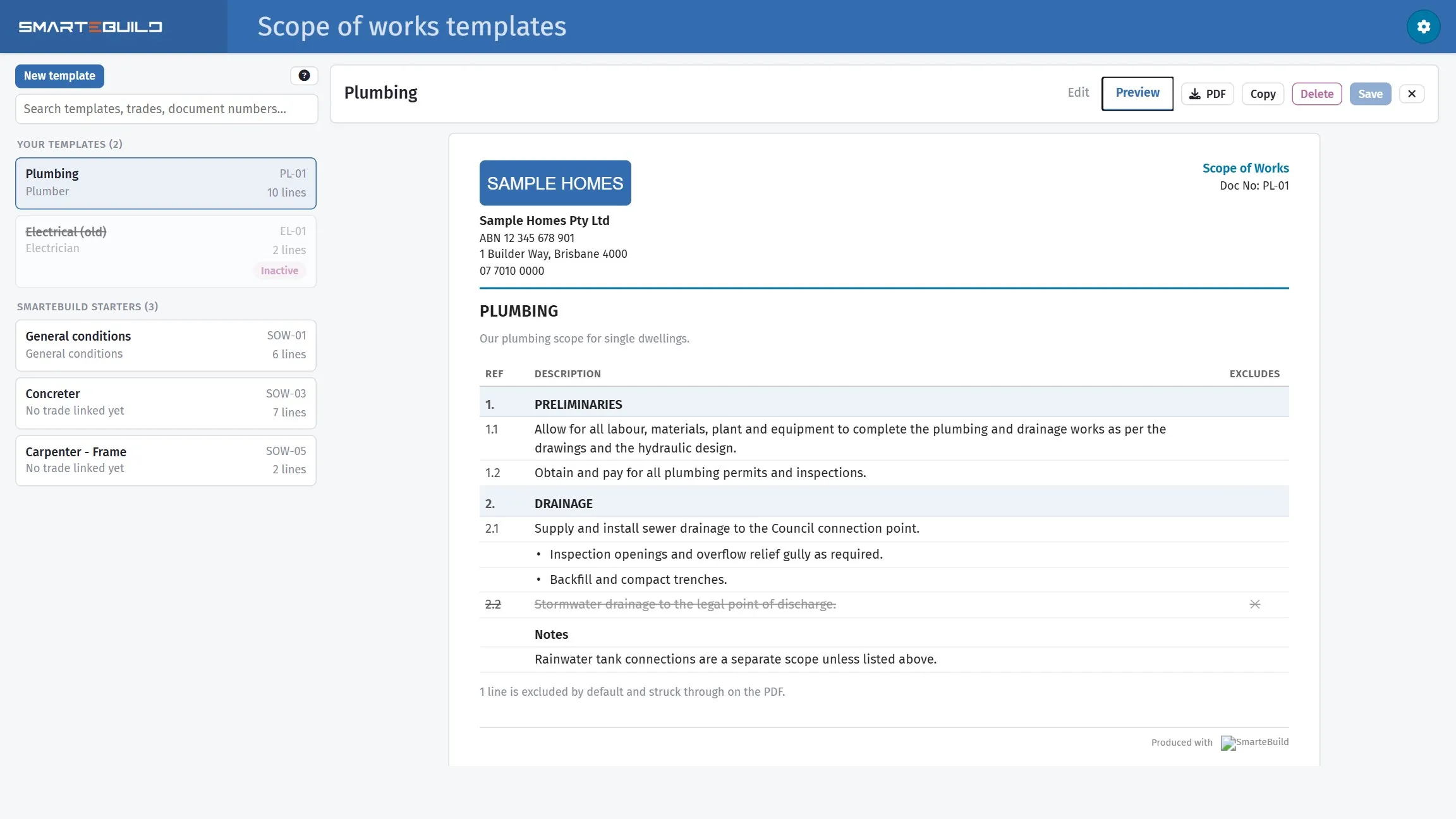
Numbered, with the excluded line struck through and marked in the Excludes column.
The outline
Section titled “The outline”A template is a list of lines. Each line has a type, chosen in the first box on its row:
| Type | What it is |
|---|---|
| Section | A numbered heading - 1, 2, 3. “Preliminaries”, “Drainage”, “Exclusions” |
| Clause | A numbered line under the section - 1.1, 1.2. The main unit of the scope |
| Item | A bullet under the clause above it |
| Subheading | A bold label with no number |
| Paragraph | Plain text with no number |
The arrows move a line up or down, the plus adds a line below it, and the cross removes it. After moving lines about, Renumber puts the numbers back in order.
The five kinds of line, with examples
Section titled “The five kinds of line, with examples”Think of the template as the printed document, line by line. Three kinds carry a number or a bullet and are what the subcontractor prices; two are there to label and explain.
- Section - a numbered heading that groups everything under it until the next section.
It always prints and cannot be ticked off. Examples:
1. PRELIMINARIES,2. DRAINAGE,3. HOT WATER,4. EXCLUSIONS. - Clause - a numbered statement under the section,
1.1,1.2, and the main unit of the scope. A job ticks it on or off. Example:2.1 Supply and install sewer drainage to the Council connection point.A clause can carry a short title before its text, which prints in bold:2.3 Testing - Pressure test all pipework and have it witnessed before cover. - Item - a bullet under the clause above it, for the parts of that clause. A job ticks each
one on or off. Under clause 2.1, for example:
• Inspection openings and an overflow relief gully as required.• Backfill and compact the trenches.• Connect to the Council point and obtain the inspection. - Subheading - a bold label with no number, to break a long section into parts. It always
prints. Examples:
Wet areas,External works,Notes. - Paragraph - plain text with no number, for a condition, a note or an explanation. It
always prints. Example:
Rainwater tank connections are a separate scope unless listed above.
Put together, a short section looks like this on the page and on the PDF:
| Ref | Description | Excludes |
|---|---|---|
| 2. | DRAINAGE | |
| 2.1 | Supply and install sewer drainage to the Council connection point. | |
| • Inspection openings and an overflow relief gully as required. | ||
| • Backfill and compact the trenches. | ||
| 2.2 | ✕ | |
| Notes | ||
| Rainwater tank connections are a separate scope unless listed above. |
Clause 2.2 is unticked, so it prints struck through with a mark in the Excludes column. Had the template’s Lines a job leaves out been set to Do not print them, that row would be missing instead. The section, the subheading and the paragraph have no tick: they always print.
Which kind to use. If the subcontractor has to price it or do it, make it a clause or an item. If it only labels or explains, make it a subheading or a paragraph. If you need to switch a whole group on or off per job, make the group a clause with items under it: untick the clause and the items can be unticked with it.
Clauses and items carry an Included tick. Ticked means the line is part of the scope unless a job unticks it. Unticked means the opposite: it prints as excluded unless a job ticks it on. Sections, subheadings and paragraphs always print.
Lines a job leaves out says what the PDF does with an excluded line: print it struck through, so the subcontractor sees what is not theirs, or leave it out altogether.
Trades and general conditions
Section titled “Trades and general conditions”A trade scope is linked to one or more trades from your supplier lists. The General conditions template has no trade: it is one document that goes behind every trade scope, so the contract conditions, site rules and payment terms are written once.
Each line can also carry keywords - words that appear in the names of the BOQ items the line is about, such as slab, footings, termite. On a job, From BOQ uses them to tick the right lines (see below). Tick Show keywords above the outline to see or edit them.
The scope of works on a job
Section titled “The scope of works on a job”Open Tenders on the estimate and switch the list to Scope of works with the button at the top left. This is the job’s own list, one scope per trade.
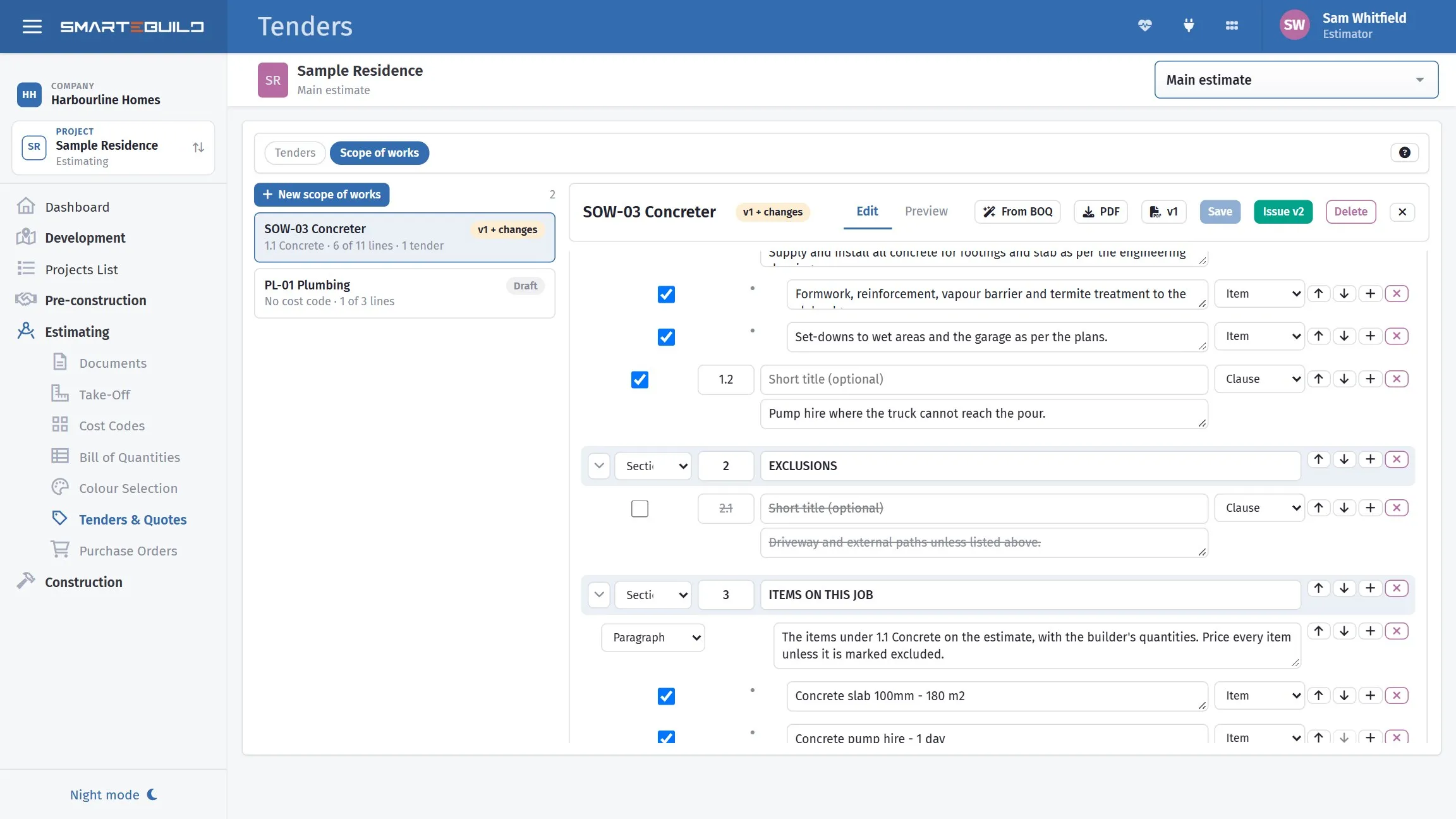
Ticked for this job, with the BOQ items listed at the end under Items on this job.
- New scope of works. Pick the trade’s template and, if you like, the cost code on this estimate it is for. The template’s lines are copied onto the job.
- Tick what applies. Every clause and item has a tick. Unticked lines print as excluded, struck through or left out as the scope says. Change any wording for this job, add lines where the job needs them (they are marked Added on this job), and use the arrows to move them.
- Job details. The lines at the top of the document: site address (filled from the project), practical completion, labour rates, who to call on site. Add your own; blank lines are not printed.
- Preview shows the document as it will print (PDF downloads it), with the general conditions behind it when the scope says so.
- From BOQ. When the scope has a cost code, this button reads the BOQ items under it: every clause or item whose keywords appear in an item name is ticked, the other keyword lines are unticked, and lines with no keywords stay as they are. A final section, Items on this job, lists every BOQ item under the cost code with its quantity and unit, so the scope and the price schedule cannot disagree. Run it again after the BOQ changes and the section is rebuilt. The same pass runs when a new scope is started with a cost code, unless you untick it in the dialog.
- Issue. The PDF is frozen as version 1 and filed in the job’s Documents under Scope of works. What a subcontractor was sent never changes under them: edit again and issue to make version 2. The list shows each scope as Draft, v1 issued or v1 + changes.
Editing a job’s scope needs Edit tenders; issuing needs Send tenders.
Sending it
Section titled “Sending it”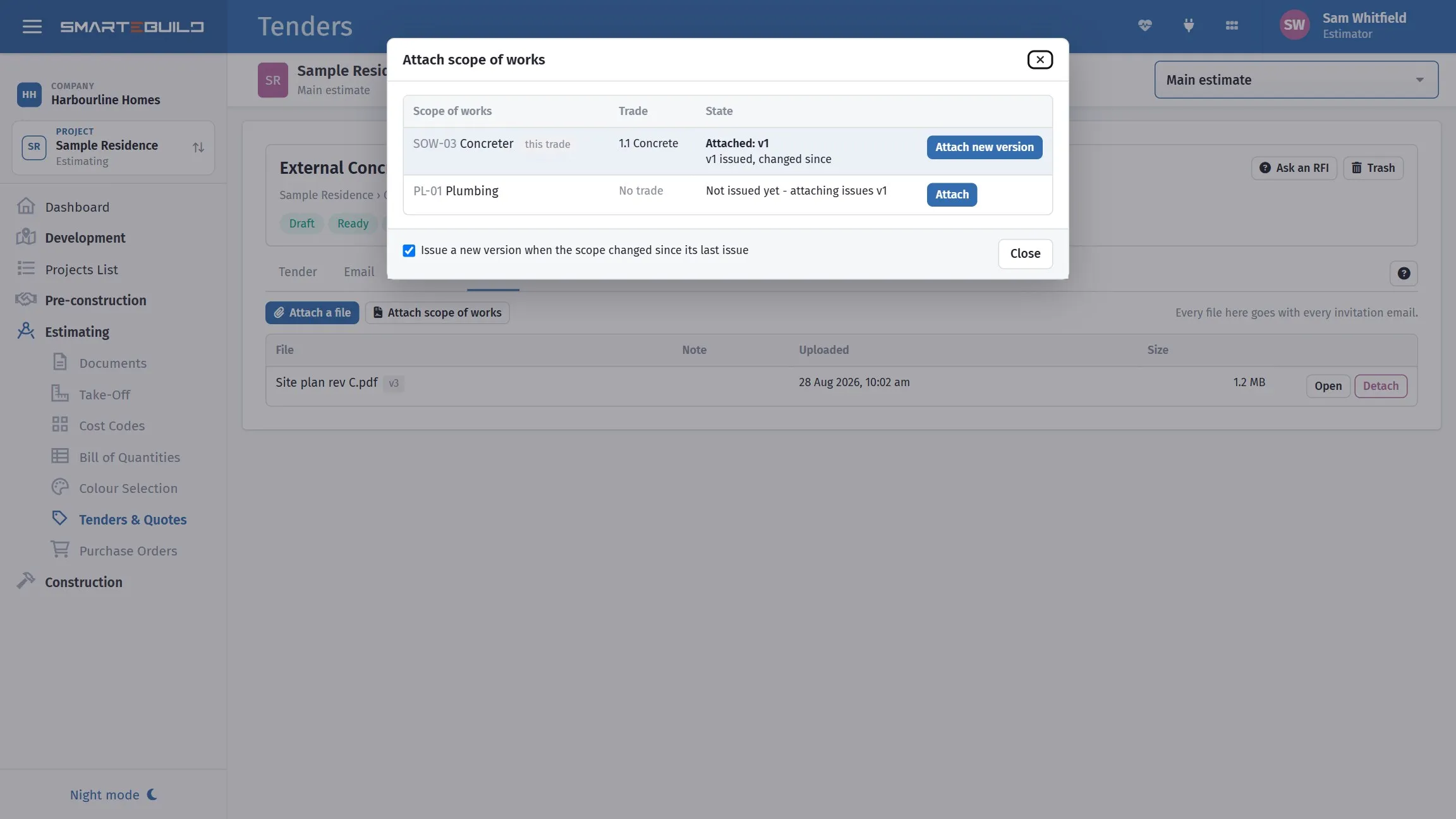
The trade’s own scope comes first; a newer version replaces the one attached.
- Tender. On the tender’s Files tab, press Attach scope of works. The trade’s own scope is offered first. A scope that was never issued is issued on the spot; one changed since its last issue asks whether to issue again. The PDF becomes one of the tender’s files, so it goes with every invitation email and shows on the subcontractor’s pricing page with the other documents. Attaching a newer version swaps the older one off.
- Purchase order. The order’s Files tab has the same button. Nothing is attached unless you press it, except that an order raised from an awarded quote carries the scope the tender went out with.
- Documents. Every issued PDF is in the job’s Documents, so it is in the register and can go in a transmittal like any other file.