
BOQ settings
Available onEstimatorBuilder
The Settings panel controls how the BOQ behaves and what it shows. Most are personal preferences; three change how the bill protects you and are worth setting deliberately.
The three that matter
Section titled “The three that matter”Lock items once ordered
Section titled “Lock items once ordered”An item already on a purchase order or an invoice keeps its quantity, price and product, and cannot be deleted. Renew prices leaves it alone too.
Turn this on. Editing the quantity on an item you have already ordered against breaks the relationship between what you committed and what you allowed, silently. The discrepancy usually surfaces months later, when the cost-against-budget report stops making sense and nobody can say why.
If you genuinely need to change a locked item, the order against it needs revising too — which is the conversation the lock is forcing you to have.
Alert Price Changes
Section titled “Alert Price Changes”Flags items whose source price has moved, rather than changing them underneath you.
This is the right behaviour on a live job. You find out that concrete has gone up without your submitted tender quietly changing to match.
Show Actual Costs Columns
Section titled “Show Actual Costs Columns”Adds committed and actual cost alongside your estimate.
Leave it off while estimating — the columns are empty and take width from the ones you are using. Turn it on the moment the job is won, when allowed versus committed versus spent becomes the thing you want to see.
Display settings
Section titled “Display settings”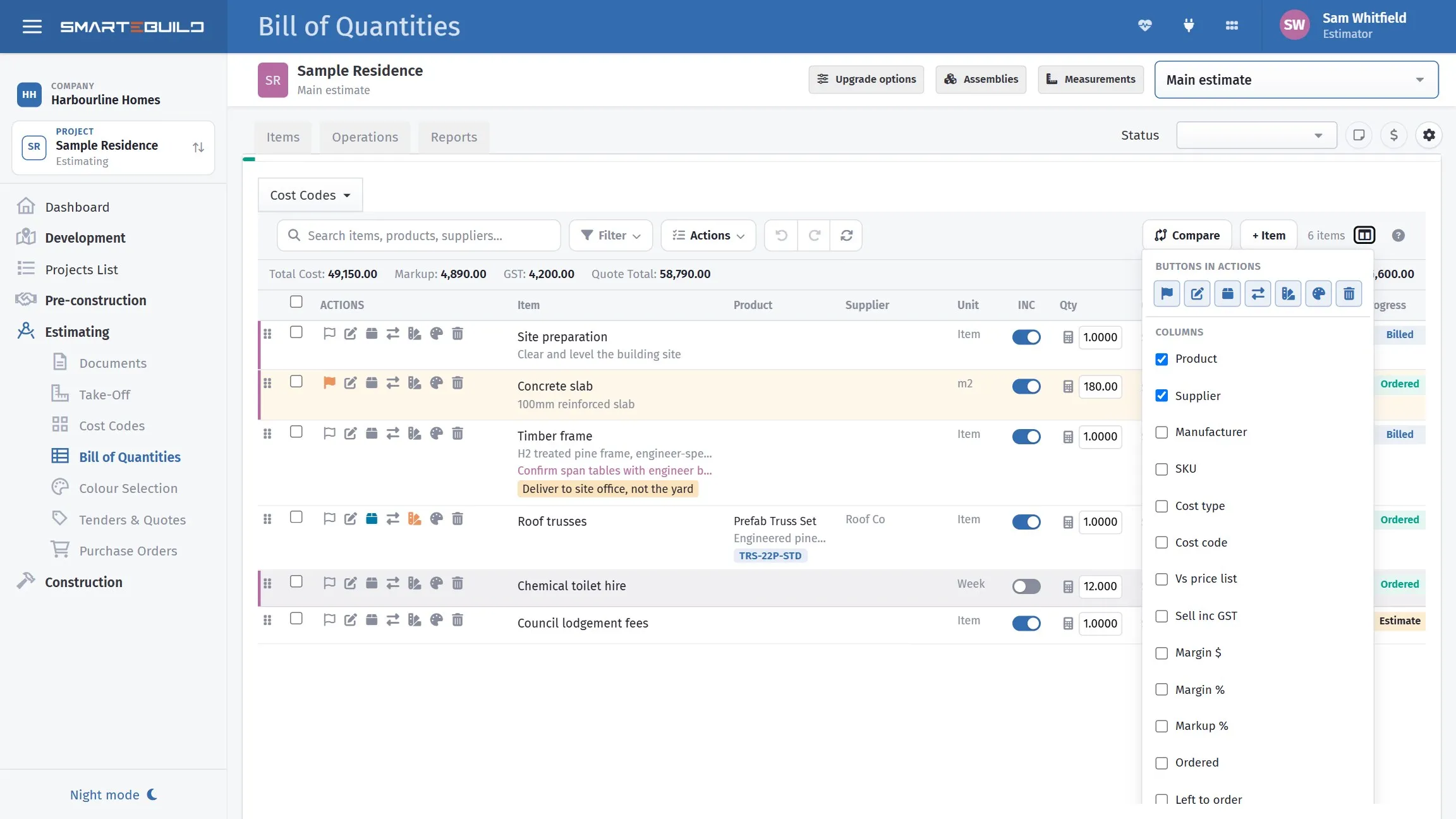
Columns are per user, not per job. Switching one off hides it everywhere you look, on every estimate.
| Setting | What it does |
|---|---|
| Hide Empty Nodes | Suppresses cost codes with nothing in them |
| Only Included Items | Hides switched-off items |
| Only Selected WBS | Shows one cost code at a time |
| Show Archived | Brings archived material into view |
| WBS tree sorting | Order of the cost code tree |
| Show Buttons | Which row action buttons appear |
| Show Job Number on the jobs list | Adds the job code as a column |
| Open in a new window | Opens dialogs in a separate window |
| Keep this page open | Stops a dialog closing after each save |
Hide Empty Nodes is the one that makes a full standard structure usable on a small job — import your fifteen-trade template onto a bathroom renovation and the eleven empty trades disappear.
Keep this page open is worth ticking whenever you are adding many things in a row. It saves a click per item, which adds up over a hundred items. The Import from Price Lists window has its own tick box for the same thing, Keep this window open to add more — see Importing from a price list.
Recommended setup
Section titled “Recommended setup”While estimating:
| Setting | |
|---|---|
| Lock items once ordered | On |
| Alert Price Changes | On |
| Show Actual Costs Columns | Off |
| Hide Empty Nodes | On |
| Only Included Items | Off — you want to see the options you are carrying |
| Keep this page open | On |
Once the job is won:
| Setting | |
|---|---|
| Show Actual Costs Columns | On |
| Only Included Items | On — the options are decided |
Everything else stays as it was.
History
Section titled “History”The History view shows what changed on an item and when.
It is the answer to “this rate is not what I remember” and to “who changed the quantity?” — questions that come up on any job with more than one person working on it. Worth knowing it is there before you need it.