
Sharing documents, photos and selections
Available onBuilder
Nothing reaches the client’s page unless you put it there. Four things feed it.
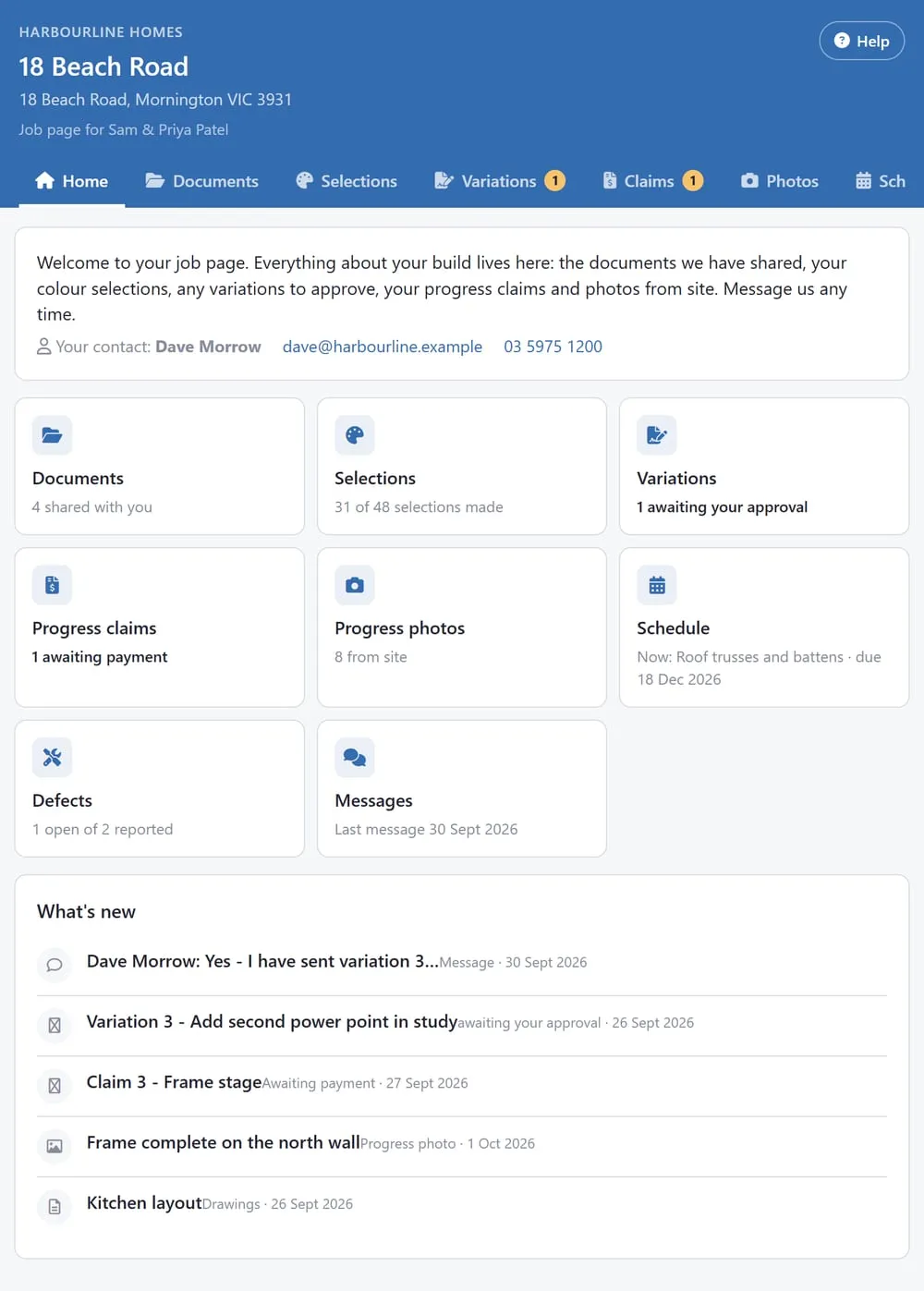
Most clients open it on a phone or a tablet, so it is worth a look at that width.
Documents
Section titled “Documents”Two ways to share a file, both on the same job:
- Put it in the Client Documents folder. Making a client link creates a top-level folder called Client Documents under the job’s Documents. Everything in it, and in any folder inside it, is on the client’s page. This is the habit to build: contract, drawings for construction, certificates, warranties.
- Tick any other file. Under Documents the client can see, on the estimate’s Client portal tab, press Choose files. Every live file on the job is listed with a tick box; files in Client Documents are ticked and locked. Tick a file anywhere else and it is shared without moving it. The same tick is in Documents: open the file and click Share - see Sharing documents, which also covers sending a secure link to a subcontractor or supplier.
A file marked obsolete in Documents disappears from the client’s page. Files the client sends you through the Messages tab are filed under the job’s Messages folder, not Client Documents, so they never show back to the client as a “shared document”.
Photos from site
Section titled “Photos from site”Every photo on a site diary day has a Share with client tick under it. Tick it and the photo is on the client’s Photos tab, grouped by the diary day, with its caption. Untick to take it back.
Nothing is shared by default. A photo of a defect, a wrong delivery or a subcontractor’s mess stays in the diary where it belongs; the client sees the slab, the frame and the roof going on.
If ticking each photo is more than you want to do, the estimate’s Client portal tab has a Share all site diary photos by default switch for the job. Turning it on shares every live photo already in the diary and every photo taken from then on, from the desktop or the phone. The tick on each photo still works the other way: untick one to hide it. Turning the switch off stops new photos being shared; the ones already shared stay until you untick them.
On the phone the same tick is on the photo in the diary screen.
The schedule
Section titled “The schedule”Off unless you turn it on. The estimate’s Client portal tab has a Schedule switch for the job. With it on, the client gets a Schedule tab: each stage with its tasks, planned start and finish dates, percent complete, milestones, a “today” line, and a running late flag on anything past its finish date without being done. The overall percent is weighted by task duration.
What the client never sees, switch or no switch: task cost, the supplier or subcontractor on a task, call-ups and their status, delays, notes, float and the critical path. The tab reads the same tasks as your Gantt, so it moves as your plan moves - and the page says so to the client. If you re-plan often, tell them what changed their move-in rather than letting them discover it on the tab.
Upgrades
Section titled “Upgrades”Off unless you turn it on. Show upgrades on the client portal is a switch on the job’s Upgrades page. With it on, the client gets an Upgrades tab: the same upgrade options your salesperson offers, with the price worked out as they click, so they can try options at home.
They can’t change the proposal themselves. They press Ask my builder to update my proposal (with a note if they want), and the request appears at the top of your Upgrades page. When you send a proposal for signing, they read it on the tab and press Accept and sign. Signing updates the estimate the same way as a paper signature does.
The client only sees sell prices including GST, never a cost or a margin.
Colour selections
Section titled “Colour selections”The Selections tab uses the job’s existing share link. If you have shared the colour schedule, the client’s page shows how many selections are made and a button that opens it. If you have not, the tab says so and nothing else.
When a selection is linked to an item on the job’s procurement list, the client sees Please choose by and the date the choice is needed by, so it can be ordered in time. The date follows the schedule.
Variations and claims
Section titled “Variations and claims”These need no sharing step. A variation appears on the client’s page once it has been sent to that client (or they requested it); a progress claim appears once it exists on the job for that client. The Claims tab works out paid / part paid / awaiting payment from the payments you record against the job, so record payments as they arrive or the client will see a claim as outstanding after they have paid it.
The client chat
Section titled “The client chat”The Messages tab is a chat between the client and your team. It is a Messages conversation of a special kind - Client
-
on the job:
-
everyone with access to the job sees it in Messages on the desktop and the phone, like the job’s General chat, and gets a notification when the client writes;
-
the client’s messages carry the client’s name; yours carry yours;
-
the client can send a photo or a file, which is stored on the job;
-
it cannot be left, only muted; and the client only ever sees this one conversation, never the General chat or any group.
Letting the client report defects
Section titled “Letting the client report defects”The Defects tab on the client’s page lets them tell you about something that is not right: a sentence on what is wrong, the room, and up to six photos. It is on by default; switch off Defects on the estimate’s Client portal tab to hide it for a job, for example until handover.
What happens when a client reports one:
- It lands in your Defects list for the job like any other, with the next DEF number, the room, and the first photo. The internal note says which client reported it and when. If they sent several photos, the list shows the first with a +2 style badge; open the defect to see them all. The files themselves are in Documents, in the Defect Photos folder.
- No supplier is set, and the client is never asked for one. Who fixes it is your call: assign the supplier and send a notice as you would for any defect.
- You are told straight away in Messages, in the job’s client chat, with a link that opens the defect. That is what raises the unread badge and the phone notification.
What the client sees afterwards is deliberately narrow: only the defects reported through the portal on their job (their own and a co-owner’s), each marked With your builder until you tick it Fixed. They never see defects you logged yourself, the supplier, a dispute, or your internal note.
Each of those defects shows its photos to the client, and it is the same set you see: the ones they sent, plus any you add on the Defects page or from the phone app (a photo of the finished repair, for example). A photo you take off the defect disappears from their page too. Keep that in mind before adding a photo you would not want the client to see.
The rooms offered to the client are the job’s rooms, the same list Colour Selection uses. A job with no rooms set up simply has no room question.