
Running a selection with the client
Available onBuilder
The appointment goes better when the schedule is already built and every allowance is visible. This is what to do during and after it.
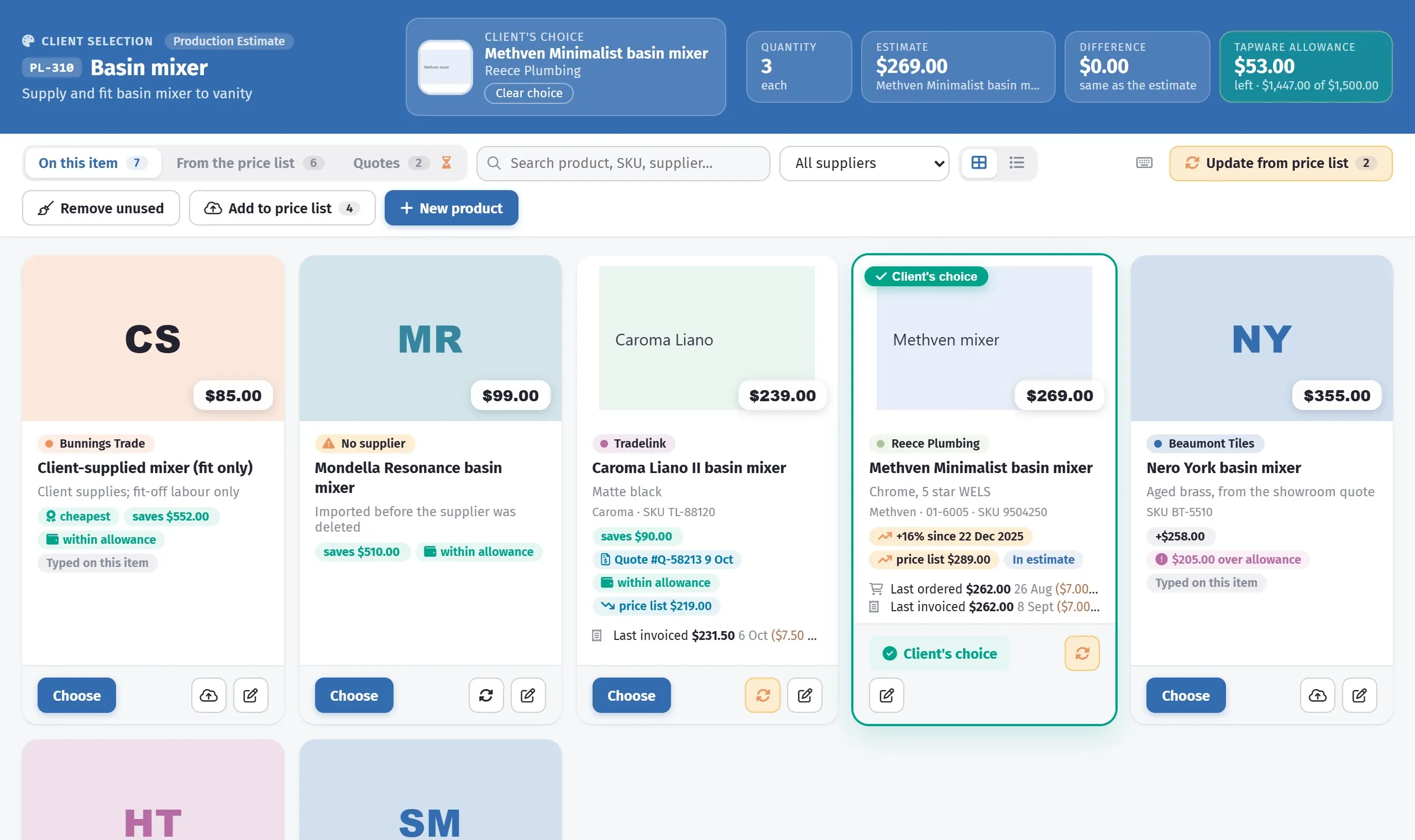
The product, the allowance and what it does to the price.
Record as you go
Section titled “Record as you go”Enter each choice as it is made — product, colour, finish, size, price.
Not afterwards from notes. A schedule filled in from memory the next day is where the matt-versus-gloss problem comes from.
Each row has its own buttons on the right:
| Button | What it does |
|---|---|
| Select Product (box) | Opens the product picker, where you choose the client’s product and where you add one — from a supplier link or your price list — and set its picture. It does not change the estimate |
| Add to a room (house) | Which rooms this item is in |
| Edit item (pencil) | The item’s own details |
| Approve (thumbs up) | Marks the selection as approved by the client |
| ⋯ | Comments, delivery, history and remove |
They are in the order the job is actually done: pick the product, say where it goes, correct anything wrong, approve it. The same five are on a gallery card.
A dot on the ⋯ means there are comments on this item — amber when the client spoke last, so a question waiting for you is still visible with the menu closed.
You can also click an item’s picture in the row, or the empty tile on a card, to change it without opening the picker.
Two things are edited straight in the row: the quantity, and the internal note underneath the item name (click it to type). Neither needs a form.
Status at a glance
Section titled “Status at a glance”Every row carries a chip for its state, so the schedule reads at a glance and still reads when printed in black and white:
- Approved — the client has confirmed this selection. The row is also marked teal.
- Ordered — the item is on a sent purchase order. Nothing about the selection can change any more.
- Over allowance — the chosen product costs more than the contract carried, by the amount shown in the Difference column.
- In estimate — the BOQ item and the unsent orders carry this selection. Estimate not updated is its opposite on an approved row: see Updating the estimate.
Several items at once
Section titled “Several items at once”Tick the box at the start of each row (or the one in the heading for everything shown, or the one on a category heading for that category) and a bar appears with the actions that apply to all of them: approve, un-approve, add to or remove from rooms, move to another category, update the estimate, remove from the schedule. Ordered items are skipped by approve and un-approve; approved items are skipped by remove.
Talking about an item
Section titled “Talking about an item”Comments, under the ⋯, opens that item’s conversation. It is one thread, shared with the client: what you write goes onto their selections page, and their replies come back here. The menu entry carries the count, and the ⋯ itself shows a dot — amber when the client was the last to speak — so you can see there is something to answer without opening the menu.
Tick Internal — team only and the comment stays with your team. The client never sees it, and it is marked so nobody on your side mistakes it for something that was sent.
Use it for the things that used to sit in email:
- “Brushed is a three week lead time — still want it?” — to the client
- “Chase Reece on that lead time before we promise it” — internal
You can remove a comment you wrote yourself. You cannot remove the client’s, or another team member’s, which is what makes the thread worth anything in a disagreement.
Chasing a delivery
Section titled “Chasing a delivery”Once an item is on a purchase order, Delivery under the ⋯ shows where it has actually got to: Ordered → Confirmed → Shipped → Delivered → Installed, with a date for each and a note for whatever the supplier said.
The row carries a small van tag once there is something to report — the status, or the date it is due. It turns red when the expected date has passed and it is not marked delivered, and the Late – past its expected date filter gathers those.
Nothing needs clearing when a date moves. “Late” is worked out each time from the expected date and the status, so pushing a date out or marking it delivered removes it by itself.
Before an item is ordered there is nothing here, which is correct: an item that has not been ordered has a selection to finish, not a delivery to chase.
When an allowance is exceeded
Section titled “When an allowance is exceeded”This is the conversation that matters, and it goes best at the moment of choosing.
- Show them the allowance and what their choice costs.
- Say plainly that the difference will be a variation.
- Record the choice with both numbers visible.
- Raise the variation promptly — not at the end of the job.
Creating the variation from the schedule
Section titled “Creating the variation from the schedule”The ⋮ menu on the schedule has Create variation from selections. It lists every selection that differs from its allowance — allowance, chosen product, quantity and the difference — with each one ticked, and makes one variation with a line per selection: Provide ‘chosen’ in lieu of ‘allowance’, priced at the difference.
Anything already on a variation is shown underneath and left out, whether it went on through this button or was raised by hand, so running it again after new selections only picks up the new ones. Give it the client and a markup structure, and it opens the variation for you to check and send.
The menu item only appears for users who have the Variations module.
Worked example
Section titled “Worked example”The client chooses tapware at $1,900 against a $1,200 allowance.
| Line | Value |
|---|---|
| Tapware selected by client | $1,900.00 |
| Less PC allowance in contract | −$1,200.00 |
| Net cost | $700.00 |
| Margin 12% | $84.00 |
| Variation, ex GST | $784.00 |
Showing the allowance as a credit is what makes this readable. A client who sees they are paying the difference accepts it; one who sees a $862 charge for tapware they thought was included does not.
Selections below allowance
Section titled “Selections below allowance”They happen, and they are credits.
Raise them the same way. A documented credit keeps the contract sum accurate, and a client who sees you passing savings back trusts the ones going the other way.
Chasing outstanding selections
Section titled “Chasing outstanding selections”Undecided selections hold up the job. The order cannot be raised, and the trade cannot be booked.
Review them weekly against the schedule:
- Anything with a long lead time gets chased first
- Anything the programme needs soon gets chased next
- Anything holding up an order gets chased today
Tell the client what a delay costs in programme terms, at the time. A client who is told “we need the tile choice by Friday or the tiler moves to another job” usually decides. One who is told nothing assumes there is no hurry, quite reasonably.
Record the delay — see Calendar and delays. A client-caused delay is often a compensable one, and the record is what supports it.
Sign-off
Section titled “Sign-off”Get the completed schedule signed.
Print it or export it, send it to the client, and ask them to confirm. Their confirmation is what settles a disagreement about what was chosen — and it makes the schedule the document everyone works from.
Send an updated copy whenever selections change.
After sign-off
Section titled “After sign-off”- Raise the variations for anything above or below allowance.
- Update the estimate — one button copies the approved selections into the BOQ items and onto any order not yet sent, after showing you what the estimate will change by.
- Raise the purchase orders — the product SKU goes on the order, which is what prevents substitution.
- Confirm lead times against the schedule.