
Adding and editing suppliers
Available onEstimatorBuilder
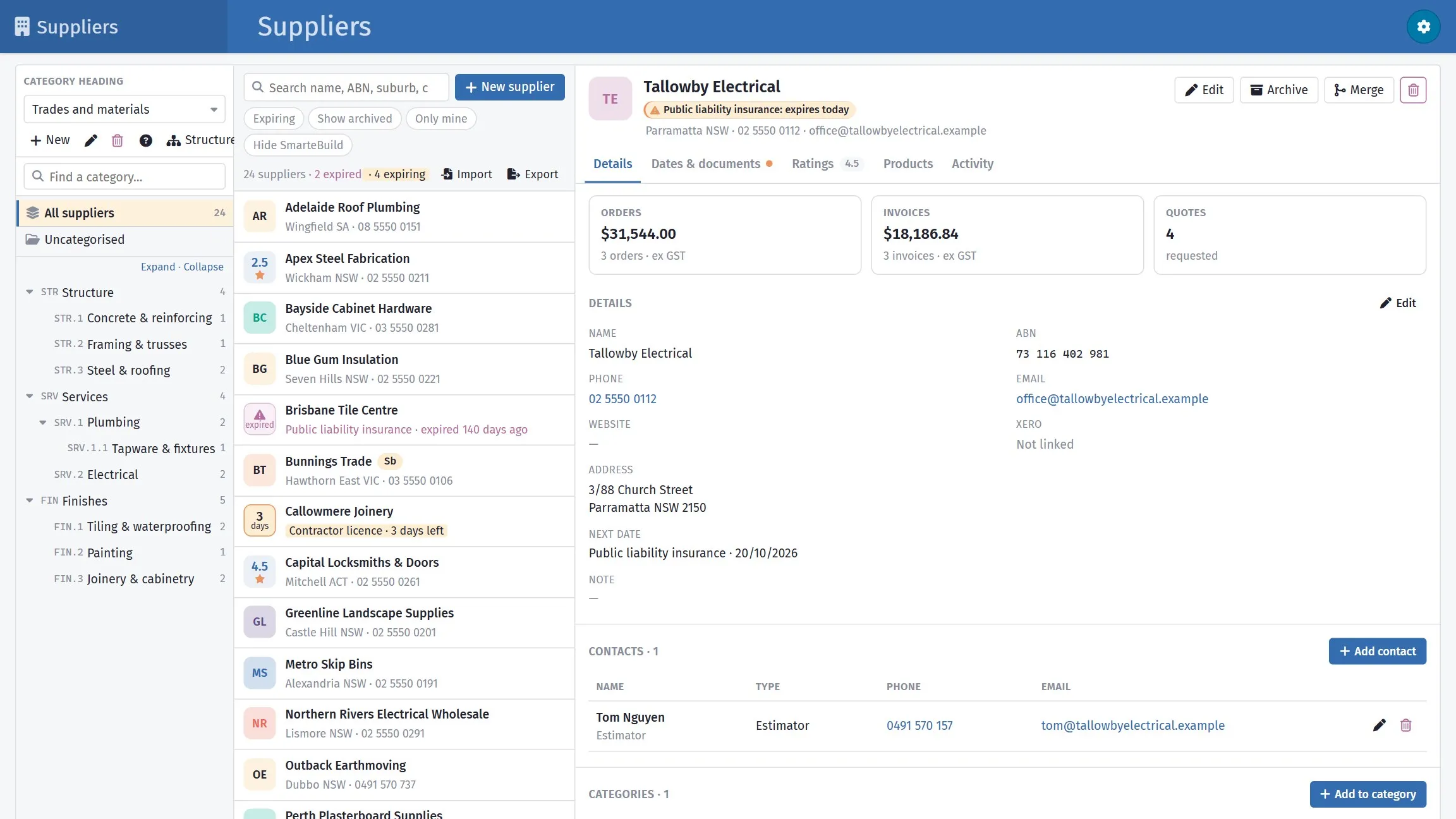
The Suppliers page has three parts, left to right:
- Categories. Pick a Category heading at the top, then a category in the tree. Type in the box above the tree to find one. All suppliers shows everyone filed under that heading, plus the suppliers not filed anywhere yet; Uncategorised shows just those. The number beside a category is how many suppliers are filed there.
- The supplier list. Search by name, ABN, suburb, phone, email or a contact’s name. The tile on the left of each row warns you at a glance - see Dates and certificates.
- The supplier you picked. Its Details tab holds the supplier’s details, then its Contacts and Categories; the other tabs are Dates & documents, Ratings, Products, Activity and Workers.
New supplier adds one, filed in the category you have selected. Find local looks for businesses in a trade and area, with their distance, Google rating and ABN: see Find local businesses.
Contacts, terms, and the details that print on an order.
Filtering the list
Section titled “Filtering the list”| Filter | Shows |
|---|---|
| Expiring | Suppliers with a date that has expired or runs out within 30 days |
| Show archived | Archived suppliers as well |
| Only mine | Only suppliers your company added |
| Hide SmarteBuild | Leaves out the shared suppliers that come with SmarteBuild (marked Sb) |
The last three, and the heading you picked, are remembered for you.
Details
Section titled “Details”| Field | Notes |
|---|---|
| Name | Their legal trading name — this goes on orders |
| ABN / ACN | Needed on orders and by your accounts |
| Phone, Email, Website | |
| Address, Suburb, State, Postcode | Their business address |
| Note | Working knowledge — minimum notice, who to ring, payment terms |
The top of the tab also shows what you have spent with them: orders and invoices (ex GST) and how many quotes you have asked for, and whether the supplier is linked to a Xero contact.
Use the name they invoice under. Barwon Concrete Pty Ltd rather than Barwon or
the concrete mob — it goes on purchase orders, and an order made out to a name that
does not match their entity causes problems at their end and yours.
Contacts
Section titled “Contacts”The people you deal with, each with a phone, email, position and a type: general, quotes, orders or call-ups. Orders and call-ups offer the contacts of the matching type first.
A contact who is on an order, a tender or a schedule task cannot be deleted — edit them instead, or add the new person alongside.
The most common reason an order or a tender goes nowhere is a contact who left. When mail bounces, fix the record straight away; when you deal with a new person, add them then.
Categories
Section titled “Categories”The trades the supplier is filed under. Add to category picks one from any of your category headings; a supplier can be filed in as many as fit. The tree on the left filters by exactly these.
Structure beside the heading opens the category tree itself for editing, and New, the pencil and the bin create, rename and delete a heading. SmarteBuild’s own headings can be used but not changed.
Dates and certificates
Section titled “Dates and certificates”Dates & documents holds the dates you track for every supplier — Public liability insurance, Workers compensation, Contractor licence — with the certificate for each.
- Set date records when it runs out. Attach uploads the certificate (PDF, image or document); its name opens it.
- Date fields adds, renames or deletes the dates you track. They apply to every supplier, so deleting one removes that date — and its certificate — from all of them.
The list warns you before a date passes:
| Tile | Means |
|---|---|
| ! expired, in pink | A date has passed |
| Today, or a number of days | A date runs out within 30 days |
| A number with a star | No dates due; the supplier’s average rating |
Expiring in the filters lists everyone who needs chasing.
Ratings
Section titled “Ratings”Score suppliers out of five on your own scales — Quality, Price, Reliability. Click a star to rate; click the same star again to clear it. Rating fields adds, renames or deletes the scales. The list shows each supplier’s average.
Products
Section titled “Products”The products you buy from this supplier, at the price your company pays. New product adds one; clicking a row opens it — name, SKU, price (tick inc GST to type a price that includes GST), finish, colour, size, a link and a picture. Products are the same ones as in Price lists: a change here shows there, and filing a product under a price list item is done there.
The list is grouped by price list item, so you can see at a glance what is filed where, and what is filed nowhere. Click a group to fold it away. A product filed under two items shows under both, marked in 2 items. Turn the grouping off with Group by price list item and you get one flat list with a Price list items column instead; either way the toggle is remembered.
Click a column heading — Product, SKU, Manufacturer or Price — to sort by it; click again to reverse it, a third time to go back to the list’s own order. A faint arrow on the heading shows which ones you can click, and your choice is remembered. Prices sort as numbers, so $90 comes before $1,100. When the list is grouped the sort runs inside each group and puts the groups themselves in that order, so sorting by price brings the dearest item to the top.
Changing a lot of them at once
Section titled “Changing a lot of them at once”Edit all opens every product of this supplier in one grid: price, SKU, description, manufacturer, size, finish, colour, material, profile, web address and superseded, all editable in place. A group’s own Edit these opens just that price list item’s products.
Changed cells are tinted, and only what you changed is saved, in one go. Inside the grid you can search, narrow to one price list item and sort any column; a row you changed and then filtered out of sight is still saved, and the footer counts it. Prices I type include GST applies to every price you type there. Enter moves down the same column, the way a spreadsheet does.
Products SmarteBuild shares with every company show a padlock and cannot be changed here. A price of your own for one of those is set in Price lists.
Activity
Section titled “Activity”Everything you have done with this supplier across your jobs. Quotes, Orders and Invoices are three separate lists rather than one — pick which you are looking at, and each carries its own count.
| Column | What it shows |
|---|---|
| Date | When the document is dated |
| Reference | Its number — click the row to open it |
| Project and Estimate | Which job, and which priced version of it |
| Status | Where that document is up to |
| Value ex GST | Its value, excluding GST |
Click a column heading to sort by it, again to reverse it. Values sort as numbers, so $90 comes before $1,100.
Under Orders and Invoices a line above the list totals what you are looking at — $48,210.00 ex GST across 12 orders. Quotes has no total, because a quote is a price offered rather than money committed, and adding them up would mean little.
This is the quickest answer to “how much do we actually spend with these people”, and it is worth a look before negotiating a rate.
Workers
Section titled “Workers”The supplier’s workers who have done a site induction on your sites - matched by the company name each worker typed - with every site they have worked on and their sign-ins. With the permission Site register: inductions and ID photos you also see their ID cards and induction records.
SmarteBuild’s shared suppliers
Section titled “SmarteBuild’s shared suppliers”Suppliers marked Sb come with SmarteBuild and are shared by every company. Their details cannot be changed, and they cannot be archived, merged or deleted — that would change them for everyone. You can still file them in your own categories and add your own contacts, dates and ratings. To keep them out of your way, turn on Hide SmarteBuild.
Archiving
Section titled “Archiving”Archive removes a supplier from the working list without deleting them; Restore brings them back.
Use it for businesses you no longer use — someone who has closed, or a subcontractor
you have stopped working with. Their history stays attached to the jobs they worked
on, which is what you want when an old job is queried. Do not use is worth writing
in the Note before you archive, so nobody adds them again in six months.