
Bulk operations
Available onEstimatorBuilder
The Operations menu acts on whatever you have selected. Everything here works on many items at once, which is the difference between an afternoon and five minutes when a bill needs restructuring.
Selecting
Section titled “Selecting”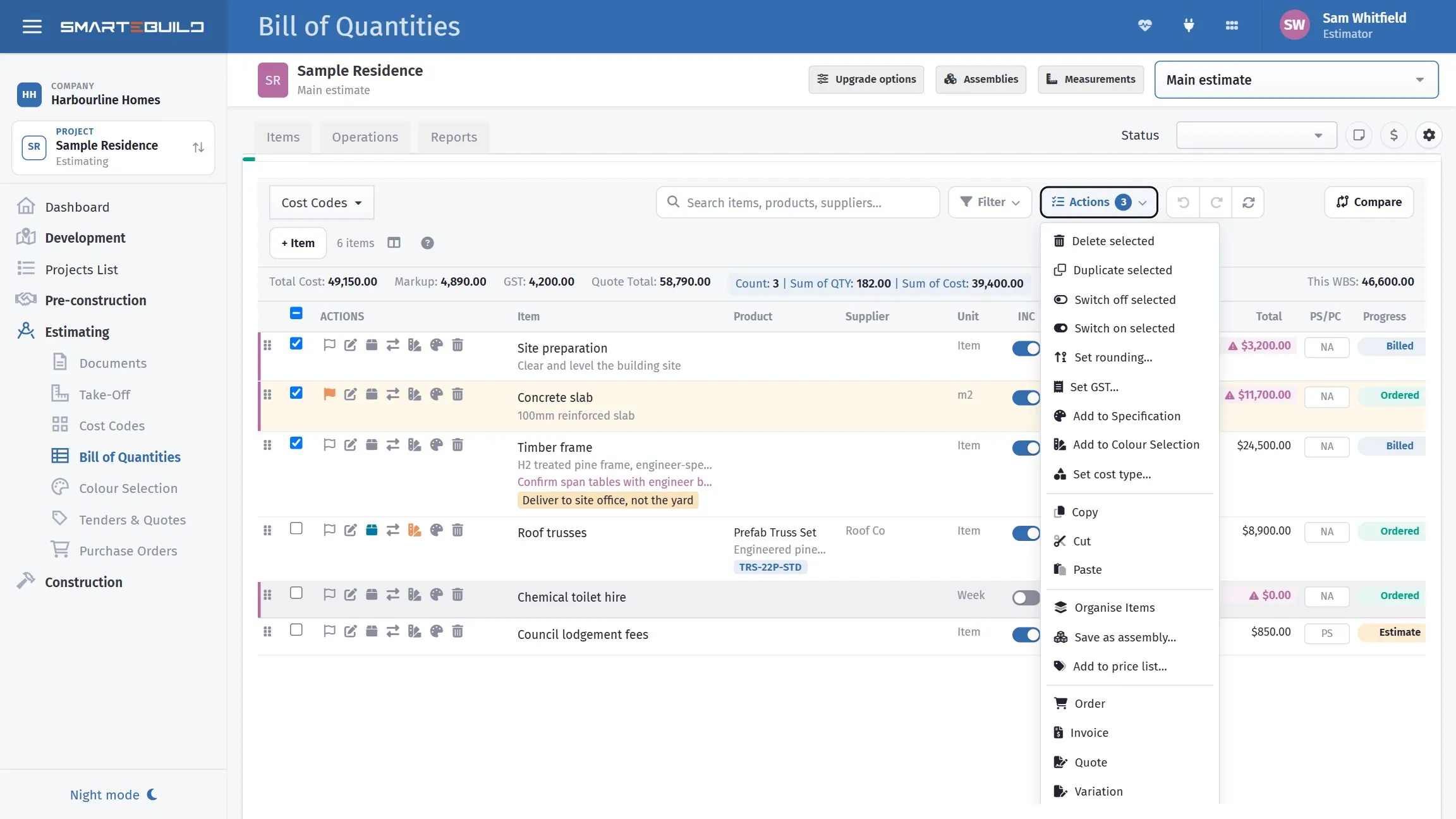
The number on Actions is the one thing worth checking before anything on this menu runs. It counts what is ticked, not what is on screen.
| Command | What it does |
|---|---|
| Select All | Everything currently visible |
| Select none | Clears the selection |
Select All respects your filters. If Only Selected WBS is showing one cost code, Select All takes that cost code — which is usually what you want, and occasionally a surprise. Check what is on screen before running a destructive operation on a selection.
Orders, invoices, quotes, variations and tenders
Section titled “Orders, invoices, quotes, variations and tenders”Order, Invoice, Quote, Variation and Tender — on the ribbon above the bill, and in the Operations menu — start that document from the items you have selected.
With nothing selected, every item shown goes in. Pick a cost code, click Order, and the whole cost code is on the order. “Shown” means what is on screen, so a search or a filter such as Included narrows it; clear them first if you want everything under the cost code. Select items only when you want some of them.
Items from several suppliers become several orders. If the items going onto an order come from more than one supplier, Order raises one order per supplier instead of one mixed order you would have to split by hand. Leave the Supplier box in the order window blank for this; choosing a supplier there keeps everything on one order for that supplier. See Raising orders from the BOQ.
Switched-off items follow your tick. An item that is not included is carried in the estimate without being counted. With nothing selected, Order leaves those items off and the message says how many; tick one deliberately and it is ordered.
Moving and copying
Section titled “Moving and copying”| Command | What it does |
|---|---|
| Copy | Copies the selection |
| Cut | Marks it to be moved |
| Paste | Places it at the current point |
| Duplicate selected | Copies in place |
Cut and Paste move items between cost codes, which is how you fix a group of items coded to the wrong trade in one go.
An item that is on an order, an invoice, a tender, a quote or a colour selection cannot be moved this way. Paste puts a copy in the new place and the original stays where it was, still attached to those documents — delete or switch off the one you do not want.
Copy and Paste work between estimates, so you can lift a whole trade from one job to another. That is often faster than re-importing from a price list, because it brings the quantities, suppliers and notes as well as the rates.
The quantity comes across even when it is worked out: a calc sheet comes with its lines, and a quantity taken from another item, a formula or a take-off becomes a typed quantity equal to the original’s (those links point at the other job, so they cannot come with it). Wastage and rounding stay as they were. For choosing where each item lands, with a preview, use Comparing estimates.
Duplicating
Section titled “Duplicating”Duplicate selected copies items in place, complete with rates, descriptions, suppliers and notes.
Use it for repeated elements — three identical bathrooms, eight identical units, two identical carports. Duplicate, then edit what differs.
Check the descriptions afterwards. A duplicated item still describing Unit 1 while sitting under Unit 2 will reach a subcontractor’s order saying Unit 1.
What a copy keeps. The quantity comes across whichever way it was worked out — a typed figure, a calc sheet, a linked item, a measured field or a formula — and a copied formula reads the same fields and items the original did. Copy it to a different estimate and the formula is cleared instead, because the fields and items it referred to are not there.
Switching on and off
Section titled “Switching on and off”| Command | What it does |
|---|---|
| Switch on selected | Items count toward the total |
| Switch off selected | Items stay in the bill but do not count |
This is how you price options. Carry both the tiled roof and the colorbond roof, switch on whichever the client has chosen, and the total follows.
It is also the safe alternative to deleting while a client is still deciding. A switched-off item keeps its rate, its supplier and its history at no cost.
Worked example: pricing an option
Section titled “Worked example: pricing an option”The Hendricks client is undecided between a tiled and a colorbond roof.
- Price both, in cost code
500 Roofing. - Select the colorbond items and Switch off selected.
- The total reflects the tiled roof.
- Client changes their mind: switch the tiled items off and the colorbond on.
Two clicks, no re-pricing, and both options stay on the record.
Setting rounding on many items
Section titled “Setting rounding on many items”Set rounding applies one rounding rule to every selected item at once — the same Output setting the Calculate Quantity screen sets one item at a time.
Select the items, choose Set rounding, pick the rule, and Apply. Useful when a whole trade should order the same way: every concrete line to the nearest tenth of a cubic metre, every timber line up to the whole length.
The three size-based options — Into Size, By Size and By Size Rounded Up — are deliberately not offered here. Each needs a size for the individual item, so set those from Calculate Quantity where the size lives.
Setting the cost type or GST on many items
Section titled “Setting the cost type or GST on many items”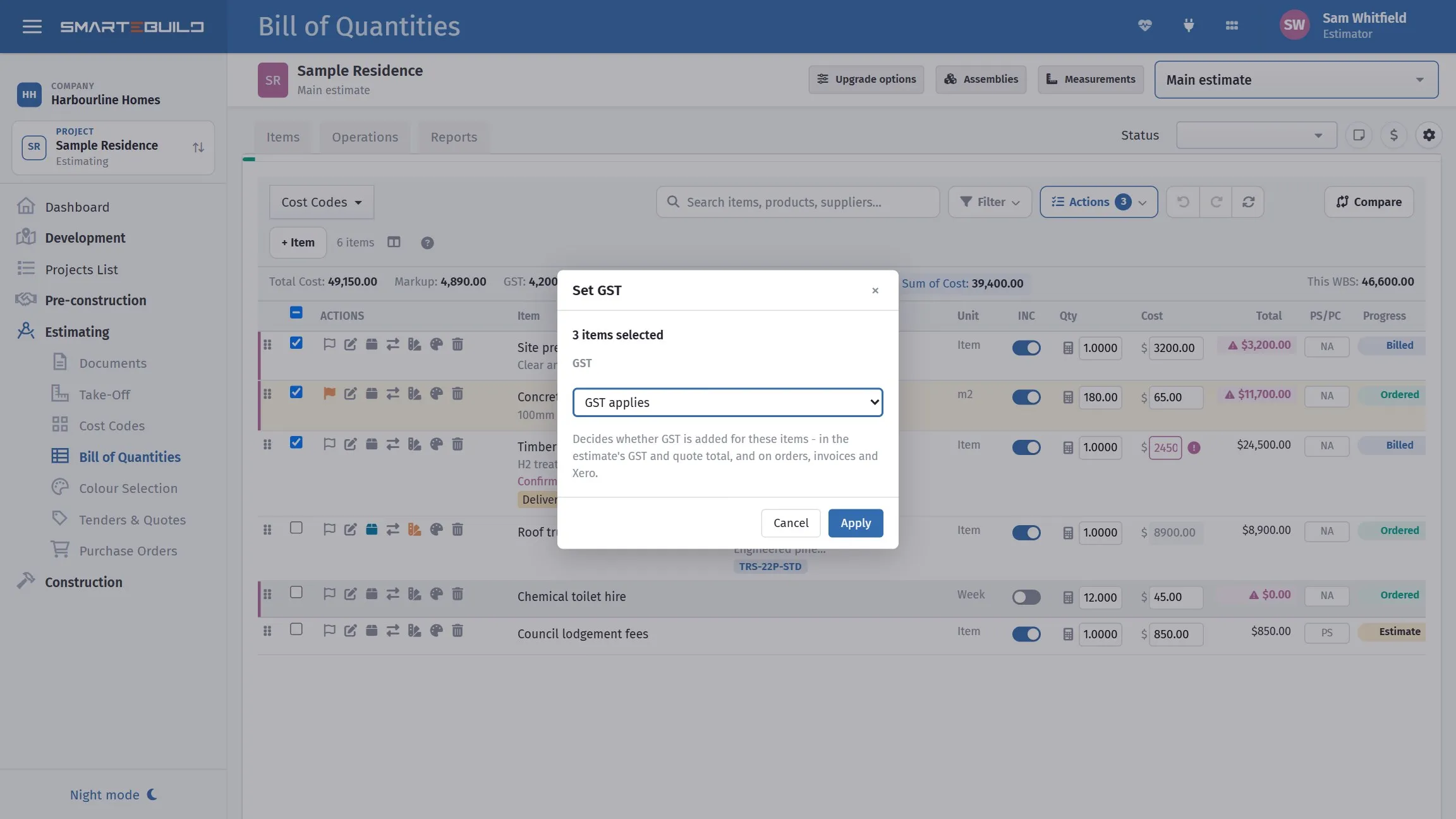
Both windows say how many items they are about to change, and what the change touches, before you press Apply.
Actions → Set cost type gives every ticked item the same cost type: Labour, Material, Subcontractor and so on, or Not set. It only changes which group an item sits in. No quantity, rate or total moves.
Actions → Set GST marks every ticked item GST applies or GST-free.
A quick way to sort out a whole trade: turn on Group by cost type (under Filter on the toolbar), tick the items in the Allowance or Not set group that belong elsewhere, and set them in one go. See cost types.
Adding items to a price list
Section titled “Adding items to a price list”Priced something on a job that you will price again? Add to price list… copies the selected items into one of your price lists, with all their products, so the next job can pick them up from the price list instead of typing them again.
To see which items still need it: an item that is already in a price list has a small tag beside its name. Press Not in price list (the tag button) at the top of the BOQ to list only the items typed straight onto this job. That’s a quick check before you close a job out.
- Select the items and choose Add to price list….
- Pick the price list. It starts on the one this job’s cost codes came from.
- Check each item’s cost code. Each one starts on the price list cost code its job cost code was copied from, or one with the same code or name. Type to find another. Put every item in files them all under one cost code.
- Tidy the name if it says something that only suits this job (“Concrete supply – Lot 12 driveway”). The new name is checked against the price list as you type.
- Press Add.
What goes across: the name, description, unit, price (what the BOQ totals it at), wastage, item size and rounding settings. For products:
- A product that already came from the price list, or has the same supplier and SKU as one there, is linked, not copied, so it isn’t in the price list twice.
- Any other product is copied in, picture included.
- A product with no supplier can’t be added, because every price list product needs one. The window says which.
Nothing on the job changes, except that each item now remembers which price list item it is. Adding it again later warns straight away. New price list items start as not approved, like any new item in Price Lists. You need the Price Lists module and permission to edit price lists.
When it’s done, the window offers Save as assembly… for the same items. Items typed straight onto a job can’t go into an assembly until they’re in a price list, so this turns a priced section of the job into a kit the next job adds in one go. See Assemblies.
Deleting
Section titled “Deleting”Delete selected removes items permanently.
Items that are on an order, an invoice, a tender, a quote or a colour selection are skipped, because deleting them would take their lines off those as well. The rest are deleted, and the message says how many were skipped — for example 3 item(s) deleted. 1 skipped (has dependencies). Deleting a single item from its row refuses in the same way and names what the item is on.
Before you use it, consider whether Switch off would do instead. Deleting takes the rate, the supplier link, the notes and the take-off field relationship with it, and none of that comes back.
Locked items
Section titled “Locked items”With Lock Ordered or Billed Items on, items that already carry an order or an invoice will not be changed by bulk operations.
That is the setting doing its job. If a bulk edit skips some items, check whether they are locked before assuming the operation failed — the lock is protecting the relationship between what you committed and what you allowed.