
What you can do on site
The app is built for the person standing in a half-built house, not for estimating. It covers the parts of a job that happen away from a desk.
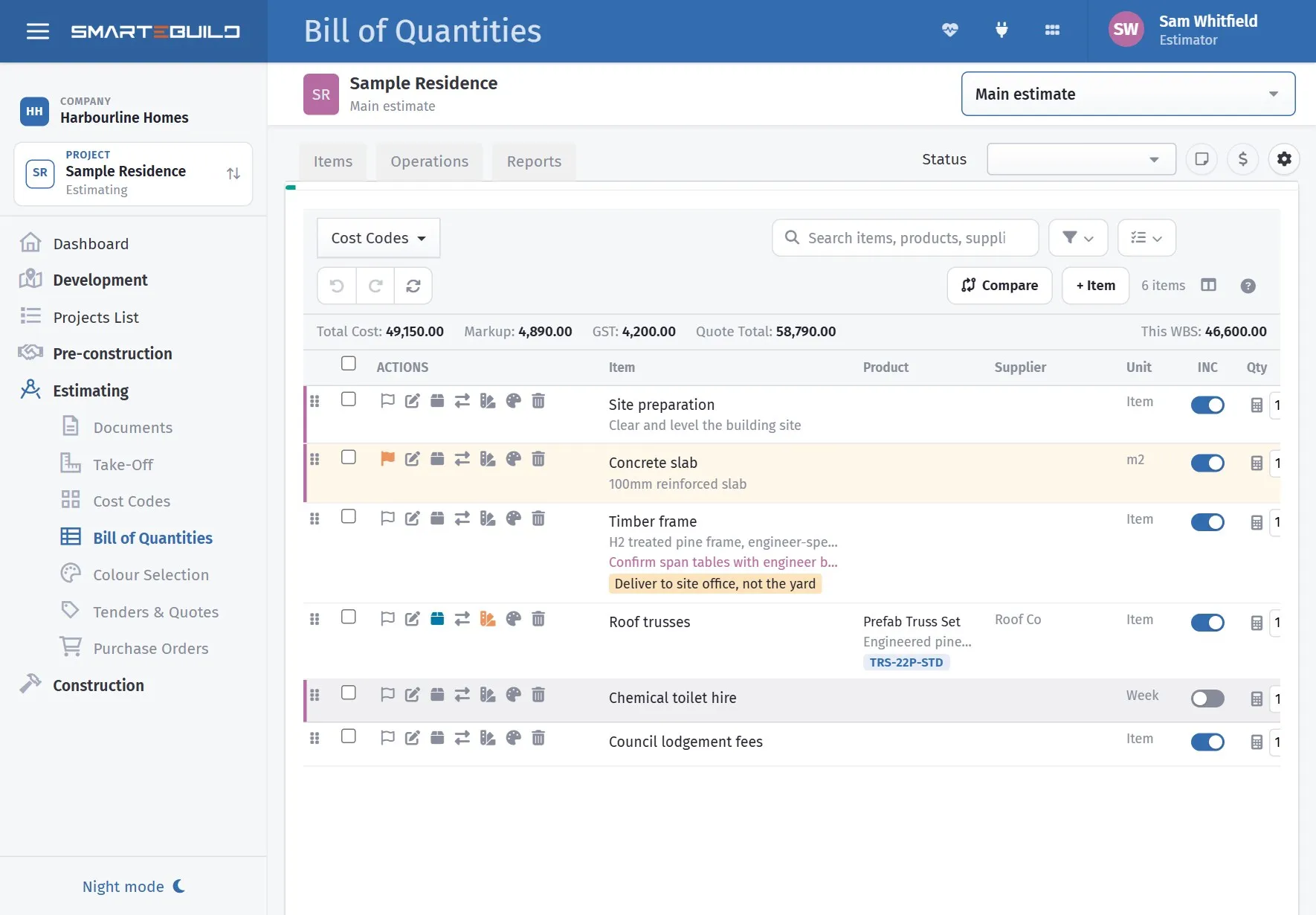
The same job, on the device you actually have with you.
The Home screen
Section titled “The Home screen”Signing in and picking a job lands you on Home — a status board for that job, not a menu. Each tile shows where something stands, so you can see what needs attention before opening anything.
| Tile | Tells you |
|---|---|
| Documents | The drawing register |
| Bill of Quantities | What the job allows for, and what has been ordered |
| Suppliers | Ring a supplier or subbie — this job’s first |
| Purchase Orders | What is committed, and what is still to come |
| Bookings | Who is confirmed, and who has not replied |
| Defects | How many are open |
| Site Diary | Whether today’s entry has been started |
| Checklists & Safety | What is outstanding |
| Colour Selection | Where the client’s selections are up to |
| Tenders | Packages out for pricing |
| Messages | Team chat for this job |
Tiles say what is actually happening rather than just naming the module — “Nothing on site today”, “Not yet confirmed”, “No open defects”, “Nothing to chase”. A quiet board means a quiet day.
What each part does
Section titled “What each part does”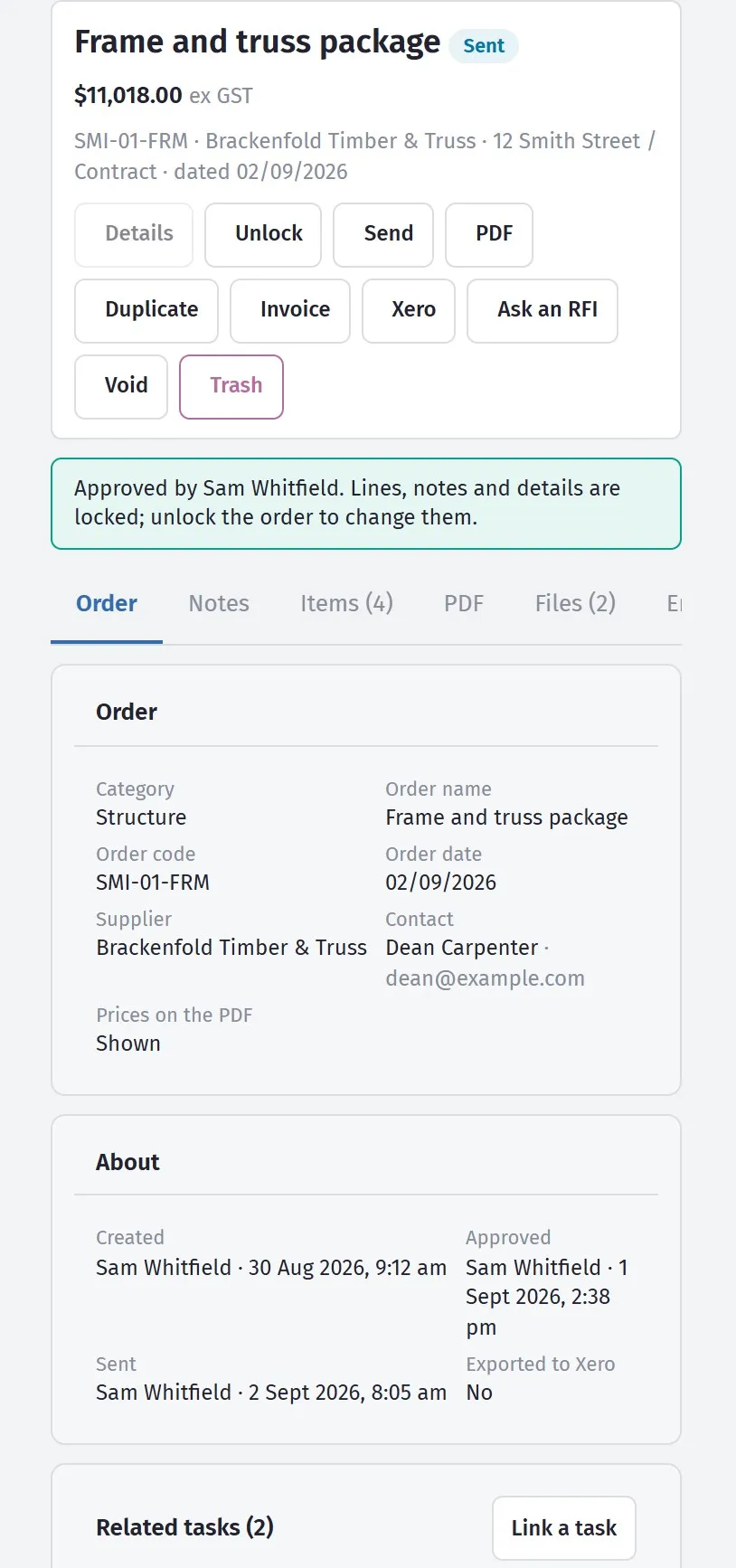
Re-send an order from site without going back to the office.
Documents
Section titled “Documents”Every drawing and document on the project, in folders, showing the current revision.
This is the feature that earns the app. A supervisor who can open the current drawing on site does not ring the office, does not work from a printed set that is two revisions old, and does not guess. See Versions and revisions.
Bill of Quantities
Section titled “Bill of Quantities”What the job allows for, line by line — to look up, not to edit.
Open a cost code to see its lines, or type in the search box to find a line anywhere in the job by its name, product, supplier or SKU. Tap a line for the detail: the quantity and unit, the supplier and product, the notes, and how much of it has been ordered so far. A line that is fully ordered is marked Ordered; a part order shows as “3 of 12 ordered”.
It answers “what did we allow for here?” and “has that been ordered yet?” without a call to the office. If a variation touches a line, the detail says so — check before building to the original.
Rates and totals only show for people with the See costs permission on the Bill of Quantities. Everyone else sees quantities, products and suppliers, and no money.
Only lines that are included in the job appear. Changing quantities, rates or products stays on the desktop.
Suppliers
Section titled “Suppliers”Your company’s supplier phone book, with a call button on every line.
Suppliers with a purchase order or a defect on the job you have open are listed first, under On this job — on site, “the plumber” means the plumber on this job. Everyone else follows, and the search box finds a supplier by its name or by the name of a person who works there.
Tap the green button to ring the office line. Tap the supplier’s name for the rest: the email address, the street address (opens in maps), any note on the record, and the people — each with their own call and email buttons. A contact marked for call ups is the one to ring about a no-show; for orders is the one to ring about a delivery.
The call button hands the number to your phone’s dialler; you still press Call, so a slip of the thumb never rings anyone. The list is kept on the phone, so it opens with no signal — the call itself needs coverage, of course.
Suppliers are added and edited on the desktop under Suppliers. Archived suppliers do not appear. If a number will not dial, the record has something other than a number in the phone field — fix it on the desktop.
Purchase orders
Section titled “Purchase orders”What was ordered, from whom, at what, and when it is due — with the part numbers.
It answers the questions asked most often on site: did we order the tie-downs, what was in the frame order, when is the concrete booked, what is the SKU on that tapware.
Record a delivery when the truck turns up: what arrived, what was short or damaged, and a photo of the docket. It is saved against the order and into that day of the site diary at the same time, so the office sees it in both places and nobody has to remember it later. The order then lists everything received against it.
Bookings
Section titled “Bookings”Who has confirmed and who has not. The gap between sent and confirmed is where lost days live, and this is that gap on a phone. See Bookings and confirmations.
The list is the whole schedule, in the same order as the desktop Bookings sheet - a stage, then the tasks under it - and the chips along the top are the same choices as the desktop’s Booking dropdown: All, Due for call up, Needs rebooking, then each call-up status. Hide completed is on by default on the phone; switch it off to see finished tasks (struck through). A task with no supplier on it yet is listed with a Choose supplier button: pick the supplier, then the person the booking goes to, and the call-up buttons appear. Change supplier does the same on a task that already has one, unless the task is costed from a purchase order (its supplier comes from the order - change it there). Both need the Edit tasks schedule permission, the same as the desktop.
Open a booking and you can also mark the work Started today or Finished today. That goes straight onto the program, so the office sees what actually happened without ringing around. Marking something started stamps today only when no date was recorded, so it never overwrites a date the office set, and changing your mind about finished leaves the dates alone.
Defects
Section titled “Defects”Log a defect where you are standing, with a photo, against a location. You can also notify the supplier responsible and track the notices you have sent.
See Defects on site.
Site Diary
Section titled “Site Diary”Today’s record — who was on site, deliveries, delays, issues and photos. Filled in on site takes two minutes; reconstructed at a desk on Friday it is guesswork.
See The site diary on the phone.
Checklists & Safety
Section titled “Checklists & Safety”Run a checklist item by item, capture photos where an item requires one, and collect a signature. Incidents are reported from the same place.
Site Register
Section titled “Site Register”For the site manager (version 1.2.7 and later): who is on site now, the history, the inducted workers, the day’s toolbox talk (say it and the phone writes it) and the QR code to share. The gear switches the register on or off, sets the end-of-day sign-out time, and marks where the site is - stand on site and tap I’m standing on site - use my location. Workers and visitors never need the app: they scan the poster.
See Site Register.
Timesheets
Section titled “Timesheets”Clock in and out on site rather than reconstructing hours later.
Colour Selection
Section titled “Colour Selection”The client’s selections schedule, for when someone on site needs to know which tile goes in which room.
Tenders
Section titled “Tenders”Packages you have out for pricing, and what has come back.
Notifications
Section titled “Notifications”The bell at the top of the Home screen is the same one on the desktop: orders sent and orders waiting to be approved, tenders sent, variations your client approved, declined or paid for, call-ups a subcontractor confirmed or turned down, a timesheet week waiting for approval or one approved or sent back, a failed checklist, a new safety incident, a worker inducted on one of your sites, and your client’s answers on the portal. Reading one on the phone marks it read on the desktop too, because it is one list, not two.
Tapping a notification opens the thing it is about - the checklist, the incident, the defect, the chat or the timesheet week.
Choosing what buzzes your phone
Section titled “Choosing what buzzes your phone”Open Notifications and tap the gear at the top. Every kind of notification is listed in plain groups - Messages, Purchase orders, Tenders and quotes, Variations and upgrades, Call-ups, Development approvals, Extras to schedule, RFIs to colleagues, Your clients, Defects and documents, Timesheets, Site safety, Site register, Leads and Price lists - each with its own switch.
Switching one off only stops it buzzing the phone. It still appears in the Notifications list and in the bell’s count, so nothing is lost - it just waits until you look. Chat messages have their own switch, but someone who @mentions you still gets through. The choice is yours alone and follows you to any phone you sign in on.
Messages
Section titled “Messages”The job’s team chat, with push notifications. See Messages on the phone.
Client portal
Section titled “Client portal”The job’s clients and their portal links. Create a client’s link, Invite them by email, Share link through the phone’s share sheet (which is also how you copy it), or revoke a link that should no longer work. The card shows whether the client has opened the portal and when they last used it. The portal itself is a web page for the client; they never need the app. See Client portal.
Dictation
Section titled “Dictation”Anywhere the app asks for more than a few words — a diary note, a defect description, an incident account — there is a dictation button. Speak instead of typing.
On site, with gloves or wet hands or one hand full, this is the difference between a record that gets made and one that does not. See Dictation.
What still needs a desk
Section titled “What still needs a desk”The app is deliberately not the whole system. Not on a phone:
- Estimating — editing the BOQ (the phone only looks it up), cost codes, take-off
- Raising orders, tenders, claims and variations
- Building checklist templates
- Approving timesheets
- Reports
Nobody prices a job on a phone, and the app being focused is why it is quick to use one-handed with a set of keys in the other.
Getting the most from it
Section titled “Getting the most from it”Keep documents current. The app is only as useful as the register behind it.
Raise orders promptly at the office, so they are on the supervisor’s phone when the delivery arrives.
Keep the schedule current, or site staff checking tasks against a stale schedule stop checking — and do not tell you they have stopped.
Set the site address on the project. It flows onto orders, which is what the delivery driver needs.