
Bookings and confirmations
Available onBuilder
Bookings tracks who has confirmed they are coming. It is the difference between having sent a call-up and having a trade on site.
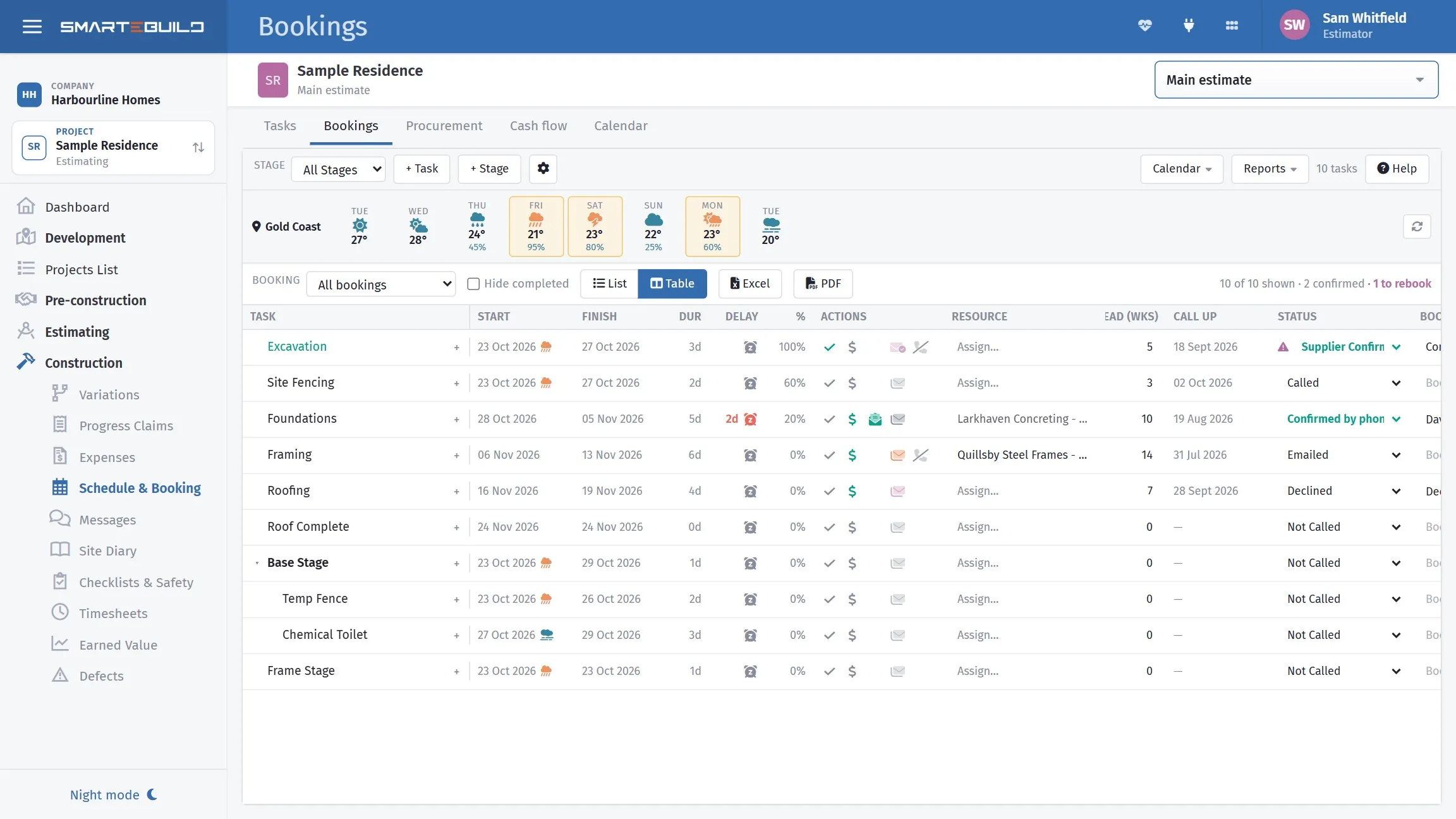
Who has confirmed, who has declined, and who has said nothing.
Sent is not confirmed
Section titled “Sent is not confirmed”A call-up that has gone out is a request. A booking is an agreement.
Most lost days on a building site are not caused by a subcontractor letting you down. They are caused by nobody noticing that a subcontractor never replied — and the two look identical right up until the morning nobody arrives.
Subcontractors answer from the email
Section titled “Subcontractors answer from the email”Every call-up email carries a link. The subcontractor opens a page showing the task, the dates and the site, and answers with one click — Confirm Dates or Decline task — or offers a day that suits them with Suggest another date (see below). They do not need a login.
The same page lists their other bookings with you, from last week on — dates, job, task and where each is up to — with a link to answer each one. A trade on three of your jobs can sort out all three in one sitting.
Their answer lands on the task’s call-up status straight away:
| Status | What it means |
|---|---|
| Not Called | Nothing has gone out yet |
| Emailed | The call-up has gone; no answer yet |
| Called | You rang them |
| Confirmed by phone | They said yes when you rang — you set this one |
| Supplier Confirmed | They said yes from the email link |
| Declined | They said no from the email link |
The link only answers once. After they confirm or decline, opening it again just shows the answer they gave. If you cancel the booking after the email went out, the link tells them it has been cancelled and to contact the site supervisor.
When a subcontractor declines
Section titled “When a subcontractor declines”A decline from the email link tells people straight away:
- The bell. Call-up declined by subcontractor appears on the bell at the top of the page for the estimate’s site supervisor and for everyone with edit rights on the estimate. Click it to open Bookings for that job.
- An email to the site supervisor, with the task, the job, the booked dates and the subcontractor’s contact details. Press reply and it goes to the subcontractor.
A confirmation from the link puts Call-up confirmed by subcontractor on the same people’s bell. There is no email for a confirmation, because nothing needs doing.
The subcontractor is only told the builder has been notified when one of these really went out. If nobody could be told, the page asks them to ring the site supervisor instead.
When they suggest another date
Section titled “When they suggest another date”Suggest another date lets the trade pick a day, from today on, and add a Note to the builder (they can add a note to a plain decline too). It is recorded as a decline, with their date and note attached. The bell goes as for any decline, and the site supervisor’s email is titled New date suggested: ….
On Bookings, that task shows an orange button with their date — 08 Oct 2026?. Hover it to read the note. Click it and the task moves to start that day, the tasks linked after it move with it, and the new booking is emailed to the trade — all in one go. A note with no date shows as a speech-bubble icon instead.
Before you click, check what else moves: if the task is on the critical path, the finish date moves with it.
Running it
Section titled “Running it”- Send the call-ups.
- Answers that come back through the email link record themselves. Record the ones you get by phone as Confirmed by phone.
- Look at what is still unconfirmed.
- Chase anything unconfirmed within its notice period.
- Escalate anything unconfirmed inside a week.
Step four is the whole value. A carpenter who has not confirmed with ten days to go is a mild concern; with two days to go it is a problem you probably cannot solve.
On a tablet: List and Table
Section titled “On a tablet: List and Table”Above the list, List and Table switch between two ways of showing the same bookings.
- List shows one card per task, made for an iPad or other tablet. Each card has the task and its planned dates, the trade, and where the booking stands (the status, then the booked dates or the Call up by date). Tap the card to open the booking panel. The envelope on the right emails the booking; it reads Rebook when the schedule has moved since the trade was told. The tick on the left marks the work done. A group heading folds its tasks away when you tap it.
- Table shows every column, and suits a computer screen.
The page chooses List on a tablet and Table on a computer. Once you choose one yourself, it remembers your choice on that device. The filters, the order, Excel and PDF work the same in both.
On a tablet held upright the booking panel opens over the list. Tap the dimmed list, or the cross, to close it.
A tablet held upright, or a phone, also shows less at the top of the page so the list gets the room: + Task, + Stage, Calendar, Reports and Help in the top toolbar, the Excel and PDF buttons and the counts on the right are hidden. The Stage filter stays. Turn the tablet on its side, or use a computer, to get them back.
The booking panel
Section titled “The booking panel”Click a task’s name (or tap its card) and a panel opens on the right with everything about that one booking. It is for booking, not for editing the task: there is nothing here about durations or links.
- Who is doing it: search for the trade and pick them. A task connected to a purchase order shows the order’s contact instead, with Open the purchase order. Lead time is how many weeks ahead to ring them, and Call up by is worked out from it.
- Actual dates: the dates the trade is booked for, and later the dates the work really started and finished. Under each date, Planned copies the schedule’s date and Today puts in today. Use the planned dates fills both at once. Setting a start with no finish books the planned length from that start.
- Where it stands: the Status and the Booking note (who you spoke to and what was agreed).
- Progress: the percent complete, and Mark as done.
The button at the bottom emails the booking. It reads Rebook by email when the actual dates no longer match the schedule, and the panel says what the trade was told against what the schedule says now. Cancel booking appears once an email has gone out. If the trade suggested another date, the panel shows it with their note and Use this date and re-book.
To change the task itself (its length, links or stage), use the link at the foot of the panel. It opens the same task on the Tasks tab.
Finding the call-ups you have to make
Section titled “Finding the call-ups you have to make”The Booking dropdown above the list has two “due for call up” choices:
| Choose | You get |
|---|---|
| Due for call up - 14 days | Everything you have to ring in the next fortnight, plus anything already overdue |
| Due for call up - 30 days | The same, a month out — the one to run before a site meeting |
Both count a task as due when it is still Not Called, is not finished, and its call-up day has arrived or is inside the window. The call-up day is the start date less the task’s lead time in weeks: three weeks on a task starting the 24th means ringing by the 3rd. A task with no lead time counts from its start date — ring them before they are due on site.
The number beside each choice is how many tasks are in it, so you can see at a glance whether this fortnight is quiet or not.
Taking the list off the screen
Section titled “Taking the list off the screen”Two buttons above the list, Excel and PDF, hand you the bookings to send on or pin up.
Both give you the list exactly as it is on screen — the same filters, the same order, the same columns. Filter to Due for call up, hit either button, and that is what you get, not the whole job. The filter you used is printed on the sheet and written into the spreadsheet, so nobody reading it later mistakes a stage for the whole project.
Excel downloads a file that Excel opens straight away. Headings are on the first row, so you can sort and filter it like any other spreadsheet — by call-up date, for instance, to build a ring-around list. The job name, the filter and the date sit underneath the last row.
PDF opens your browser’s print window. Choose your printer to print it, or choose Save as PDF (Windows, Mac and every modern browser offer this) to get a file you can email. It prints landscape, repeats the headings on every page, and marks the rows needing attention in words as well as colour, so a black-and-white printer loses nothing.
The Actions column is left out of both — the buttons in it do nothing on paper.
The weather
Section titled “The weather”A forecast strip sits across the top of the sheet: a week or so of day icons for the project’s site — its postcode — with the wet days shaded yellow. Hover one for the detail.
The same icons appear next to individual dates in the grid — beside a Start date and beside a Call Up date — whenever that date falls inside the forecast. That is the one that earns its place: it puts the forecast next to the decision, so a pour booked into Thursday’s rain is visible while you are still looking at the booking rather than after the concrete is ordered.
Dates further out have no icon, because there is no forecast for them yet.
The strip keeps itself current — a sheet left open checks again every few hours and when a new day starts — and the ↻ button at its right-hand end gets the latest forecast straight away.
Treat it as a prompt to ring someone, not as fact. It changes nothing on the schedule and moves no dates — a forecast four days out is a reason to have the conversation early, not a reason to move the booking on its own.
Chasing
Section titled “Chasing”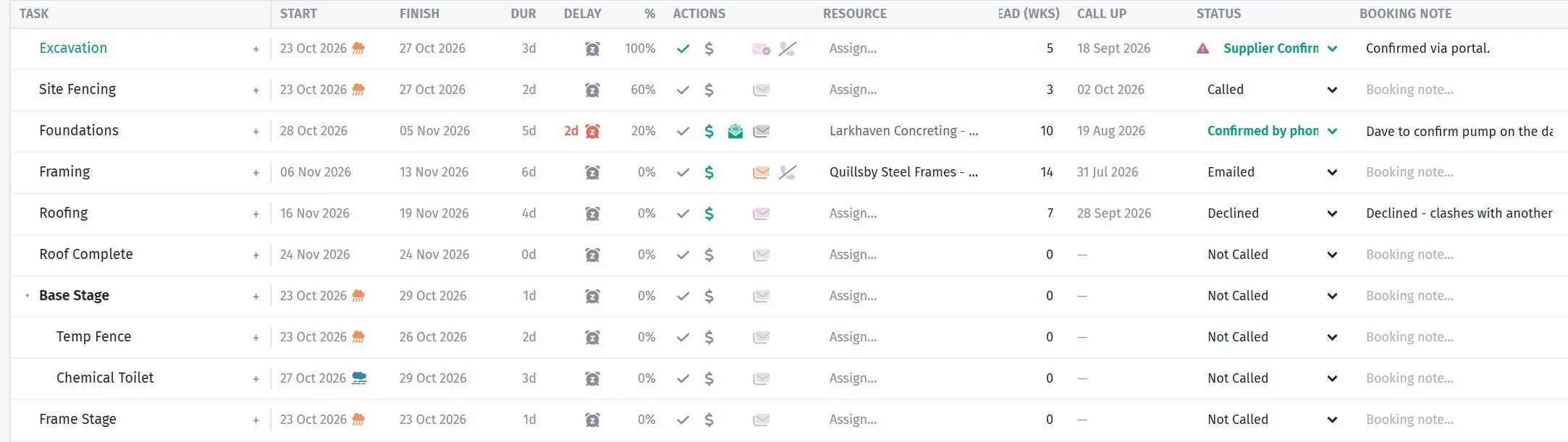
This is the list that costs money when nobody looks at it.
Ring, do not email. A subcontractor who has not answered an email will not answer a second one, and the call takes a minute.
On the phone
Section titled “On the phone”The job’s Bookings tile in the mobile app shows the same picture — who is confirmed, who has not replied, and what is coming up. The tile says it plainly: “Not yet confirmed”, “Confirmed”, “Nothing to chase”.
That is the useful place to check it. Standing on site a week out, glancing at who has not answered, is when the gap is still cheap to close. See What you can do on site.
Recording the chase
Section titled “Recording the chase”Then record what was said. “Confirmed by phone with Jim, 2 Oct” is worth having when the truck does not arrive.
When someone cannot make it
Section titled “When someone cannot make it”Deal with it in the Schedule rather than the calendar, so everything depending on the task moves with it.
Then ask two questions:
Is this task on the critical path? If it has float, a few days may cost nothing. If it is critical, the finish date has just moved.
Can something else be brought forward? Work off the critical path can sometimes fill the gap, so the week is not lost even though the task is.
If the trade offered a day that works, the orange date button does the move and the re-booking in one click — see When they suggest another date.
Re-send all moved
Section titled “Re-send all moved”When the schedule moves, bookings already sent go stale: the trade still has the old dates. Re-send all moved (N) emails the new dates to every trade whose booking the schedule has moved away from — N is how many.
It lists them and asks before anything goes, then sends one at a time. Declined bookings are left out: a trade who has said no needs a phone call, not another email.
Run it after any change that shifts a run of tasks — a wet week, a late inspection, an approved variation.
Confirming twice for the big ones
Section titled “Confirming twice for the big ones”Some tasks are worth confirming again the day before:
- anything needing a crane or a pump
- anything where several trades have to coincide
- concrete pours, where a no-show wastes a whole crew
- the first day of any new subcontractor on the job
The morning of a pour is the wrong time to discover the pump is on another site.
Bookings and the calendar
Section titled “Bookings and the calendar”The Calendar shows what is booked on which day, which is the fastest way to spot two trades booked into the same space at the same time — or a day with nobody on site at all.
Both are worth catching a week out rather than on the day.