
Attaching files to orders, tenders and expenses
Available onEstimatorBuilder
Attach Files on a purchase order, a tender, a supplier’s quote, an expense or a variation opens the file picker. It is the same Documents screen - folders, search, sorting, preview - with a tick box beside every file.
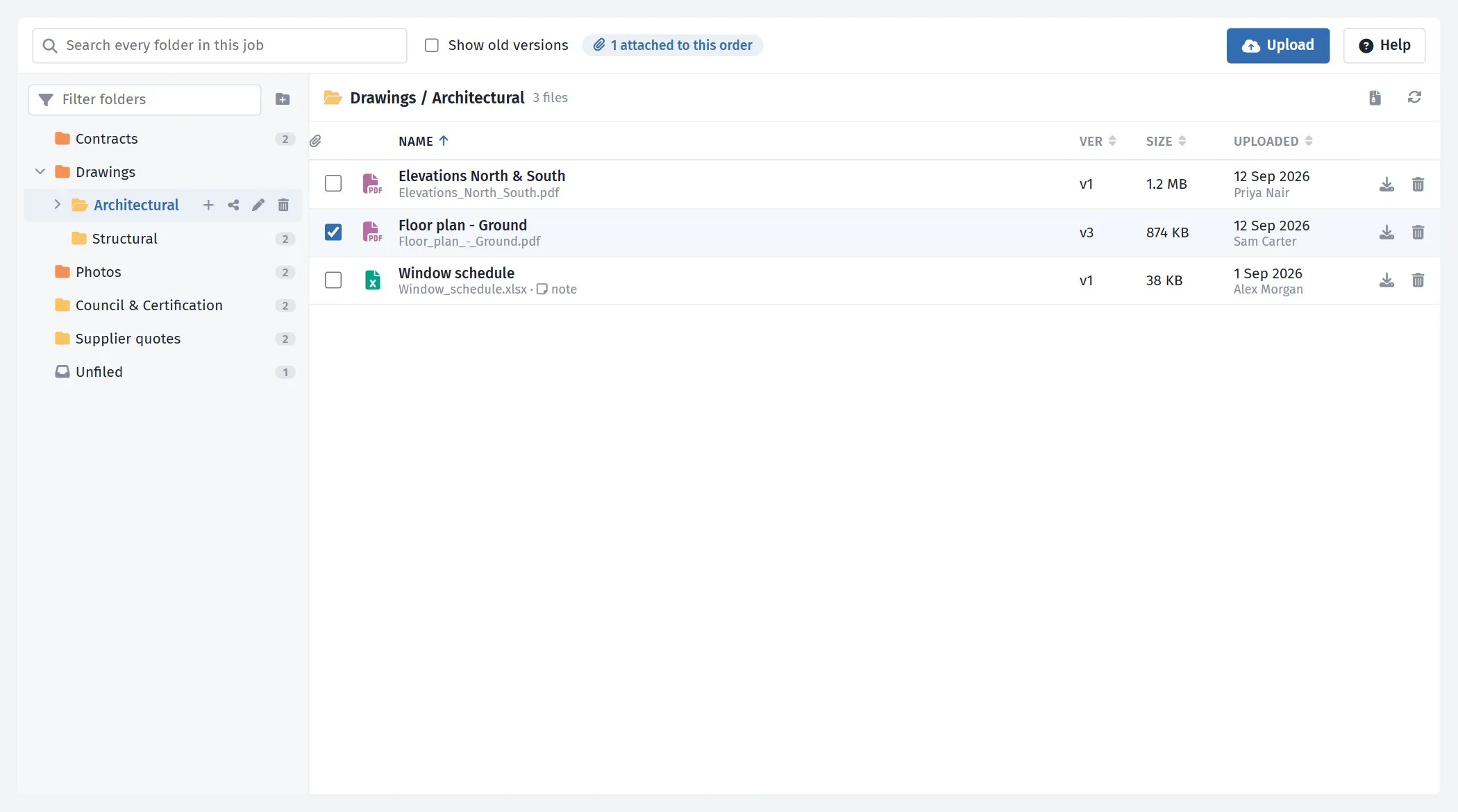
Ticked files are attached. The count at the top says how many.
Attaching and removing
Section titled “Attaching and removing”- Tick a file to attach it. It is attached straight away - there is no separate Attach or Save button.
- Untick it to take it off.
The count at the top - 2 attached to this order - covers every folder, so you can tick a drawing in Architectural, open Structural, tick the slab details, and both stay attached.
Search works here too, and the preview: click a file’s name to check it is the right revision before you tick it.
Uploading from the picker
Section titled “Uploading from the picker”The file you need is often not in Documents yet - the quote came in by email a minute ago. Drag it onto the list (or onto a folder) or use Upload, exactly as on the Documents page. Files uploaded in the picker are ticked automatically, because that is almost always why you are uploading them there. Untick if not.
They are filed in Documents like any other upload, so they are there for the next order too.
Quotes and expenses
Section titled “Quotes and expenses”A supplier’s quote and an expense each have a main document - the quote or invoice itself. It is the first file attached; untick it and the next one takes its place.
Who can attach
Section titled “Who can attach”Attaching belongs to the thing you are attaching to, not to Documents:
| Attaching to | Needs permission to |
|---|---|
| Purchase order | Edit orders |
| Tender or supplier quote | Edit tenders |
| Expense | Edit expenses |
| Variation | Edit variations |
Without it the tick boxes are greyed out: you can see what is attached but not change it. Uploading from the picker follows the same rule, so someone who raises orders can add the supplier’s drawing without being able to reorganise the whole document register.
Opening the picker on its own
Section titled “Opening the picker on its own”The Documents tile in the app menu (top right) opens the same screen without tick boxes - a quick way to find a drawing without leaving the page you are on.
Related
Section titled “Related”- Auto-attaching to bids and orders - documents that should go with every order or tender without ticking them each time.
- Sharing documents - sending a document to someone outside an order or tender.