
Take-off fields and the BOQ
Available onEstimatorBuilder
A take-off field is where a quantity lives. Fields belong to assemblies, the same ones the BOQ uses, so a field you measure into is immediately available to price against.
This is the part of Take-Off that does the real work. The measuring is just clicking; the field is what makes the measurement useful.
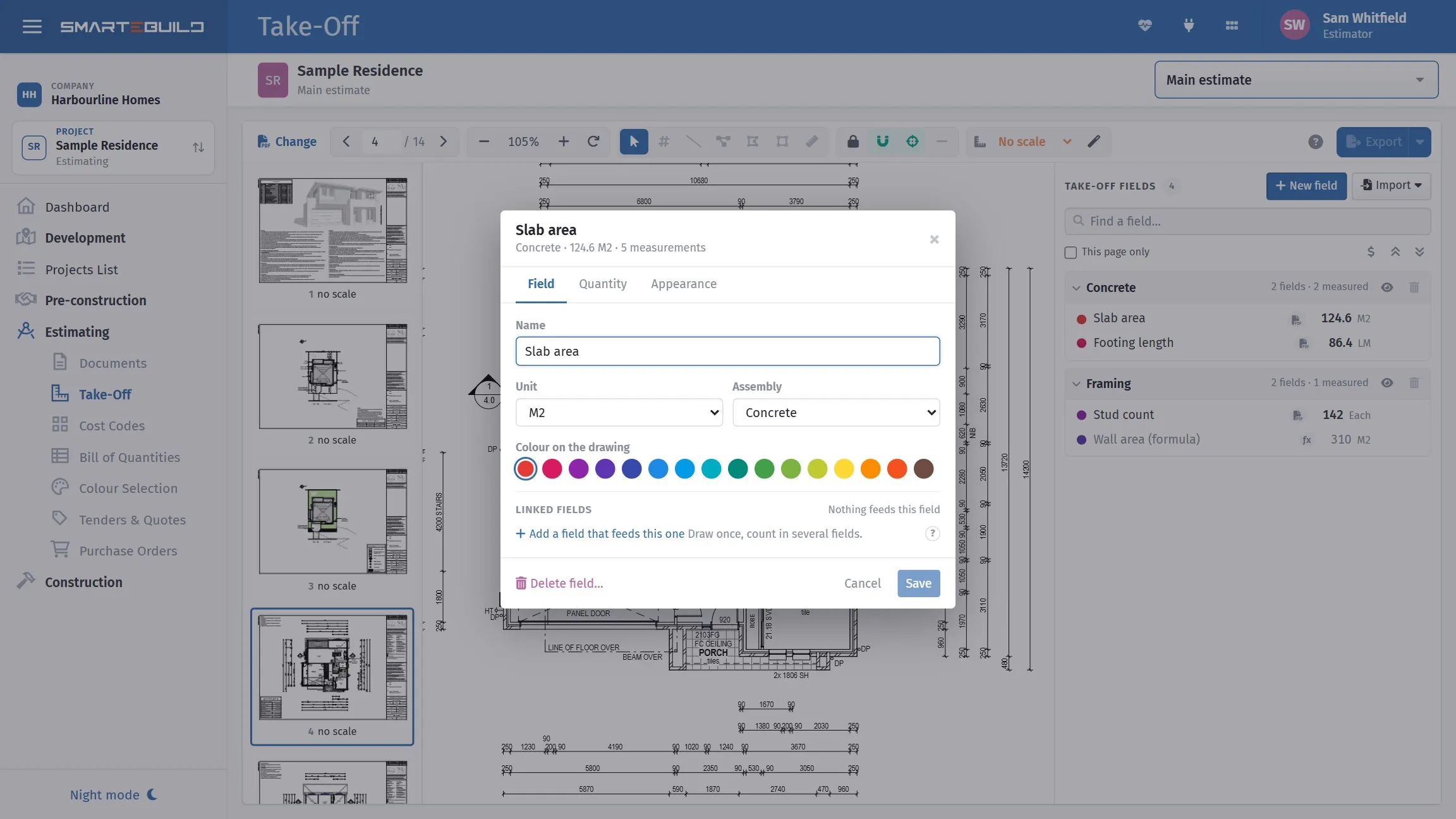
A field is the named measurement the bill reads.
Creating a field
Section titled “Creating a field”Click New field in the fields panel. Give it a name, a unit, and an assembly — or create a new assembly at the same time.
Field settings (the cog on a field’s row) has three tabs. Field: name, unit, assembly, colour and linked fields. Quantity: the default height, factor and pitch that new measurements inherit, and a typed quantity until something is measured. Appearance: how transparent areas are and how thick lines are. Anything that does not apply to the unit is simply not shown, and a small ? beside a setting explains it. Save lights up only when something changed.
Choose the unit carefully — it decides what you can measure into it:
| Field unit | You can measure |
|---|---|
| Each | Counts |
| LM (linear metres) | Lines and polylines |
| M2 (square metres) | Areas — or lines and polylines, if the field has a height |
| M3 (cubic metres) | Areas, if the field has a depth |
| MM (millimetres) | Lines and polylines |
If a tool is greyed out, hover it: Take-Off will tell you exactly why that combination cannot produce a quantity in that unit.
Finding your way round the list
Section titled “Finding your way round the list”Fields sit under their assembly. Click an assembly’s heading to fold it up or open it again, or use Collapse all / Expand all above the list; the folds are remembered for you on this estimate. The box under the heading filters as you type and shows every match whatever is folded. Hover a field for its eye (hide it on the drawing) and its settings (⋯); the assembly’s own eye hides or shows every measured field in it at once.
Starting from a template
Section titled “Starting from a template”Import fields from a template… under + New field lists your company’s template estimates. Pick one and its assemblies and fields come across — Slab, Footings, Framing, Roof, each with its unit, colour, default height and pitch, and any links between them. Fields already here with the same name are left alone, and no measurements come with it. Mark any estimate as a template in Projects to make it available here.
Prices beside the fields
Section titled “Prices beside the fields”Press the $ button above the fields list to see what the BOQ items priced off each field come to at its quantity right now, with each assembly heading totalling its fields. Draw another wall and the figure moves with it. It is the BOQ totals bar’s own arithmetic - included items x quantity x price. Press it again to hide the figures; it remembers your choice. It is off to start with and only offered to people who may see costs in the BOQ. The two arrow buttons beside it collapse or expand every assembly.
Measuring into an assembly kit
Section titled “Measuring into an assembly kit”Import › Assembly kit from the library… adds one of the BOQ’s assembly kits - a set of priced items driven by a measurement, such as a brick veneer wall or a bathroom fit-out - and lands you on its first field. Measure into that field and every item in the kit is quantified and priced as you go. The kit’s fields join the list under their own assembly; a field already in the estimate with the same name is reused, so nothing is measured twice.
Quantities from Revit or PlanSwift
Section titled “Quantities from Revit or PlanSwift”If the architect works in Revit, or you already measured the job in PlanSwift, those quantities can land straight in your fields instead of being measured again. Import › Quantities from Revit or PlanSwift… above the field list takes either file.
- From Revit: ask for a schedule export. In Revit, File › Export › Reports › Schedule from a Material Takeoff or a multi-category schedule with one row per type and its Count, Length, Area or Volume as columns (CSV, or tab-delimited text on any Revit version).
- From PlanSwift: export the take-off to Excel, one row per item with its quantity and units, and choose the .xlsx - or save it as CSV. An old .xls is refused; save it as .xlsx or CSV first.
Drop the file in and each row is shown with its quantity beside a field box (for a spreadsheet the first column reads Item). The Units column decides what kind of quantity each row is - m, m², m³ or a count - and imperial units are turned into metric: lineal feet into metres, square feet and square yards into m², cubic feet and cubic yards into m³. Price, cost, rate and amount columns are ignored, and folder rows and lines in hours or lump sums are skipped, because they are not quantities.
Type to find the field for each row. In a Revit schedule a SmarteBuild Field column (or Type Comments holding a field name) fills it in by itself, and so does last time’s choice - the mapping is remembered for your company. Tick Create a field for each unmatched row to make new fields in one assembly. Apply writes each figure as the field’s typed quantity, marked From Revit or From spreadsheet with the file name and date. A field with drawn measurements keeps its drawing’s quantity and is skipped. When a revised model or take-off arrives, import the new file the same way and the fields update.
Heights and depths
Section titled “Heights and depths”Set a default height on a field to turn lengths into areas automatically — a wall run measured into an M2 field becomes length × height. Set a default depth on an M3 field to turn areas into volumes.
This is what saves you typing 2.4 onto every wall in the building.
Pitch: roofs, rakes and sloped slabs
Section titled “Pitch: roofs, rakes and sloped slabs”A field can carry a pitch in degrees (its settings, under the height). Anything drawn flat on the plan into that field is multiplied by 1 ÷ cos(pitch), so the quantity is the sloped one: 10 × 10 m of roof plan at 30° is 115.47 m², not 100. Type the degrees, or type the rise and run the drawing gives you — 6 / 12 becomes 26.57°. Values on the drawing and in the list carry a small ▲30° mark so a pitched number is never mistaken for a flat one. Counts are never pitched.
One shape at a time. The field’s height and pitch are defaults. The pencil on a measurement’s row opens a small dialog with its own name, height (or depth) and pitch, for the one roof at 30° among 22.5° ones or the one wall taller than the rest. Blank means the field’s. Own values show in blue in the list, e.g. h 2.7 ▲30°; the field’s defaults show in grey.
Linked fields: draw once, count in several
Section titled “Linked fields: draw once, count in several”A field can be fed by other fields (its settings, Field tab, under Linked fields). Trace the external wall once into Wall length and set Studs, Plates, Plasterboard and Paint to be fed by it: their totals fill themselves, each converted to its own unit — a length feeding a square- metre field is multiplied by that field’s default height (or the shape’s own) — and multiplied by a factor you choose (×2 for both faces of a wall). The shapes stay where you drew them; the fed fields just count them. Move or delete the wall and every fed field follows. A fed field is marked with a link icon, its list says what feeds it, and it never offers a typed quantity. A field can’t feed itself or anything that already feeds it.
Worked example: three fields off one floor plan
Section titled “Worked example: three fields off one floor plan”| Field | Unit | Height / depth | Tool you use | What you get |
|---|---|---|---|---|
Slab area |
M2 | — | Area | 186.40 m² |
Slab concrete |
M3 | Depth 0.1 |
Area | 18.64 m³ |
External wall |
M2 | Height 2.4 |
Polyline | 130.08 m² |
Notice the second row. You draw the same slab outline, but because the field is M3 with a 100 mm depth, it returns a volume instead of an area. Two fields, two units, one shape traced twice — and both follow any change you make later.
One field, one drawing
Section titled “One field, one drawing”A field accumulates measurements across as many pages of one drawing as you like — a slab spanning three sheets is one field.
It cannot span two different drawings. If you try, Take-Off will tell you which drawing the field is already measured on. Use a separate field instead — this keeps it unambiguous which drawing a quantity came from, which is what you want when someone queries a number six weeks later.
Getting to a field measured on another drawing
Section titled “Getting to a field measured on another drawing”Because a field belongs to one drawing, you will often see a field with a quantity against it while the drawing in front of you has nothing drawn for it. Those fields are marked with a small PDF icon in the list.
Select one and Take-Off tells you where its measurements actually are — “12 measurements are on A-102 First Floor Plan” — with a button to open that drawing. It switches, goes straight to the first page the field is measured on, and switches the field back on if you had it hidden. Double-clicking the field does the same thing.
Moving a field to another assembly
Section titled “Moving a field to another assembly”Open the field’s settings (the ⋯ on its row) and pick a different Assembly. The field keeps its number, so its measurements, its quantity and any BOQ items priced against it all move with it. It is the same move the BOQ’s Measurements window does with Move to, without leaving Take-Off.
A quantity without a drawing
Section titled “A quantity without a drawing”A field with nothing measured into it can carry a quantity you simply know — an allowance, a count off a schedule, a figure from the engineer. Select the field and type the number in the box under it (or in its settings), and it flows into the BOQ like a measured one. The first measurement you draw into the field replaces it; from then on the drawing owns the number. Formula fields don’t offer the box.
The field list
Section titled “The field list”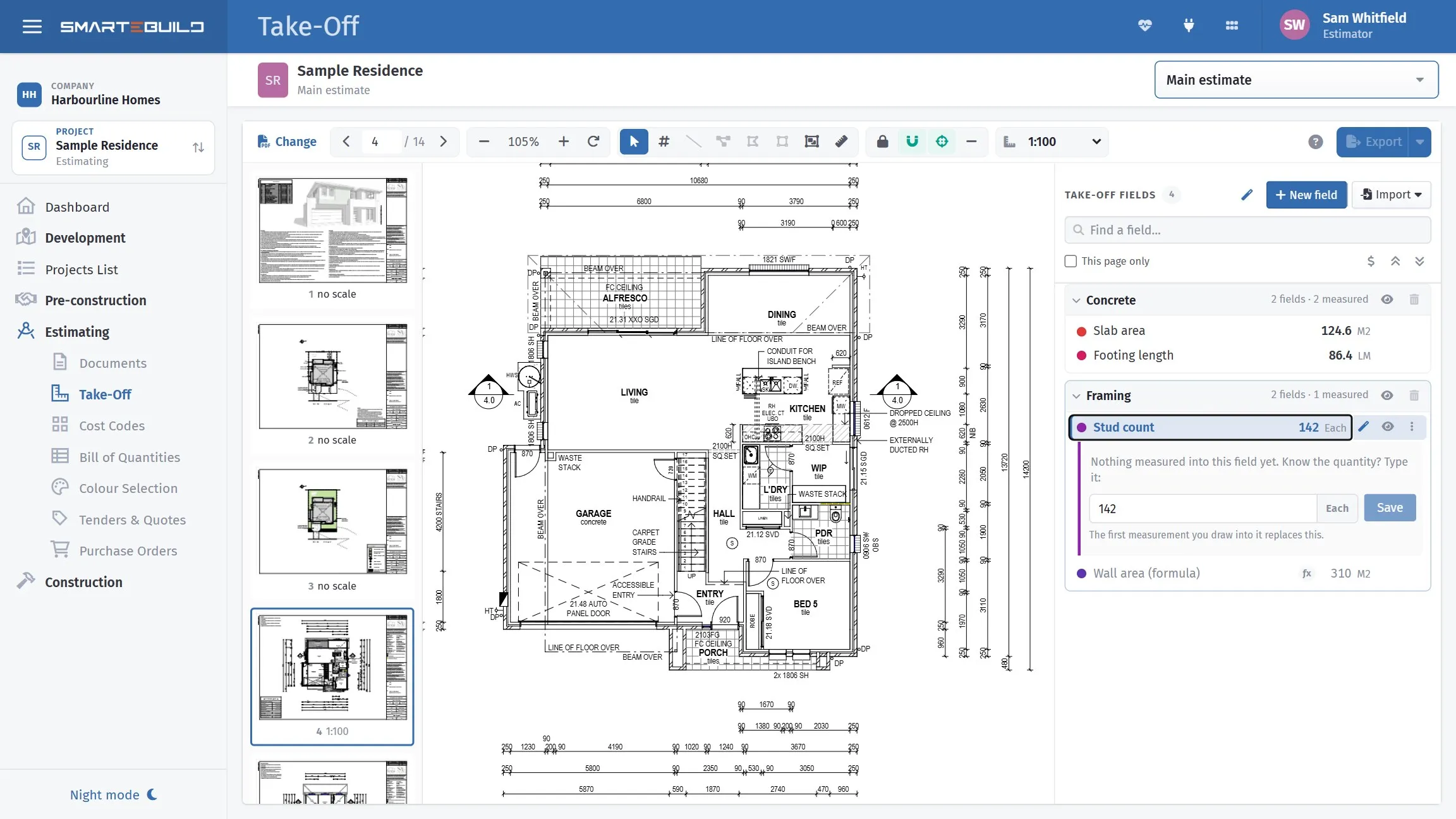
The fields panel: every field with its running total. The magic-wand button on the selected field opens Read the drawing.
The list’s header (New field, the magic-wand Read the drawing button, Import, Find a field and This page only) stays at the top of the panel while the list scrolls.
Each field shows its running total and its unit. Expand one to see every measurement in it, with the page it is on.
Finding a field. Type in the box under + New field and the list filters as you type, on the field’s name or its assembly’s. Esc clears it.
Naming a measurement. Every row starts as its page number — p1, p1, p1. Double-click the row, or click its pencil, type a name — “Bed 1”, “North wall” — and press Enter. The name replaces the page number in the list (the page is still in the tooltip) and is written on the drawing beside the value.
Which one is this? Click a row and that measurement is highlighted on the drawing — going to its page first if it is on another one. It works the other way too: with the Select tool, click a shape on the drawing and its row lights up in the list, opening its field if need be. Double-click the field itself to go to the first page it appears on.
Getting the quantity into the BOQ
Section titled “Getting the quantity into the BOQ”Measuring for a specific BOQ item
Section titled “Measuring for a specific BOQ item”From the BOQ, open an item’s Calculate Quantity, choose the Fields tab, and click Measure on the plan.
Take-Off opens with that item in mind. Measure into an existing field or create a new one, and when you press Done the item is pointed at that field. Its quantity then follows every future measurement, with nothing else to run.
Pricing against a field you have already measured
Section titled “Pricing against a field you have already measured”In the same Fields tab, just pick the field from the list.
How the quantity reaches the BOQ
Section titled “How the quantity reaches the BOQ”The BOQ reads the field’s quantity live. There is no export step, no recalculation to trigger and no cache to clear — change a measurement and the BOQ is already right.
A field with a formula
Section titled “A field with a formula”If a field gets its quantity from a formula, that formula is its source of truth. Take-Off shows it as read-only and will not measure into it. Clear the formula first if you want to take the field off a drawing instead.
Deleting a field
Section titled “Deleting a field”Use the field’s settings dialog. If BOQ items take their quantity from that field, Take-Off refuses and names them — silently orphaning a priced quantity is the worst thing it could do. Re-point those items first.
Deleting a whole assembly
Section titled “Deleting a whole assembly”The bin on an assembly’s heading in the fields panel deletes the assembly, every field in it and all their measurements in one go. Take-Off checks first. If any BOQ item works out its quantity from one of those fields - linked to it, or using it in its quantity formula - nothing is deleted: the warning names each field and the items that use it, so you can point them somewhere else in the BOQ and try again. Otherwise it tells you how many fields and measurements will go and waits for you to press Delete assembly. A field in another assembly that was linked to one of these loses that share and updates on its own.
Common problems
Section titled “Common problems”I cannot measure into a field. Either it gets its quantity from a formula, which takes priority, or it is already measured on a different drawing. Take-Off names the drawing when it refuses.
A quantity in the BOQ did not change when I measured. Confirm the item is actually set to take its quantity from that field: BOQ → Calculate Quantity → Fields.
A measurement has vanished. Check whether its field is hidden — look for the “n fields hidden” link at the top of the fields panel. Also check you are on the right page; the thumbnail badges show which pages carry measurements.