
Tracking a variation
Available onBuilder
A variation is not finished when the client signs it. Someone has to price it, sometimes redraw it, get it into the estimate, raise or amend the orders, tell the site, see the work done, claim it and get paid. The Variations Board is where all of that is tracked, for every job at once.
Open it with the Tracker button on the Variations page, or from a variation’s menu (Open in tracker), which opens that variation’s drawer straight away.
The board
Section titled “The board”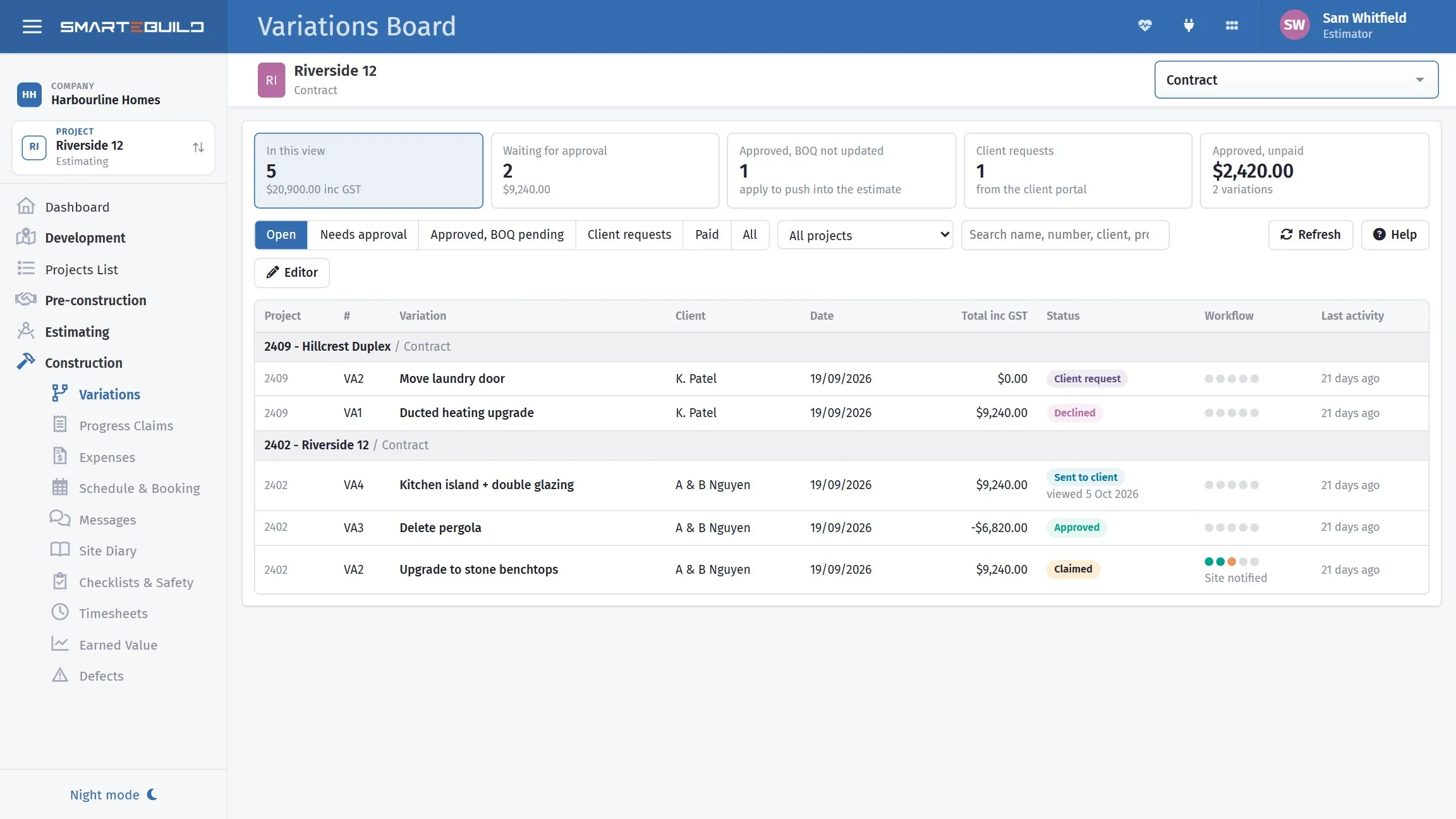
Five tiles, then the variations under their jobs. Most of a variation’s life is readable from its row: the pill says where it stands, “Upgrade to stone benchtops” shows the stage dots part-filled with Site notified underneath, and “Delete pergola” is a credit, so its total is negative.
The tiles across the top are the numbers that need attention: how many variations are in the current view and what they add up to, how many are waiting for a client’s approval, how many are approved but not yet in the BOQ, how many client requests are waiting to be priced, and the approved-but-unpaid total. Click a tile to switch the view.
The list below groups variations by project. Each row shows the status pill, a row of dots for the manual stages (teal done, orange in progress), the stage that is currently active, and when something last happened. Use the view tabs, the project dropdown and the search box to narrow it down; click a column heading to sort.
Status pills, in the order a variation normally moves through them:
| Pill | Meaning |
|---|---|
| Client request | Raised by the client through the portal; not priced yet |
| Draft | Being prepared; nothing sent |
| Sent to client | Emailed or shared by link; waiting for a decision |
| Declined | The client sent back questions or a no; the reason is in the tracker |
| Approved | Signed off (online or recorded by you), locked for editing |
| BOQ updated | Approved and applied to the estimate and the orders |
| Claimed | On a progress claim |
| Paid | You recorded the client’s payment with Record payment |
The drawer
Section titled “The drawer”Click a row to open the variation. Four tabs:
- Tracker - the stage timeline, the details, the client links and the files.
- Lines - every line with cost, markup, GST and total, and whether it counts toward the total. The tick button excludes a line from the total without deleting it (it still prints); excluded lines are struck through.
- Orders - what applying this variation touches: draft orders that will be amended automatically, and sent orders that will need a variation order with the supplier.
- Activity - who did what and when: created, shared, viewed by the client, approved, declined, applied to the BOQ, every order line changed, every stage change, every payment.
The buttons along the bottom are the actions: Edit (opens the editor for lines, notes, PDF and email), PDF, and depending on the state and your permissions Approve & apply to BOQ, Apply to BOQ, Revert BOQ, Unlock to edit and Record payment.
The stages
Section titled “The stages”Ten stages. Five are automatic and follow the record - you cannot tick them by hand, they complete when the thing happens:
| Stage | Completes when |
|---|---|
| Requested | The client raised it through the portal |
| Approved | Approved online by the client, or recorded by someone with the Approve Variations permission |
| BOQ updated | Applied to the estimate (see Applying a variation to the BOQ) |
| Claimed | Included on a progress claim |
| Paid | You have recorded the client’s payment with Record payment |
Five are manual and are yours to keep current: Estimating, Drafting, Purchase orders, Site notified and Site work completed. Each has a status (not required, not started, in progress, completed), can be assigned to one of your users, can carry a due date, and takes a note. Done and Start are one click; the pencil opens the full form. Marking a stage not required is the honest answer for a variation that needs no drawings - it stops the dots looking unfinished.
Applying a variation fills in the Purchase orders stage for you when there is something to do: if lines sit on sent orders it goes to in progress with a note saying how many need a variation order.
Permissions
Section titled “Permissions”Three permissions under the Variations module control the actions, set per user under Users:
- Approve Variations - record an approval, and unlock an approved variation.
- Apply Variations to BOQ and Orders - push an approved variation into the estimate and the draft orders, and revert it.
- Update Variation Workflow - change the manual stages and record a payment.
Everyone who had the Variations module when this was introduced was given all three, so nothing changed for existing users until an administrator removes one.
Notifications
Section titled “Notifications”The bell at the top of every page picks up three events from the client portal: Variation approved online, Variation requested by client and Variation declined by client. They go to the person who created the variation and to everyone with edit rights on the estimate.