
Raising a claim
Available onBuilder
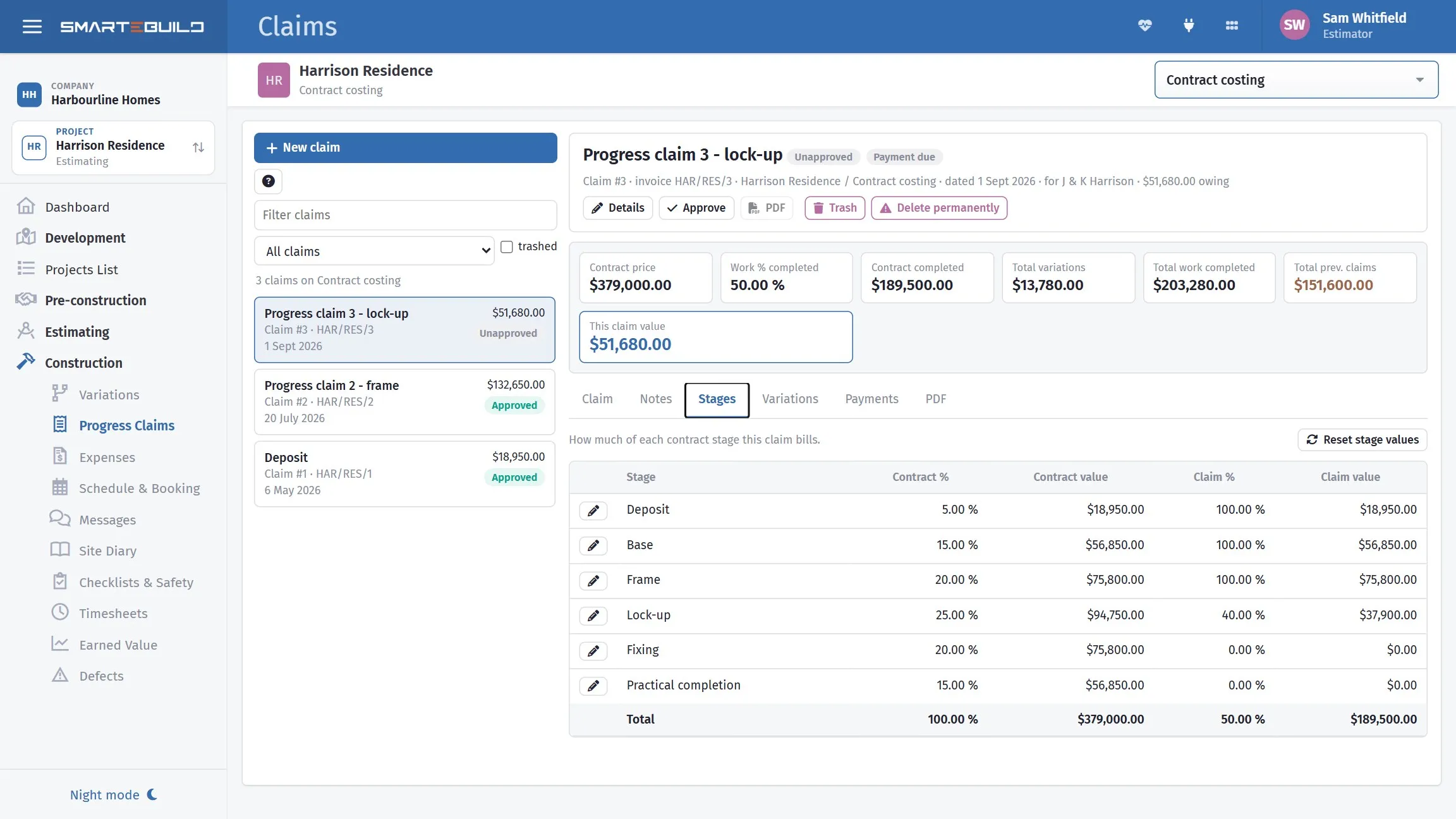
Choose New claim on the Claims screen. The claim opens with the contract stages already listed and the headline figures across the top of the pane.
If New claim is greyed out, the estimate has no contract stages yet — there is nothing to claim against until they are set up. See Contract stages.
The claim comes off the same contract figure as the estimate.
The figures across the top
Section titled “The figures across the top”Seven numbers sit above the tabs and stay in view as you work:
| Figure | What it is |
|---|---|
| Contract price | The current contract sum |
| Work % completed | The share of the whole contract this claim reaches |
| Contract completed | The value of the stages claimed |
| Total variations | The value of the variations claimed |
| Total work completed | Stages plus variations |
| Total prev. claims | The approved claims before this one |
| This claim value | What the client is being asked for |
They move as you edit the stages and variations tabs, so you can see the effect of a change without leaving the claim.
Finding a claim
Section titled “Finding a claim”The list on the left searches on claim name, claim number and invoice number, and filters to Approved or Unapproved. Trashed shows claims that have been put in the bin, which are otherwise hidden.
The fields
Section titled “The fields”| Field | What it is |
|---|---|
| Claim Name | What this claim is called — usually the stage |
| Claim number | Sequential, per job |
| Claim Date | The date of the claim, which usually starts the payment clock |
| Client | From the project |
| Contract Price | The current contract sum, including approved variations |
| Invoice number | Your invoice reference |
| Bank account | Payment details printed on the claim |
Claim date and claim number are both required, and the number must be greater than zero — it decides which earlier claims count as previous claims, so a claim without one bills the wrong amount. If another live claim on the estimate already uses that number, the claim still saves but warns you, because two claims sharing a number make “previous claims” ambiguous.
Every contract stage is copied onto the claim when it is created, carrying forward what the last claim billed, so there is nothing to add by hand. If the contract stages themselves change afterwards, Reset stage values on the Stages tab re-reads them.
Approval freezes the claim
Section titled “Approval freezes the claim”Until it is approved, a claim is live: change a contract stage, the contract price or a variation and the claim follows. Tick Approved by client and it stops — every figure on it is stored as it stands and never recalculated, however the job changes afterwards. That is what makes the claim usable as the record of what was agreed.
Unlock thaws it. The figures follow the job again until it is approved once more, so unlock only when the client has agreed to a changed claim, not to tidy up a number after the fact.
While a claim is approved, everything on it is read-only: the details, the stages, the variations and the note. Trash and Delete permanently are refused too — an approved claim counts towards every later claim’s “previous claims”, so removing one quietly increases what the next claim bills.
Previous claims are the approved ones only. A claim that was trashed, or never approved, does not reduce the next one.
Claiming a stage
Section titled “Claiming a stage”On the Stages tab, each contract stage has a Claim % — how much of that stage this claim bills, from 0 to 100. Set the stage you have reached to 100.
The edit box shows what the percentage is worth as you type, so you can see the money before you save it rather than after.
The footer totals the grid. Read Claim % there carefully: it is the share of the whole contract claimed, not the sum of the per-stage percentages — a job at deposit, base and frame reads 40%, not 240%.
Claims are cumulative against the contract: each one claims the stages reached since the last, and the running total tells you and the client how much of the contract has been claimed to date.
Worked example: the Hendricks contract
Section titled “Worked example: the Hendricks contract”Contract sum $221,380, with the standard stages:
| Stage | % | Value |
|---|---|---|
| Deposit | 5% | $11,069 |
| Base | 10% | $22,138 |
| Frame | 15% | $33,207 |
| Lock-up | 35% | $77,483 |
| Fixing | 25% | $55,345 |
| Completion | 10% | $22,138 |
The job reaches frame stage. Claim 3:
| Claim name | Frame |
| Claim number | 3 |
| This claim — frame stage, 15% | $33,207 |
| Previously claimed (deposit + base) | $33,207 |
| Total claimed to date | $66,414 |
| Contract remaining | $154,966 |
The client can see where they are against the contract, which is what stops the “how much have we paid so far?” conversation happening by email every month.
Claim numbering
Section titled “Claim numbering”Number sequentially per job, starting at 1, and never reuse a number.
If a claim is withdrawn and reissued, use the next number and reference the one it replaces. Two documents both called Claim 4 is the kind of thing that gets a whole account queried.
Note templates
Section titled “Note templates”The templates on the Notes tab are for the claim’s note — the wording that prints on the claim — not for its stages or figures. Those come from the contract.
Load puts a template’s text into the note, Save to writes the note back over the selected template, Save as new makes a new one from what is in the note, and Rename and Delete do what they say.
Templates marked (SmarteBuild) are the ones supplied with the system. They can be loaded and copied but not changed, renamed or deleted — use Save as new to make your own version.
Make default sets the template every NEW claim note starts from - that template
then shows as · default in the list, and the button becomes Clear default
when you want new claims to start blank again. It is a setting for the whole
company, and it does not touch claims that already exist. SmarteBuild’s own
templates cannot be the default; save your own copy of one first.
Worth setting up if you issue the same wording every month: standard payment terms, what the claim covers, what happens next.
Contract price must be current
Section titled “Contract price must be current”The Contract Price on the claim should include every approved variation. If it does not, every stage percentage is calculated on the wrong base and every claim from here is wrong by the same proportion.
Check it against your variations before raising a claim. See How variations affect the job.
Before you send
Section titled “Before you send”- The stage is genuinely complete.
- The contract price includes approved variations.
- The claim number follows the last one.
- Approved variations are included — see Including variations.
- The bank account details are right.
Then issue it.