
Building a price list
Available onEstimatorBuilder
New item creates an entry. Import brings many in at once from a spreadsheet.
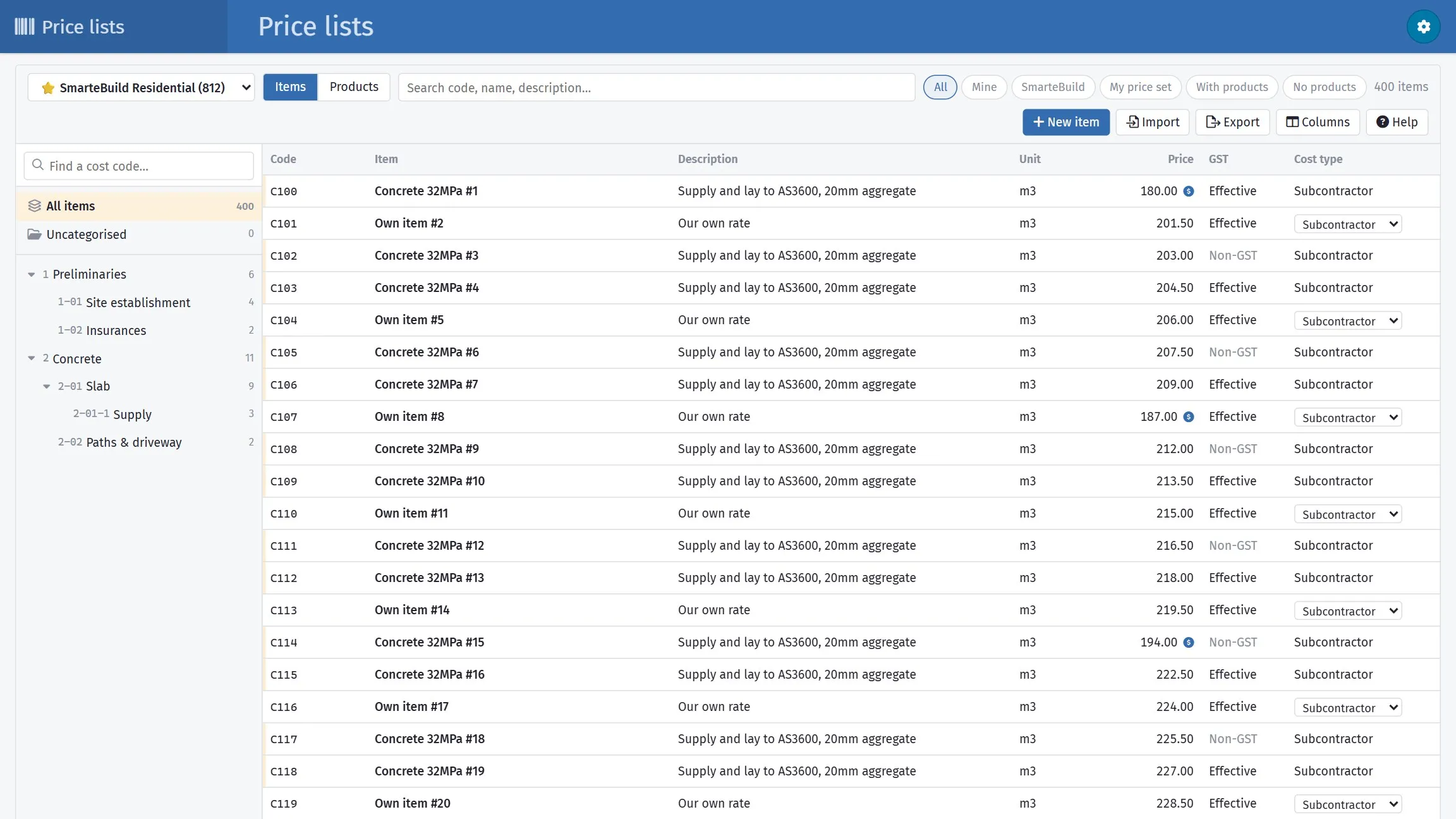
Each item carries its unit, its rate and the cost code it belongs under.
Adding an item
Section titled “Adding an item”Pick the cost code in the left pane first, then New item. The item is created into that cost code; if you have not picked one, the form asks for it. An item needs a name, a unit and a cost code — everything else can wait.
Editing
Section titled “Editing”Two ways, depending on how much you are changing.
In the grid. Double-click a cell on one of your own rows to edit it where it is — code, name, description, unit, price and GST all work this way (cost type has its own dropdown - see below). Enter saves, Escape cancels, Tab moves along the row. Prices are ex GST; if the figure you have is inc GST, type it and choose Divide by 1 + GST in the editor.
In the drawer. Click a row and use the pencil icon for the full form — factor, productivity, size, approval, note and everything above in one place. The drawer also shows the item’s price history, its products and every list it is filed in.
Select several of your own rows with Ctrl or Shift and a bar appears along the bottom: Delete, set GST, and Move to a cost code. Dragging the selected rows onto a cost code in the left pane does the same move.
Sorting the list
Section titled “Sorting the list”Click a column heading to sort by it — code, item, description, unit, price, GST, products or owner. Click again to reverse it, a third time to go back to the list’s own order. Prices sort as numbers, so $90 comes before $1,100, and Owner puts your own items before SmarteBuild’s. Your choice is remembered next time. Dragging a column’s right edge still just resizes it, and Shift selects the rows you can see between the two you clicked, whatever the order. The Products view sorts the same way.
The fields
Section titled “The fields”| Field | What it does |
|---|---|
| Code | Your item code — sorts the list |
| Item Name | Short name shown in pickers |
| Description | Full wording, used on purchase orders |
| Unit and Price | The rate and what it is per, ex GST |
| GST | Effective (GST applies) or Non-GST |
| Cost Type | What kind of cost it is — labour, material, subcontract, plant |
| Factor | A multiplier applied to the rate |
| Productivity | Output per unit of time, for labour-driven rates |
| Note | Where the rate came from, when it was checked |
Cost Type
Section titled “Cost Type”Separating labour, material, subcontract and plant is what lets you answer questions like “how much of this job is labour?” It also helps when costs move unevenly — material inflation and labour rates rarely move together.
Fill it in as you build the list. Adding it retrospectively across 800 entries is a job nobody does, which is why you can do it in bulk: select the items (click one, then Ctrl+click or Shift+click others), pick a type from Cost type… in the bar that appears, and press Set.
For one item at a time, use the Cost type column: each of your own items has a dropdown there, the same as on the Bill of Quantities, and the type saves as soon as you pick it. SmarteBuild’s shared items show their type as plain text. The column is on by default; turn it off or back on from Columns. An item with no type says Not set. Items used to be saved as Allowance when nobody chose, so an older list full of Allowance usually just means “never sorted”.
Estimates take the cost type from the price list item, so the Bill of Quantities can group and total by cost type.
Factor
Section titled “Factor”A multiplier applied to the rate.
Useful where a base rate needs consistent adjustment — a regional loading, or a supplier discount off list. Change the factor and everything using it moves, without editing individual rates.
Where a rate is simply what it is, leave the factor alone. A factor nobody remembers setting is a confusing thing to inherit.
Importing from Excel
Section titled “Importing from Excel”Switch to the list you are importing into, then Import. The dialog has three steps:
- Download the template — a spreadsheet built from this list’s cost codes and
your units. It has one sheet,
PriceList, with seven columns: Item Name, Description, Code, Unit, Price, GST and Cost Code. Fill it in, one item per row, starting at row 2. Delete thee.g.example row or leave it — the import skips it either way. - Upload your file.
- Map the columns — pick the worksheet, then confirm which of its columns holds each field. The template arrives already mapped; any other spreadsheet works too, you just point each field at the right column.
Then Import. The dialog reports how many items were created, how many rows were skipped, and why.
The Unit, GST and Cost Code columns in the template have dropdowns built from your own data, so you are picking from your real cost codes and units rather than typing them.
Only Item Name and Cost Code are required
Section titled “Only Item Name and Cost Code are required”Everything else can be left as (not mapped). An item does need a cost code, though — a row without one is skipped.
Cost codes must already exist. Unlike the BOQ import, this one will not create them: add them with Structure first. A row whose cost code is not in the selected list is skipped, and the result names the ones it could not find. The cost code can be written as its name or its code.
What the result tells you
Section titled “What the result tells you”A count of what was created, plus anything that needed attention: rows skipped for
an unrecognised cost code or a price that was not a number, and items that came
in with the default unit or as GST Effective because those cells were not
recognised. Prices written as $1,250.00 import fine.
Most builders already have rates in a spreadsheet, so this is usually how a list starts. Before importing:
- Standardise the descriptions. This is the moment to write them properly — they end up on purchase orders.
- Set the units consistently.
m2,sqmandm²become three different units otherwise. - Fill in Cost Type. Much easier in a spreadsheet than one entry at a time.
- Remove anything you have not used in two years.
- Import ten rows first and check they land correctly before running the rest.
Exporting
Section titled “Exporting”Export produces an Excel workbook of the list you are looking at, in the order the screen shows it. It has two sheets:
- PriceList — every item with its cost code, unit, price, GST and cost type, plus whether the price is one you set yourself (and the list price behind it), who owns the item, and how many products it has.
- Products — every supplier product on those items: supplier, SKU, manufacturer, price, category and whether it is superseded.
Prices are the ones that apply to you, so where you have recorded your own price on a SmarteBuild item the export shows yours. The first seven columns of the PriceList sheet are the import template’s columns in the same order, so you can edit an export and import it straight back into another list.
It is the quickest way to hand rates to someone for review, or to build one list from another.
Building it without stopping work
Section titled “Building it without stopping work”Nobody has a spare month. The way this actually gets built:
Start with your next job. As you price it, add each item to the price list rather than typing it into the estimate. The job takes slightly longer; the list starts existing.
Do the same on the next two jobs. By the third, most of what you price regularly is in there, and jobs are getting faster rather than slower.
Then fill the gaps — the trades you have not happened to price yet.
Three jobs, and you have a working list that was built from real work rather than from a blank sheet.
What not to put in
Section titled “What not to put in”Rates you will never reuse. A one-off allowance for something unique to one job belongs on that estimate, typed, not in the list.
A price list of 2,000 entries where 300 are used is harder to work with than a list of 300. Keep it to what recurs.
Record where a rate came from and when it was checked:
From Barwon Concrete schedule, Feb 2026. Includes pump for pours over 15m³.
Six months later that answers whether the rate is current and what it covers. See Keeping rates current.