
Calendar and delays
Available onBuilder
The Calendar shows a week at a time, and every task running in it. Unlike the other Schedule views it is not limited to the job you have open: by default it shows every job you have access to, side by side — and it tells you what needs doing before you have to go looking.
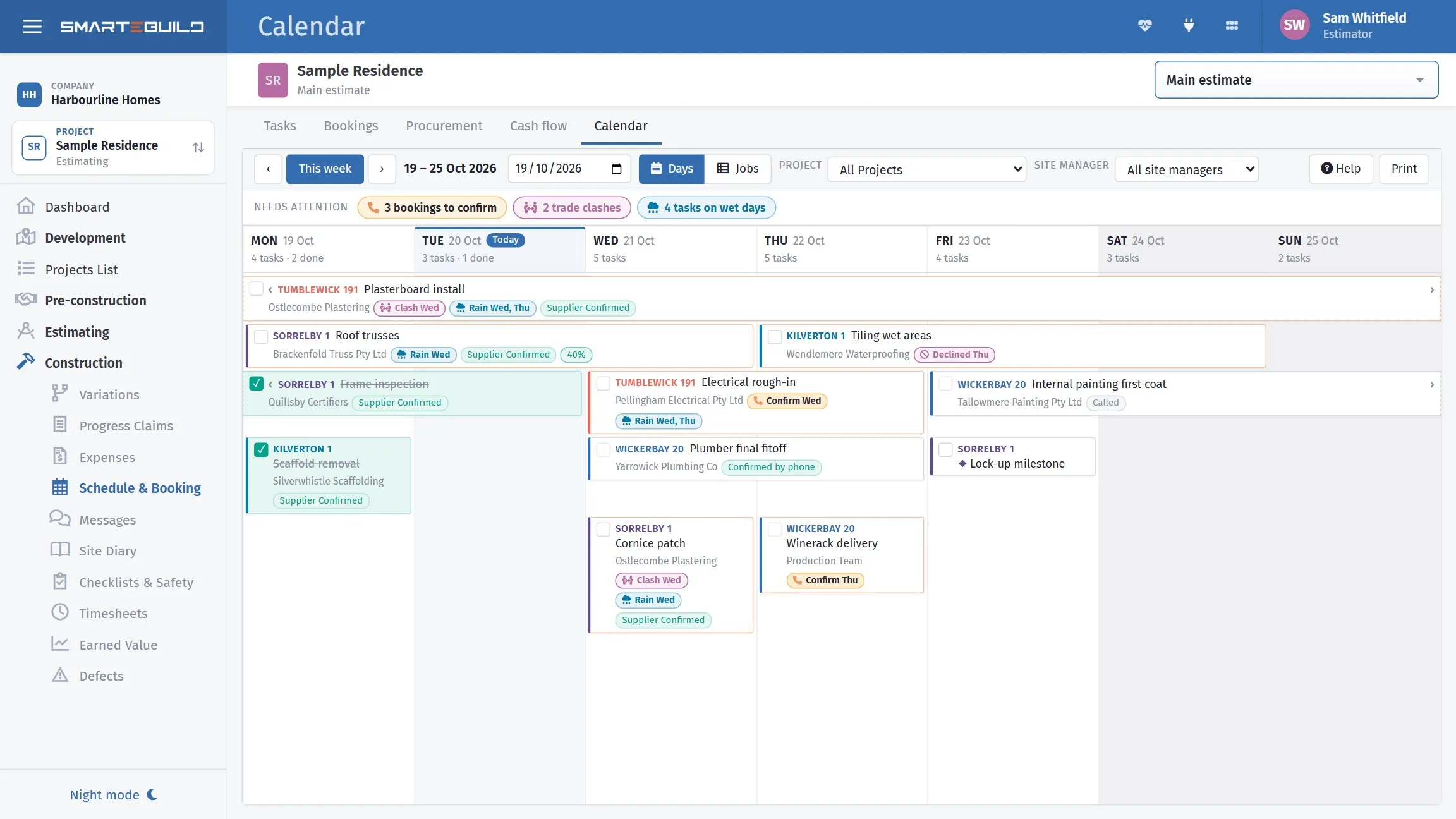
What is booked on which day, and where the clashes are.
What it is for
Section titled “What it is for”Answering “what is happening this week?” — across the whole business, not one job at a time. It is the view to have open on a Monday morning and the one to look at before promising anyone anything.
What it catches for you:
- A trade due in the next few days who has not confirmed — or has said no
- The same trade booked on two jobs on the same day
- Work booked on a day rain is forecast at that site
- Work that should have finished and has not, flagged in pink
And what you will see at a glance: two trades booked into the same space, or a day with nobody on site — usually a gap nobody planned.
Two layouts
Section titled “Two layouts”Switch between them with Days and Jobs at the top. The one you pick is remembered.
| Layout | How it reads | Best for |
|---|---|---|
| Days | A column for each day, with every job’s work in it | “What is on site on Tuesday?” |
| Jobs | A row for each job, a column for each day | “What is happening on Bleasby this week?” — and running several jobs at once |
In Jobs, each row also shows that site’s weather for the next week, right above the work it affects, along with the job’s site manager and suburb.
Needs attention
Section titled “Needs attention”The line under the toolbar counts what needs doing, and only appears when there is something to say:
| Warning | What it means |
|---|---|
| Bookings to confirm | A trade due to start in the next three working days has not said yes. Called and Emailed do not count — those are what you did, not what they agreed to. A booking the trade has declined is here too, in pink. |
| Trade clashes | The same supplier is booked on two different jobs on the same day. It says “check”, not “wrong” — a bigger trade may run two crews. |
| Tasks on wet days | Work is booked on a day the site’s forecast says a 50% chance of rain or 5 mm. The schedule does not record which tasks are outdoor work, so a pour and a paint job are flagged alike — the judgement is yours. |
Click a count to see the list, and click a line to open that task. The same warning also shows on the task itself, naming the day — Confirm Fri, Clash Fri, Rain Fri, Sat — so you know which day of a longer job it is about.
Weather
Section titled “Weather”The forecast is the same one shown on the job’s Tasks and Bookings pages: seven or eight days ahead, for the site’s postcode. A wet day is shaded yellow.
- In Jobs, every row has its own site’s weather.
- In Days, the forecast sits in the day headings when one project is selected. With jobs in different suburbs there is no single “Tuesday’s weather”, so the headings leave it off and each task carries its own Rain warning instead.
- A job with no weather has no suburb and postcode set — add them under Edit Project.
Moving around
Section titled “Moving around”- ‹ and › step back and forward a week.
- This week jumps back to today. Today’s column is marked and highlighted.
- The date box jumps to whatever week contains the date you pick.
Weeks run Monday to Sunday. Weekends and company shutdown days are shaded, and a shutdown shows its name in the column heading.
On a phone
Section titled “On a phone”On a phone the calendar shows one day at a time — seven columns do not fit a phone screen. Use ‹ and › to move a day at a time, and Back to today to return. The day’s work is grouped by job, and each job’s heading shows that site’s weather for the day. The same warnings and ticks work as on a computer, with larger tick boxes for fingers.
Filtering
Section titled “Filtering”Two filters, both remembered between visits. By default neither is applied — the calendar opens showing everything you have access to.
| Filter | What it does |
|---|---|
| Project | Selected Project (whichever is chosen in the left-hand menu) or All Projects |
| Site manager | Everything one person is running, across every project |
Project is a two-way switch, not a second project list — which project “Selected Project” means comes from the project menu on the left, the same one every other page uses. With no project selected there, it stays on All Projects.
Site manager is the one worth knowing about. It is set per job, in Project Details → Supervisor, and filtering by it gives a supervisor their own week across every job they are running rather than one job at a time. The number beside each name is how many jobs they are on.
There is deliberately no filter for job status, completion or archived jobs. The calendar shows every job you can see, whatever stage it is at — a job at Sales Estimate is still work in the diary, and completed tasks are the point of ticking them off, not something to hide.
Reading a task
Section titled “Reading a task”Each task is one bar across the days it runs — a three-day job is one bar three days long, not three separate cards. A ‹ or › at the end of a bar means it carries on before or after this week. On a phone, where there is no bar across the week, the task says where the day falls instead — Starts, Day 3 of 8, Finishes.
The coloured edge on the left is the project. The same job is the same colour every week, so you can pick one job out of a busy screen at a glance.
Bars also carry the supplier, the call-up status (Emailed, Supplier Confirmed), progress if it has started, any warnings, and an Overdue flag if it should have finished and has not. A diamond ◆ means a milestone.
Click a task for the full detail — job number, site manager, booked versus planned dates, duration, supplier, call-up status, and any warnings spelled out in full. It links straight to that job’s schedule, or to its Bookings page when a trade still needs confirming.
Ticking work off
Section titled “Ticking work off”The box on the left of each task marks it complete. Completed tasks turn teal, get a tick and are struck through, the day’s count updates, and any warnings on the task clear.
This is the one thing the calendar changes. It sets the task to 100% and records today as the finish date if none was recorded — nothing else moves, and no other task’s dates change. Ticked the wrong one? Undo on that job’s Schedule takes it back — see Undo.
Printing
Section titled “Printing”Print produces the week as a page — filters, chrome and toolbars stripped, seven columns landscape. Useful for the site office wall or a subcontractor meeting.
What it is not for
Section titled “What it is not for”Planning. Move a task in the calendar and nothing downstream follows, because the calendar shows dates rather than dependencies.
Plan in the Schedule, where a change flows through everything that depends on it. Use the calendar to read the result.
Delays
Section titled “Delays”Delay Type records why a task was held up, and the delay carries how long it lasted and what it affected — “affecting this task”, “and next”, “for the last”.
Record delays as they happen, with the cause. Weather, access, a trade not turning up, waiting on an inspection, waiting on the client to decide.
The job delay register
Section titled “The job delay register”Job delay register (PDF) - from the Delay Report window, or the button in the delays pop-up - prints every delay on this job: the days each one cost, and whether its notice was given or is overdue. It is the one page to hand a superintendent or put in front of a claim.
It is not the Delay register (PDF) on the Reports menu, which covers a range of dates or every job at once.
Extension of time notices
Section titled “Extension of time notices”Each delay, in the delay window opened from the Delay column on the Schedule, has two dates of its own:
| Date | What it is |
|---|---|
| Delay started | The day the hold-up began |
| Became aware | The day you learned of the cause. The notice period counts from here |
Beside each delay is where its extension of time (EOT) notice is up to:
| It says | Meaning |
|---|---|
| notice due 29 Sept | Nothing written yet; this is the deadline |
| Draft - notice due 29 Sept | Written but not given to the client |
| Orange | Two days or less to go |
| Notice overdue | The deadline has passed |
| Notice emailed 30 Sept / Notice given 30 Sept | Done, and when |
EOT notice opens the notice writer. It shows the deadline: five business days (Monday to Friday, less company holidays) after Became aware, which is the period in the HIA residential contract. Check the period and the wording against your own contract — HIA, MBA or another — because that is what counts.
Fill in the client’s name and email (the email comes from the project’s default client), the days claimed (the delay’s days to start with) and, if you like, the contract clause, such as 19.
The notice is drafted for you from the delay — cause, category, task, the two dates, days claimed and your note — plus Conditions on site over those days: the weather for each day, past days included, where your server has weather set up, and what the site diary recorded. Every word can be changed. Fill in again redrafts it from the record.
Then:
- Save draft — keep it and come back.
- Print… — for a copy on paper.
- PDF — the notice as a PDF. It is headed Extension of time claim, or Notice of delay when no days are claimed, and shows Emailed to … on … once it has gone, or DRAFT - not sent before then.
- Save to Documents — files that PDF in the job’s Documents, in the Delay notices folder. It needs the same permission as recording a delay.
- Mark as given — you handed it over or posted it; today’s date is recorded.
- Email to client — sent from the company’s orders mailbox, with you copied in, and replies come to you.
When the notice is emailed, its PDF goes with the email automatically, so the client has the formal document as well as the message.
Once emailed or given, the notice is locked, so it stays the record of exactly what the client received.
Why the delay record matters
Section titled “Why the delay record matters”Three reasons, in increasing order of money.
It explains the programme. A job four weeks late with eleven recorded wet days is a different conversation from a job four weeks late for no recorded reason.
It supports extensions of time. Most building contracts allow an extension for delays outside your control — weather, client decisions, latent conditions. Almost all of them require you to notify within a set period. A contemporaneous record is what makes the claim work, and the notice writer turns it into the notice and tells you when it is due.
It supports variation claims. A delay caused by a client’s late decision or a design change is often a compensable delay, and the record is the evidence.
Client-caused delays
Section titled “Client-caused delays”The most valuable ones to record, and the ones most often left out because it feels awkward.
If a client takes three weeks to choose tiles and the tiler is standing by, that is a delay caused by the client. Record it at the time, and tell them at the time — politely, as information rather than a complaint.
A client who is told “we are holding the tiler, and each week costs us programme” usually decides faster. One who is told nothing is genuinely surprised when the finish date has moved.
Telling them is also the formal step. Set Became aware to the day you knew they were holding things up, and send the extension of time notice before it falls due.
Working days
Section titled “Working days”The schedule works in working days, so weekends and non-working days are not counted as duration. A five-day task starting Thursday finishes the following Wednesday — and in the calendar it appears on all five working days plus the weekend it spans.
Which days count is set per job, under Calendar on the Schedule’s top toolbar. The same menu holds This job’s holidays and Company holidays.
Working week & start date has two parts:
- The days the site works. Tick them — add Saturday for a job with a Saturday crew, say — or tick Use the company’s working week.
- The job start date. Tasks with nothing before them start here. Left blank, they start today.
Save and recalculate moves every date to match. The chart then shades this job’s non-working days and the company holidays, so what you see is what the schedule is counting.
Where you know about a shutdown well ahead — the Christmas break in particular — account for it rather than letting the schedule run through it. A residential job crossing the summer shutdown without allowance for it is optimistic by two or three weeks before anything has gone wrong.
A weekly routine
Section titled “A weekly routine”- Open the calendar on Monday, filtered to your site manager, in the Jobs layout.
- Work through Needs attention: ring anyone not yet confirmed, sort out any clash.
- Check the week: any empty days, anything pink, anything outdoor on a wet day.
- Confirm the big ones — pours, cranes, coinciding trades.
- Tick off what finished last week; record last week’s delays, with causes.
- Move anything that slipped in the Schedule, not here.