
What a price list is for
Available onEstimatorBuilder
A price list is your rates — a structured set of descriptions, units and prices that BOQ items are built from.
It is the single highest-leverage thing to set up properly in SmarteBuild.
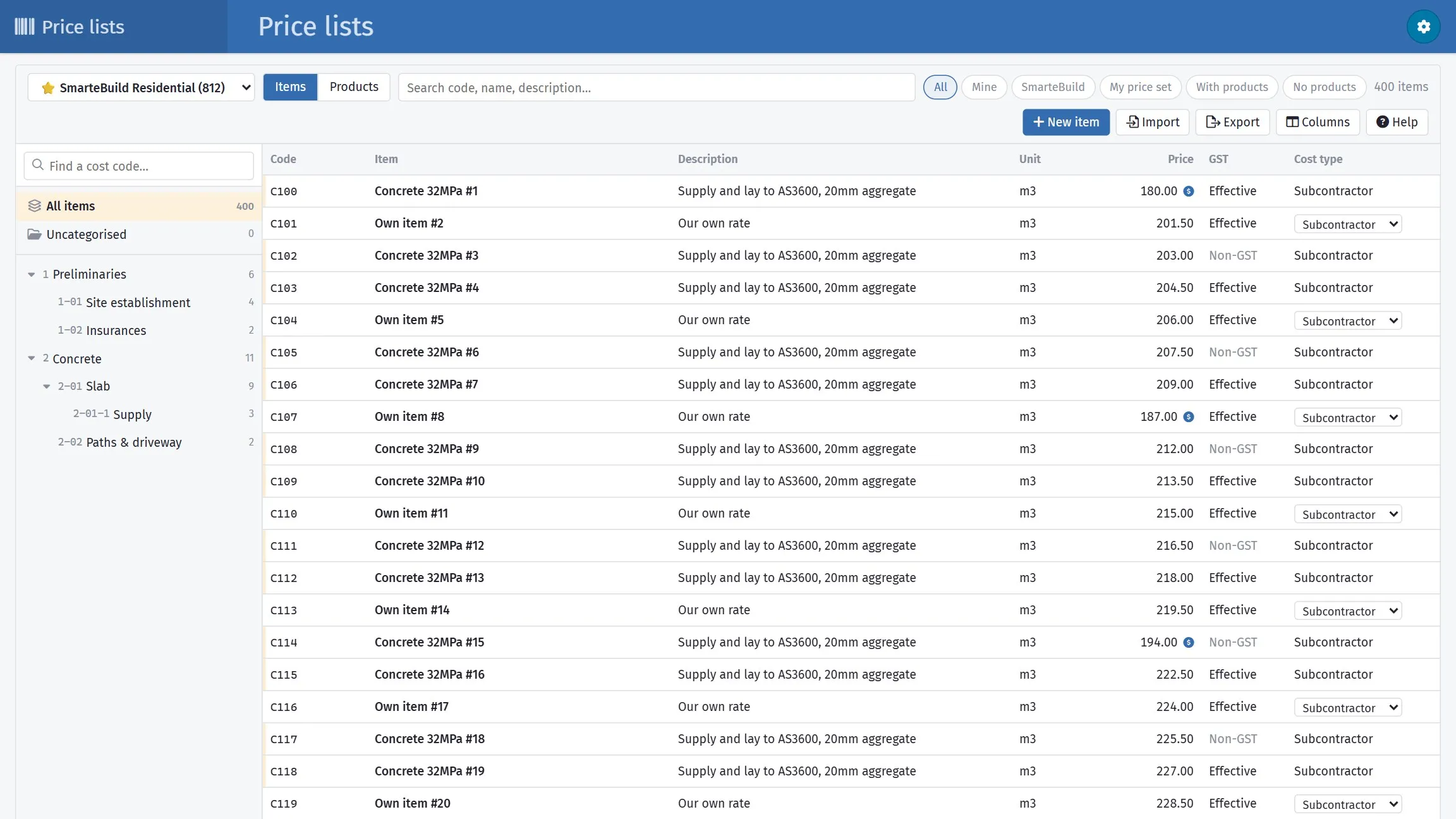
Your rates in one place, feeding every estimate you write.
Three reasons, in increasing order of value.
Speed. An estimate built by importing from a price list takes a fraction of the time of one built line by line.
Consistency. The same work is worded and priced the same way on every job, so two jobs can be compared and a client cannot find two different prices for the same thing.
Updateability. Items imported from a price list keep a Link to Pricelist, so rates can be refreshed in bulk when prices move. An item typed by hand is invisible to every refresh, forever.
That third point is the one people underestimate. When concrete goes up 8%, a maintained price list means updating one rate. Without it, it means finding every concrete item on every live estimate.
The Price lists page
Section titled “The Price lists page”Open it from the pink Price List tile on any page. Everything to do with price lists — every list, its cost codes, its items and their supplier products — is on this one page.
| Part of the page | What it does |
|---|---|
| Price list selector | Switches between your lists. A ⭐ marks a list supplied with SmarteBuild. The page remembers the one you used last. |
| Items / Products | Two views of the same list: the items themselves, or every supplier product linked to them. |
| Search | Matches code, name and description (or SKU, product and supplier in the Products view) as you type. |
| Filter chips | All, Mine, SmarteBuild, My price set, With products, No products. |
| Left pane | The list’s cost codes, with item counts. Pick one to see its items and everything beneath it. The box above the tree finds a cost code by code or name — Enter picks the first match. The tree stays put when you switch views, so Products shows the products under the same cost code. |
| The grid | Sortable, resizable columns; Columns chooses which ones you see, per user. |
| The drawer | Click a row and its details slide in from the right, in tabs: Details, Prices (your own price and its history) and, for an item, Products. Drag its left edge to make it wider; the width is remembered. |
Double-click a cell on one of your own items to edit it in place. Select several rows with Ctrl or Shift to act on them together, or drag them onto a cost code in the left pane to move them.
What an entry carries
Section titled “What an entry carries”| Field | What it is |
|---|---|
| Code | Your item code |
| Item Name | Short name |
| Description | The full wording used on orders |
| Unit and Price | What the rate is per |
| GST | Effective or Non-GST |
| Cost code | Where it sits in the list’s structure |
| Cost Type | What kind of cost it is |
| Factor | A multiplier applied to the rate |
| Note | Anything about the rate worth recording |
Descriptions do double duty
Section titled “Descriptions do double duty”A price list description ends up on purchase orders, so it has to be precise enough for a subcontractor to work from.
| Weak | Better |
|---|---|
Concrete |
N32 concrete, 80mm slump, supply and place to slab |
Mesh |
SL72 mesh, 40mm cover, laps 300mm min |
Paint |
Two coats low-sheen acrylic to internal walls, over sealer |
Write it once, properly, and every order you ever raise from it is unambiguous.
Lists supplied with SmarteBuild
Section titled “Lists supplied with SmarteBuild”Some lists, items and products come with SmarteBuild rather than being created by you. You can see them, filter to them with the SmarteBuild chip, import from them into a BOQ and record your own price against them — but you cannot edit or delete them, and the editing controls are hidden on them.
To make your own version of a shared item, create one in one of your own lists.
Where it is used
Section titled “Where it is used”- Creating an estimate picks a default price list
- Import from Price Lists in the BOQ brings items in
- Renew prices refreshes linked items when rates change
See Adding items and Prices, markups and GST.
More than one list
Section titled “More than one list”Keep separate lists where the rates genuinely differ — renovation versus new build, or different regions.
Do not split by trade. That is what cost codes are for, and several lists covering one job means importing from all of them.