
Voiding, trashing and deleting
Available onBuilder
Work gets cancelled, scopes change, and orders get raised by mistake. Those are two different problems, and SmarteBuild now treats them as two different actions.
Void cancels an order the supplier already has. Trash clears away one that never went anywhere.
Which one you want
Section titled “Which one you want”The question to ask is has anybody outside the office seen this order?
| Void | Trash | |
|---|---|---|
| For | An order already sent | A mistake, a duplicate, an abandoned draft |
| The order stays in the list | Yes, marked Voided | No — it moves to the bin |
| Committed cost released | Yes | Yes |
| The supplier can be told | Yes | Yes |
| Undo | Un-void | Restore |
Both offer to email the supplier, and both are reversible. Neither destroys anything.
Voiding
Section titled “Voiding”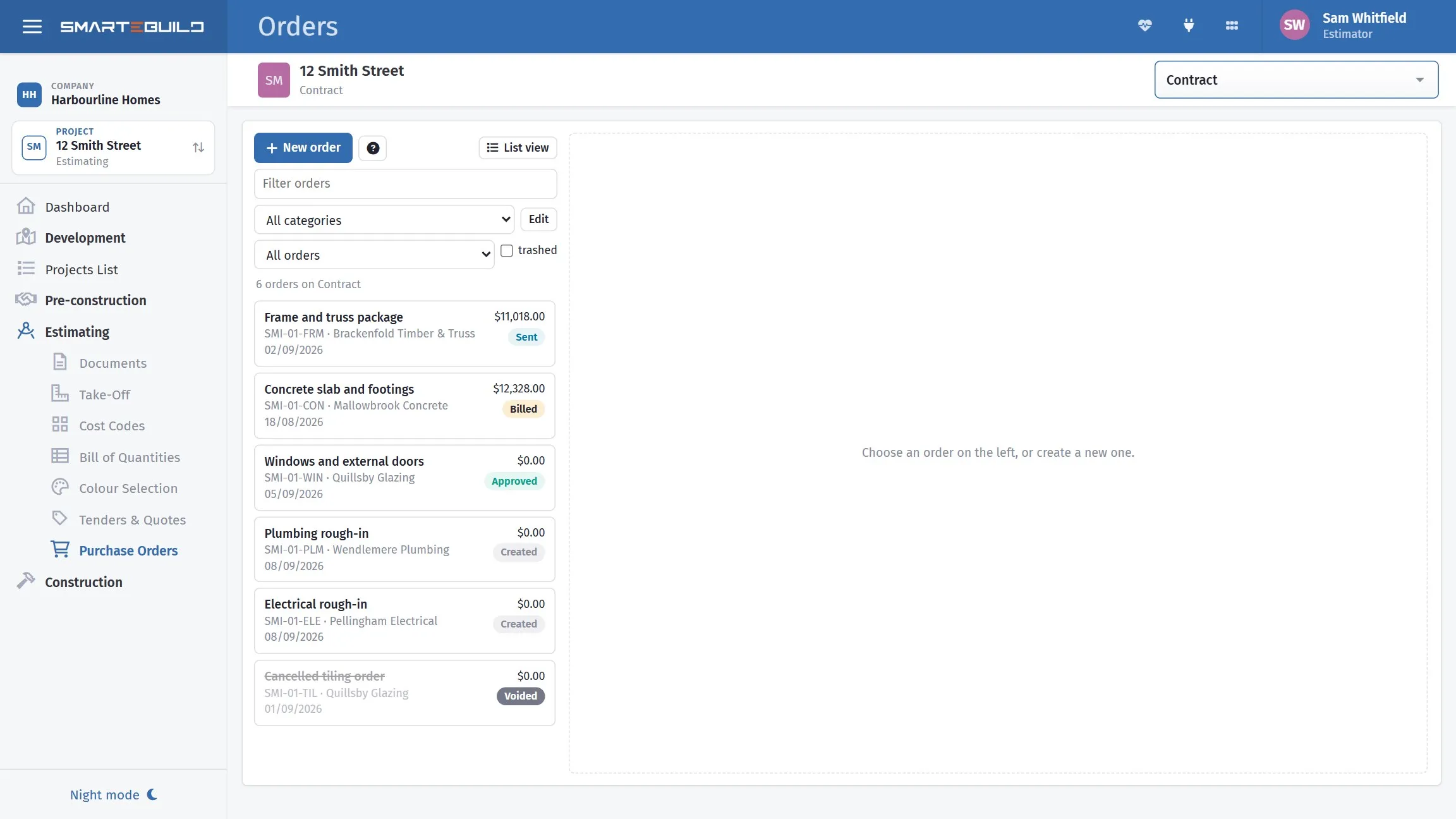
A voided order stays in the list, struck through and badged. The tiling order at the foot had been approved and sent before it was cancelled, and its badge still reads Voided rather than Sent — which is what outranking the workflow status means in practice.
Void on the order’s toolbar. You are asked for:
- A reason — why it is being cancelled.
- Whether to notify the supplier.
The order stays in the list carrying a Voided badge, which outranks its workflow status: a cancelled order does not go on reading as Sent.
Write the reason for someone reading it in a year, not for yourself today. “Scope moved to Order 2026-041-14 after client changed the roof” is useful. “Not needed” is not.
Notifying the supplier
Section titled “Notifying the supplier”Do notify, for anything already sent. A supplier who is not told is entitled to deliver against the order they hold, and the argument about who pays for the concrete on the truck is one you will lose more often than you win.
The offer only appears when there is somebody worth telling — the order actually reached them, and their contact has an email address. You will not be asked about a draft that never went out.
The only time to skip notification is when you have already spoken to them and the void is a formality catching the system up with a conversation.
Un-voiding
Section titled “Un-voiding”Un-void reverses it, and the committed cost comes back with it.
Trashing
Section titled “Trashing”Trash moves the order to the bin. Use it for an order raised against the wrong estimate, a duplicate, or a draft for work that never started.
It is reversible — Restore brings it back exactly as it was.
Finding a trashed order
Section titled “Finding a trashed order”Trashed orders are hidden from the list. Tick trashed beside the status filter to show them, and an order in the bin is labelled as such when you open it.
That tick is the answer to “where has that order gone?”, which is otherwise a genuinely puzzling few minutes.
Trashing also offers the supplier notice, on the same rule as voiding: only when the order actually reached someone. In practice you will rarely see it here, because an order worth trashing is usually one nobody outside the office saw.
Deleting permanently
Section titled “Deleting permanently”Delete permanently appears only on an order already in the bin. It is the one action on this page that cannot be undone.
Two things stop it:
- The order must be in the trash first. There is no single step from a live order to gone.
- An order with invoices against it cannot be deleted at all. The refusal is deliberate — deleting it would leave expenses pointing at an order that no longer exists, and nothing would reconcile.
What happens to the committed cost
Section titled “What happens to the committed cost”Voiding and trashing both release the committed cost back. The items return to being
allowed-but-not-committed, and the % Cost on those items drops accordingly.
That is what makes both safe from a cost-tracking point of view: your committed total goes back to reflecting reality, and the cancelled order does not sit there inflating it.
If an invoice already exists
Section titled “If an invoice already exists”An order that has been invoiced against is a different problem. Voiding it leaves an expense pointing at a cancelled order, which will not reconcile — and permanent deletion is refused outright.
Deal with the invoice first — credit it, or have the supplier reissue — and then void the order. If part of the work was done and invoiced legitimately, the cleaner approach is usually to revise the order down to what was actually supplied rather than voiding it at all.
Worked example
Section titled “Worked example”The Hendricks client changes from a tiled roof to colorbond after the tile order has gone out.
- Open the tile order.
- Void, reason: “Client changed roof to colorbond, 28/09. Replaced by order 2026-041-19.”
- Notify the supplier — ticked.
- Raise the new order against the colorbond items.
- Raise a variation for the cost difference to the client.
Step five is the one people forget. Voiding an order fixes your committed cost; it does not tell the client the job has changed price.