
Recording an invoice
Available onBuilder
Three ways in: New expense on the expenses list (it starts from the supplier’s document), New invoice on the Expenses screen, or Generate Invoice from a purchase order.
Record it against the order and the loop closes itself.
Starting from the document
Section titled “Starting from the document”New expense on the expenses list takes the supplier’s invoice first — drop the PDF or a photo of it, then fill in the details.
The document is attached the moment you drop it, before you type anything. That is the whole point of starting this way: every other route attaches the file as a separate step afterwards, which is the step that gets skipped, and the attachment is the one thing you cannot reconstruct later.
Choose the job in the page header first — a document has to belong to one.
You can capture a supplier credit note the same way — change Type in the form.
What it reads
Section titled “What it reads”The supplier’s reference, the date, the due date and the totals come off the document. So does the supplier — matched by ABN where you have one recorded, and otherwise by name, so “Porter Consulting Pty Ltd” on the letterhead finds “Porter Consulting” in your list.
The description is read from the lines, not the file name: a “Re:” or “Job:” line if the supplier prints one, otherwise the first charge under its section heading and a count of the rest — “Building Certification: Issue Building Approval for dwelling & pool (+7 more)”. Reword it if you like; it is a starting point.
The lines
Section titled “The lines”If the invoice quotes one of your purchase order numbers, SmarteBuild finds it, links the order, and creates the lines already coded to the same cost codes — using the invoice’s amounts, not the order’s. That matters on a progress claim, where the invoice is deliberately a fraction of the order.
If it does not quote one, the lines still come off the document with the right amounts, and you set the cost code on each one in the form before it imports — or pick a single cost code for the whole invoice.
Either way the lines are shown before you save so you can check the shape.
Where the individual lines cannot be read confidently, it falls back to a single line for the invoice total rather than guessing at the breakdown. One line with the right money is easier to split than several with the wrong money.
The purchase order
Section titled “The purchase order”Every new expense offers the purchase order it is for - whichever way you start it: from the supplier’s document, typed in, or as a credit note. It starts as No purchase order, because plenty of invoices have none - leave it, or choose the order.
When you start from the document, SmarteBuild looks for the order number printed on it - next to “PO”, “Order No”, “Purchase Order”, “Your Ref” or “Customer Order”, or anywhere on the page - and suggests the matching order, with a line saying where it found it. It copes with the number being retyped with spaces or without its dashes, and with or without “PO” in front. If the number fits more than one order on this job, all of them are listed first for you to choose; if it is an order on a different job, it is not chosen and you are warned instead. Choosing an order fills in the supplier when none was found.
Copy the order’s items?
Section titled “Copy the order’s items?”Once an order is chosen on an invoice, SmarteBuild asks whether to copy the order’s items onto it:
- Yes - the order’s lines, at the order’s quantities and prices, with their cost codes. Check each against what was actually delivered.
- No - keep the lines read from the document (or, when typing it in, add the lines yourself).
A credit note is asked for its order, but its lines are not copied - they are typed as credits.
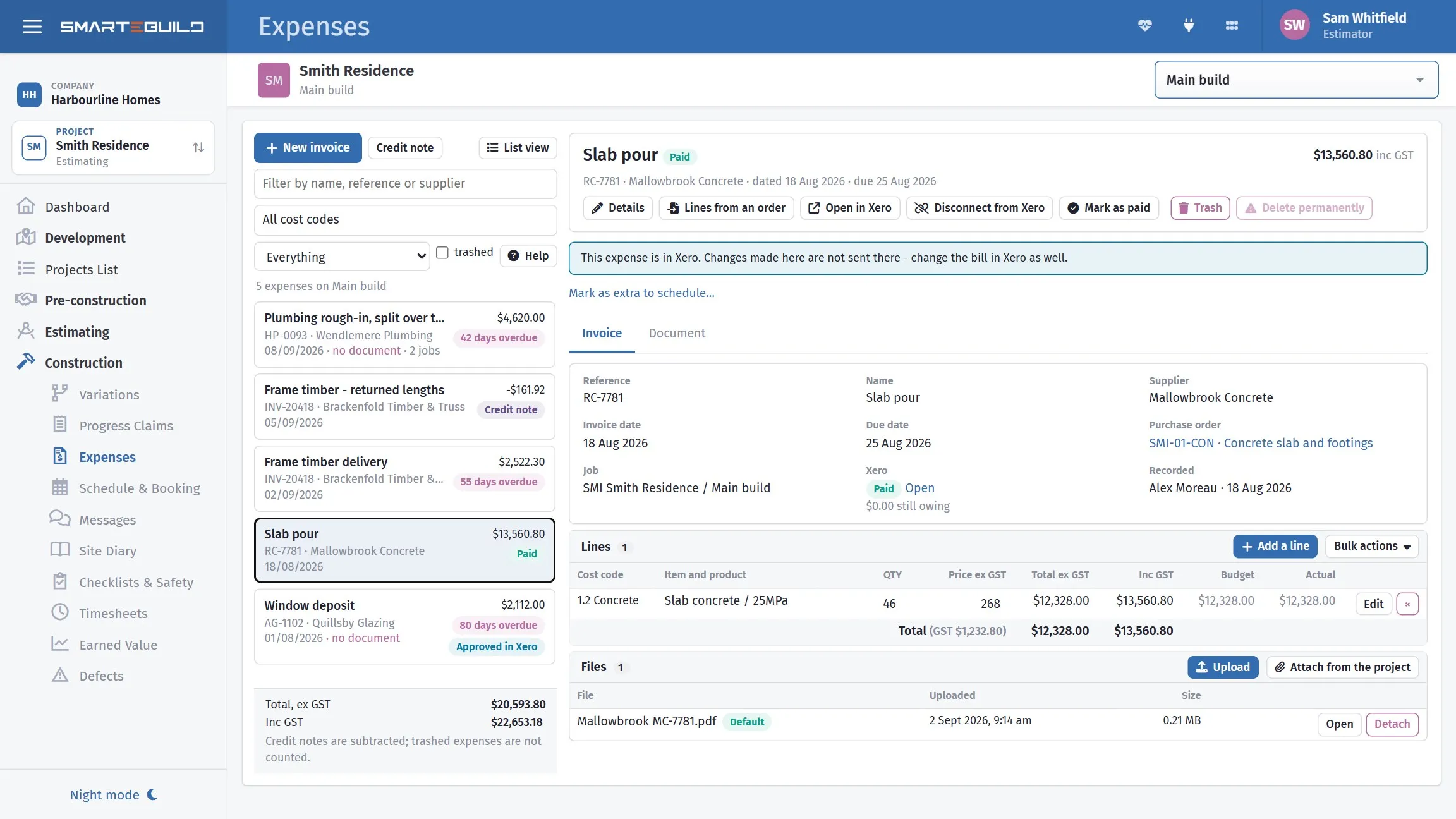
The Expenses screen
Section titled “The Expenses screen”It works like the Orders screen. On the left, every expense on the estimate you are in, newest first, with its total including GST and marks for what needs attention: overdue, no document, reference used twice, credit note, and where it stands in Xero (In Xero, Paid). Filter by name, reference or supplier, by cost code, or to just the credit notes or just the ones not in Xero yet. The total at the bottom subtracts credit notes and leaves out anything in the trash.
Click an expense to open it on the right, on two tabs:
| Tab | What it shows |
|---|---|
| Invoice | Everything on one page: the reference, name, supplier, dates, purchase order, job, where it stands in Xero and who recorded it; the Lines - what was bought and which job and cost code each part is charged to, with the totals; and the Files attached to it |
| Document | The supplier’s invoice itself, beside the figures you typed from it |
The buttons above the tabs change the details, take the lines from an order, send it to Xero, and move it to the trash.
The fields
Section titled “The fields”| Field | What it is |
|---|---|
| Reference | The supplier’s invoice number, exactly as printed |
| Name | A few words saying what it is for |
| Invoice date | The date on the supplier’s invoice |
| Due date | When payment falls due — a week after the invoice date unless you change it |
| Supplier | Who sent it; choose the supplier list first, then search it |
| Related purchase order | The order it bills, if there is one |
| Note | Anything worth knowing later (on Details, once it exists) |
Each line has its own:
| Field | What it is |
|---|---|
| Job | The estimate this part of the invoice is charged to |
| Cost code | Where on that job it lands — a real cost code, not a heading |
| Item / Product | The estimate item it pays for, or a one-off description |
| Quantity / Price | As charged by the supplier, price excluding GST |
| Includes GST | Tick it to type the price including GST; it is saved without it |
Quantity and price take a sum as well as a figure — type =12*2.4 and the result is
saved.
Use the supplier’s numbers exactly
Section titled “Use the supplier’s numbers exactly”Reference and Invoice date should be exactly what is on the supplier’s document, not your own reference or the date you entered it.
When you query an invoice, or when your bookkeeper reconciles a supplier statement, the supplier’s number is the only thing both sides share. A creative internal reference means every query starts with working out which invoice you mean.
The reference is checked against your other expenses as you type. Two suppliers can both number an invoice 1001, so a match is allowed — but you are asked before it is saved, because the usual reason is the same invoice being entered twice.
Attach the document
Section titled “Attach the document”In the Files section of the Invoice tab, Upload attaches the supplier’s invoice PDF or a photo of it. Attach from the project links a document that is already in the project instead.
Do it every time. The attached document is what settles the question when a supplier statement shows an invoice you have no record of, or when the same invoice arrives twice a month apart — which happens more often than you would expect.
The default document is the one the Document tab opens and the one sent to Xero with the bill. The first one you attach becomes the default; Make default changes it.
The fastest way in
Section titled “The fastest way in”Generate Invoice from the purchase order. The supplier, the items, the quantities and the values all come from the order, so entering the expense is a matter of adding the invoice number and date and correcting anything the supplier charged differently.
It also guarantees the expense is matched to the order, which is where the useful number comes from. See Matching to an order.
Already recorded the invoice? Lines from an order on the Expenses screen does the same for an existing one. It replaces every line with the order’s, and asks first if there are lines to lose.
Invoices with no order
Section titled “Invoices with no order”Some legitimately have none — a small account purchase, a fee, something bought on the spot.
Record these against the estimate and code them to the right cost code, so the cost lands in the right trade even though there is nothing to match against. Tick a one-off line when there is no estimate item to pick.
If you find yourself doing this often for the same kind of purchase, that is usually a sign the order should have been raised. Recurring unordered spend is exactly what the committed figure exists to catch.
Invoices spanning several jobs
Section titled “Invoices spanning several jobs”A supplier delivering to three sites on one invoice is recorded once. Give each portion its own line, and choose that portion’s Job on the line. Each job’s budget then carries only its share, and the invoice itself — reference, total, document — stays in one place, matching what the supplier sent.
When an invoice’s lines are on more than one job, the Lines section adds a Job column, so it is clear which part went where. Opening the job picker on a line shows the job it is already on; start typing to search for another.
Credit notes
Section titled “Credit notes”Credit note on the list records a supplier credit. Type its lines as positive amounts — they are saved as credits and reduce the job’s cost, and its totals show negative. Link it to the invoice it credits, if there is one, so the list can show which one it reduces.
A credit note cannot take its lines from an order or from the estimate: those are things delivered, and a credit is things taken back.
Due dates
Section titled “Due dates”Due date drives what is coming up for payment. Filling it in is what makes the expenses list useful as a payables view rather than just a record of what has arrived — an expense past its due date and not marked paid is marked overdue.
Marking it paid
Section titled “Marking it paid”Mark as paid records that you have paid this one. It asks when — it offers today, and you can type another date, because entering last month’s payments is normal. The expense then shows Paid with that date instead of an overdue count, on the expense and in the list, and undo beside it puts it back.
It is only SmarteBuild’s record: nothing is sent to your bank or to Xero. Builders who use Xero get paid status from the Xero sync instead and rarely need this. Builders who do not use Xero need it, or every invoice they enter counts up as overdue for ever.
To catch up on a pile of them, use the expenses list: tick the rows and Mark as paid does the lot with one date.
Over the purchase order
Section titled “Over the purchase order”When an invoice comes to more than its purchase order, a pink box at the top of the expense says by how much. That is Extra to Schedule: press Say why it went over, choose a reason, and someone with the Approve ETS permission approves it. Until then it cannot be marked paid or sent to Xero. Every one is kept for the ETS report. See Extra to Schedule.
Xero sends the expense to Xero as a draft bill (a credit note goes as a supplier credit), with its default document attached, and opens it in Xero once it has gone. The dialog lists the job, the cost codes and the supplier, and whether each is mapped to Xero — anything not mapped has a Map button that opens the Xero settings, and the export waits until everything is.
If the bill goes but its document does not attach, you are told so. Do not export again — the bill is already in Xero; attach the document there.
Once exported, the expense says so at the top. Changes made in SmarteBuild after that are not sent to Xero — change the bill there too. Disconnect from Xero forgets the link so it can be exported again; it does not delete anything in Xero, so void the old bill there first or you will have two.
To send several at once, use the expenses list instead — tick them and export the batch.
The point of exporting rather than re-keying is that the invoice reference and amount agree in both systems by construction. Where they are entered twice, they disagree eventually — and because they came from one entry, SmarteBuild can compare its total against Xero’s afterwards and tell you when they have drifted apart.
If your company uses QuickBooks, the same button says QuickBooks. The expense goes across as a bill (a credit note as a supplier credit), and it is live in QuickBooks straight away, because QuickBooks has no drafts. See QuickBooks.
Trash, and deleting for good
Section titled “Trash, and deleting for good”Trash takes an expense off the job’s cost without losing it — tick trashed in the list to see it again, and Restore puts it back. A trashed expense cannot be changed. Use this one if there is any chance you want it back.
Delete permanently removes the expense and its lines outright, whether or not it has been trashed first. Its cost comes off the job and there is no undo, so it asks you to confirm and shows the reference and the amount before it does anything. The documents stay in the project — deleting the expense does not delete the supplier’s invoice you attached to it.
One expense cannot be deleted: one that has been exported to Xero. The bill in Xero stays exactly where it is, so deleting this side would leave it with nothing behind it. Disconnect from Xero first — then the delete is offered. (Disconnecting does not touch the bill in Xero either; void or delete it there if it should not stand.)