
The orders list
Available onBuilder
The Orders list answers three questions at a glance: what have we committed, what is waiting on you, and what never went to the supplier. It is where you work through orders; the order itself is where you change one.
Open it from the Orders menu, or with the list button above the orders on the Orders screen.
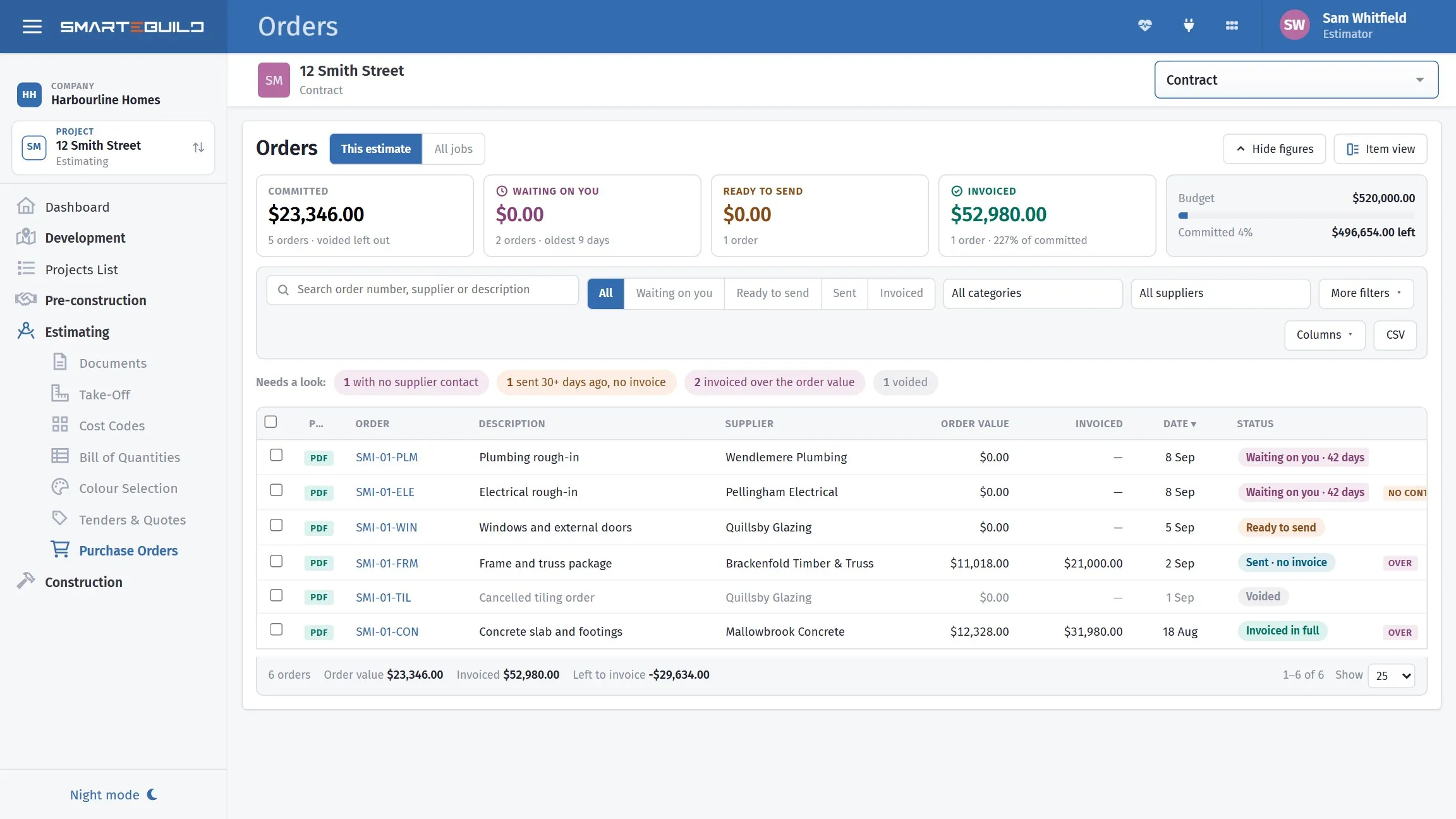
What is committed, what is waiting on you, and the one thing each order needs next.
The four figures at the top
Section titled “The four figures at the top”Hide figures folds the figures away to leave more room for the list, and Show figures brings them back.
Each one is also a filter. Click it to show only those orders, click it again to show everything. The figures do not move when you filter, so you can jump between them.
| Figure | What it is |
|---|---|
| Committed | The value of every live order. Voided orders are left out; they are no longer committed. |
| Waiting on you | Raised but not approved, with the age of the oldest. An unapproved order cannot be emailed. |
| Ready to send | Approved and still sitting here — the supplier does not know about these yet. It also says how many have nobody to email. |
| Invoiced | Supplier invoices raised against these orders, and what share of the committed figure that is. |
Beside them is the estimate’s budget and how much of it these orders have committed. That panel is per estimate, so it is not shown under All jobs.
Finding an order
Section titled “Finding an order”Everything in the filter row is instant — there is no Look Up button and no page reload.
| To find | Use |
|---|---|
| An order by number, supplier or description | The search box |
| Orders at one stage | All, Waiting on you, Ready to send, Sent, Invoiced |
| One type of order | The category box — type to filter it |
| One supplier’s orders | The supplier box — type to filter it |
| Orders in the trash | More filters |
| Orders on every job | All jobs, beside the title. The list then also shows each order’s project and estimate. |
Choosing the columns
Section titled “Choosing the columns”Columns, on the filter row, opens a list of tick boxes: tick a column to show it, untick it to hide it. Your choice is saved against your sign-in, so the list looks the same on your office computer, your laptop and anywhere else you sign in.
Changing a column’s width
Section titled “Changing a column’s width”Every column can be made wider or narrower. Point at the line between two headings — the pointer turns into a double arrow — then drag it left or right. Widths are saved against your sign-in too, so the list opens the way you left it, on any computer.
A few shortcuts:
- Double-click that line to put one column back to its normal width.
- Reset column widths, at the bottom of the Columns list, puts them all back.
- Without a mouse: tab to the line and use the left and right arrow keys (hold Shift to move in smaller steps).
Text too long for its column is cut off with a …, and hovering over the cell shows the
whole thing. If the columns together are wider than the window, the list scrolls
sideways rather than squashing everything.
Long lists are paged: the arrows at the bottom move a page at a time, or jump to the first or last.
Needs a look
Section titled “Needs a look”Under the filters are counts of the orders worth a second look. Each one filters the list to exactly what it counts, and a count of zero is not shown.
- with no supplier contact — not sent, and nobody is chosen to send it to.
- sent 30+ days ago, no invoice — either an invoice is missing, or the work did not happen and the order should be voided.
- invoiced over the order value — more has been invoiced than you ordered.
- voided — cancelled and kept on record.
Reading a row
Section titled “Reading a row”A row reads left to right: PDF, the order number, what it is for, the supplier, the value, how much has been invoiced, the date, and then where the order has got to, in words — Waiting on you · 9 days, Ready to send, Sent · no invoice, Part invoiced, Invoiced in full, Voided.
PDF opens the purchase order itself without leaving the list.
At the end of the row are its markers — no contact, over and note flag the things above — and then the one thing that can be done to that order next: Approve, Email, or Invoice.
Opening an order
Section titled “Opening an order”Click a row and the order opens in a panel beside the list. The list stays where it is, so clicking another row swaps the panel rather than making you close it first. The arrows step through the page and Escape closes it.
The panel carries the order’s status and value, its contact, date, category and cost codes, its items and any invoices against it — and the same actions as the row, plus the internal comment. It is for a look: nothing in it is typed into.
Changing the order without leaving the list
Section titled “Changing the order without leaving the list”Open the order, at the top of the panel, opens the whole order in a window over the list — every tab (items, notes, PDF, files, email, logs), all of it editable, exactly as on the order’s own page. Double-clicking a row does the same thing in one move.
Close it with ✕, with Escape, or by clicking the greyed area around it, and the list is re-read so anything you changed — approved, emailed, lines edited — shows straight away. The orders behind stay where they were, so you can work through several without losing your place.
For a long items list, Open the full page in the window’s heading leaves the list and opens the order on its own screen, with the full width to work in.
Working through several at once
Section titled “Working through several at once”Tick the orders you want and the actions appear along the bottom: Approve, Email to suppliers, Download. Each button says how many of the ticked orders it can act on, because it is often not all of them — approving skips the already-approved, and emailing skips anything unapproved or with no contact. Download saves just the ticked orders as a spreadsheet, with the Order numbers as links.
Ticks are per page.
What is at the bottom
Section titled “What is at the bottom”The totals under the list are for everything that matches your filter, not just the page on screen: the number of orders, their order value, what has been invoiced, and what is left to invoice.
CSV downloads the rows on screen as a spreadsheet, with plain numbers Excel can add up. Each Order number in the file is a link: click it in Excel and that purchase order opens in SmarteBuild. For more rows, set Show to 500 first.
Check what the export contains before it goes anywhere outside the office — a commitments list shows what you are paying your subcontractors, which is not information a client needs.
A weekly routine
Section titled “A weekly routine”- Waiting on you — approve them, or ask why they were raised.
- Ready to send — send them; an order the supplier never saw is not a commitment they know about.
- with no supplier contact — pick a contact so they can go out.
- sent 30+ days ago, no invoice — chase the invoice, or void the order.
- invoiced over the order value — agree a variation, or query the invoice.
Five minutes, and the committed figure stays honest — which is what everything in Committed vs actual cost depends on.