
Order details
Available onBuilder
Beyond the items, an order carries the details that make it actionable — who, when, where, and against what.
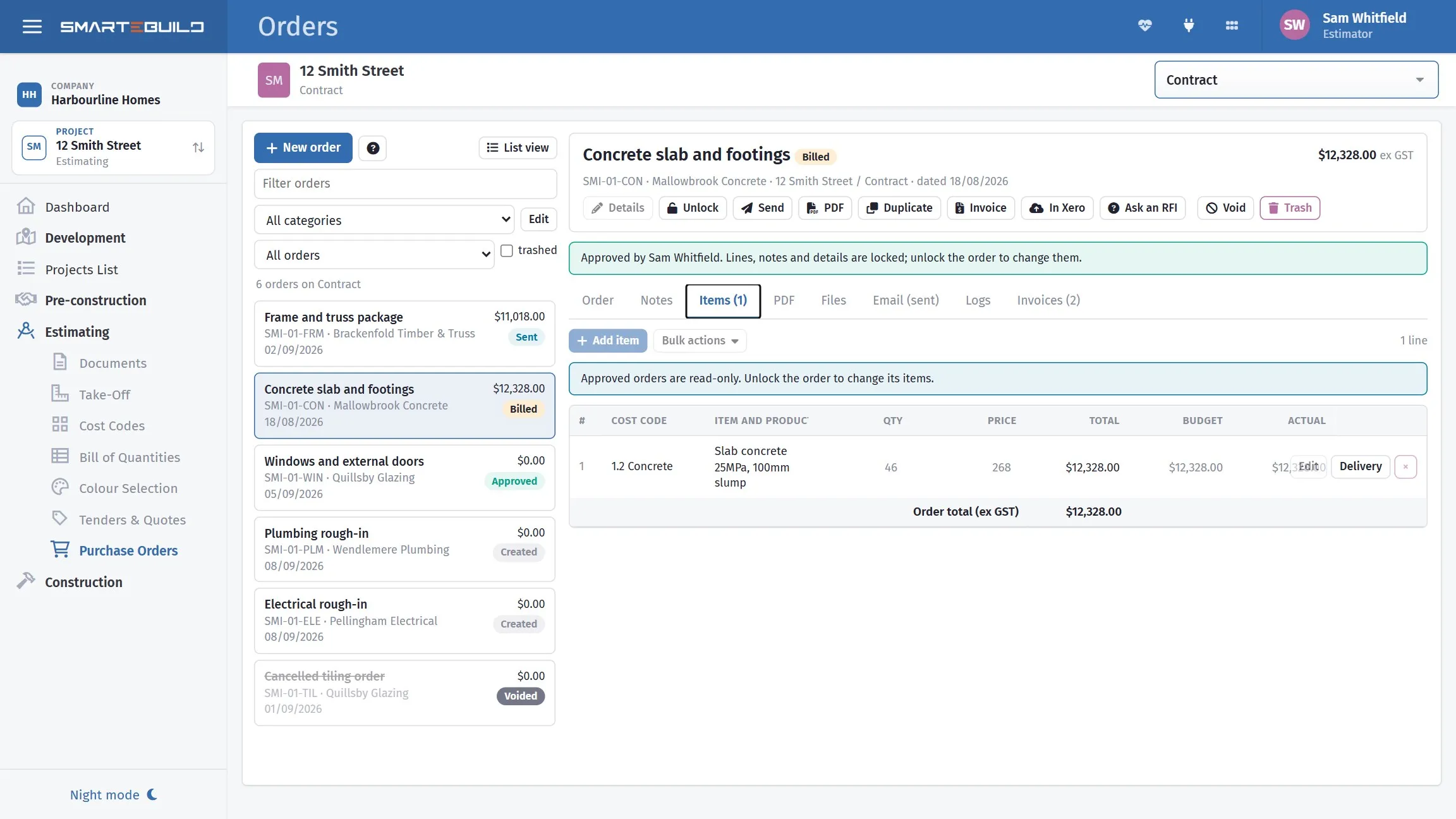
Dates, terms, invoicing requirements and what prints on the order.
The fields
Section titled “The fields”| Field | What it does |
|---|---|
| Contact / Contact Name | Who at the supplier the order is addressed to |
| Date | The order date |
| Invoice Date | When you expect to be invoiced |
| Invoice Due Date | When payment falls due |
| Invoice Number (Reference) | The supplier’s reference, once known |
| Category | How the order is grouped in the list |
| GST | Whether GST applies |
| Allowance | What the BOQ allowed for these items |
| % Cost | How much of that allowance this order commits |
| Link to a Task | Ties the order to a schedule task |
| Label | Your own tag on the order |
| Hide Prices | Sends the order without rates |
| Invoicing requirements | How you need this supplier to invoice you — prints on the order |
The ones the supplier reads
Section titled “The ones the supplier reads”Three fields do most of the work on the supplier’s side.
Contact Name. An order addressed to a person gets actioned. One addressed to a company gets opened by whoever happens to be at the desk.
The site address, which comes from the project. If it is blank, you get a phone call. See Creating a project.
Purchase Order Note on each item — printed on the order, and where delivery constraints belong. “Deliver to rear lane, no crane access, ring 30 min ahead” prevents more problems than any other field in the system.
Wording that belongs to this order
Section titled “Wording that belongs to this order”Sometimes a supplier needs to read something different from what the estimate says. Type over a line’s name or description and, because the line came from the estimate, SmarteBuild asks Where should this name go? (or description), showing the two side by side:
- This order only. The estimate keeps its wording. Only this purchase order and its PDF show the new wording.
- Change the estimate item too. Renames it on the estimate, so it changes on the BOQ and on every other order and report using this item.
Tick Use the same answer for the rest of my changes to this order to be asked only once.
Invoices against the order
Section titled “Invoices against the order”The Invoices tab lists the invoices raised against this order, with a count on the tab. Raising a new invoice opens a window where you can check What the supplier is charging, remove a line the invoice does not cover (the order keeps it) and Attach the supplier’s invoice: drag it anywhere onto the window, or upload it. A PDF or a photo both work. Open the invoice carries on with it, and Finish later leaves it.
Hide Prices
Section titled “Hide Prices”Hide Prices sends the order without rates.
Use it for a subcontractor working to a lump sum you have already agreed, where the breakdown across items is your internal allocation rather than something they need — or should see.
Merge on the toolbar controls how the order’s items print. Merged, similar items are combined into one line on the PDF; unmerged, every item is listed separately.
It changes the printed order only — not the items, not the quantities, and not what the order commits. It is a toggle, so pressing it again puts the PDF back.
Merged reads better for a supplier quoting a single product across several parts of the job: one line for 240 lineal metres of a timber size, rather than eleven lines that add up to it. Leave it unmerged when the supplier needs to see the split — a subcontractor pricing by area, or anything where the breakdown is the point.
Invoicing requirements
Section titled “Invoicing requirements”Invoicing requirements sits under the order note and terms, and prints on the purchase order. It is where you tell the supplier how you need to be invoiced.
It is worth filling in for anyone who invoices you badly. The things that cost the most time to chase:
- what to quote on the invoice — the order number, almost always
- where to send it, if that is not the address they already have
- how often — monthly in arrears, on delivery, on completion
- what a progress claim has to show, if you take them
Like the note and the terms, it has its own templates: write the wording once, save it as a template, and load it on the next order. Save the one you use most as the default and every new order starts with it.
Formatting the note, terms, invoicing requirements and email
Section titled “Formatting the note, terms, invoicing requirements and email”All four are written in the same editor. Its toolbar has undo and redo, a paragraph style (Normal, Heading, Subheading), bold, italic, underline and strikethrough, text colour, bulleted and numbered lists with indent, links, and clear formatting.
For colour, select the words and press the A to use the last colour again, or the small arrow beside it to pick from the palette, choose Custom… for any colour, or Automatic to take the colour off. Colour is worth using sparingly — one red line for the condition a supplier must not miss does more than a paragraph in three colours.
Text pasted from Word or an email comes in as plain text, so it picks up the order’s own look; format it afterwards.
Link to a Task
Section titled “Link to a Task”Link to a Task ties the order to a task in the schedule.
Two things follow. The order shows up against the task, so anyone looking at the schedule can see what has been committed for that work. And the schedule’s cash flow view can use the order’s value and dates, so committed money appears on the curve at the point it is actually due.
A task can be paid by one order only, so the picker offers only tasks that no other order is already paying for. If the task you want is missing, it is almost always because another order has it — unlink it there first.
A full schedule is a long list, so the picker has a box at the top: type any part of a task’s name and the list narrows as you type. Ticks are kept while you change what you have typed, so you can tick two tasks found by different searches and link them together — the count beside the box tells you how many are ticked, including any the current filter is hiding.
Linking also asks for the share of this order that the task covers, and the payment terms that follow from it. An order that pays for two tasks might be 60% on delivery and 40% on installation; the schedule’s cash flow uses those shares and dates to put the money on the curve at the right point.
If you are running the schedule in SmarteBuild, link the orders. If you are not, leave it blank — nothing else depends on it.
Allowance and % Cost
Section titled “Allowance and % Cost”Allowance is what the BOQ allowed for the items on this order. % Cost is what proportion of that allowance the order commits.
Read them together as you raise the order:
| % Cost | Means |
|---|---|
| Under 100% | Committed less than allowed, or part-ordered |
| Around 100% | Ordering the full scope at the allowed rate |
| Over 100% | This order alone exceeds what you priced |
Over 100% is not necessarily wrong — a rate may have risen since you tendered, or the scope may have grown. But it should be a decision rather than a discovery, and this is where you get to make it.
Categories and labels
Section titled “Categories and labels”Category groups orders in the list. Label is a free tag of your own.
Both are worth using consistently if you raise a lot of orders. Categories along the
lines of Materials, Subcontract, Plant hire, Fees make the list scannable,
and let you answer “how much subcontract have we committed?” without adding
anything up by hand.
Estimates
Section titled “Estimates”An order belongs to one estimate. The Estimates picker on the order is how you confirm which priced version you are committing against — worth checking on a job that carries several.
The procurement list
Section titled “The procurement list”If you are using Procurement (Schedule › Procurement), the order carries a Procurement panel showing what it covers — the item, its category, when it has to be on site and the last day to order it — and whether it counts as ordered.
Link an item adds one. Type any part of a name to find it; only items no other order covers are offered, because an item can be covered once. Unlink takes it off this order, and the item goes back to being uncovered.
Once an item is linked, the order decides its state: it reads Ordered from the moment this order is sent, and goes back to Not ordered if it is not. Nobody has to keep the procurement list in step by hand — that is the point of linking.
The same link can be made from the other end, in the Procurement tab’s own item panel. Linking needs the Edit tasks permission; without it the panel still shows what the order covers, but offers nothing to change. If your company is not using Procurement, the panel is not there at all.