
Restricted folders, upload links and activity
Available onEstimatorBuilder
Three tools for keeping control of a job’s documents once more people are involved:
- Restricted folders - a folder only chosen people can see, such as contracts or commercial correspondence.
- Upload links - a link the architect or engineer uses to put new revisions straight into the right folder, without an account.
- History and Activity - a record of every upload, view, download, change, share and issue, and who did it.
Restricting a folder
Section titled “Restricting a folder”Hover over a folder on the left and click the lock-and-person button. The window that opens is in two parts; the top part is Who can see this folder.
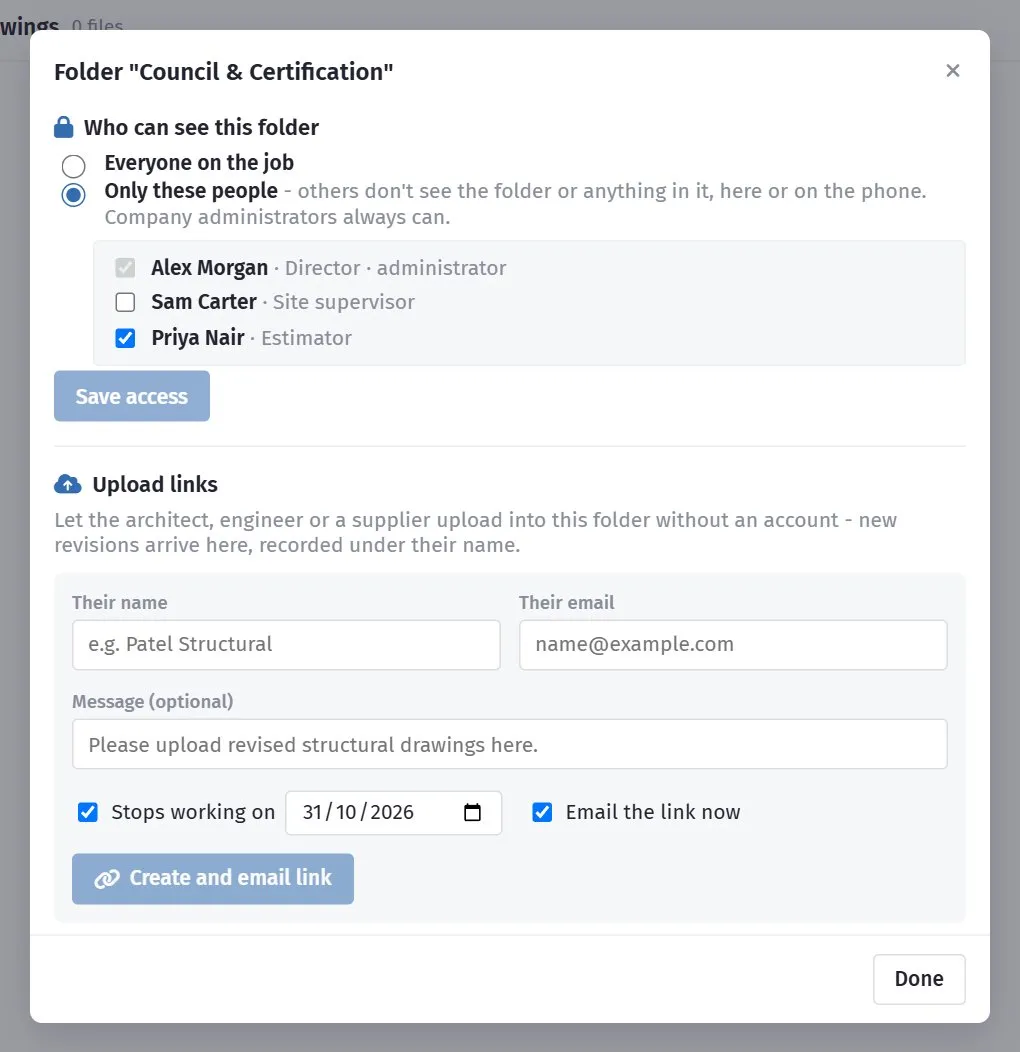
Choose Only these people and tick the people on the job who may see it, then Save access. Everyone else no longer sees the folder or anything in it - in the folder list, in search, in the register, in the file picker, and in the phone app. A padlock marks the folder in the list.
- Folders inside a restricted folder are restricted too.
- Company administrators always see everything, and only an administrator can change who sees a folder.
- The standard folders every job has (Drawings, Contracts, Photos…) can’t be restricted. Make a folder of your own - Commercial, say - and restrict that.
- Files moved into a restricted folder, or uploaded into it, follow its rule. Moving them out opens them up again.
To open the folder up again, choose Everyone on the job and save.
Upload links
Section titled “Upload links”The bottom part of the same window makes upload links: a link a consultant, subbie or supplier uses to upload files into this folder without an account. It suits the engineer who sends a new set of drawings every fortnight.
Fill in their name (and email to send it), an optional message, and when the link should stop working - 30 days ahead to start with. Leave Email the link now ticked to send it from your company’s address, or untick it and use Copy link.
Their page shows your message and a box to drop files into. What they upload:
- lands in this folder, recorded as uploaded through an upload link by them;
- has its drawing number and revision read from the file name, the same as your own uploads (so S-101_RevC.pdf becomes S-101, revision C, in the register);
- is listed on their page, so they can see what they have sent.
The window lists each link with how many files came through it and when. Click the cancel button to stop a link working straight away; files already uploaded stay.
A file’s history
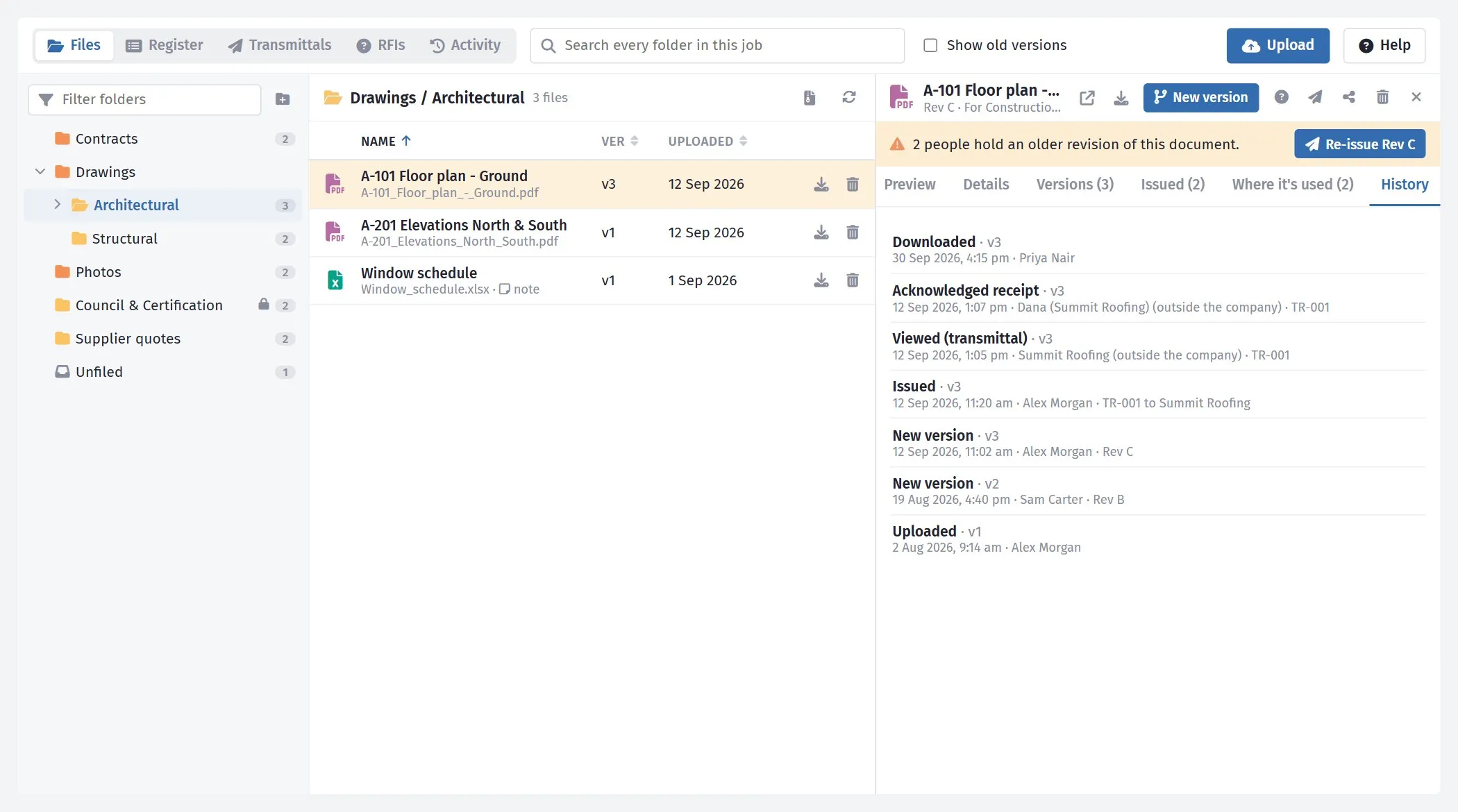
Section titled “A file’s history”Open a file and click the History tab. It lists everything that has happened to that document and its earlier versions: uploaded, new version, viewed, downloaded, details changed, moved, issued on a transmittal, opened and acknowledged by the person it was issued to, shared, and so on - newest first, with who and when. People outside the company are marked as such.
The job’s activity
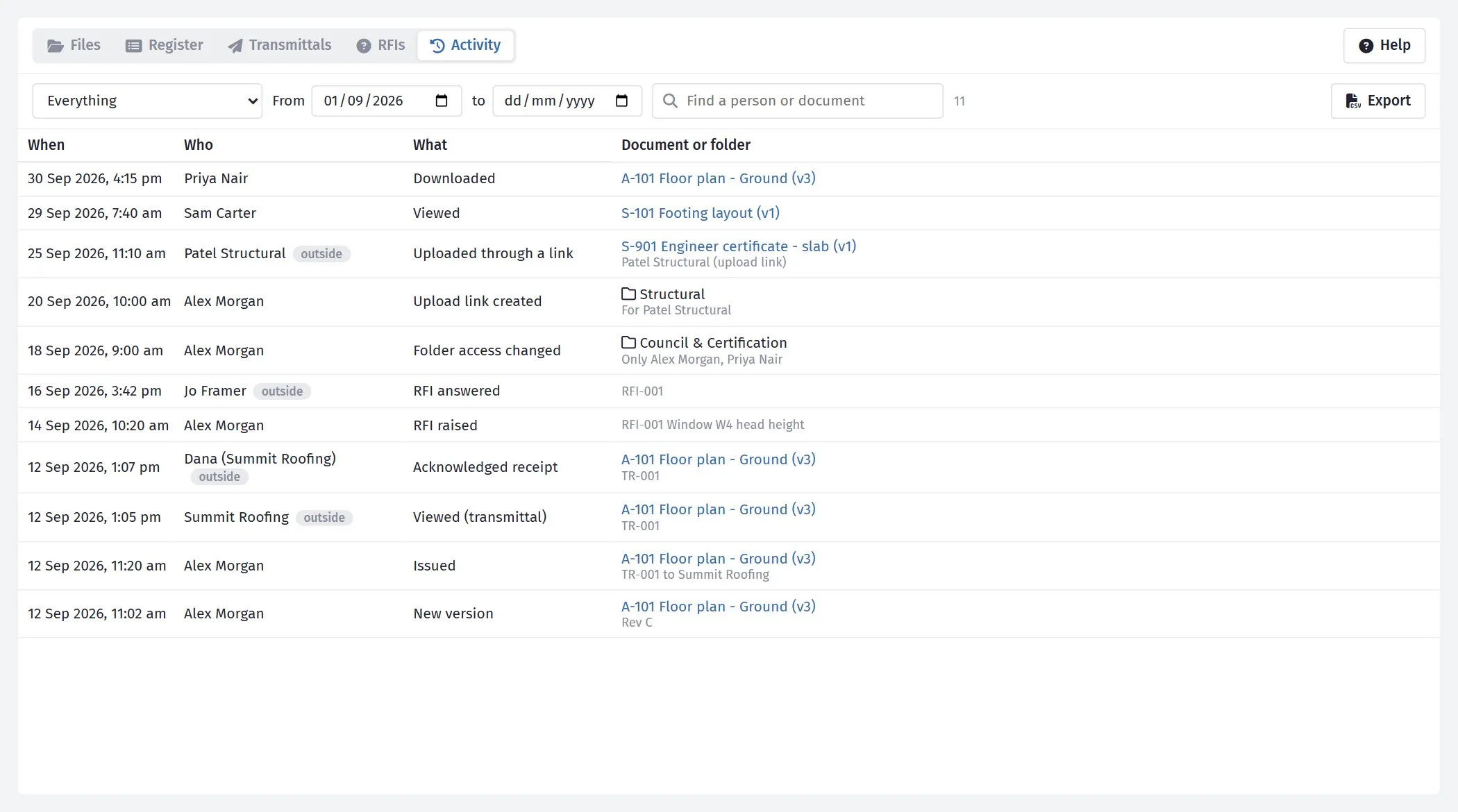
Section titled “The job’s activity”The Activity view at the top left shows the same record for the whole job.
| Control | What it does |
|---|---|
| Everything | Narrow to uploads, views and downloads, changes, shares and issues, RFIs, or folders and upload links. |
| From / to | The dates to show. The last 30 days to start with. |
| Find | A person or a document. |
| Export | A spreadsheet of what is showing. |
Click a document’s name to open it. Folders you are not allowed to see are left out.