
Signing in on site
Available onBuilder
This page is what happens on the worker’s or visitor’s phone. It is written so you can send it to your subcontractors before they start.
There is no app to install and no account to make. Point the phone’s camera at the QR poster at the site entry and tap the link it shows.
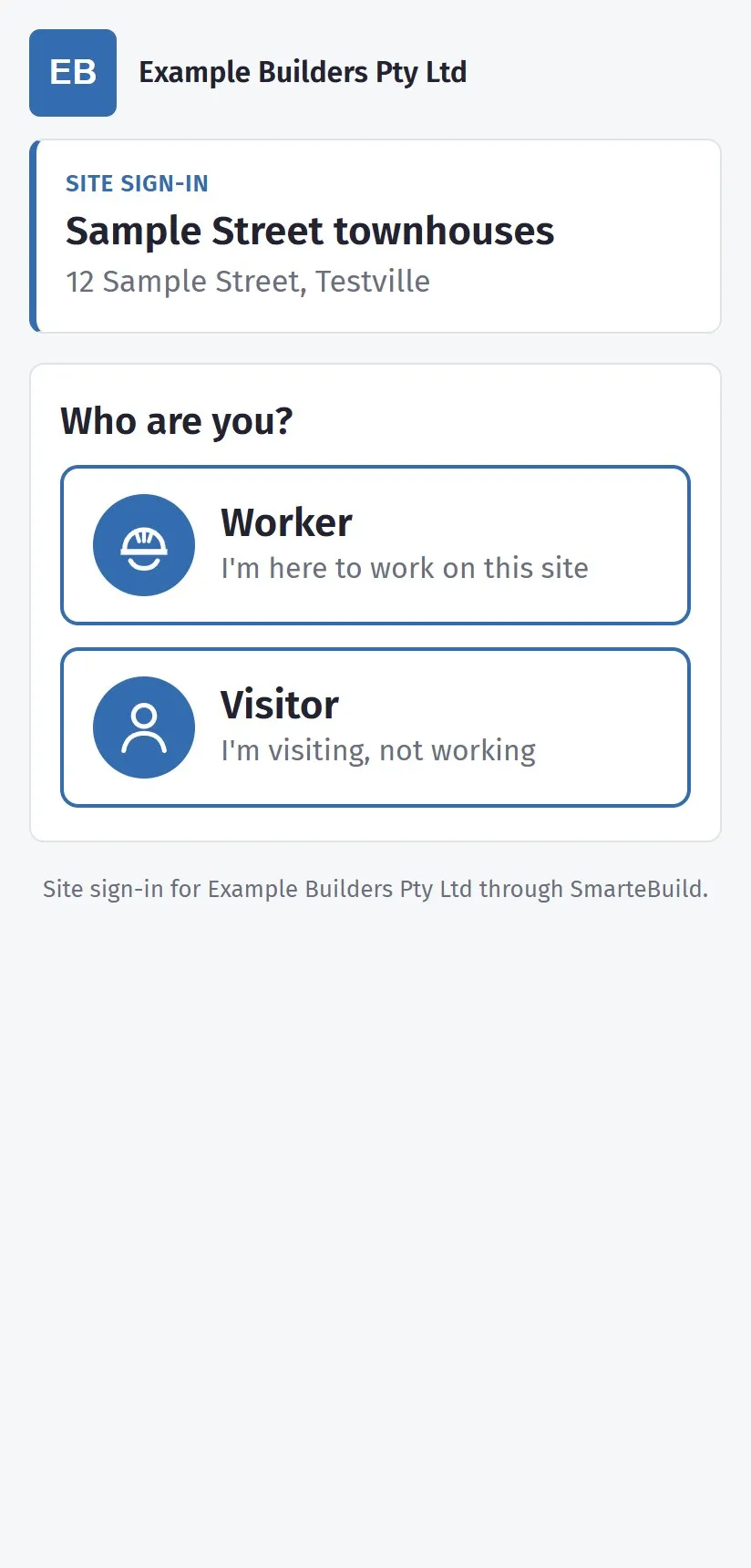
Workers: the first time on a site
Section titled “Workers: the first time on a site”The first time a worker scans the code on one of the builder’s sites, they choose Worker and do the site induction. It takes about five minutes. Have your White Card and driver’s licence ready.
- Your details - full name, mobile, the company you work for, your trade, home address, White Card number, any allergies, and a next of kin to call if something happens on site.
- Photos - a photo of your White Card and your driver’s licence, flat and in good light so the writing can be read. They are kept encrypted, and only the builder’s site managers can see them.
- Safety - read the builder’s safety expectations and tick that you understand them.
- Site rules - read the site requirements and tick.
- Sign - type your full name and sign with your finger.
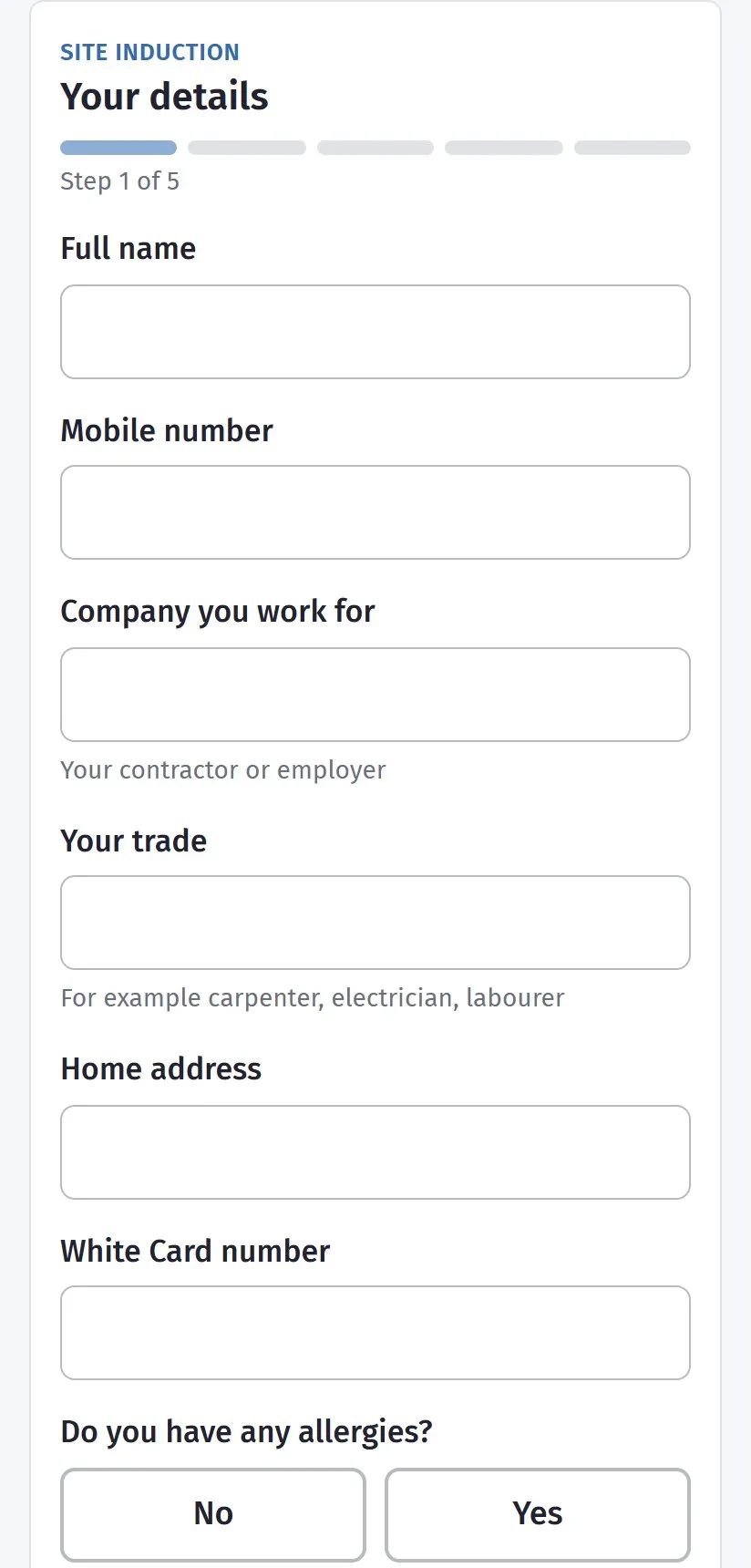
Then press Sign in.
Done an induction with this builder before, on another phone? Choose Worker, then type your mobile number and name under Been here before on another phone? and press Find me. If you are already inducted on this site you go straight to signing in; if this is a new site for you, the induction starts filled in with what the builder already has.
Every day after that
Section titled “Every day after that”Scan the code and press Sign in. Your phone remembers you.
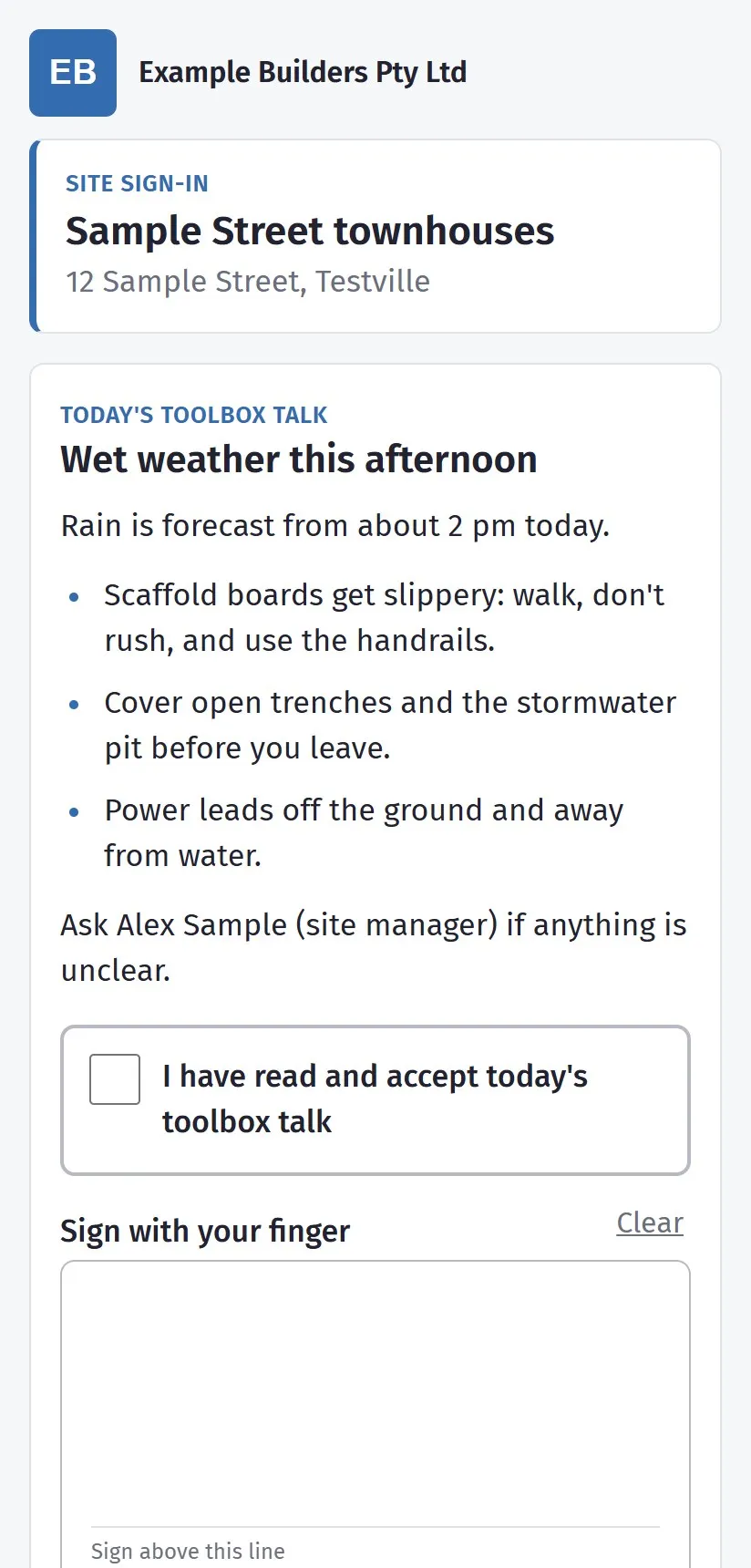
If there is a toolbox talk that day, it is shown first: read it, tick I have read and accept today’s toolbox talk, sign with your finger, then press Sign in.
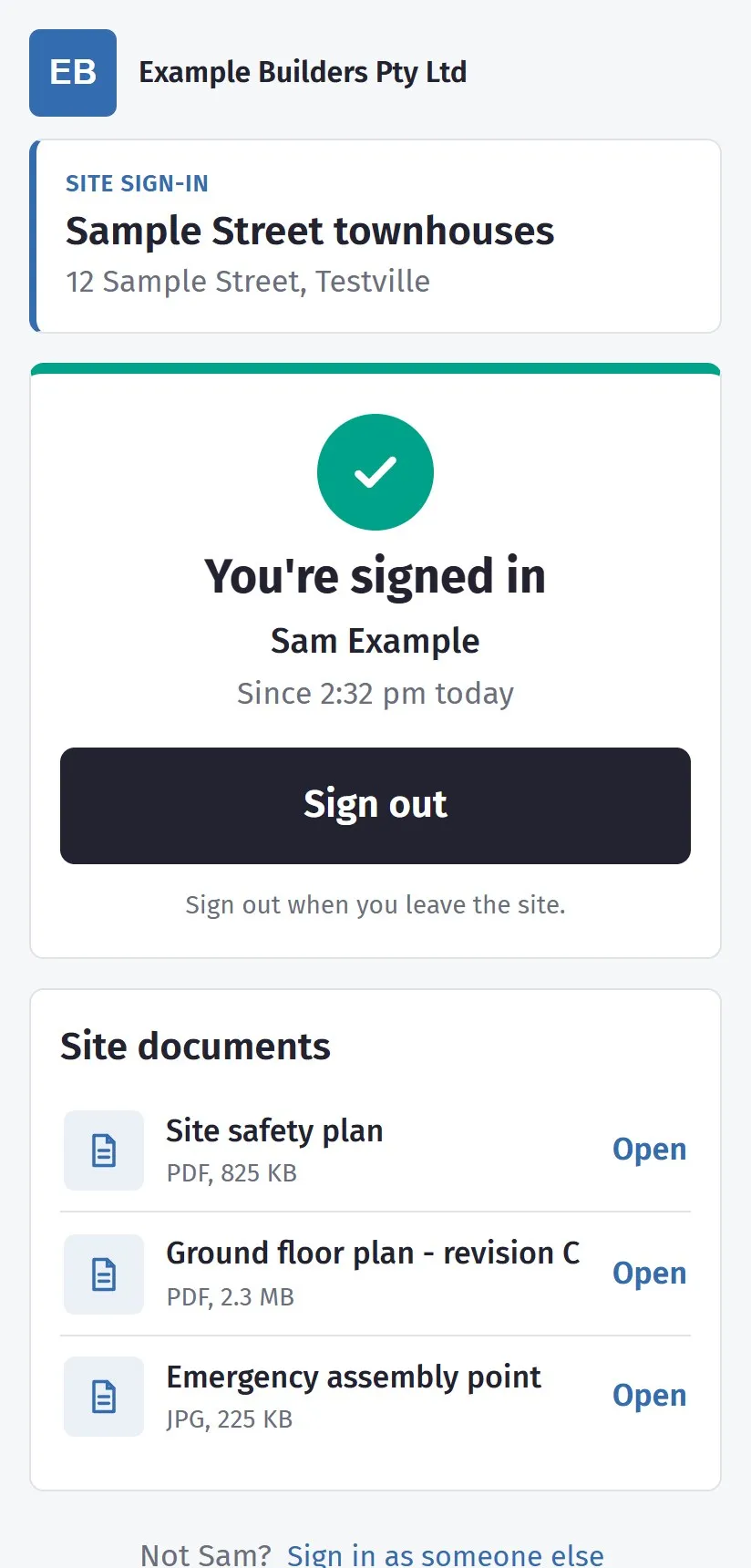
While you are signed in, the Site documents card lists the site plan, SWMS and anything else the builder has shared - tap Open to read one.
When you leave, scan the code again and press Sign out. If you forget, you are signed out at the end of the day.
Visitors
Section titled “Visitors”Choose Visitor, type your name and phone number (and your company and who you are visiting, if you know), read the visitor rules, tick and press Sign in. Keep the page open, or scan the code again, and press Sign out when you leave.
Visitors do no induction and see no documents. Stay with the person you are visiting and wear the safety gear you are given.
Location
Section titled “Location”The phone asks to share its location when you sign in or out, to record where you were. You can say no - it never stops you signing in.
If something goes wrong
Section titled “If something goes wrong”- “This QR code is no longer in use” - the poster has been replaced, or the register has been switched off. Ask the site manager.
- “No connection” - check your signal and press Try again.
- No phone, or it won’t scan? See the site manager before you start.