
The expenses list
Available onBuilder
The expenses list is every supplier invoice and credit note on your job — or across all your jobs — in one place. Open it from List view on the Expenses screen.
It is built around the question most people open it to answer: what do we owe, and what is late?
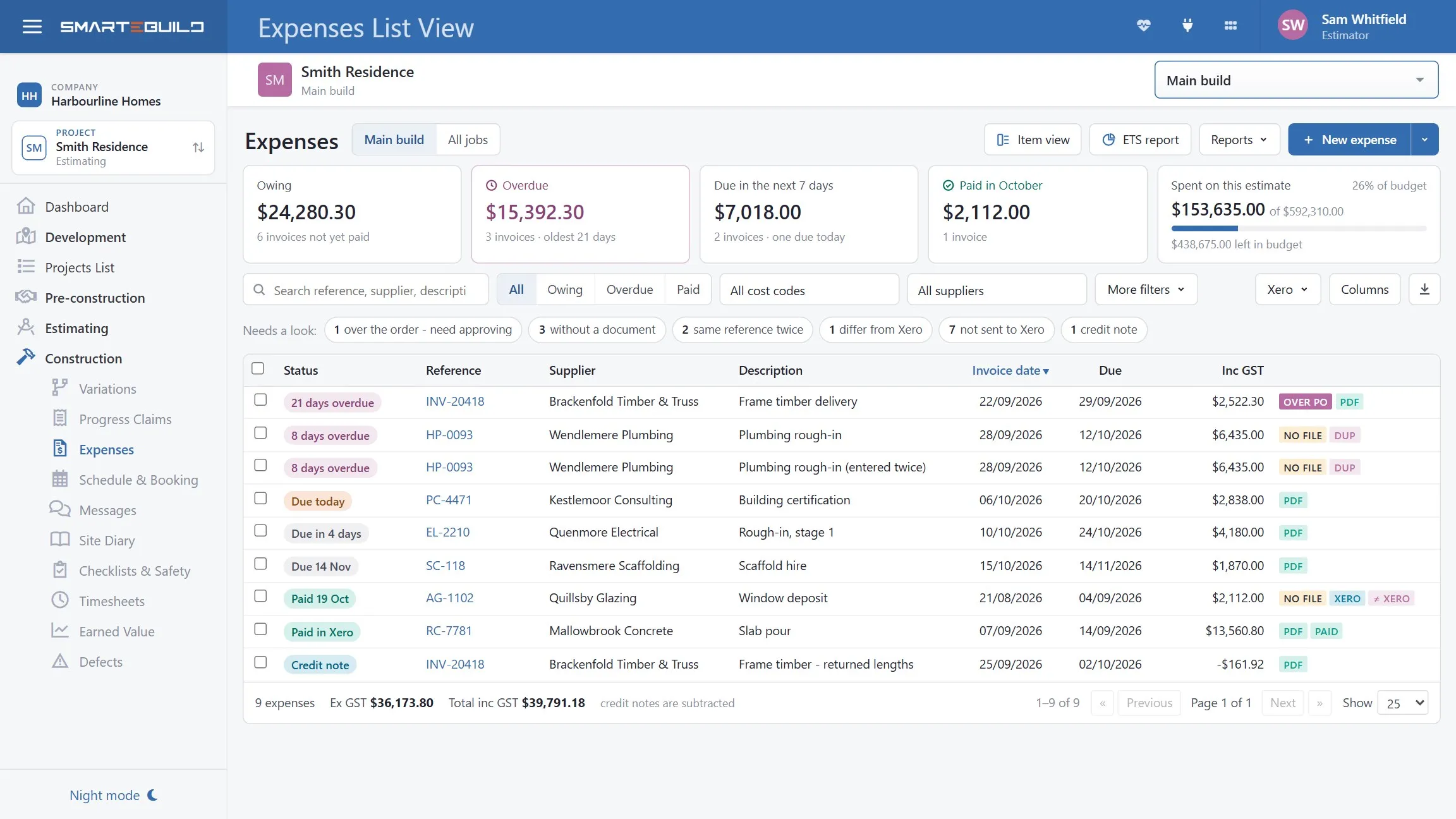
Owing, overdue, due this week and paid this month — each figure is also a filter.
What you owe, along the top
Section titled “What you owe, along the top”Four figures lead the page, all including GST:
| Figure | What it counts |
|---|---|
| Owing | Everything not yet paid |
| Overdue | Not paid, and past its due date — with how late the oldest one is |
| Due in the next 7 days | Not paid, due today or within a week |
| Paid in (this month) | Paid this month — marked paid here, or paid in Xero |
Each figure is also a filter. Click Overdue and the list shows only those invoices; click it again to show everything. The figures themselves never change when you filter, so the other three stay readable while you work through one.
Beside them, Spent on this estimate shows what the job has cost so far against its budget, and what is left.
This estimate, or all jobs
Section titled “This estimate, or all jobs”The switch beside the title chooses between this estimate (the one picked in the bar at the top of the page) and All jobs — every expense in the company that you have access to. In All jobs a Project / Estimate column appears, and the reports and the cost code filter step aside, because both belong to one estimate.
Finding things
Section titled “Finding things”- Search — type part of a reference, a supplier or a description. The list narrows as you type.
- All / Owing / Overdue / Paid — the same filters as the figures, in one switch.
- All cost codes and All suppliers — type to find one; a job has hundreds of cost codes.
- More filters — Include the trash shows expenses moved to the trash, marked as such.
Needs a look
Section titled “Needs a look”Under the filters, a row of warnings — each one a count, and each one a filter:
| Warning | What it means | Why it matters |
|---|---|---|
| without a document | No supplier invoice attached | The one thing you cannot recreate later |
| same reference twice | Another expense uses the same reference | Usually the same invoice entered twice |
| differ from Xero | Xero’s total disagrees with the expense | A bill short a line, a duplicate, or edited in Xero |
| not sent to Xero | Never exported | Nothing has been sent for payment |
| credit note | Supplier credit notes | Already subtracted from the totals |
| over the order - need approving | Over its purchase order, and the Extra to Schedule is not approved | It cannot be paid or sent to Xero until it is - see Extra to Schedule |
Click one to see just those expenses; click it again to see everything. A warning with nothing in it is not shown — its absence is the good news.
The list
Section titled “The list”Every row starts with its status in words — 21 days overdue, Due today, Due in 4 days, Paid 15 Sep, Paid in Xero, Credit note. Overdue ones are pink, ones due today are orange, paid ones are green.
At the end of each row are small markers:
| Marker | Means |
|---|---|
| A document is attached — click to read it without leaving the page | |
| no file | Nothing attached |
| dup | Another expense uses this reference |
| Xero / paid | Exported to Xero — click to open the bill there |
| ≠ Xero | Xero’s total disagrees with this expense |
| Over PO / ETS waiting / ETS approved | Over its purchase order: not explained yet (pink), waiting for approval (yellow), approved (green) - see Extra to Schedule |
Then the tick (mark as paid) and the × (delete) — both described below.
Click a column heading to sort by it; click again to reverse. Sorting covers everything the filters show, not just the page on screen.
The line under the list totals everything the filters cover, ex GST and inc GST — the number to check against a supplier statement. Credit notes are subtracted, and it says so.
Looking at an expense
Section titled “Looking at an expense”Click a row and it opens in a drawer on the right, beside the list. The list stays usable while it is open: click another row and the drawer shows that one instead, or step through with the up and down arrows at the top. × or Esc closes it.
The drawer shows the status and amount, any warning (with Show them for a repeated reference), the dates, purchase order, Xero status and who entered it, every line with its cost code, and a preview of the supplier’s document. If the expense is over its purchase order, the drawer opens with the Extra to Schedule box - say why, approve it, or see who did. Until it is approved, Mark as paid and Send to Xero are greyed out.
Straight from it you can:
- Mark as paid — or undo it
- Send to Xero
- Attach the supplier’s invoice, when none is attached — drop the PDF or photo on it
To change the details or code a line, use Open full expense. The whole expense opens in a window over the list, and anything you save there shows in the list as soon as you save it. Close the window to carry on down the list. (Ctrl+click opens it in a new tab instead.)
Marking expenses paid
Section titled “Marking expenses paid”If you do not use Xero, this is what stops every invoice you have ever entered counting up as overdue.
- One at a time: the tick at the end of the row, or Mark as paid in the drawer. It asks when it was paid — today is offered, and you can type another date, because entering last month’s payments is normal. The tick turns solid green once paid; clicking a solid tick undoes it, after asking.
- Several at once: tick the boxes on the left and press Mark as paid in the dark bar that appears. One date for the whole batch; anything already marked paid is left exactly as it is.
It is SmarteBuild’s own record — nothing is sent to your bank or to Xero. If you use Xero, the payment sync marks bills paid for you and you rarely need this.
An expense over its purchase order cannot be marked paid until its Extra to Schedule is approved — its tick is greyed out, and a batch leaves it as it is and says how many.
Ticking rows
Section titled “Ticking rows”Ticking one or more rows swaps the warnings for a dark bar with what you can do to them: Mark as paid, Send to Xero, Download (a CSV of just those rows) and Delete. The × at its end clears the ticks.
Deleting permanently
Section titled “Deleting permanently”The × at the end of a row deletes that expense for good: its lines go with it and its cost comes off the job. It asks first, showing the reference, the supplier and the amount — there is no undo, and one row looks much like the next. For several, tick them and use Delete in the dark bar.
An expense already sent to Xero cannot be deleted here — the bill in Xero would be left with nothing behind it. Disconnect it from Xero first (open it, then Disconnect from Xero). Deleting an expense never deletes the supplier’s document; that stays in the project’s documents.
Adding an expense
Section titled “Adding an expense”New expense starts from the supplier’s document: drop the PDF or a photo and the details are read off it. The arrow beside it offers Type it in (a blank expense) and A credit note.
Whichever way you start, you can choose the purchase order it is for (it starts as No purchase order), and once an order is chosen on an invoice you are asked whether to copy its items onto it.
Reports
Section titled “Reports”The ETS report link beside it opens the Extra to Schedule report
- what went over its purchase orders, why, and whether it was approved, for this job or the whole company, with charts, Print / PDF and Excel.
Reports prints the estimate’s expense reports — all invoices, by cost code, and the profit and loss (summary or detailed). They report on one estimate, so they are not offered in All jobs.
Choosing columns
Section titled “Choosing columns”Columns adds and removes columns. Your choice is saved against your sign-in, so the list looks the same on your office computer, your laptop and anywhere else you sign in. Worth knowing about:
- Ex GST and GST — the list shows the total inc GST; add these to see the split
- Paid — the date it was marked paid, for sorting by payment date
- Whole invoice — the full value where an invoice is split across several jobs and the main figure shows only this job’s share
- Xero and Owing — the bill’s status in Xero and what is still outstanding there
- PO — a PDF mark where the expense is linked to a purchase order; click it to see the order without leaving the page
- PO value — that order’s total, ex GST: red when the invoice is more than the order, green when it is less. Hover for the difference in dollars
The order’s value, and the prices on its PDF, need the Show Order Value permission. Without it the column is blank and the PDF shows no prices.
The download button beside Columns saves the rows on screen as a CSV, with the columns you have chosen. Open it in Excel and each Reference is a link: click it and that expense opens in SmarteBuild.
Changing a column’s width
Section titled “Changing a column’s width”Every column can be made wider or narrower. Point at the line between two headings — the pointer turns into a double arrow — then drag it left or right. Widths are saved against your sign-in too, so the list opens the way you left it, on any computer.
A few shortcuts:
- Double-click that line to put one column back to its normal width.
- Reset column widths, at the bottom of the Columns list, puts them all back.
- Without a mouse: tab to the line and use the left and right arrow keys (hold Shift to move in smaller steps).
Text too long for its column is cut off with a …, and hovering over the cell shows the
whole thing. If the columns together are wider than the window, the list scrolls
sideways rather than squashing everything.
Sending expenses to Xero
Section titled “Sending expenses to Xero”Tick the expenses and choose Send to Xero (in the dark bar, or under the Xero button). Before anything is sent you see what would happen, with a reason beside anything that cannot go — an unmapped supplier, a line with no cost code. Bills arrive in Xero as drafts, for you to authorise there.
Sending several at once is for Xero only for now. A company on QuickBooks sends each expense from the expense itself; see QuickBooks.
Keeping up with Xero
Section titled “Keeping up with Xero”Once an expense has been exported, SmarteBuild reads its status back from Xero, so the list knows what has been authorised, paid or voided without checking in two places. Xero › Check payments in Xero now pulls the latest; it also happens on its own when the figures are out of date, and straight after a batch send.
When a bill does not match
Section titled “When a bill does not match”≠ Xero means Xero’s total is not the same as the expense here. The usual causes:
- The bill in Xero is missing a line.
- The bill was entered twice — once by the export, once by hand.
- Somebody edited the bill in Xero after it was sent.
Open the bill and compare. If the difference is real and you have decided to leave it, click ≠ Xero and accept it — it stops being counted, so the warnings can get back to empty.
Credit notes
Section titled “Credit notes”A supplier credit — a return, a rebate, an overcharge put right — is recorded as a credit note, not as an invoice with a minus sign. Add one from New expense › A credit note, and enter the quantities as ordinary positive numbers: SmarteBuild knows it is a credit and takes the money off.
A credit note reduces the job’s cost to date, shows in the list as Credit note, is netted into the totals (the footer says so) and goes to Xero as a credit note, not a bill. It usually carries the reference of the invoice it credits — which is correct, and not reported as a duplicate.
A monthly routine
Section titled “A monthly routine”- Click Overdue and deal with what is late.
- Clear without a document — chase the missing invoices while people still remember them.
- Check same reference twice before a payment run.
- Click Due in the next 7 days to see what is coming.
- Send anything not sent to Xero, and settle anything that differs from Xero.
Steps two and three are the ones nobody does unprompted, and they are the two that cost real money when skipped.