
Xero
Available onBuilder
The Xero integration takes purchase orders and expenses from SmarteBuild into your accounting system, so the same invoice is not typed twice.
Open it from Integrations in the top bar → XERO Integration. It is one screen with four tabs — Connection, Accounts, Jobs and Suppliers — and the Help button at the top right walks through the same steps as this page.
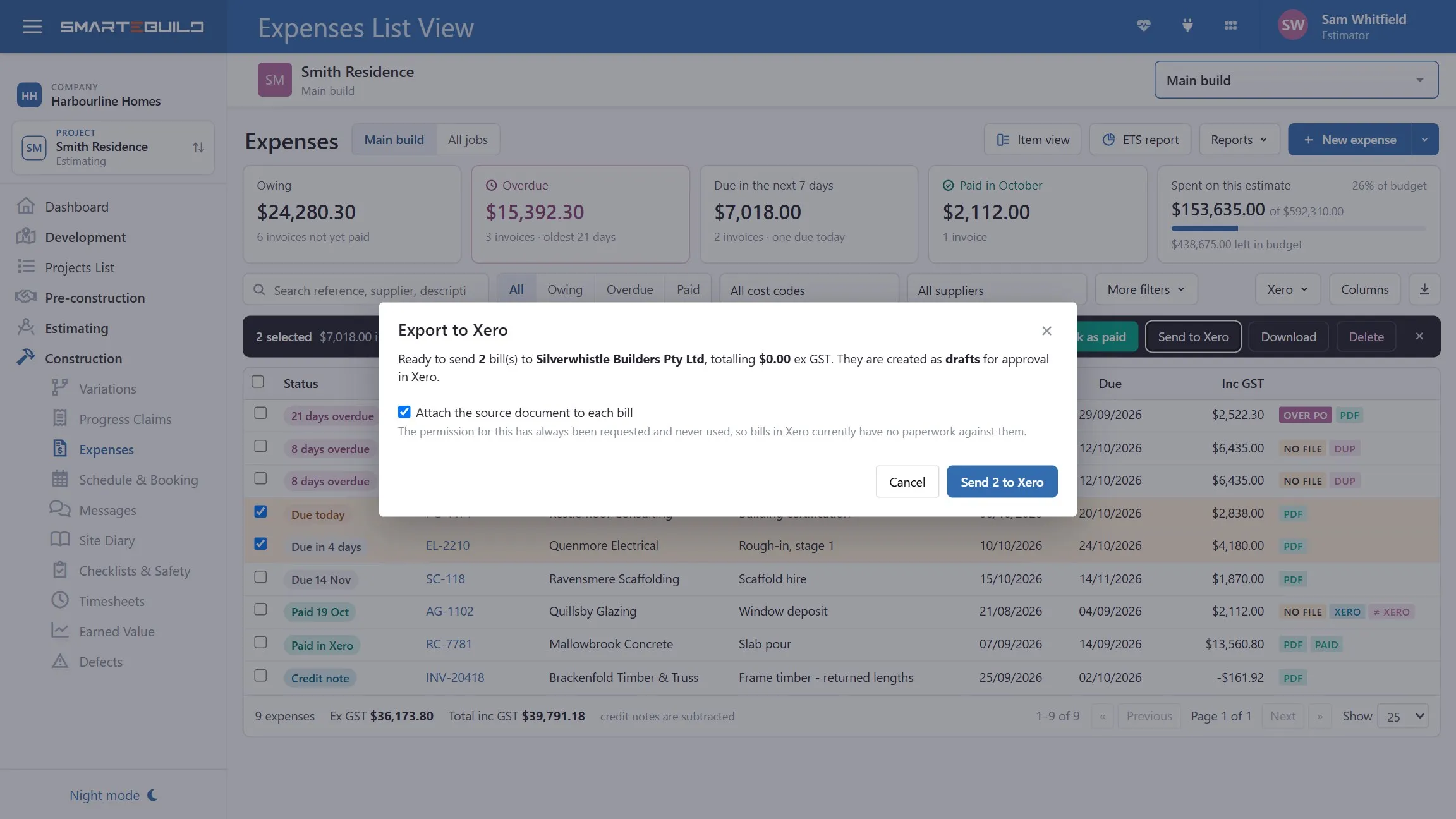
Push invoices across rather than typing them in twice.
Setting it up, step by step
Section titled “Setting it up, step by step”Four jobs, done once, in this order. Nothing is sent to Xero from these tabs — they only decide what matches what.
1. Connection
Section titled “1. Connection”- Press Connect a Xero organisation. Xero opens in a small window and asks you to sign in. Xero calls an organisation a tenant; the two words mean the same thing.
- In Xero, choose the organisation and allow access. When that window closes, the organisation appears in the list on the Connection tab showing Active.
- In the Linked SmarteBuild company column, choose your company from the list and press Link. If you belong to more than one SmarteBuild company, pick the one this Xero organisation belongs to.
- If you connect more than one organisation, click an organisation’s name to make it the one the other three tabs work in. The one in use is marked in use.
The Setup progress card shows how far along the other three tabs are — 38 of 40 cost codes linked, No Xero contacts downloaded yet — and clicking a card opens that tab. When all three read 100% the setup is finished.
Refresh connections renews every organisation’s connection in one go — the same thing signing in does when the first option below is ticked. If one is still marked Needs reconnecting afterwards, Xero has revoked it: press Connect a Xero organisation and sign in again.
Under Options, tick what suits how you work, then Save options:
| Option | What it does |
|---|---|
| Reconnect to Xero when I sign in | Refreshes the connection as part of signing in, so it is ready when you need it |
| Reconnect automatically if the connection expires | Renews an expired connection rather than asking you to |
| Switch Xero organisation when I switch company | When you send an order or an expense to Xero, picks the organisation linked to the company you are in. Untick it and the first organisation in the list is picked instead. On to start with |
| Disconnect from Xero when I sign out | Drops the connection when you sign out. Leave off unless you share a computer |
The first two are worth ticking if you use Xero daily.
2. Accounts
Section titled “2. Accounts”Matches your Xero accounts to your SmarteBuild cost codes, so costs land in the right place in Xero.
- Open the Accounts tab and press Refresh from Xero. This copies your chart of accounts in. Press it again whenever you add accounts in Xero.
- Choose your cost code list in the Cost code group box.
- Press Link obvious matches. Anything whose code or name already lines up is matched for you — usually most of the list, if your codes are the same in both systems. The number on the button is how many are waiting.
- Match the rest by hand, from whichever side is easier:
- On a SmarteBuild cost code with no account, press Use “…” to accept the suggested match, or type a few letters in Choose Xero account… and pick one.
- On a Xero account, click the row to expand it. It lists every cost code it carries, and Link a / another cost code… adds one. One account can carry many cost codes — Materials purchased might hold thirty — and this is where you see exactly which.
The count at the top of each list — 3 of 40 not linked — and the bar under it tell you how much is left. Not linked shows only the work still to do; on the Xero side, Not used shows accounts nothing points at. Only cost codes you actually buy against need an account.
When one side is missing something. If a cost code has no sensible account in Xero, press + Create in Xero beside it — SmarteBuild creates the account in your Xero organisation and links it. If a Xero account has no cost code here, expand it and press + Create in SmarteBuild. Both ask before they write anything. To do a whole list at once, More › Import all from Xero creates a cost code for every unused account, and More › Export all to Xero creates an account for every unlinked cost code (forty at a time; press again for the rest).
Hide (inside an expanded Xero row) takes an account you never use off the list. Nothing in Xero changes, and Refresh from Xero brings every hidden row back.
3. Jobs
Section titled “3. Jobs”Matches Xero tracking options to your SmarteBuild jobs, so Xero can report by job. Only needed if you use tracking categories in Xero — skip it if you do not.
- Open the Jobs tab and press Refresh from Xero.
- Choose the Tracking category you use for jobs.
- Press Link obvious matches for the ones whose names already agree, then give each remaining job its tracking option with Use “…” or Choose Xero tracking option….
Xero has no way for SmarteBuild to create tracking options, so this tab has no Create, Import all or Export all — add the option in Xero, then Refresh from Xero.
4. Suppliers, then one test
Section titled “4. Suppliers, then one test”Matches your Xero contacts to your SmarteBuild suppliers, so bills are raised against the right contact.
- Open the Suppliers tab and press Refresh from Xero to copy your contacts in.
- Choose a Supplier category, or All suppliers to see everyone at once.
- Press Link obvious matches, then give each remaining supplier its contact with Use “…” or Choose Xero contact…. Contacts show their address under the name, which is how you tell two Bunnings apart. The search boxes narrow both lists as you type; press / to jump to the search.
- A Xero contact with no supplier here? Expand it and press + Create in SmarteBuild — the new supplier opens in another window so you can finish its details. A supplier with no contact in Xero? + Create in Xero. More › Import all from Xero and Export all to Xero do the whole list.
- Now export one expense or purchase order and check the draft bill in Xero: right contact, right account, right amount.
- Then use it for real.
More › Download mapping as CSV on any tab gives you a spreadsheet of both sides and what is linked to what — worth sending to your bookkeeper before the first real export.
Each user connects for themselves. Disconnect all on the Connection tab removes your own connections only; the account, job and supplier matches are kept.
Connecting
Section titled “Connecting”Access is per user — a user needs the Xero integration setting on their account. Grant it to whoever does the books, not to everyone. See Adding users.
Xero connections expire. If an organisation shows Needs reconnecting, press Refresh connections first — that renews it without a sign-in. Test beside an organisation asks Xero whether that one connection still works and says why if it does not. If it is still marked Needs reconnecting, press Connect a Xero organisation and sign in again. Ticking Reconnect automatically if the connection expires under Options avoids most of this.
The three matches
Section titled “The three matches”This is the part that determines whether the integration is useful. Three things have to be told what corresponds to what.
| Tab | What it connects |
|---|---|
| Suppliers | Your suppliers ↔ Xero contacts |
| Jobs | Your jobs (estimates) ↔ Xero tracking options |
| Accounts | Your cost codes ↔ Xero account codes |
On each tab the two lists sit side by side. Each SmarteBuild row has one Xero partner, shown in green with an Unlink button beside it. Each Xero row can carry many SmarteBuild rows — expand it to see exactly which, each with its own Unlink, and Unlink all N when you want to clear the whole row. More › Unlink all clears the whole tab — only worth doing if you want to start again. Unlinking never deletes anything in Xero or in SmarteBuild; it just forgets the match.
The same controls appear on all three tabs: Not linked / Linked on the SmarteBuild side, Not used / In use on the Xero side, a progress bar under each list, Hide inside any expanded Xero row, and the More menu for the bulk actions and the CSV.
Suppliers
Section titled “Suppliers”The usual obstacle is name mismatches — Barwon Concrete here and Barwon Concrete Pty Ltd
there. Tidying your supplier list first
makes this far quicker, and merging duplicates before matching saves doing it twice.
Matches a job to Xero’s tracking category, so costs land against the right job in your accounts. This is what lets your accountant produce job-level profitability from Xero rather than from SmarteBuild.
Cost codes to accounts
Section titled “Cost codes to accounts”Matches your cost codes to Xero account codes.
Pushing data across
Section titled “Pushing data across”Once matched:
- Export order to Xero, on a purchase order
- Export to Xero, on an expense — tick Open in Xero to be taken there afterwards
- Delete Xero connection removes the link on a record
The point is that the reference and the amount agree in both systems because they were entered once. Anything entered twice disagrees eventually.
Sending expenses in a batch
Section titled “Sending expenses in a batch”On the expenses list you can tick several expenses and send them together.
You are shown what would happen before anything is sent, with a reason beside anything that cannot go — which is nearly always an unmatched supplier or a cost code with no account. Fix those, or send the rest and come back.
Bills arrive in Xero as drafts. Nothing is authorised on your behalf.
What goes which way
Section titled “What goes which way”Orders and expenses go from SmarteBuild to Xero. That is where they are paid.
Bill status comes back: once an expense has been exported, SmarteBuild reads what Xero says about it — authorised, paid, part paid, voided — so you are not checking two screens to find out whether a supplier has been paid.
| Direction | What moves |
|---|---|
| SmarteBuild → Xero | Orders, expenses and credit notes, as drafts |
| Xero → SmarteBuild | Status, total, amount still owing, paid date |
Credit notes go across as credit notes (Xero’s ACCPAYCREDIT), not as bills for a negative
amount, and come back with how much of the credit is still unapplied. Applying a credit
against a particular bill is still done in Xero.
SmarteBuild remains the record of what a job cost and where the money went by trade; Xero is the record of what the business spent and what has been paid. Payment and reconciliation still happen in Xero.
The mismatch check
Section titled “The mismatch check”Because Xero’s total comes back, it gets compared with the expense — and that one comparison catches three separate problems: a bill missing a line, the same bill entered twice, and a bill edited in Xero after it was sent.
Mismatches are counted at the top of the expenses list and flagged on the row. Where a difference is real and you have decided to leave it, you can accept it so it stops being counted.
This is the check most worth having. It is also the reason to export rather than re-key: the comparison is only possible because both sides came from one entry.
When something will not export
Section titled “When something will not export”| Symptom | Usually |
|---|---|
| Supplier not found | That supplier is not linked to a Xero contact — see the Suppliers tab |
| Account error | The cost code is not linked to an account — see the Accounts tab |
| Authorisation error | The connection has expired — press Refresh connections on the Connection tab; if it is still marked Needs reconnecting, connect again |
| A list on a tab is empty | Press Refresh from Xero. If still empty, check the organisation marked in use is the right one |
| A Xero row is missing | Someone pressed Hide on it. Refresh from Xero brings every hidden row back |
| “Xero would not create…” | Xero refused the new account or contact — usually one with that code or name already exists there. Refresh from Xero and link to it instead |
| Nothing happens | The user does not have the Xero integration setting |
| Status never updates | The expense was never exported, or the connection has expired |
Most failures are an unmatched record rather than a broken connection. Check the three tabs first.
Worth doing at setup
Section titled “Worth doing at setup”- Tidy and de-duplicate your supplier list.
- Align your cost code numbers with your Xero chart of accounts.
- Connect, then work through the Accounts, Jobs and Suppliers tabs — Link obvious matches first, then the rest by hand.
- Export one order and check it landed correctly in Xero.
- Then start using it in anger.
Step four is the one people skip, and it is the one that catches a matching mistake before it is replicated across two hundred records.