
How purchase orders work
Available onBuilder
A purchase order commits money to a supplier or subcontractor. It tells them what you want, at what price, delivered where — and it tells you what you have spent before the invoice arrives.
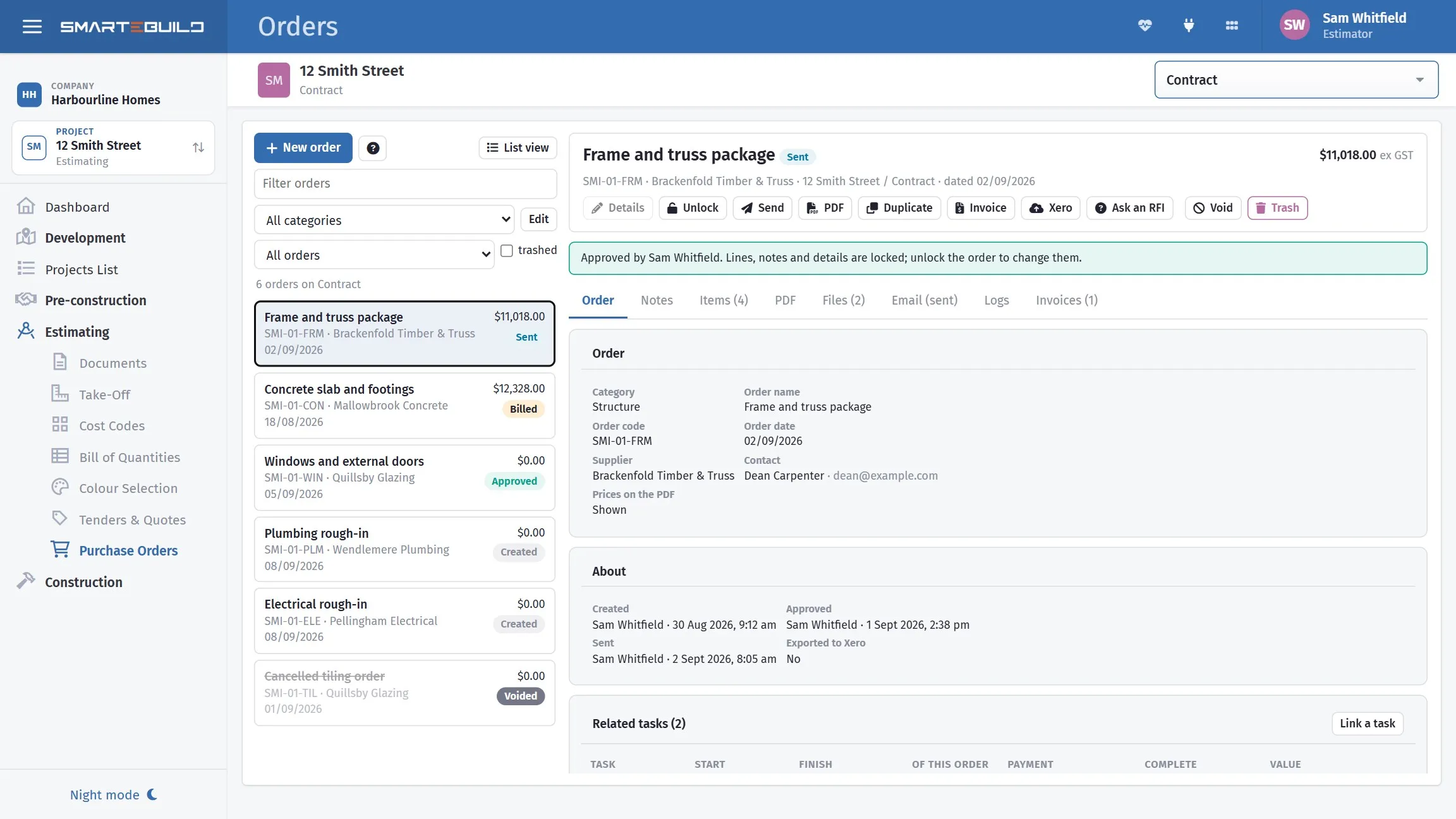
Orders turn the estimate into commitments you can track.
Why raise orders at all
Section titled “Why raise orders at all”Because the alternative is finding out you have overspent when the bill lands.
An order raised from the BOQ compares what you are about to commit against what you allowed, at the moment you commit it. That is the only point where the information can still change what you do. Once the invoice is in, the money is gone.
Orders also give you the three numbers that tell you how a job is going:
| Number | Comes from | Means |
|---|---|---|
| Allowed | The BOQ | What you priced |
| Committed | Purchase orders | What you have promised to pay |
| Actual | Expenses | What you have been charged |
The life of an order
Section titled “The life of an order”- Raise it from BOQ items — see Raising an order.
- Approve it, if your process requires it.
- Send it to the supplier.
- Receive an invoice against it, recorded in Expenses.
- Generate Invoice creates the expense record directly from the order.
Along the way it can be duplicated, exported, or voided if the work is no longer going ahead.
Orders come from the estimate
Section titled “Orders come from the estimate”An order is built from BOQ items, which is what makes all of this work. The item carries the description, the quantity, the rate, the supplier and the part number, so the order writes itself.
This is why the supplier fields on your items matter. Items with a supplier attached collect into an order for that supplier automatically. Items without one have to be assigned by hand, on every job. See Suppliers and products.
Locking
Section titled “Locking”With Lock Ordered or Billed Items on in the BOQ, an item that has been ordered against cannot be quietly edited.
That is deliberate. Changing the quantity on an item you have already ordered breaks the relationship between allowed and committed without telling anyone. If the scope really has changed, the order needs revising too — which is the conversation the lock forces.
Orders can be exported to Xero, individually or as part of your normal flow. Export order to Xero appears on the order itself, and requires the Xero connection to have been set up under Integrations in the top bar.