
Procurement
Available onBuilder
The Procurement tab, next to Bookings, is the list of everything that has to be chosen, ordered and delivered for the job: light fittings, tapware, appliances, steel, a letterbox. Each item is tied to the schedule task it is needed for. SmarteBuild works out when to order it from that task’s date and the supplier’s lead time.
Nobody types the order date. When the schedule moves, every order date behind it moves too, and the list re-sorts itself by what is now most urgent. That is the difference from keeping the list in a spreadsheet or another app: there, a date moved in the schedule has to be changed by hand in the list as well, and the one that gets missed is the one that holds up the job.
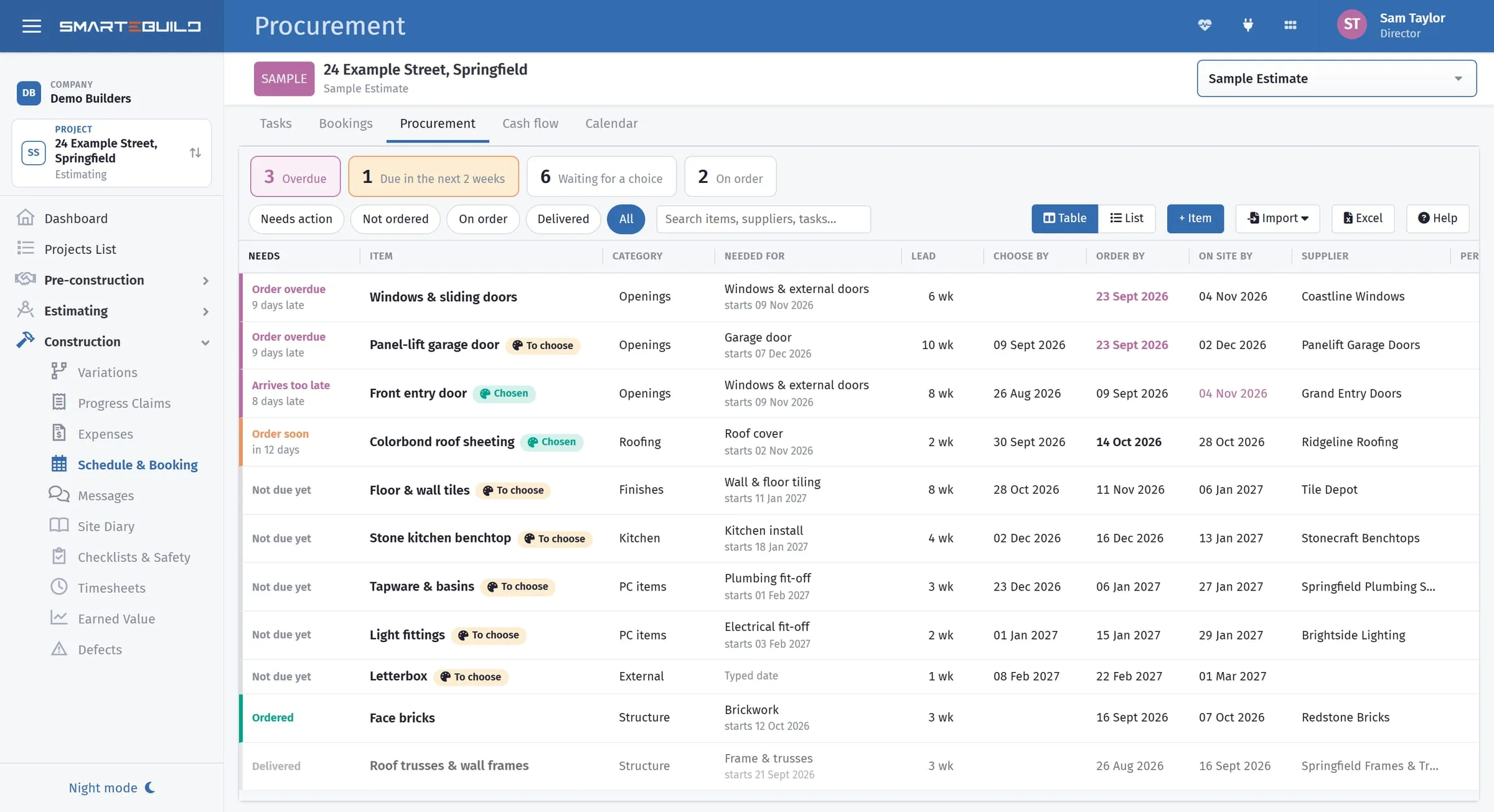
Most urgent first, with the tiles counting each kind of problem.
The three dates
Section titled “The three dates”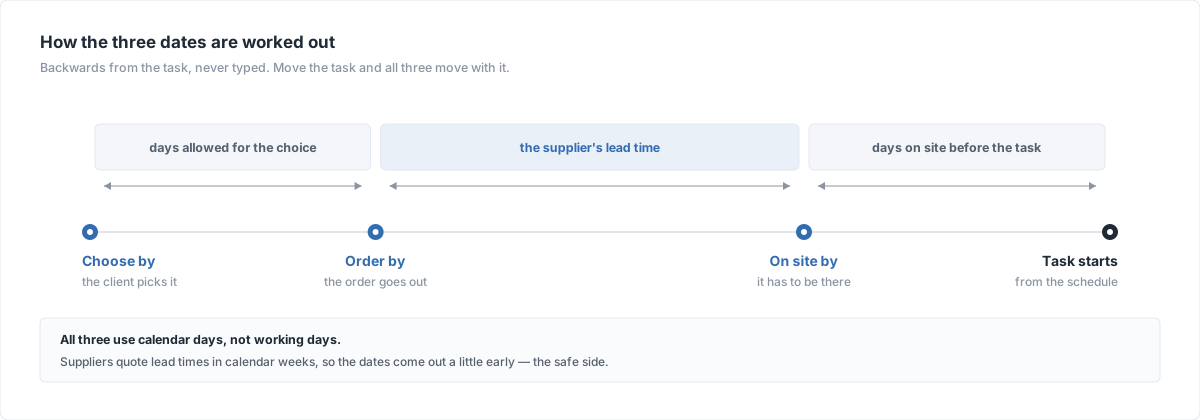
| Date | How it is worked out |
|---|---|
| On site by | The task’s start, less the days you want the item there before it. The task’s booked start is used once it is booked, the planned start until then. |
| Order by | On site by, less the lead time. |
| Choose by | Order by, less the days allowed for the choice. Only when someone has to choose it first. |
All three use calendar days, not working days. Suppliers quote lead times in calendar weeks, and if anything the dates come out a little early, which is the safe side.
An item that is not tied to a task (a letterbox needed by handover, say) takes a date you type instead. A typed date does not move with the schedule, so tie the item to a task whenever there is one.
What needs you
Section titled “What needs you”The list opens on Needs action, most urgent first.
Four tiles across the top count the job at a glance — Overdue, Due in the next 2 weeks, Waiting for a choice and On order. A fifth, No date yet, appears only when something has no date to work from. Click a tile to narrow the list to it.
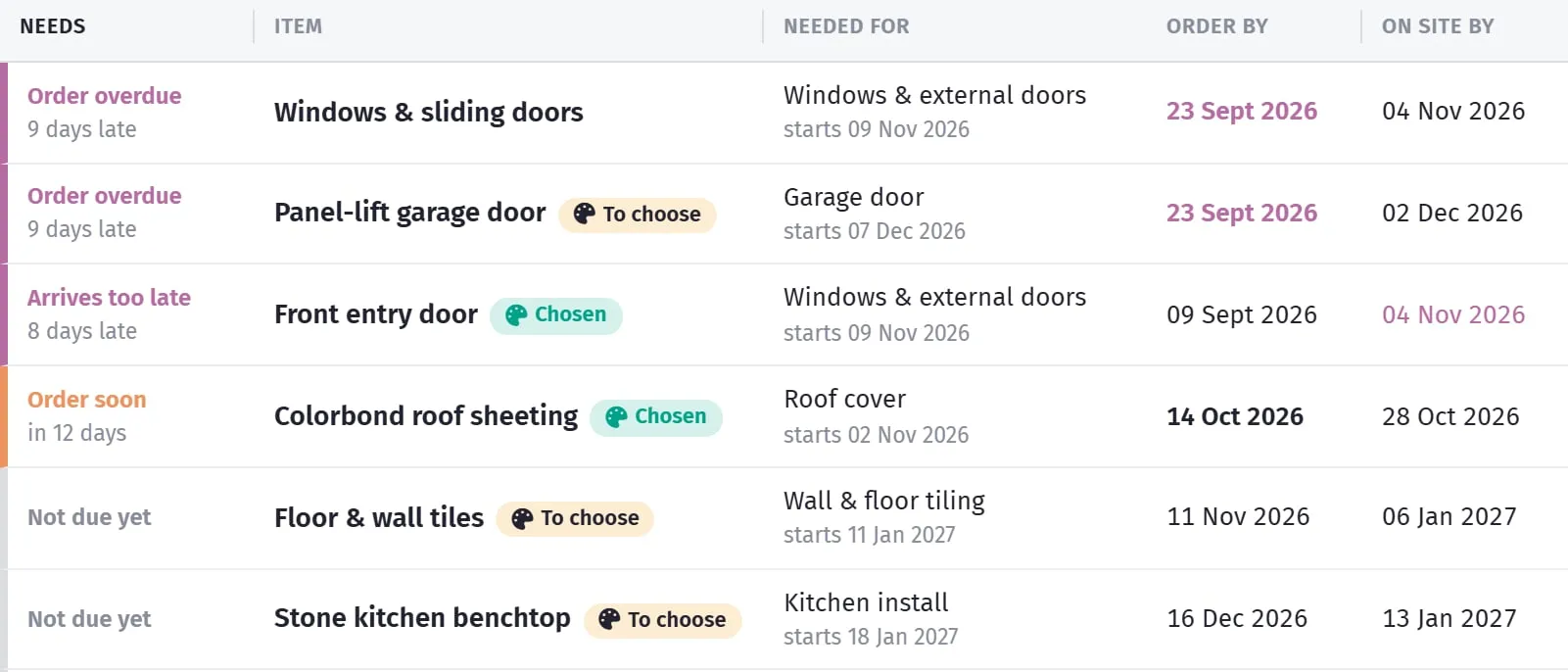
The Needs column says what the item is waiting on, and the edge colour repeats it.
Each row then says what it needs of you, in the Needs column:
| Shown as | Means |
|---|---|
| Order overdue | The order-by date has passed and it is not ordered. |
| Choice overdue | It still has not been chosen and the choose-by date has passed. |
| Arrives too late | It is ordered, but the supplier’s delivery date is after the date it is needed on site. |
| Order soon, Choose soon | Due in the next two weeks. |
| No date | Not tied to a task and no date typed, or the task has no dates yet. |
| Not due yet | Nothing needed for a while. |
Rows are edged pink when late, orange when due soon, and teal once ordered.
Table or List
Section titled “Table or List”Table and List, above the list on the right, show the same items two ways.
- Table has one row per item with every column: what needs doing, the item,
category, quantity, task, lead time, the three dates, supplier, person, status and
delivery date. Click a column heading to sort by it, and again to reverse. Needs
puts it back in urgency order. Category, Qty and Lead can be changed
right in the table: click the cell, type, and press Enter (or click away) to save;
Escape leaves it as it was. In Qty, type a number and a unit if you like
(
25 m2); a number on its own keeps the unit already there. Click a Status to pick another from your list, as on a Monday.com board. Drag the right-hand edge of a heading to make that column wider or narrower; double-click the edge to put it back. Your widths are remembered on that device. - List has one card per item, made for a tablet.
The page picks Table on a computer and List on a tablet until you choose one, then remembers your choice on that device.
Your own statuses
Section titled “Your own statuses”Out of the box an item is Not ordered, Ordered, Delivered or Not needed. If your team works with other words - In Warehouse, On Site, Not Required - an administrator can change the list: Statuses, above the list on the right.
-
Give each status a name, a colour and a stage, and put them in the order you want them offered. Start from: With a warehouse fills in Not Ordered, Ordered, In Warehouse, On Site and Not Required in one go.
-
The stage tells SmarteBuild what a status means, so the warnings keep working whatever you call it:
Stage Means Not ordered Still to order. Only these can go Order overdue. Ordered On order. Only these can Arrive too late. Received Delivered, in a warehouse or on site - nothing left to chase. Not needed Left off the job, and out of Needs action. -
Every list needs at least one Not ordered status (new items start there) and one Ordered status (a linked purchase order turns an item to it when it is sent). The other two stages are optional, and a stage can have several statuses.
-
The statuses are your company’s: every job, and everyone, uses the same list.
-
Removing a status that items still show moves those items to the first status of the same stage - they are never left without one. Moving a status to another stage moves its items too.
-
Once nothing is left to do, the Needs column shows the status itself - In Warehouse, On Site - instead of a warning.
Adding items
Section titled “Adding items”+ Item opens a blank item. Everything else is under Import:
- Add colour selections - one item for every colour selection on the job that is not on the list yet. Each still needs the task it is for and a lead time.
- Add from the estimate - lists this job’s estimate items, grouped by cost code, opening on the PC items (prime cost: the fittings the client usually chooses and you order) when the estimate has any; Every item shows the rest. Tick what has to be ordered and each becomes an item named after the estimate item, filed under its cost code, with the supplier of its chosen product. Items already on the list are marked and cannot be added twice.
- Copy from another job - reuse a list you made for another job (a house type you build again, say). Only jobs that already have a procurement list are offered, most recently worked on first. Pick the job, tick the items, copy. Each item brings its category, lead time, margins, whether a choice is needed, supplier, person and note, and starts as Not ordered. It is tied to the task with the same name on this job’s schedule when there is one - before you copy, the window says how many will be. The purchase order, colour selection and dates belong to the other job and are not copied.
- Import from Excel or Monday.com - reads an Excel file (.xlsx) or a CSV. A board from Monday.com works as it is: on the board, choose Export board to Excel and pick that file. The columns are matched by their headings (Category, Quantity, Unit, Supplier, Status, Due date on site, Lead time, Person, Delivery date, Notes). A board grouped by status, with no Status column, works too: each item takes the status of the group it sits under.
- Paste a list - copy the rows in Excel and paste them, or type one item per line. With a heading row the columns are matched as for a file; without one, each line becomes an item and a second column its category.
For a file or a pasted list you see every row before anything is saved, and a
supplier or person that does not match anyone on the job is kept in the item’s note,
so nothing is lost. A status that matches one of yours by name is used as it is; any
other status name (PO Sent, Working On It) is listed above the rows with a guess
beside it - pick the status each should become before you import. Tie the items to
tasks afterwards.
One item
Section titled “One item”Click an item to open it on the right. Across the top are its dates (Choose by when there is a choice to make, Order by, On site by), worked out as you type, before you save. Below them, four tabs. A dot on a tab means something on it needs attention - orange for soon, pink for late. Each tab only shows what applies, so a choice the item does not need, or details a purchase order already supplies, do not appear.
Item - the name, the category, the quantity and its unit (each, m2, lm), who is looking after it, and a note.
Timing - what decides when it is needed:
- A schedule task - search the schedule (tasks are listed in date order), then how many days before the task starts it should be on site (5 to start with).
- A fixed date - the date it is needed on site. It does not move with the schedule, so use a task whenever there is one.
Then the lead time, in weeks from order to delivery (halves are fine). With a task picked you can switch on Use the task’s lead time (the one on Bookings): the item then uses the task’s own lead time, and it is one number for both - change it here (or in the table) and the task’s lead time on Bookings changes too, change it on Bookings and the item follows. Shared lead times are in whole weeks, as on Bookings. In the table a shared lead time has a small link sign next to it. Underneath, a short timeline shows how each date is worked out from the next.
Choice - switch on Someone has to choose it before it can be ordered for items the client or you still have to pick. Link the colour selection it depends on and the choice counts as made as soon as it is approved on the Colour Selection page - a card shows where it stands. Without a link, tick The choice has been made yourself. Time to choose sets how many days before the order date the choice is due.
Order - a reminder at the top when the order is due or late, then:
- Purchase order - type part of the order number, name or supplier to find it, and the order fills in the rest: the supplier, whether it is ordered (Not ordered until it is sent from the Orders page, then Ordered) and the day it was sent. Those are no longer asked for. Your Received and Not needed statuses (In Warehouse, On Site, Not Required…) are still yours to pick; click the one that is on again to hand the status back to the order.
- No purchase order - pick the supplier and the status yourself, from your list.
- Delivery due - once it is ordered, the supplier’s date. The list warns you if it is later than the date the item is needed on site.
What the client sees
Section titled “What the client sees”When an item is linked to a colour selection and still waiting for the choice (not ordered yet), the client’s selections page shows Please choose by with the item’s choose-by date - the same date as here, moving when the schedule moves. Once that date has passed it asks them to choose as soon as they can. Each category heading shows its soonest date too, so a closed category still says when it is due. Nothing else from the procurement list is shown to the client.
On your Dashboard
Section titled “On your Dashboard”Whoever is Who is looking after it on an item sees it in My procurement on their Dashboard when it has to be chosen or ordered this week or next (or is already overdue), across every job. The Purchase Orders list also shows how many items on the job are overdue or due soon, with a link here.
The weekly email
Section titled “The weekly email”Everyone who looks after at least one item also gets one email a week, early on Monday morning, with the same list as My procurement: what to choose or order by the end of next week across every job, grouped Overdue, This week and Next week. Each item in it opens straight on its job’s Procurement tab.
- Nothing due that week means no email - you only hear from it when there is something to do.
- It comes from SmarteBuild’s own address, never from your company’s mailbox.
- It is on for everyone. To stop it, switch off Weekly procurement email under Preferences on your profile. Switch it back on any time and it starts again the next Monday.
- If the server misses a Monday, the email goes on Tuesday instead - never twice in one week.
Who can do what
Section titled “Who can do what”Anyone who can open the job can see the list. Adding, changing and removing items needs the Edit tasks schedule permission. Purchase orders are only offered to people who can see orders. Changing the company’s status list is for administrators only.
Taking it off the screen
Section titled “Taking it off the screen”Excel downloads the list as it is shown (same filter, same search, same order), with the three dates worked out.