
Building the schedule
Available onBuilder
Build the schedule before the client’s first selections appointment, not during it.
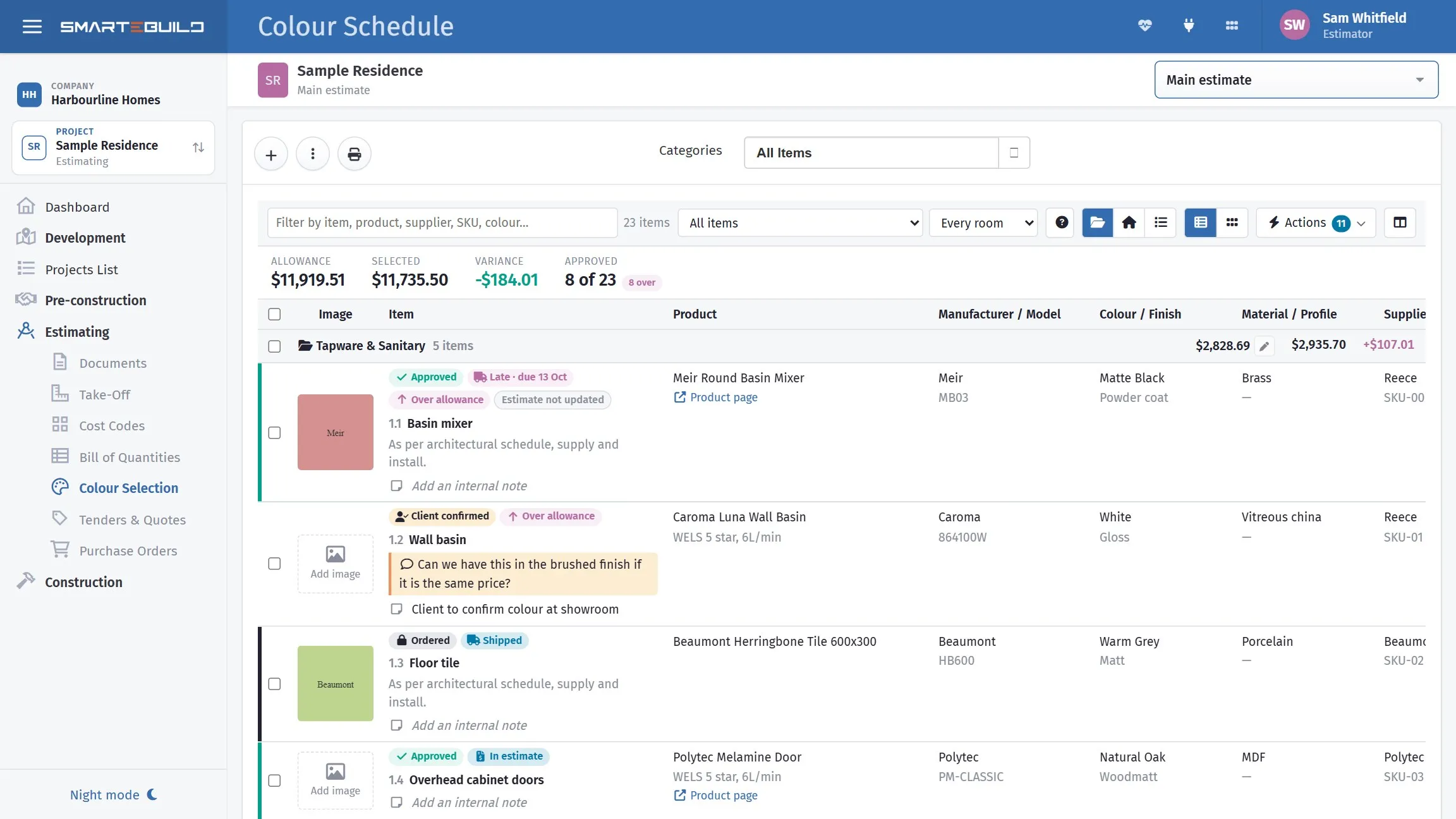
Every selection the client has to make, room by room.
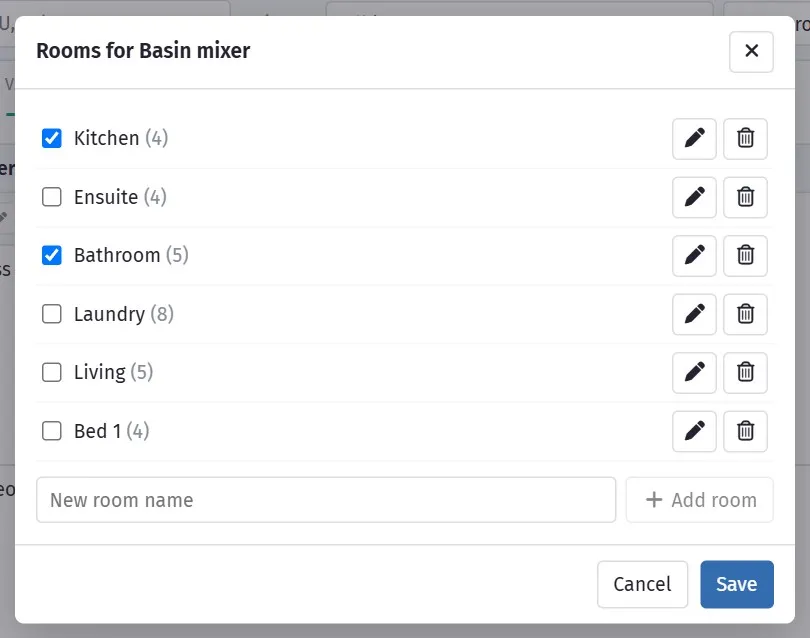
Rooms are how the client thinks about the house, so build it that way.
Rooms, under the Actions menu in the grid’s toolbar (it opens when you hover), adds, renames and deletes rooms. Name them as the
client does — Kitchen, Main bathroom, Ensuite, Laundry, Bed 1.
Use the room names from the drawings so there is no ambiguity about which bathroom is which.
An item can belong to more than one room — a floor tile usually does. The Rooms column shows where each item goes; click it, or the house button on the row, and tick the rooms. To put a set of items into a room in one go, tick them and use Add to rooms in the bar that appears. Switch the grid to By room and it lays the whole schedule out room by room, which is how a site walk happens; the room dropdown narrows it to one room at a time.
Adding a product
Section titled “Adding a product”Press Select Product — the first button on a row or a gallery card — and the product picker opens. Adding a product is done there, alongside choosing one, because both are the same job: it is where the item’s products live. There are two ways in.
From your price list
Section titled “From your price list”Search everything on your price lists at once — by product, brand, supplier or code — and put it on the item. The copy keeps a link back to the original, so its picture and its price can still be followed later. This is the one to reach for first: it is a product you have already priced and already trust.
From a supplier link
Section titled “From a supplier link”This takes the web address of a product on a supplier’s website and reads the page for you.
Paste the address, press Read the page, and the product name, brand, code, price, colour and picture come back filled in. Check them, change anything that is wrong, and save. The product is added to the item — so it also appears as an option on the client’s page — and, unless you untick it, becomes the selected product.
Two things worth knowing:
- Use the product’s own page, not a search result or a category listing. A listing page has no single product on it, so nothing useful comes back.
- Some sites give nothing. If the page is built entirely in the browser, or the supplier blocks outside requests, you will be told so and can type the details in by hand — the picture address still works on its own.
The item must not be approved or ordered; un-approve it first, the same as changing a product.
Checking prices at the supplier
Section titled “Checking prices at the supplier”Prices move. Check supplier prices in the Actions menu reads the page behind every product on the schedule that has a supplier link, and shows you only the ones that have changed: what it was, what it is now, and what accepting it does to this job.
Tick the ones you accept and press Update. Nothing is written until then, and the total at the bottom — “accepting these changes moves this job by +$1,840” — is the number worth reading before you press it.
Two things to know:
- It updates the price on this job only, never your price list.
- Items already on a sent purchase order are left alone. That price is on a document a supplier is holding, and changing it here would only hide the problem.
Products that cannot be read — a page that has moved, a site that blocks us — are listed at the bottom so you know they were not silently skipped.
Categories
Section titled “Categories”Add Category creates a category within a room. Category Name names it.
Group by the kind of decision, because that is how selections actually happen:
TapwareTilingBenchtopsCabinetryAppliancesFlooringPaintDoor hardwareLighting and electricalA client picks all the tapware in one conversation, not one tap per room.
Importing the items
Section titled “Importing the items”Add Category and import items creates a category and brings in the BOQ items in one step. Add All and Add All Included bring in items in bulk.
Price List Heading and Look Up help find what you are importing.
Importing rather than typing is what keeps the schedule tied to what you priced. An item typed in by hand has no allowance behind it, so nobody can tell whether the client’s choice costs more than the contract carried.
Copying a schedule from another job
Section titled “Copying a schedule from another job”There are two ways to reuse a schedule, and which one you want depends on when you think of it:
- Duplicating an estimate, or starting a job from a template, brings the schedule with it automatically. Nothing to do — see Duplicating an estimate.
- Copy from another job is for a job that already exists, where you did not start it from the right template, or the schedule you want is on a job that was never a template.
For the second, open the toolbar menu, pick the job to copy from, and you get a preview of exactly what would happen before anything is written.
It never adds items to your estimate. That is the whole point. A selection row has to hang off a BOQ item, and items belong to one estimate, so every row being copied has to be matched to an item this job already has. SmarteBuild matches on the price list item behind the row first, then on the item name.
Four things can happen to a row, and the preview tells you which:
| The preview says | What it means |
|---|---|
| A product name and a reason | Matched. It will be copied. |
| A dropdown to choose from | Several items here could be the one. Pick which, or leave it out. |
| No item in this job looks like it | Nothing here to attach it to, so it is skipped. Add the item to the estimate first if you want it. |
| Already on this schedule | Left alone. |
Ambiguity is normal and is not an error — if the other job had “Floor tile” and this job has three of them, only you know whether it was the bathroom, the laundry or the ensuite. The cost code shown next to each option is usually enough to tell them apart.
Only the shell comes across: the categories, the rooms, the notes, and which items are on the schedule. The other job’s client choices, approvals, comments and deliveries stay with that job, and the quantities and prices come from this job’s own items. Items already on this schedule are left alone, so running it twice is safe.
Show the allowance
Section titled “Show the allowance”This is the thing that makes the whole schedule work.
Every PC and PS item should show what the contract allowed. A client choosing tapware needs to know they have $1,200 to spend, or they will choose $1,900 of tapware and be surprised by the variation.
An allowance for a whole category
Section titled “An allowance for a whole category”Contracts usually give one allowance for a group of things - “Tapware $3,000”, not a figure per tap. Group the schedule by category and press the pencil beside the category’s allowance to type it. The window shows what the estimate has for those items (Use that copies it in) and what the client’s choices come to now.
Once typed, the category heading shows the allowance with a wallet, and its selected total and variance count every item in the category, even when a filter hides some. The Allowance tile at the top and the footer use it in place of those items’ estimate figures. Remove allowance goes back to the estimate figures.
Why type it rather than use the estimate: the estimate figure moves. Once a choice is pushed to the estimate, the estimate is priced from it and the overage disappears. A typed allowance stays put.
The product picker shows it too - how much of the category’s allowance is left, and whether each product would keep the client within it - and so does the client’s selections page, when the share link shows prices. Setting an allowance needs permission to make selections and to see prices and allowances.
Group Items
Section titled “Group Items”Group Items collects items for bulk handling — useful when reorganising a schedule that has grown, or moving a set of items between rooms.
Worked example
Section titled “Worked example”The Hendricks extension schedule, before the first appointment:
| Room | Category | Item | Allowance |
|---|---|---|---|
| Kitchen | Tapware | Sink mixer | $340 |
| Kitchen | Benchtops | Stone benchtop, 20mm | $3,200 |
| Kitchen | Appliances | Oven | $1,400 |
| Kitchen | Appliances | Cooktop | $900 |
| Main bathroom | Tapware | Basin mixer | $280 |
| Main bathroom | Tapware | Shower mixer | $320 |
| Main bathroom | Tiling | Floor tile | $55/m² |
| Main bathroom | Tiling | Wall tile | $48/m² |
| Laundry | Tapware | Laundry mixer | $260 |
Nine decisions, each with a number against it. The client can work through it themselves, and every conversation starts from a known budget.
Before the appointment
Section titled “Before the appointment”- Every PC and PS item is on the schedule.
- Every one shows its allowance.
- Products have images and URLs where you have them — see Products.
- Items are grouped the way a person would choose them.
- Anything with a long lead time is flagged in the note.
That fifth point saves jobs. A client taking three weeks to choose a cabinet with a six-week lead time has just moved your completion date, and the time to tell them is before they start deciding.