
Starting a register
Available onBuilder
Each job (each estimate) has its own register and its own QR code.
Starting one
Section titled “Starting one”- Open Site Register from the Construction group of the menu.
- Under Start a site register, press Start a site register.
- In Find the job, type part of the job or estimate name and pick it. Only jobs you can open that don’t have a register yet are listed.
- Press Start the register for the job.
The register opens on its QR poster tab. Starting it also makes a Site Documents folder in the job’s Documents - anything you put in that folder is shared with signed-in workers (see Site documents).
The QR poster
Section titled “The QR poster”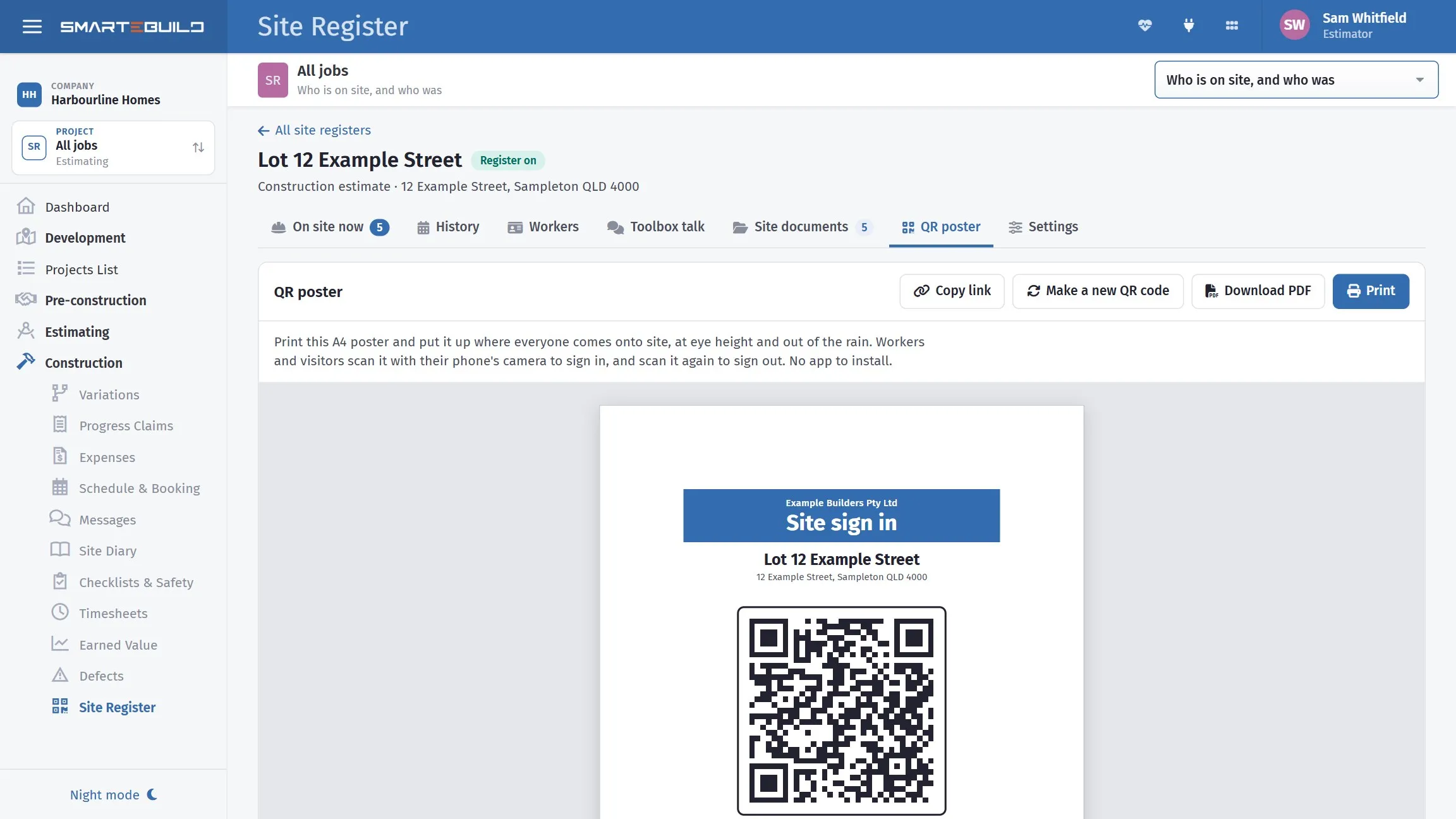
An A4 poster: your company, the job, the QR code and how to use it.
The QR poster tab shows the A4 poster: your company name, Site sign in, the job and its address, the QR code, and short instructions for workers and visitors. Print it, or Download PDF to print later.
Put it up where everyone comes onto site, at eye height and out of the rain. Two or three copies on a big site does no harm - they are the same code.
- Copy link copies the sign-in link, if you want to text it to someone instead.
- Make a new QR code replaces the code. The old poster stops working straight away - anyone who scans it is told to ask the site manager for the new one. Do this only if a photo of the poster has been shared where it shouldn’t have been, then print the new poster and replace the old one on site.
Settings
Section titled “Settings”The Settings tab holds everything about this site’s register.
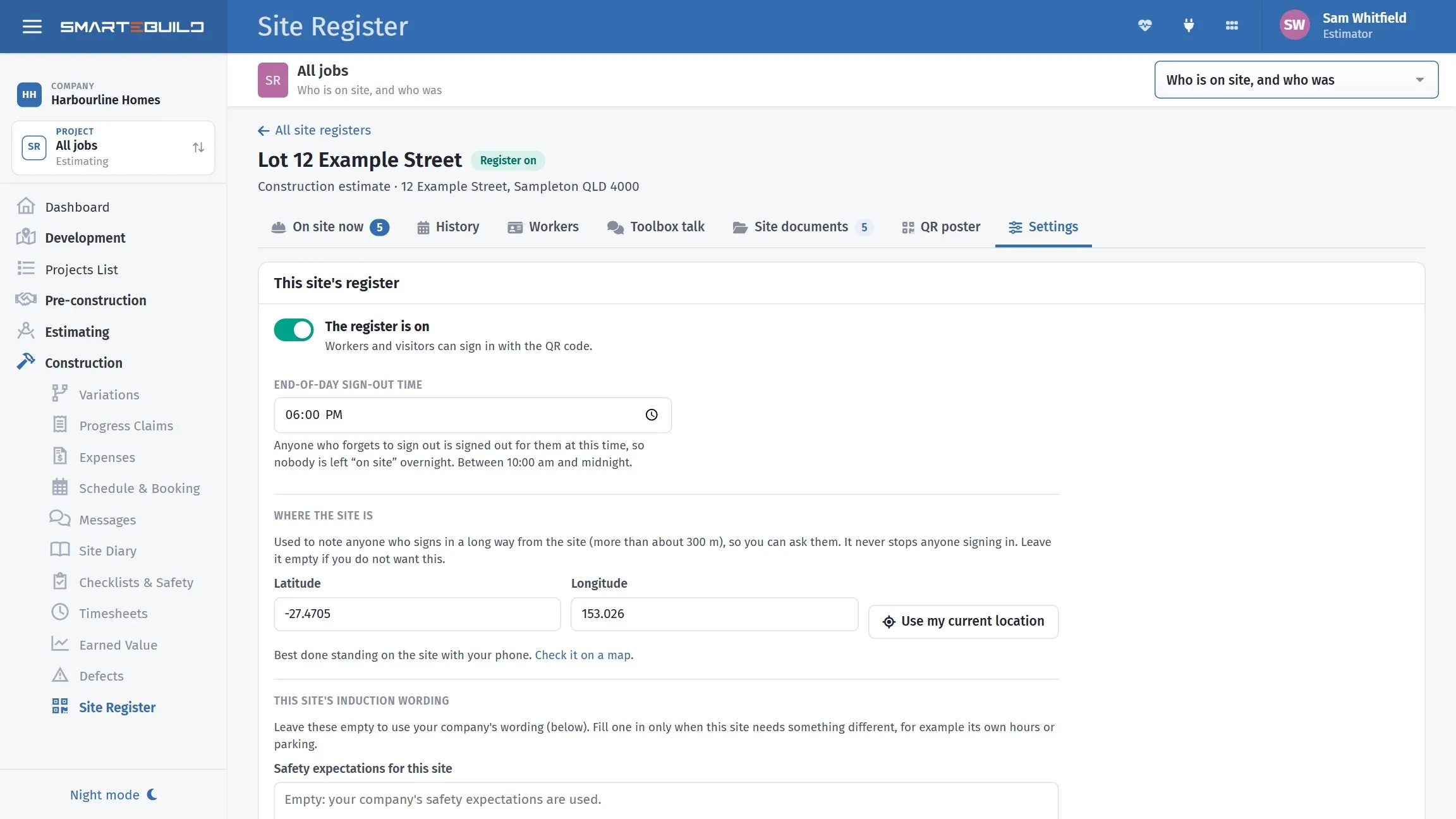
- The register is on / off - switch it off when the job is finished. While it is off, the QR code signs nobody in; a phone that scans it is told the code is no longer in use.
- End-of-day sign-out time - anyone who forgets to sign out is signed out at this time, so nobody is left “on site” overnight. It starts at 6:00 pm and can be anything between 10:00 am and midnight.
- Where the site is - the site’s latitude and longitude. Use my current location fills it in from your phone - best done standing on the site - and Check it on a map shows where it points. With a location set, anyone who signs in more than about 300 metres away is noted on the register, so you can ask them. It never stops anyone signing in - a poor phone signal can put someone in the wrong place. Leave it empty if you don’t want it.
- This site’s induction wording - leave these empty to use your company’s wording. Fill one in only when this site needs something different, such as its own hours or parking.
Your company’s induction wording
Section titled “Your company’s induction wording”The second card holds what every worker reads and signs at their induction, on every site that doesn’t have its own wording: a Safety expectations heading and text, a Site requirements heading and text, and the Note for visitors. Start each point on a new line with a dash (-) to show it as a list.
It starts with sensible wording - PPE, working at heights, site hours, no alcohol or drugs, signing in and out every day - for you to make your own. Changing it needs the Site register: inductions and ID photos permission.
Changing the wording never changes what earlier workers signed: each induction keeps the exact wording that worker agreed to.