
The site diary on the phone
Available onBuilder
The mobile app writes the same diary the desktop shows. A day started on site in the morning is what the office sees that afternoon, and a correction made at the desk is what the supervisor sees on the phone.
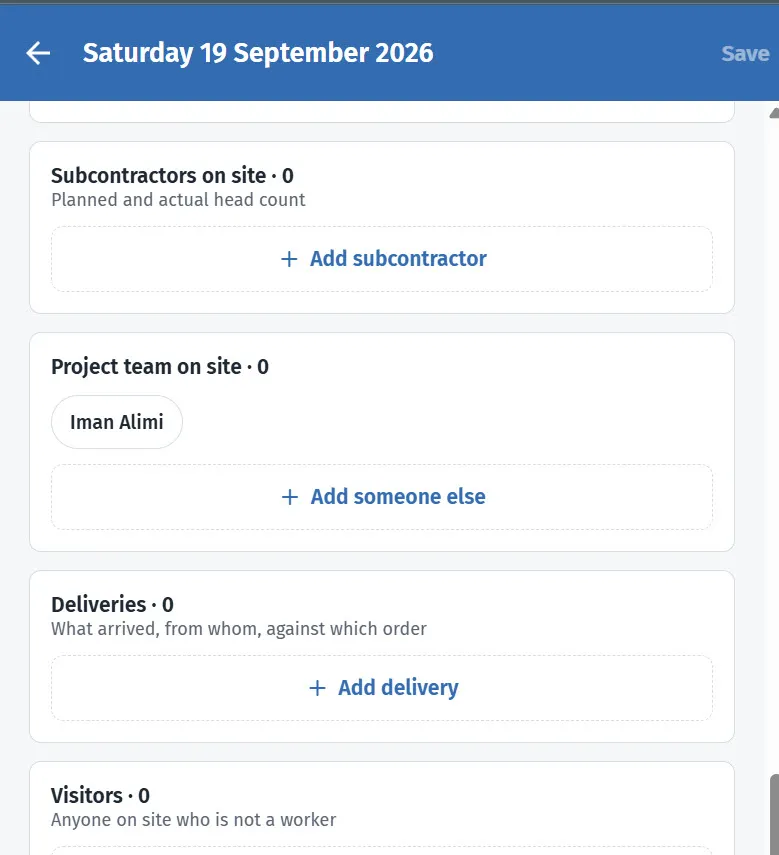
Subcontractors, your own people, deliveries and visitors — each counted as you add them.
Opening today
Section titled “Opening today”On the job’s home screen the Site Diary tile says whether today’s diary has been started. Tap it, then tap Start today’s diary (or the day’s card if it is already under way). Earlier days are listed below it, most recent first, with who wrote each one and what it recorded.
Filling it in
Section titled “Filling it in”The sections are the same as the desktop’s, stacked as cards:
- Weather - filled in for a new day from the site’s postcode; tap a condition, type your own, or tap Look up to fetch it again.
- Delay today - none, half a day, a day, or a figure.
- Safety, cost and programme issues - free text.
- Subcontractors on site - add a row per company. Start typing and the job’s suppliers are suggested. Planned and actual head counts, the activity, the block or unit.
- Project team on site - tap your people’s names to put them on site; the start time fills in as now. Tap the clock beside a time to set it to the current time.
- Deliveries - supplier, what arrived, the purchase order it was against (the supplier’s orders are offered), driver’s phone, in and out, who received it.
- Visitors - name, company, purpose, in and out.
- Notes - anything else.
On a new day, Copy from brings across the last diary’s subcontractors and team.
Photos
Section titled “Photos”Take photo opens the camera; Choose photos lets you pick several at once from the phone. Photos upload straight away and appear on the desktop within seconds. They are filed in the job’s Documents under Site Diary Photos.
The time the photo was taken, and where, are recorded from the phone when the phone provides them.
Hold a photo to remove it from the diary.
Saving
Section titled “Saving”Everything except photos waits for Save (top right, or the button at the bottom). Leaving the day with unsaved changes asks first.
When there is no signal
Section titled “When there is no signal”Photos and saves need a connection. If the app cannot reach the server it says so and keeps what you typed on screen; save again when the signal is back. Do not close the app in between.