
Suppliers and products
Available onEstimatorBuilder
An item can name the supplier you intend to buy it from, and the specific product you priced.
Neither is required to build an estimate. Both matter enormously once the job is won, because they are what let a purchase order write itself.
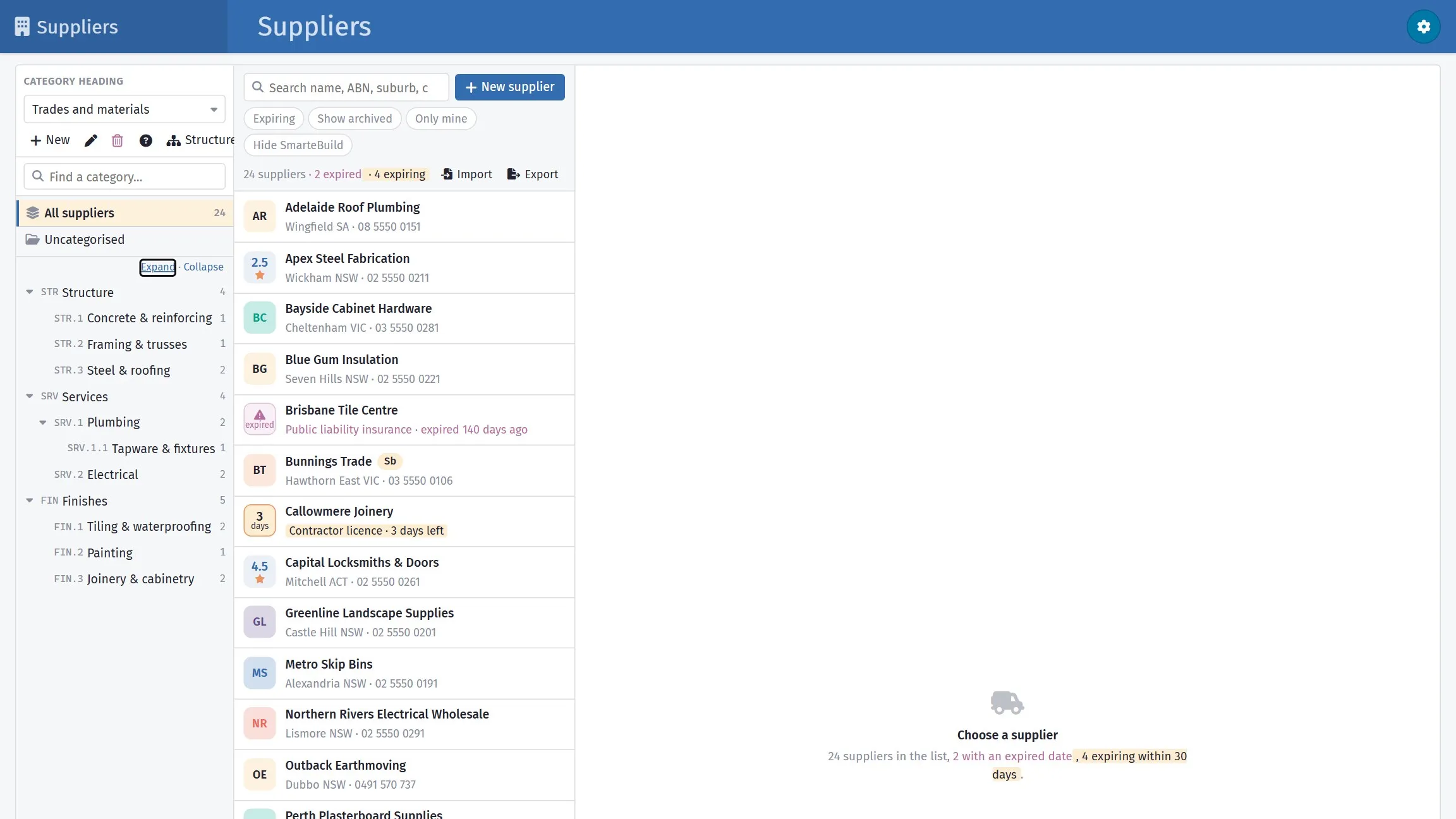
An item with a supplier attached becomes that supplier’s order line.
The fields
Section titled “The fields”| Field | What it holds |
|---|---|
| Supplier | Who you are buying from |
| Supplier SKU | Their part number |
| Manufacturer | Who makes it |
| Manufacturer Code | The manufacturer’s code |
| Link to Pricelist | The price list entry the rate came from |
| Related bid | The tender bid this rate came from, if any |
Why the supplier matters
Section titled “Why the supplier matters”Purchase Orders groups by supplier. Items with a supplier attached collect into an order for that supplier automatically — the right items, the right quantities, the right descriptions, without you assembling anything.
Items with no supplier have to be assigned by hand at order time, one at a time, on every job.
Why the SKU matters
Section titled “Why the SKU matters”Supplier SKU prints on the order. A supplier receiving a part number does not have to interpret your description, which is where substitutions and wrong deliveries come from.
It matters most on anything with variants — tapware, tiles, hardware, appliances, anything with a finish or a colour. “Chrome mixer” is not an order; a SKU is.
Manufacturer details
Section titled “Manufacturer details”Manufacturer and Manufacturer Code matter where the client has specified a product, or where a warranty depends on what was installed. They also feed the job specification, so the handover documents say what actually went in.
Choosing a product for an item
Section titled “Choosing a product for an item”The Products button on a BOQ row opens the product picker for that item. It is where you decide which product the item is priced from.
The picker has two tabs — or one, on an item you typed onto the job yourself: an item that did not come from a price list has no price list item behind it, so the From the price list tab and Add to price list do not appear for it at all.
On this item lists the products the item already has - its own copies, each with its supplier, price and picture. Use this selects one. The pencil opens it to edit: supplier, SKU, manufacturer, finish, colour, size, a note, a picture. Editing a copy never changes the price list.
A picture can be uploaded or fetched from a web address. The address must be the picture itself - right-click the image on the supplier’s site and copy the image address - not the page it sits on. Pictures over 10 MB, and addresses that are not ordinary public websites, are refused with the reason; the old picture stays until a new one has arrived.
From the price list lists the supplier products offered by the price list item this item was imported from, at the price that applies to your company - your own price where you have set one. Add and use copies one onto the item and selects it; Add copies it without selecting. Products already on the item are marked. Your own price list products can be changed, or deleted, from here too — see below. Edit in Price lists opens the whole item on the Price lists page.
Switching tabs reloads that tab, so products you add or change on the Price lists page show up as soon as you come back to From the price list — no need to close the picker and open it again.
Search and the supplier dropdown work across whichever tab is open, and the supplier dropdown only lists suppliers that actually have a product there. Cards or a list - the switch beside the search box - is remembered for you.
What each product would cost you
Section titled “What each product would cost you”Every product shows what choosing it does to the money, so you are not doing sums in your head:
- saves $1,240 on this line / +$380 on this line - the difference to the line total (the price difference times the item’s quantity) against what the line is priced at now. In Colour Selection it compares with the client’s current choice.
- cheapest - the lowest price on the tab, when there is more than one.
- Buy 42 × 2.88 = $1,890 - for a product with a size (one sheet covers 2.88 m²), how many whole ones to order and what they cost. Hover it to see how much is left over.
- Last ordered $52.10 / Last invoiced $54.00 - the last time your company bought this product (or the same product from the same supplier) on a sent purchase order or a supplier invoice, on any job, and whether it is dearer or cheaper now. Needs the Purchase Orders module and permission to see order values.
- +8% since 12 Mar - your price list price has moved since then. The product’s window shows the whole history as a small chart.
- Quote #58213 12 Sep - the product came from a supplier’s quote; it turns amber once the quote is more than 30 days old, so you check it is still good.
Using it for the other items on the job
Section titled “Using it for the other items on the job”When you choose a product for an item, the picker checks for other items on the same job that come from the same price list item (or, for an item typed onto the job, have the same name and unit) - the same plasterboard in every room, say. If there are any, a bar offers to price them from it too. Choose items… lists them with what each line changes by and the total change to the estimate; tick the ones you want and press Use it for…. Nothing changes until you do. The layers button on the chosen product opens the same list later.
Adding a product from a supplier’s website
Section titled “Adding a product from a supplier’s website”In New product, paste the address of the product’s page on the supplier’s website and press Fill in. The name, brand, SKU, description, colour, material, price and picture are read off the page, and the supplier is matched from your suppliers by their website or name. Check it and press Add product - nothing is saved before that. Prices on supplier websites include GST, so inc GST is ticked for you; untick it if the page showed the price without GST.
Supplier quotes and asking for a price
Section titled “Supplier quotes and asking for a price”The Quotes tab lists every supplier quote for this item - newest first, with its date and age, the line total it gives, the lowest one marked - and any supplier you have asked who has not answered yet. Use this quote prices the item from it (in Colour Selection it makes it the client’s choice).
Ask for a price puts the item on a tender - a new one, or one already on the job - and adds the supplier contacts you tick (suppliers already on the item are suggested; search for anyone else). It does not send anything. The tender opens on the Tender page, where you check the email, attach drawings and press Send, as with any tender. When the quote comes back it appears on the Quotes tab. Needs the Tenders & Quotes module; seeing quoted prices needs permission to see tender prices.
Keyboard
Section titled “Keyboard”| Key | Does |
|---|---|
| / | Jump to the search box |
| ↑ ↓ (and ← → on cards) | Move between products |
| Enter | Use the highlighted product (or add and use it, on the price list tab) |
| 1, 2, 3 | On this item / From the price list / Quotes |
| Esc | Clear the search |
Adding a product to the price list from here
Section titled “Adding a product to the price list from here”New product on the From the price list tab adds a product to the price list item itself, not just to this job — so every job that uses that price list item can pick it afterwards. Fill in the name, supplier and price (the rest is optional) and Add to the price list. It appears in the list straight away, ready to Add and use on this item. It needs access to Price lists with permission to edit it.
(The New product button on the On this item tab is the other one: that types a product onto this job only, and never touches the price list.)
Changing a price list product from here
Section titled “Changing a price list product from here”On the From the price list tab, a product your company owns carries a pencil. It opens the price list product itself — name, description, supplier, price, SKU, maker, finish, colour, material, profile, size and note — and Save to the price list writes it back to the price list, so every job that uses it from now on gets the new details. A changed price is recorded in the product’s price history, the same as editing it on the Price lists page.
If your company has its own price for the product, the window shows it at the top: that is the price jobs get. Changing the price in the window makes the new price your price from today as well - the old one stays in the price history.
- Products supplied with SmarteBuild open read-only — their button is an eye, not a pencil. They are shared with everyone and cannot be changed; set your own price for one on the Price lists page instead.
- You need access to Price lists with permission to edit it. Without that permission the window opens read-only - an eye instead of a pencil - even for your own products.
- The button sits at the right-hand end of each row, after Add and use and Add.
- Saving here does not change the copies already sitting on jobs. Those keep what they have until you renew prices.
Delete in that window removes the product from the price list for good, with its price history, and takes it off the price list items it was attached to. It asks first and tells you what it is attached to. Jobs keep their own copies — nothing on an estimate, order or invoice changes — but those copies stop being linked to the price list, so renewing prices no longer reaches them. Deleting needs permission to delete from Price lists, which is separate from permission to edit.
When the price list has moved
Section titled “When the price list has moved”A product copied from the price list keeps the price it had when it was copied. When the price list changes, the product shows a badge - price list $640 with an arrow - and Update from price list appears in the toolbar with a count.
If an item has two copies of the same price list product (for example one copied and then changed to another colour), each is updated only when you ask for it - updating one never overwrites the other.
Each product on the On this item tab also has its own circular-arrows button: Update this product from the price list takes that one product’s name, description, supplier, SKU, maker, finish, colour, size, picture and price from the price list product it came from. It asks first, shows what the price becomes, and warns when the estimate is priced from it. Anything typed on the copy is replaced; the price list itself is not touched.
Update from price list in the toolbar does the same for every product that has moved, in one pass. It opens a preview: each product that has moved, its price now and its price list price, all ticked. If the estimate is priced from one of them, it shows what the line total becomes. Nothing changes until you confirm, so an estimate never moves because somebody edited the price list.
Tidying up
Section titled “Tidying up”Remove unused lists the products on the item that nothing uses - not selected, not on an order, invoice, quote or bid, and not a client’s colour choice - and removes them when you confirm. A product that is in use - on a tender, a quote (including a product a supplier quoted in its place), an order, an invoice or a client’s colour choice - cannot be deleted; the picker says where it is used.
New product types one in, for something that is not in the price list.
Adding products to the price list
Section titled “Adding products to the price list”A product typed on the item can go into the price list, so the next job that uses the same price list item can pick it instead of typing it again. Add to price list in the toolbar - its count is how many products on the item are not in the price list - or the cloud button on one product opens a preview, with each product showing what will happen:
- New in price list - it is added under the price list item this estimate item was imported from, with its supplier, SKU, details, price (ex GST) and picture.
- Links to existing - that price list item already has the same product (same supplier and SKU, or the same name when there is no SKU), so this copy is linked to it rather than added twice.
- A product with no supplier cannot go in until you give it one.
The cloud button only appears on a product that is not in the price list yet, so a product that came from the price list does not have one. The toolbar button stays put either way: when there is nothing left to add it greys out and says so.
Neither appears on an item you typed onto the job yourself. Products can only be filed under the price list item an estimate item was imported from, and a typed item has none — import the item from a price list if you want its products to go back.
Nothing changes until you confirm. Afterwards the product shows as From the price list on this item, and Update from price list keeps it in step from then on. Adding needs access to Price lists, and only works for an item that was imported from a price list.
In Colour Selection the same picker records the client’s choice instead, and shows the estimate’s product next to it for comparison. It does not change the estimate. When the item’s category has an allowance, the header shows how much of it is left with the current choice, and every product says whether choosing it stays within allowance or how far it goes over.
Changing products from Colour Selection needs permission to make selections, and only works on items that are in the colour selection. A product the estimate is priced from can only be changed, updated from the price list or deleted by someone who may also edit BOQ items, because changing it changes the job’s cost.
If you have view-only access to a job, the picker opens read-only.
Managing products on an estimate
Section titled “Managing products on an estimate”The Items menu carries product-level commands:
| Command | What it does |
|---|---|
| Add new product | Creates a product against the item |
| Renew prices | Updates rates from the linked source |
| Renew all the products of this estimate | Refreshes everything at once |
| Remove all unused products | Clears products no item refers to |
| Export all products | Exports the product list |
Remove all unused products is worth running after heavy editing. Products orphaned by deleted items clutter the pickers and slow things down without affecting any price.
Export all products produces the buying list for the whole job — useful for a supplier who wants to quote the package rather than line by line.
Related bid
Section titled “Related bid”Where a rate came from a tender, Related bid links the item back to the bid.
That link is what answers “who quoted this, and when?” six months later. It is filled in automatically when you bring a bid into the bill from Tenders, so it costs you nothing.
Worked example: ordering the slab
Section titled “Worked example: ordering the slab”The slab items were priced with suppliers attached:
| Item | Supplier | SKU |
|---|---|---|
| Concrete N32 | Barwon Concrete |
N32-20-80 |
| SL72 mesh | Surf Coast Steel |
SL72-6X2.4 |
| Vapour barrier | Surf Coast Steel |
VB200-4X25 |
| Concrete pump | Barwon Concrete |
PUMP-CALLOUT |
When the job is won, Purchase Orders produces two orders — one to Barwon Concrete, one to Surf Coast Steel — each carrying the right items with part numbers and the site address already on them.
Had the supplier fields been blank, that would have been four items to assign by hand before anything could be sent.