
Cost to date against budget
Available onBuilder
Cost to date is what the job has actually cost so far. Against the budget, it tells you whether the estimate is holding up — but only if you read it carefully, because the obvious comparison is misleading.
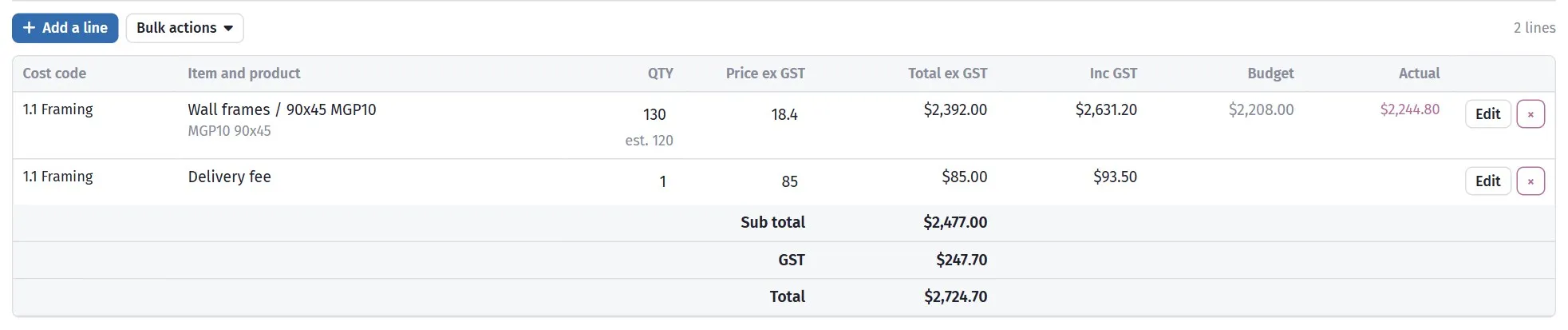
Each line of a supplier invoice against what you allowed for it: the Budget and Actual columns, pink where it has gone over.
The trap
Section titled “The trap”Cost to date against total budget tells you almost nothing on its own.
A job that has spent 45% of the budget is doing well if it is 60% built and badly if it is 30% built. The spend figure alone cannot distinguish those, and the difference is the entire question.
You need three things together:
| From | |
|---|---|
| Allowed | The BOQ |
| Committed | Purchase orders |
| Actual | Expenses |
Plus a view of how much is actually built.
Read it by trade, not by job
Section titled “Read it by trade, not by job”The job-level total hides everything. A trade $4,000 over and another $4,000 under look like a job on budget, and they are two separate problems.
Turn on Show Actual Costs Columns in the BOQ and read it by cost code.
Worked example
Section titled “Worked example”The Hendricks job at frame stage:
| Trade | Allowed | Committed | Actual | Built? |
|---|---|---|---|---|
| Preliminaries | $12,400 | $9,200 | $8,640 | Ongoing |
| Site works | $8,900 | $9,340 | $9,340 | Complete |
| Concrete | $9,784 | $7,576 | $7,938 | Complete |
| Framing | $34,200 | $34,200 | $18,900 | Complete |
| Roofing | $18,600 | $19,850 | $0 | Not started |
| Total | $83,884 | $80,166 | $44,818 |
Four separate readings:
Site works is $440 over and complete. Closed out, over budget. Note it for next time.
Concrete is $362 over the order. See Matching to an order — the waiting time.
Framing is complete but only half invoiced. The carpenter’s final invoice is coming. This is the most dangerous line on the table, because the actual column makes the trade look under budget when it is exactly on it.
Roofing is committed $1,250 over before a tile has been laid. The best line on the table — the overrun is visible before the work starts, so there is still time to do something about it.
Committed is the early-warning number
Section titled “Committed is the early-warning number”Actual tells you what has happened. Committed tells you what is about to.
The roofing line above is the whole argument for raising orders: a $1,250 overrun that is visible while you can still renegotiate, re-scope or accept it deliberately, rather than discovering it in an invoice.
Where to look
Section titled “Where to look”| Where | Gives you |
|---|---|
| BOQ with actual cost columns | Item and trade detail |
| Estimate metrics on the Projects list | Job-level cost against budget |
| Expenses list | Everything charged, by supplier and date |
A monthly routine
Section titled “A monthly routine”- Open the BOQ with actual cost columns on.
- Read down by trade, not by total.
- For each trade, ask: is it built, and does the spend match?
- Flag anything where committed exceeds allowed — act now.
- Flag anything where actual exceeds committed — query the invoice.
- Check whether trades that are complete are fully invoiced.
Fifteen minutes. Step six is the one that stops a job looking profitable right up until the last invoices land.
Feeding it back
Section titled “Feeding it back”The most valuable output is not this job — it is the next one. A trade that runs over on three jobs running is a rate that needs changing in your price list, not bad luck.
That is the argument for keeping finished jobs archived rather than deleted: your own cost history is the best pricing data available to you.