
Reports
Available onDeveloper
The Reports tab has every report and graph the development needs, each one built from the feasibility you already have. Pick one from the menu on the left (on a phone, the drop-down at the top), and it is ready to print. Because they all come from the same numbers as your screen, the report you send the bank cannot disagree with the one you send the valuer.
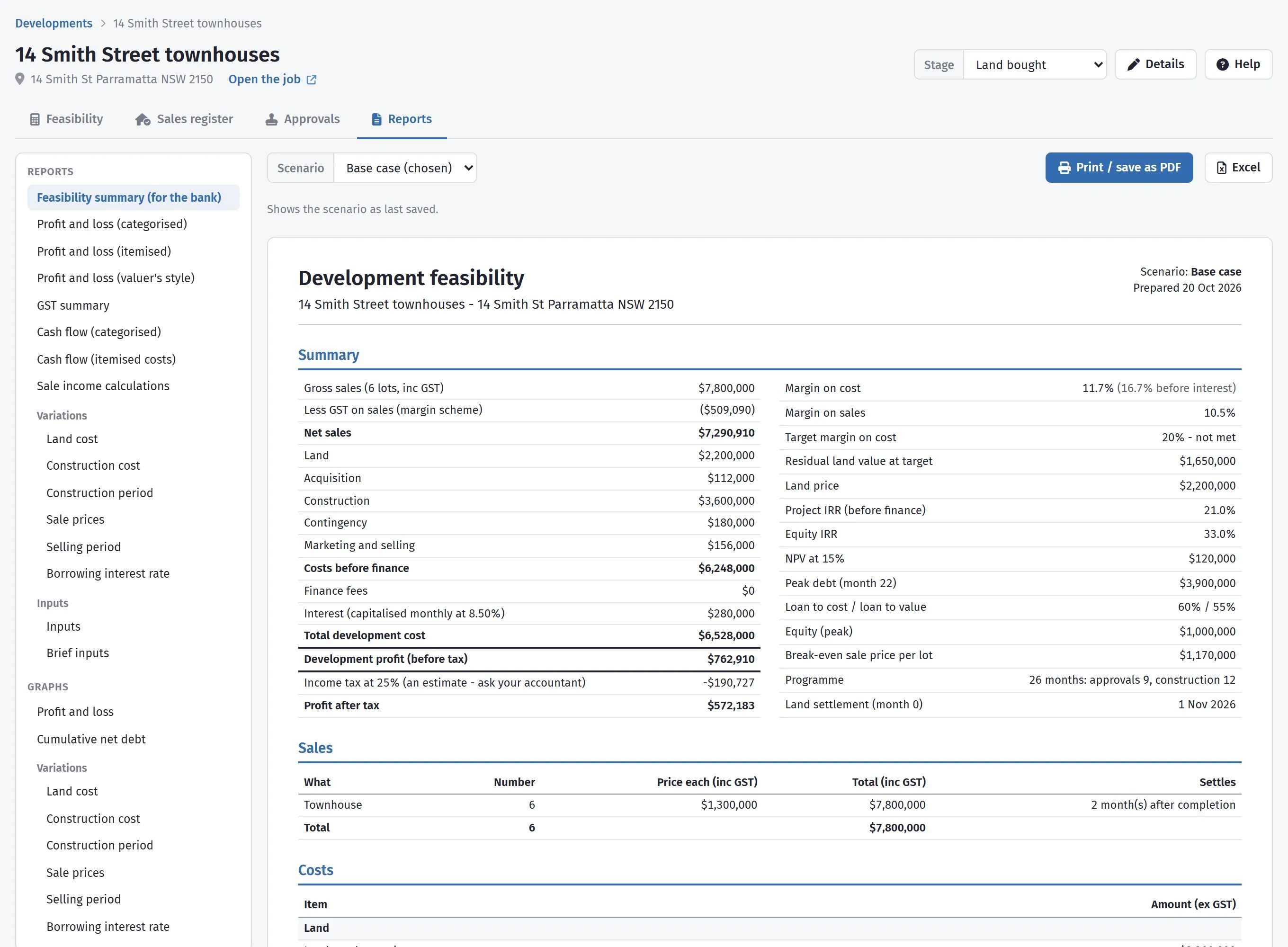
Pick a report on the left; it shows on the right, ready to print.
Choosing what to print
Section titled “Choosing what to print”The toolbar along the top has three things:
- Scenario - which scenario the reports are of. Reports show the scenario as last saved, so save first if you have just changed something.
- Print / save as PDF - prints the report on show, or saves it as a PDF.
- Excel - the same feasibility as a workbook, for anyone who wants to work with the figures.
Every report starts the same way: its title, the development’s name and address, the scenario, and the date it was prepared. A bank will come back weeks later about “the feasibility you sent”, and the date on the page tells you which one that was.
The reports
Section titled “The reports”| Report | What it shows | Who usually wants it |
|---|---|---|
| Feasibility summary (for the bank) | The project in the order a lender reads it: total cost, sales, profit, tax, margin on cost, peak loan, loan to value and pre-sale cover, then the schedules behind it | The bank |
| Profit and loss (categorised) | Sales, then costs by section (land, consultants, construction and so on), down to profit | You and your partners |
| Profit and loss (itemised) | The same, with every cost line shown | Anyone checking a number |
| Profit and loss (valuer’s style) | Gross realisation, less GST and selling costs, less development costs, to development profit and risk - with profit on cost, profit on net realisation, the residual land value at your target margin and the break-even sale price per lot | A valuer or quantity surveyor |
| GST summary | The GST on sales (by the method you chose), the GST claimed back on costs, and the net GST | Your accountant |
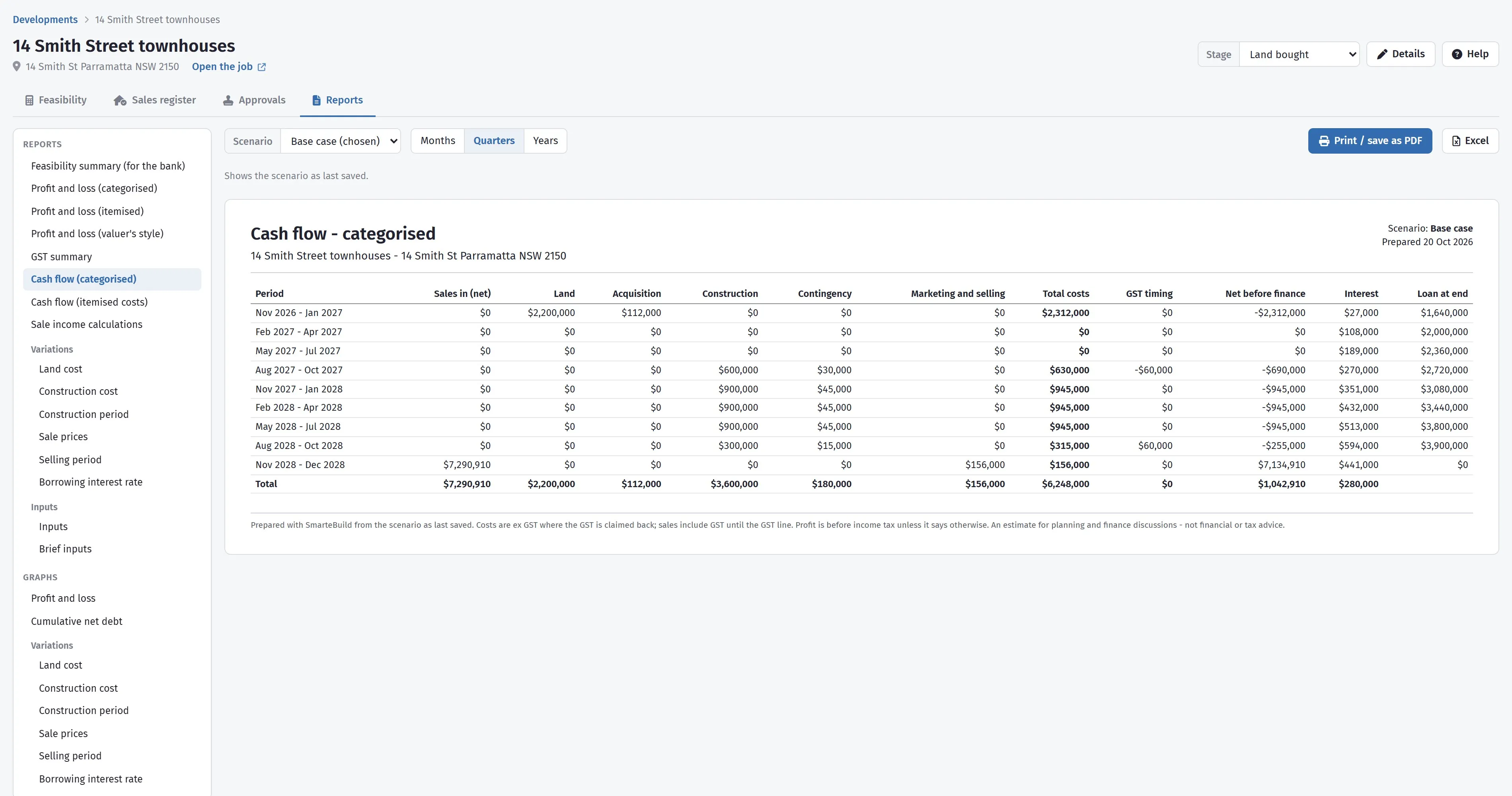
| Cash flow (categorised) | Money in and out by section, period by period, with the loan | The bank, and you |
| Cash flow (itemised costs) | Every cost line, period by period | Anyone checking timing |
| Sale income calculations | Each kind of lot: how many, the price, growth to settlement, GST and net sales, and when it settles | The bank and the valuer |
| Variations | One assumption moved at a time - see below | The bank’s credit team |
| Inputs and Brief inputs | The assumptions, the sales and the cost lines behind everything else (brief leaves out the timing columns) | Anyone who wants to check the working |
If the job has rent or other income, it appears in every profit and loss, the GST summary, both cash flows, the inputs and the bank summary, and the letting fees show as their own cost section. With a second loan, the interest is shown split between the first loan and the second.
The two cash flow reports can be shown by Months, Quarters or Years, and print across the page (landscape) so the columns fit.
Variations: what happens if one thing changes
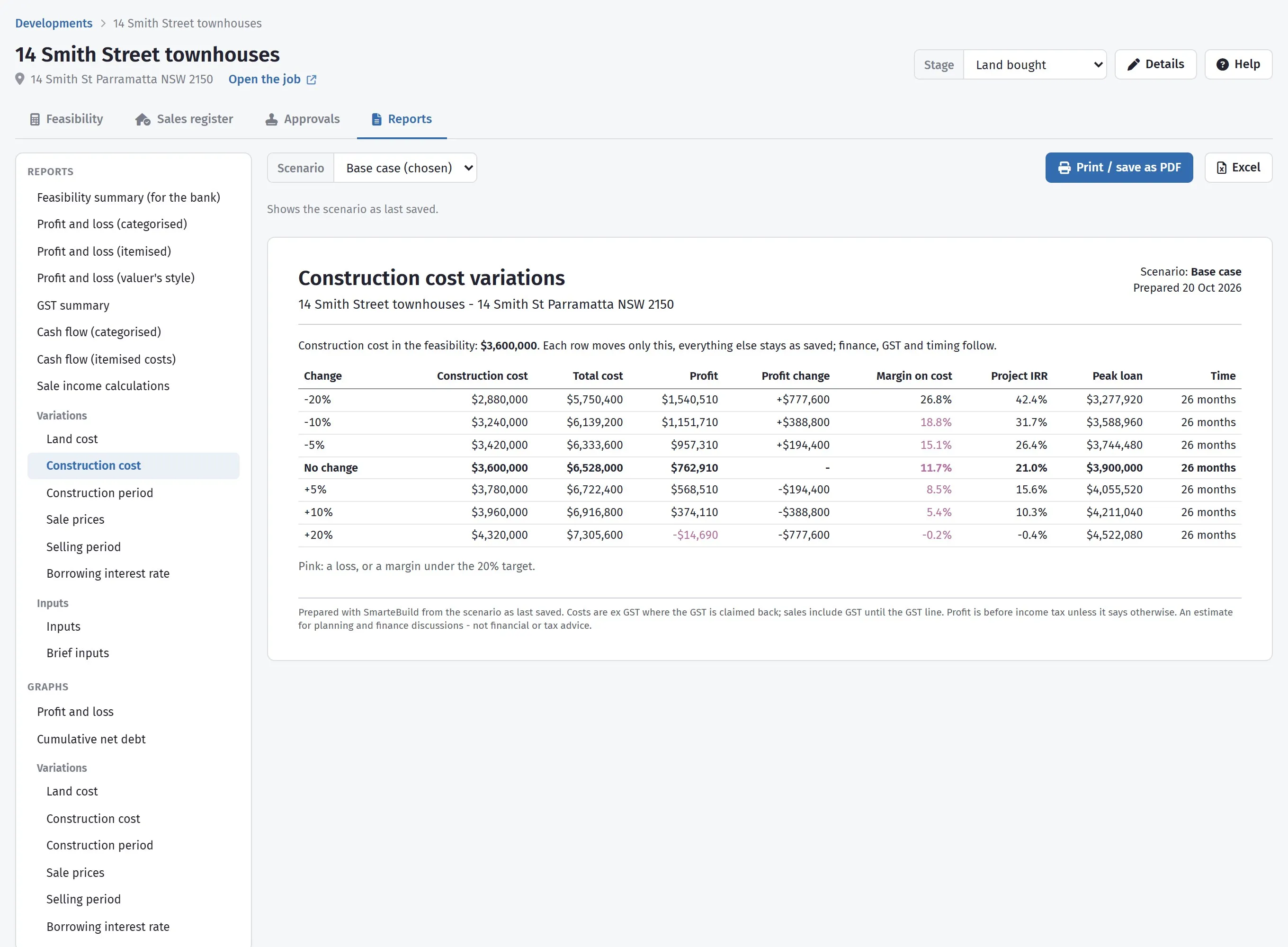
Section titled “Variations: what happens if one thing changes”A variations report moves one assumption up and down and leaves everything else where it is, so you can see exactly what that one thing does to the job. There is one for each of:
| Assumption | Moved by |
|---|---|
| Land cost | 20%, 10% and 5% either way |
| Construction cost | 20%, 10% and 5% either way |
| Construction period | Up to 3 months shorter, up to 3 months longer, and 6 months longer |
| Sale prices | 20%, 10% and 5% either way |
| Selling period | Up to 2 months shorter, up to 3 longer, and 6 months longer |
| Borrowing interest rate | 2 points lower to 3 points higher |
| Rent income | 20%, 10% and 5% either way, on every rent line’s weekly rent (one-off income stays as it is). Listed only when the job has rent |
The value column shows the rent over the whole project at each step. With a second loan, the interest rate variation moves the first loan’s rate.
Each row shows the total cost, the profit and how much it changed, the margin on cost, the project IRR, the peak loan and how long the job takes. No change is in bold, so your own figures are easy to find. A row in pink is a loss, or a margin under your target.
If one does not apply, it is left out and the page says why - there is no land cost variation without a land price, and no sale price or selling period variation until the job has sales.
This is the table worth putting in front of a lender before they ask. It shows you have already thought about what happens when costs rise or the market slows.
The graphs
Section titled “The graphs”- Profit and loss - a column for net sales, one for each group of costs (land, consultants, construction, selling, interest and so on), and the profit, with its margin on cost above it.
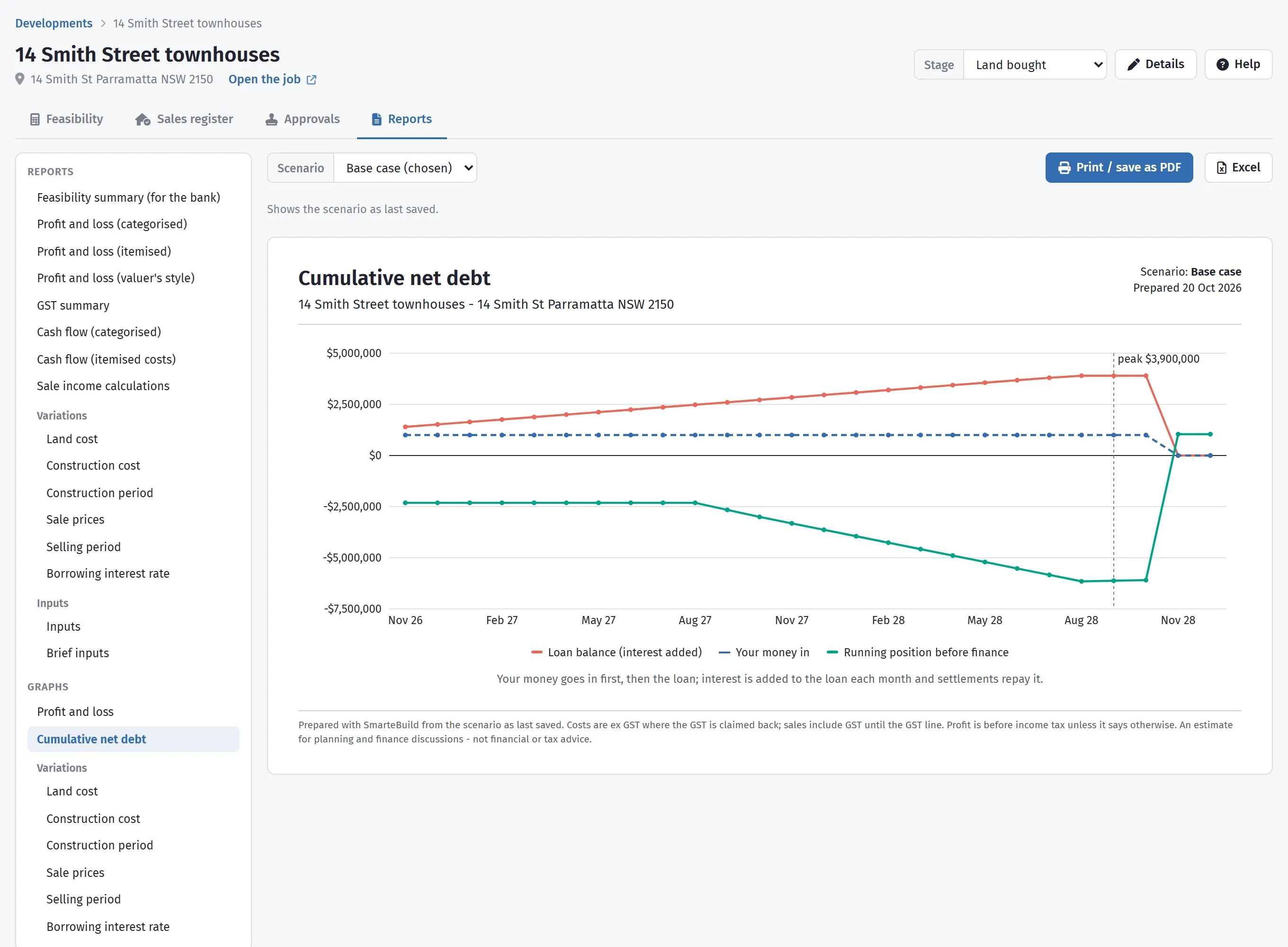
- Cumulative net debt - the loan balance (with interest added), your own money in, and the running position before finance, month by month, with the peak marked. Your money goes in first, then the loan; interest is added each month and settlements pay the loan back. With a second loan, it has a dotted line for the second loan.
- Variations - the same ones, as columns of profit with the margin on cost above each one; the No change column is darker.
Printing and saving as PDF
Section titled “Printing and saving as PDF”Print / save as PDF uses your browser: choose a printer, or Save as PDF (on Windows, Microsoft Print to PDF works too). Only the report prints, not the menu or the toolbar. Save it with the date in the file name.
Taking it to Excel
Section titled “Taking it to Excel”Excel gives the feasibility as a workbook - the summary, the cost and sales schedules, the month-by-month cash flow, the rent and other income, the what-if grid and, for anyone allowed to see it, the sales register. The figures are numbers rather than text, so a lender’s analyst can work with them instead of retyping. See Taking it to Excel for what is on each sheet.
Before you send anything
Section titled “Before you send anything”Worth two minutes:
- Is the right scenario picked, and saved? The reports follow the scenario in the toolbar, as it was last saved.
- Is the build cost current? If it is linked to an estimate, it moves when the estimate moves - which is right, but check it is the estimate you mean.
- Does the sales schedule match reality? Lots still marked Available that have exchanged make your pre-sale cover look worse than it is.
- Is the GST treatment the one your accountant agreed? It changes the profit materially, and it is the first thing a lender’s analyst will test.