
Drawings, revisions and export
Available onEstimatorBuilder
Everything in this article is about the drawing rather than the measuring: keeping the page rail tidy, moving a take-off onto a new revision, and producing a marked-up PDF you can send to someone.
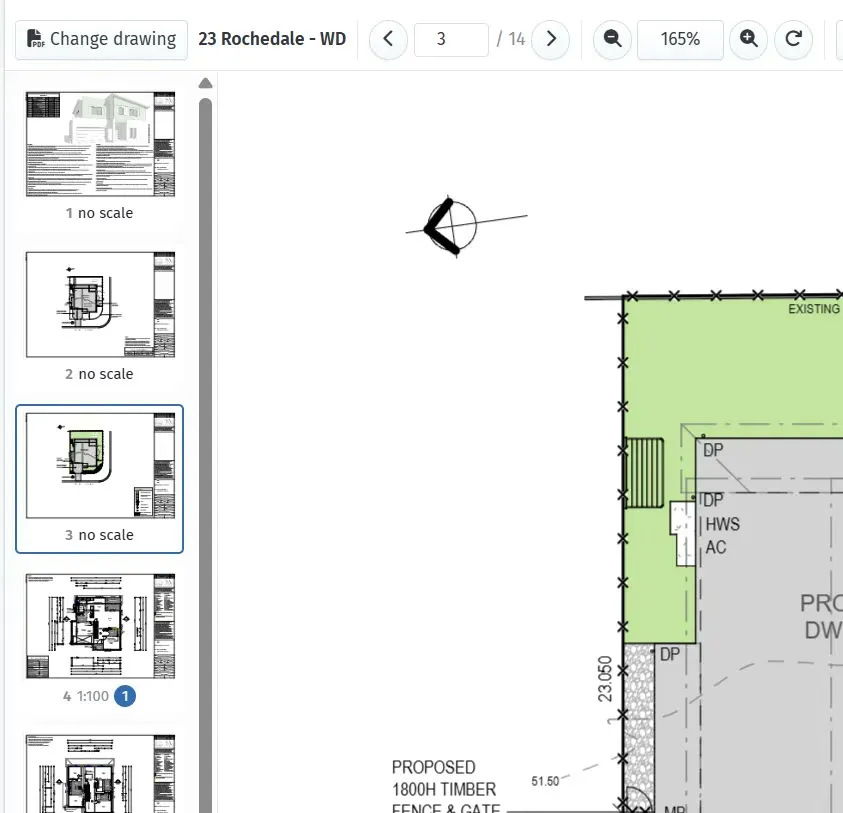
Move between pages of a drawing set from the thumbnails.
Hiding pages you will never measure
Section titled “Hiding pages you will never measure”A drawing set usually carries pages there is nothing to take off: general notes, specification text, a title sheet, photographs. Paging past them all day is friction you do not need.
Hover a page thumbnail and click the eye icon to hide it. It disappears from the rail, and the page arrows skip straight over it.
Hidden pages come back whenever you want. Once anything is hidden, the top of the page rail offers “N pages hidden — show”; turn it on and they reappear, greyed out, each with an eye icon to restore it. The page counter also reads “/ 24 (19 shown)” so the difference is never a mystery.
A page with measurements on it cannot be hidden
Section titled “A page with measurements on it cannot be hidden”If you try, Take-Off refuses and tells you how many measurements are in the way.
That is deliberate. A hidden page’s measurements would go on counting toward the field’s quantity — and so toward the BOQ — while being invisible and unreachable. A number you cannot trace back to anything on a drawing is worse than no number at all. Delete the measurements first if the page really is not one you meant to measure.
Is this shared with my colleagues?
Section titled “Is this shared with my colleagues?”Yes — unlike hiding a field, which is your own view only. “Page 12 is a notes sheet” is a fact about the drawing rather than a personal preference, so hiding it once spares everyone on the estimate the same nuisance.
When a drawing is re-issued
Section titled “When a drawing is re-issued”Drawings change. When you open a revision of a drawing you had previously measured on, Take-Off notices and offers to carry your take-off forward:
Carry take-off over to A-101 Rev C? A-101 Rev B has 34 measurements across 3 pages for 5 fields. Copy them onto Rev C?
Carrying over copies every measurement onto the new revision, in the same place, and moves your quantities with them. Nothing on the old revision is changed or deleted.
This is never automatic. A re-issued drawing may have changed exactly where you measured, so Take-Off asks every time.
Reviewing what came across
Section titled “Reviewing what came across”Carried measurements arrive flagged for review — drawn with a dashed orange halo, and counted in a banner at the top of the fields panel:
18 carried measurements need review — the drawing may have changed.
Work through them against the new drawing. Adjusting a measurement clears its flag automatically; if it is still correct, use Confirm on this page or Confirm all.
If the page numbers have changed
Section titled “If the page numbers have changed”If the new revision has gained or lost a sheet, expand the page mapping and tell Take-Off where each page should go. Pages you do not map are skipped and reported back, rather than guessed at.
Declining
Section titled “Declining”Not now dismisses the offer for this session. Never for this drawing remembers. Neither deletes anything — the old take-off stays exactly where it is.
Printing and sharing a marked-up drawing
Section titled “Printing and sharing a marked-up drawing”Export produces a PDF of the drawing with your measurements drawn on it.
- Only the pages that carry measurements are included. A 40-page drawing set with measurements on three sheets exports as three sheets.
- With a field selected, you export just that field. With none selected, you get everything measured on the drawing.
- Each page carries a small legend: the page number, its scale, and a colour swatch and subtotal for each field on it.
- A summary page lists every measurement by page, with the field totals.
The original drawing underneath stays sharp and searchable — the overlay is drawn as vector, not as a picture of your screen — so the export prints exactly as crisply as the drawing did.
This is the document to attach to a query, send to a subcontractor, or keep on file to show how a quantity was arrived at.
Colours and drawing style
Section titled “Colours and drawing style”Each field has its own colour, so you can see at a glance what has been measured and what has not. Take-Off assigns a new field the next unused colour in the estimate; change it from the field’s settings.
In the same dialog:
- Area fill — how solid area shading is, from outline-only to solid.
- Line thickness — how heavy the lines are.
Both matter more than they sound. The overlay sits on top of a drawing you still need to read through: a sparse site plan takes a solid fill happily, a dense services layout does not. The dialog shows a live sample over some drawing linework so you can judge it.
Both settings apply to the exported PDF as well, so what you see on screen is what prints. Tick Apply this style to every field in the estimate to set them everywhere at once — colours stay per field, since telling fields apart is what they are for.
Hiding a page’s measurements to see the drawing
Section titled “Hiding a page’s measurements to see the drawing”The eye at the top-right of the drawing (or H) hides every measurement on the page you are looking at, so you can read the plan underneath. Press it again to bring them back. The thumbnail keeps its count, marked with an eye-slash, so a page that looks empty isn’t mistaken for one.
This is a view setting for you only — nothing is deleted, no quantity changes, the export still includes them, and colleagues still see them. The field you are measuring into stays visible while the page is hidden, so what you draw is never invisible and everything else stays out of the way until you show it again.
Bringing one field back. While the page’s measurements are hidden, the eye on a field’s row in the list switches that one field on for this page, so you can look at the drawing with only the fields you choose. Click it again to hide it again; showing the whole page again clears those choices.
This page only. The switch above the field list narrows the list to the fields that have a measurement on the page in front of you. The field you are measuring into always stays listed.
It is different from hiding the page (the eye on the thumbnail), which removes a non-drawing sheet from Take-Off for everyone.
Hiding a field
Section titled “Hiding a field”The eye icon next to a field hides it on the drawing. Useful for seeing what is underneath a dense area.
The eye on an assembly heading does the whole group at once — one click to take every measured field in that assembly off the drawing, another to bring them back. It follows the group: while any field in it is still showing, the button hides them all; once they are all hidden, it shows them all.
Hiding is a view setting for you only. It changes no quantity, and colleagues looking at the same estimate still see the field. Hiding the field you are measuring into also stops it being the active one — otherwise every shape you drew would vanish the moment you finished it.