
AI in SmarteBuild
Available onEstimatorBuilder
SmarteBuild uses AI where a builder spends hours reading documents and typing figures: measuring plans, reading supplier quotes and bills, checking an estimate before it goes out, drafting a programme, writing up site photos. The AI reads, drafts and checks. You decide: nothing it produces counts, gets sent or changes your figures until you press a button.
How the AI works here
Section titled “How the AI works here”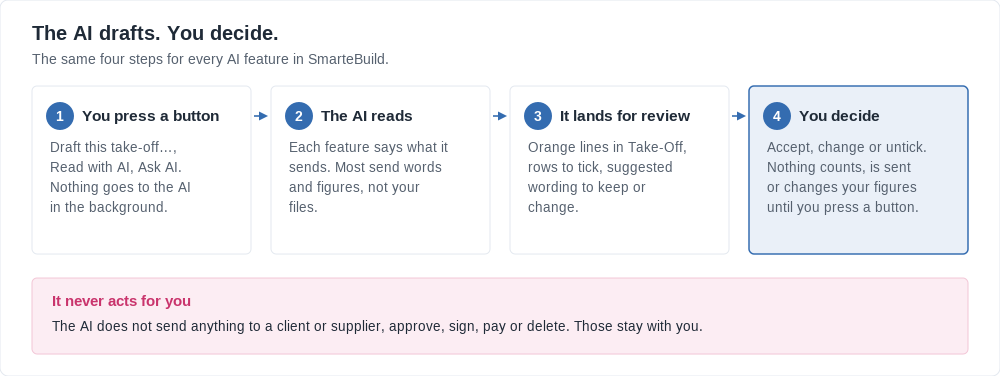
Every AI feature works the same way: it drafts, and nothing counts until you accept it.
- It drafts, you check. What the AI finds lands for review: orange lines in Take-Off, rows to tick, suggested wording to keep or change. Nothing counts toward a field, a price, a schedule or a record until you accept it.
- It never acts for you. The AI does not send anything to a client or supplier, approve, sign, pay or delete. Those stay with you.
- Only when you press a button. Nothing goes to the AI in the background. Each feature says what it sends, and most send only words and figures, not your files.
- Paid from AI credit. Each AI job takes a little of your company’s AI credit. Every company gets three whole-job take-off drafts free and A$10 of credit with its first subscription payment. A job that fails costs nothing.
- Everything else stays free. The free tools sit beside the AI ones and keep working with no credit at all: Read the drawing in Take-Off, the software checks in Final check, the automatic Check model, public holidays in the schedule, and reading a checklist aloud on the phone.
Every AI feature
Section titled “Every AI feature”Estimating
Section titled “Estimating”| Feature | Where | What it does |
|---|---|---|
| Draft this take-off | Take-Off, magic-wand button | Drafts every field of a new estimate from the plans, elevations included |
| Measure with AI | Take-Off, magic-wand button | Measures one field on the page in front of you |
| Symbols like one on a scan | Take-Off | Finds every symbol like the one you boxed on a scanned page |
| Let AI pick the rooms | Take-Off, Rooms window | Ticks the rooms that belong in a field |
| Reading the scale | Take-Off, beside Scale | Reads the sheet’s scale and works out the right one for the page |
| Ask AI what is missing | Take-Off, Check model | Reads a 3D model against your estimate and says what it does not hold |
| Match with AI | Take-Off, Send many | Matches the model’s types to your take-off fields |
| Explain these changes | Take-Off, Changes tab | Explains a revised model in words, with what it does to the cost |
| Ask AI about a cost code | Bill of Quantities | A conversation about the cost code that is open |
| Final check: Read with AI | Bill of Quantities | A second pair of eyes over a finished estimate |
| Final check: Check against the plans | Bill of Quantities, Final check | Compares what Take-Off read off the drawings with the estimate: drawn but not priced, priced but not drawn, counts that do not match |
| Draft inclusions with AI | Client tender | Drafts the inclusions, exclusions and allowance lines from what the estimate prices |
| Update from supplier file | Price lists | Reads a supplier’s price book and lists the price changes |
| Price drift: Explain with AI | Suppliers, Price drift tab | Says in a paragraph what a supplier’s price moves mean for your open estimates, and finds lines that are the same product under other words |
| Ask the job | An estimate’s Ask the job section, or the phone | Answers a question from the job’s own figures |
Winning the work
Section titled “Winning the work”| Feature | Where | What it does |
|---|---|---|
| Find local businesses | Tender invite window, Suppliers | Finds businesses in a trade near the job |
| Read quote | A tender’s subcontractor row, Quotes received | Reads a quote PDF or photo into the tender’s items |
| Check quotes with AI | Compare | Lists what each quote leaves out, allows for or depends on |
| Compare with AI | Tender list, Compare | Lines every quote up against the tender’s items, fills the gaps from your estimate and gives a like-for-like total |
Running the job
Section titled “Running the job”| Feature | Where | What it does |
|---|---|---|
| Draft with AI | Schedule menu | Drafts a construction programme from the estimate |
| Re-plan with AI | Schedule menu | Something slipped: moves the tasks, shows old dates against new, and re-books the trades on Accept |
| Read with AI | An expense | Reads a supplier’s bill into the expense |
| Write it up (AI) | Site diary photo | Writes up what a site photo shows |
| Describe from photo (AI) | A defect | Suggests the observation from the defect’s photo |
| Walk through with voice | Phone, a checklist | Takes your spoken answer to each item |
| Read the docket (AI) | Phone, Purchase Orders | Checks a delivery docket against the order |
| Write it up (AI) | Phone, Site Register | Turns what you said into a toolbox talk |
| Ask the job | Phone, Home | Answers a question from the job’s own figures |
Where to start
Section titled “Where to start”- See your credit. Open the apps menu (the grid at the top right) and choose AI credits: what is left, the free drafts left, and what each job cost. See AI credits.
- Try Final check on a finished estimate. The software checks are free; Read with AI adds the AI read. It is the quickest way to see what the AI is like on your own work.
- Draft a take-off. On a new estimate from a template, with plans uploaded, press the magic-wand button and Draft this take-off…. The first three are free.
When the credit runs low, an administrator buys a A$50 pack in the Admin panel - see Buying credit.
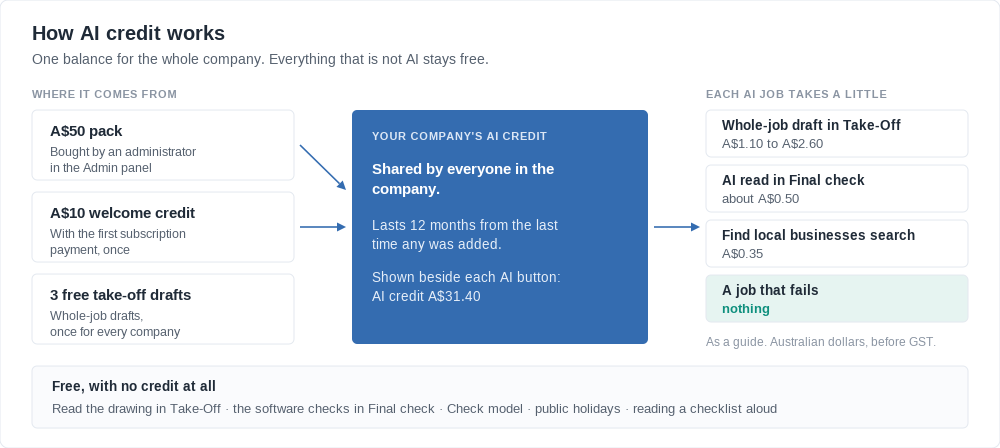
One balance for the whole company. A job that fails costs nothing, and the free tools never touch it.