
AI while estimating
Available onEstimatorBuilder
Estimating is where most of the AI sits, because it is where most of the reading and typing is. Each section below says what the feature does and links to its full guide.
Take-Off
Section titled “Take-Off”Take-Off reads a drawing’s own lines for free first, with Read the drawing. The AI is for the rest. Whatever it finds lands orange and marked for review, and nothing counts toward a field until you accept it.
Draft a whole take-off
Section titled “Draft a whole take-off”For a new estimate built from a template, with fields and nothing measured yet: the magic-wand Read the drawing button, then Draft this take-off…. The AI reads every page you have not hidden and proposes a quantity for each field, page by page, with how sure it is (Sure, Check or Guess). On elevations it reads the wall faces - each run of render, cladding or brick, with the windows taken out - for finish fields measured in m². Fields it could not answer are listed for you to measure.
Every company gets three drafts free. Where does the draft stand? then shows the estimate so far. Full guide: Draft this take-off.
Measure one field
Section titled “Measure one field”Measure with AI, under the tiles in Read the drawing, measures the open field on the page in front of you. If it read the field wrong, type a hint (“only the garage”) and try again. Full guide: Measure with AI.
Symbols on a scanned plan
Section titled “Symbols on a scanned plan”A scan has no lines to read. Box one symbol with Symbols like one and the AI pins the matches. Full guide: Symbols like one on a scan.
Rooms and the scale
Section titled “Rooms and the scale”- Let AI pick the rooms, in the Rooms window, ticks the rooms that belong in a field and says why: Let AI pick the rooms.
- The magic-wand button beside Scale reads the sheet’s title block or scale bar, and works out the right scale when an A1 drawing was issued as an A3 PDF: Reading the scale.
3D models
Section titled “3D models”With the designer’s IFC model open in Take-Off:
- Check model lists what an automatic check found - doubled elements, parts not modelled, rooms missing. That check is free. Ask AI what is missing then reads the model’s types against what your estimate prices and says what the model does not hold and how to cover it.
- Match with AI, in Send many, matches the model’s types to your take-off fields and which figure each sends, with a reason on every row and the doubtful ones marked Check.
- Explain these changes, on the Changes tab when you compare two revisions, says what changed in words, which fields it moves, and what updating them does to the cost of the estimate. The dollars come from your estimate, not from the AI.
The AI is given the type names, counts and totals and your field names, never the model file. Full guide: 3D models (IFC).
Ask AI about a cost code
Section titled “Ask AI about a cost code”Ask AI on the Bill of Quantities toolbar, next to Final check, opens a side panel about the cost code that is open: what usually goes in it on a job like this, what is missing, whether the rates look right for the job’s state, how to measure and price it. It suggests; you change the estimate yourself. Full guide: Ask AI about a cost code.
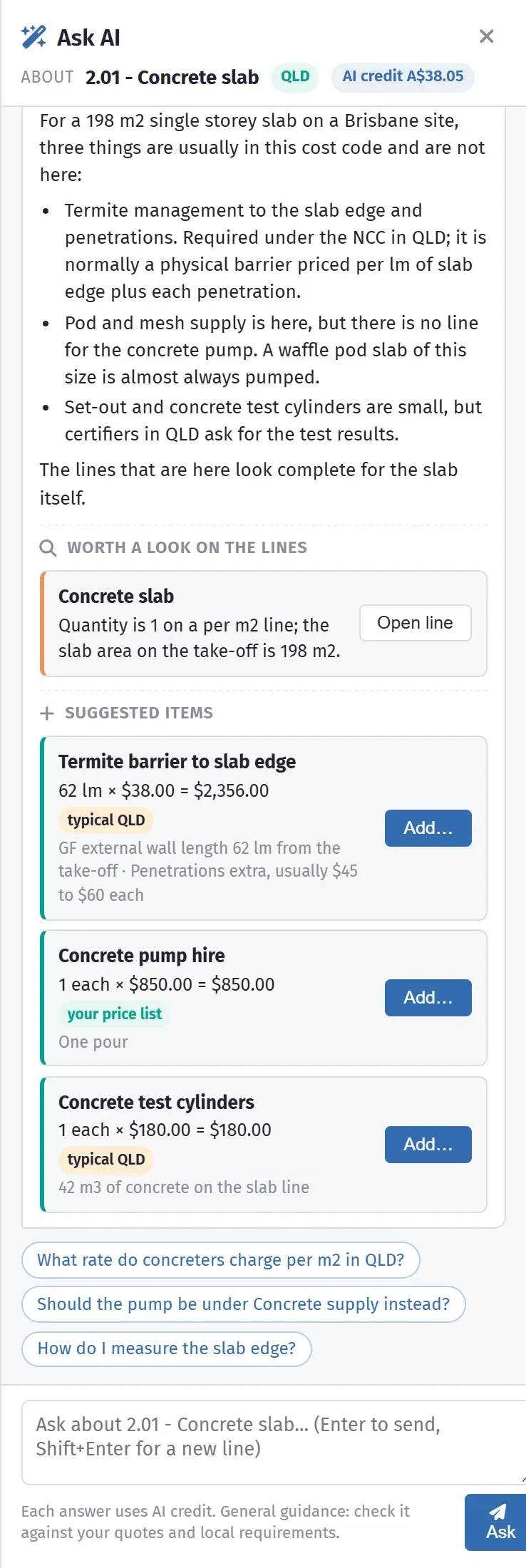
It suggests items with where each price came from. Add… opens the usual new-item window; nothing is added by itself.
Final check
Section titled “Final check”Final check on the Bill of Quantities checks a finished estimate before it goes to the client. The software’s own checks run straight away and are free. Read with AI adds a second pair of eyes: in about a minute it reads the estimate as a whole and lists what looks missing or wrong, biggest money first. It changes nothing. Full guide: Final check.
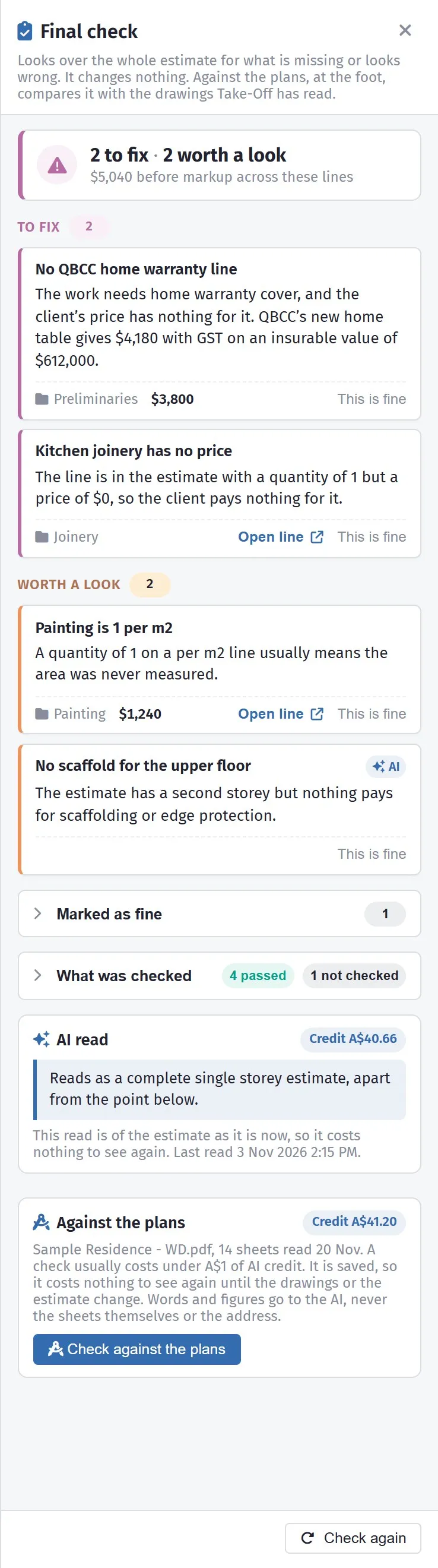
What the AI read finds sits in the same list as the software’s own checks, marked AI.
Check against the plans
Section titled “Check against the plans”At the foot of the Final check panel, Check against the plans compares the drawings with the estimate. It uses what Take-Off has already read off the job’s drawings (rooms, storeys, wall faces, door and window counts, the words on the sheets) and lists three kinds of finding: Drawn, not priced, Priced, not drawn and Count does not match, each with the sheet it was seen on, the cost code, how sure it is and the money at stake. Add to estimate opens the new-item window on that cost code. Read the sheets first with Draft with AI in Take-Off. Full guide: Check against the plans.
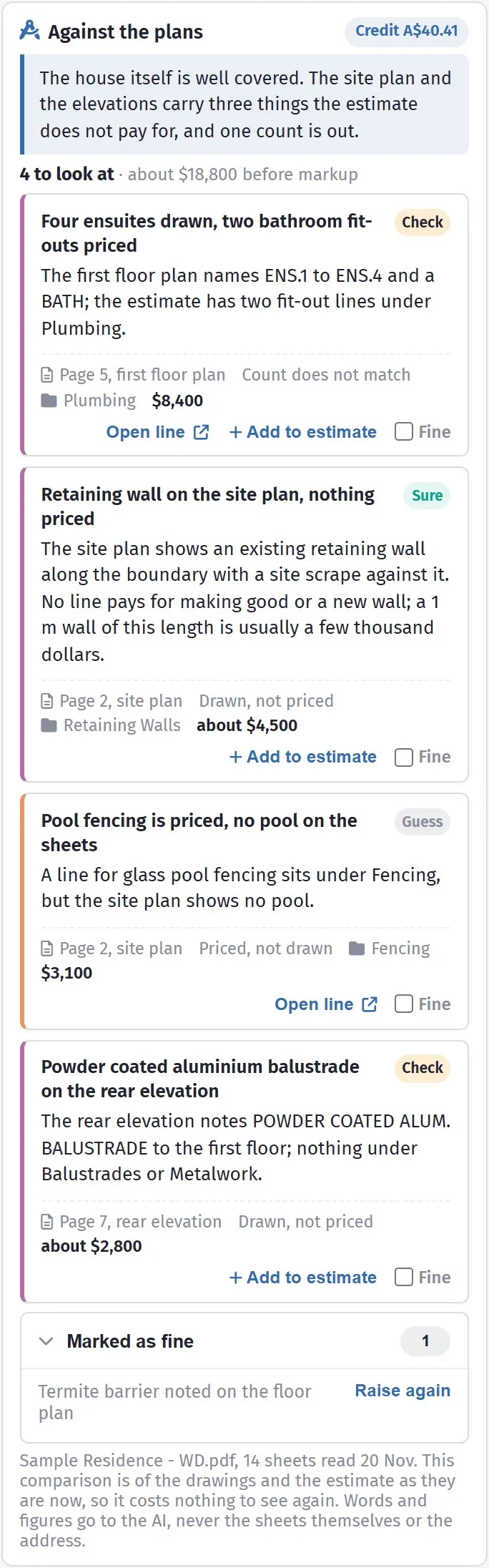
Biggest money first. Each finding names the sheet it was seen on; Add to estimate puts the missing line in for you to price.
Inclusions and exclusions
Section titled “Inclusions and exclusions”On the client tender, Draft inclusions with AI reads what the estimate actually prices and drafts the Inclusions (one group per cost code), the Exclusions (what a job like this usually has that this estimate does not price) and a line for each provisional sum and prime cost item. Untick or reword any line, then Put the ticked lines in the tender. Once you have saved tenders of your own, it writes the way you do. It never changes a price. Full guide: Draft inclusions with AI.
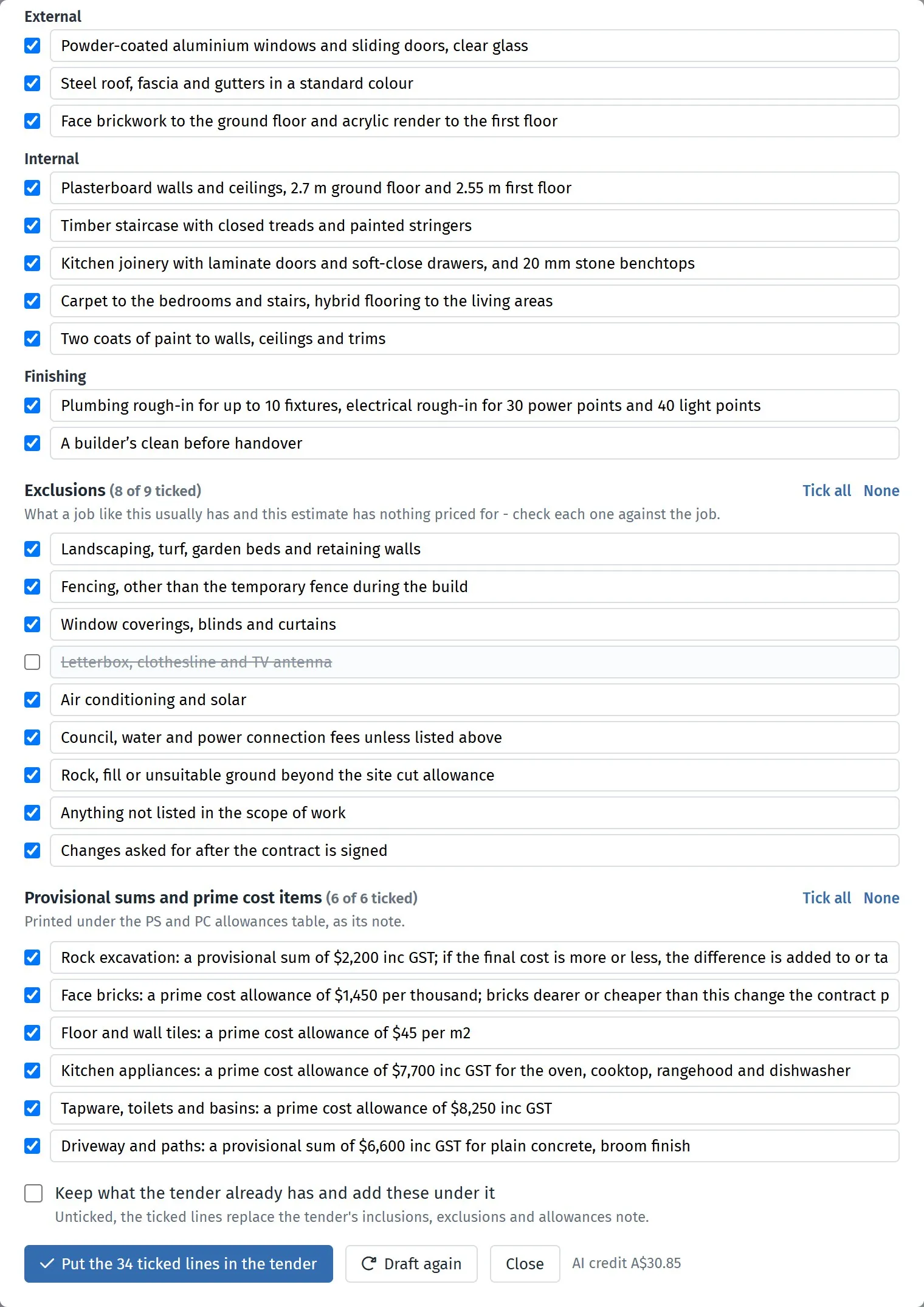
Every line has a tick. An unticked line is struck through and stays out of the tender.
Prices from a supplier’s file
Section titled “Prices from a supplier’s file”Update from supplier file (AI) in Price lists reads a supplier’s price book, price list or quote - PDF, photo or Excel - and compares it with that supplier’s products. You see the price changes and new products it found, and nothing changes until you press Apply. Applying is free. Full guide: Update prices from a supplier’s file.
Price drift
Section titled “Price drift”When a supplier’s prices move, the supplier’s Price drift tab lists the open estimates still at the old rate and what the new rates would do to each one. That list is SmarteBuild’s own arithmetic and free. Explain with AI adds one short paragraph on what moved and what it means, and looks for estimate lines that are the same product under other words; it marks them matched by AI, unticked until you agree. A few cents of credit a time. Update rates… then reprices the estimates you tick. Full guide: Price drift.
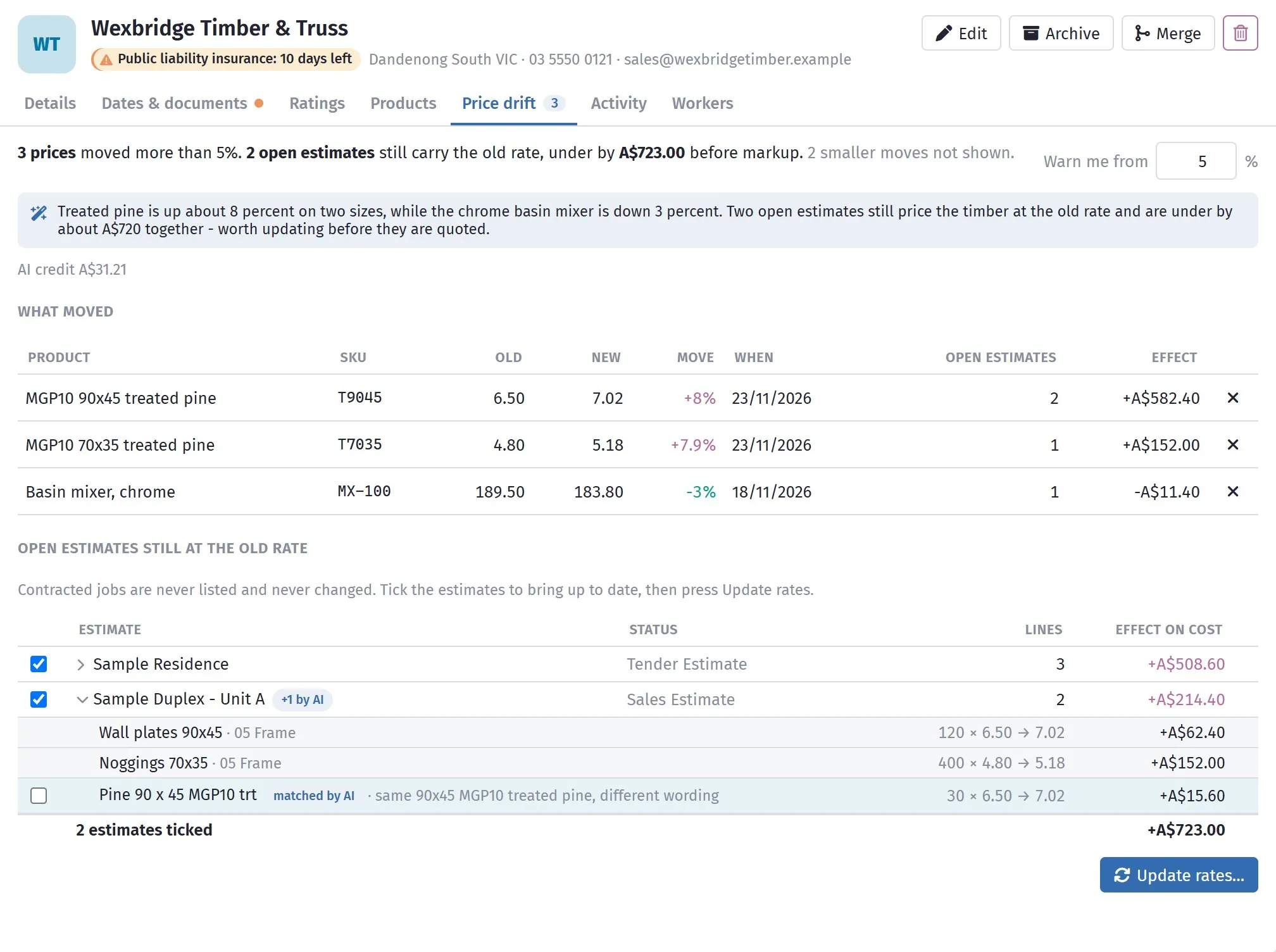
The dollar figures are SmarteBuild’s; the AI only writes the words and suggests the matches.
Ask the job
Section titled “Ask the job”Ask the job, a section of an estimate in Projects (and a tile on the phone), answers a question in plain words from what is recorded on the job: its money, bills, claims, orders, schedule, defects, RFIs and site diary. Which claims are unpaid? Which cost codes are over budget? How much have we paid the concreter so far? It answers from the job’s own figures and does not look anywhere else. Full guide: Ask the job.